Important: This article is intended for Endalia HR users with an Administrator profile.
You can register an employee directly, by following the steps in this article, or by navigating the path Organization and People > People > Company > Candidates, where a candidate for the position, previously managed in Teamtailor or Viterbit, becomes an employee of your company. Check the article Candidates, available in this section of the Help Center, for more information.
Integrate new collaborators into the structure of your organization quickly and easily.
In this article you will find:
How to register a new employee?
- Within the hub People and Positions, select People > Personnel Monitoring > Employees
- Press the Add Employee button, which you will find in the toolbar.
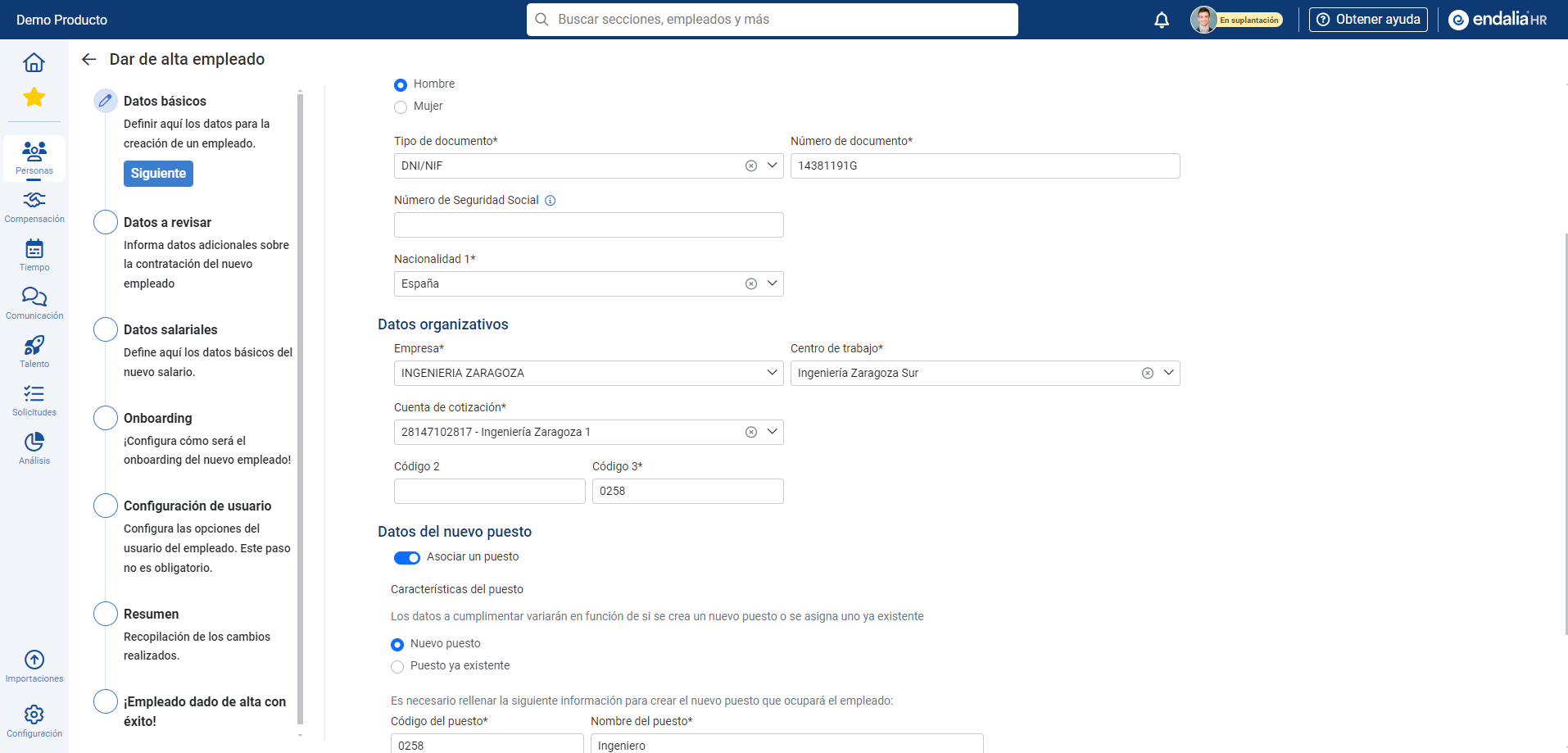
- A process or stepper will be presented in several steps; in the first, enter the basic data, as well as any additional information you consider necessary. Click on Next
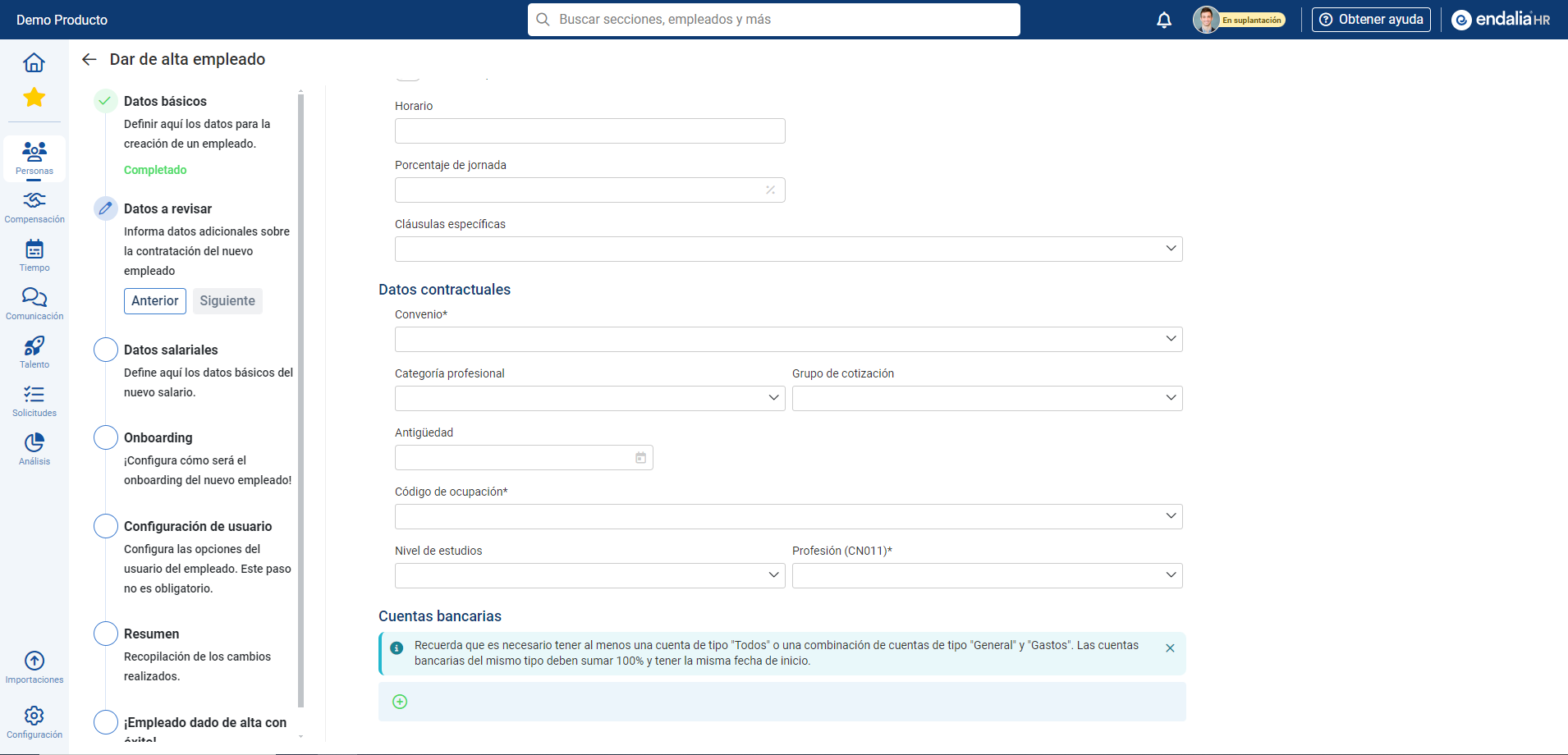
- The second step, Data to review, allows you to enter additional data related to the hiring of the new employee. This option will only appear in the process if the People Administration and Payroll module is active, and includes "bank accounts" as a configurable option from that menu. Again, click on Next
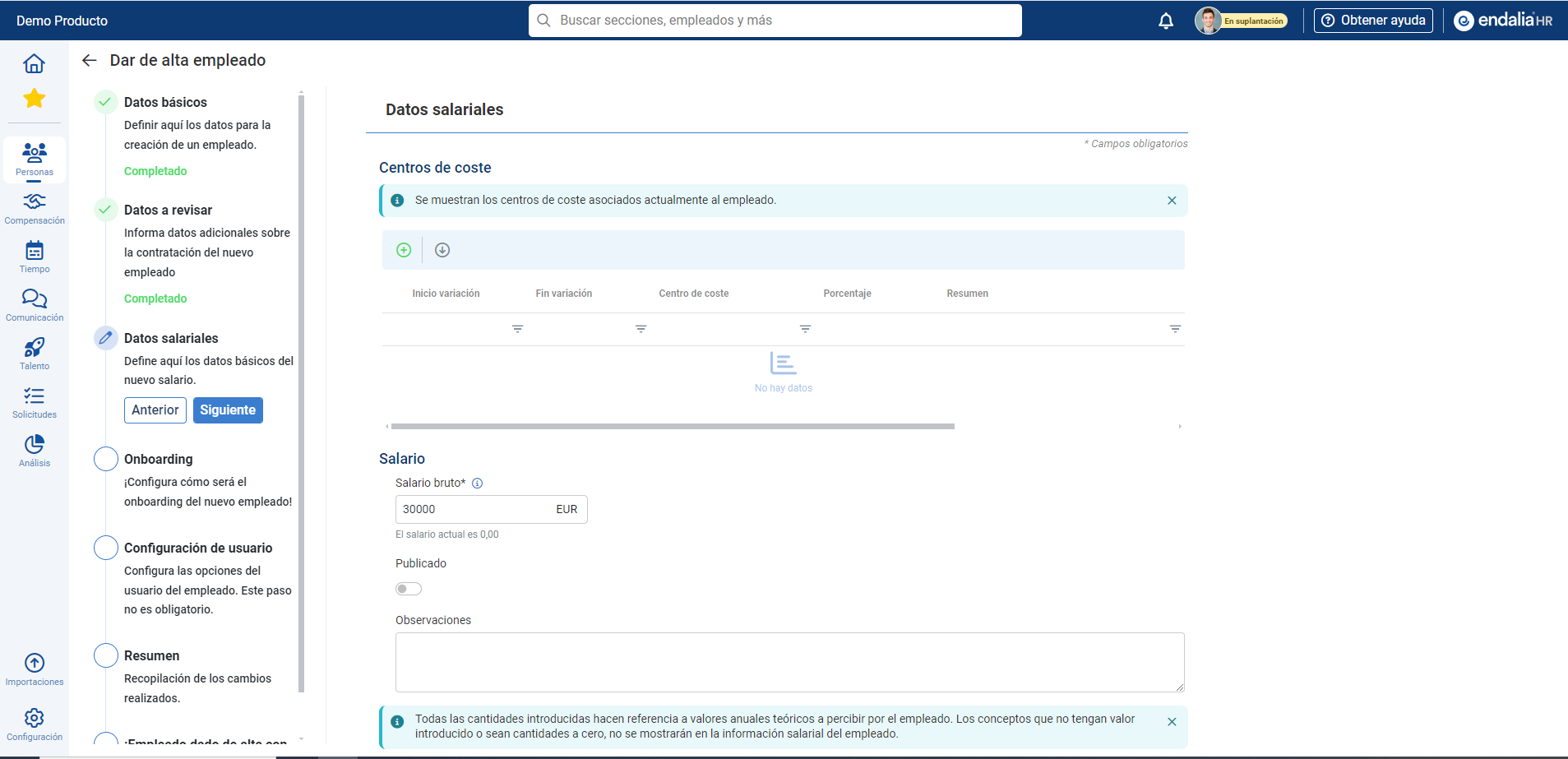
- Salary data: such as work centers, salary, etc. Again, this option will only be active if the People Administration and Payroll module is contracted. Click on Next
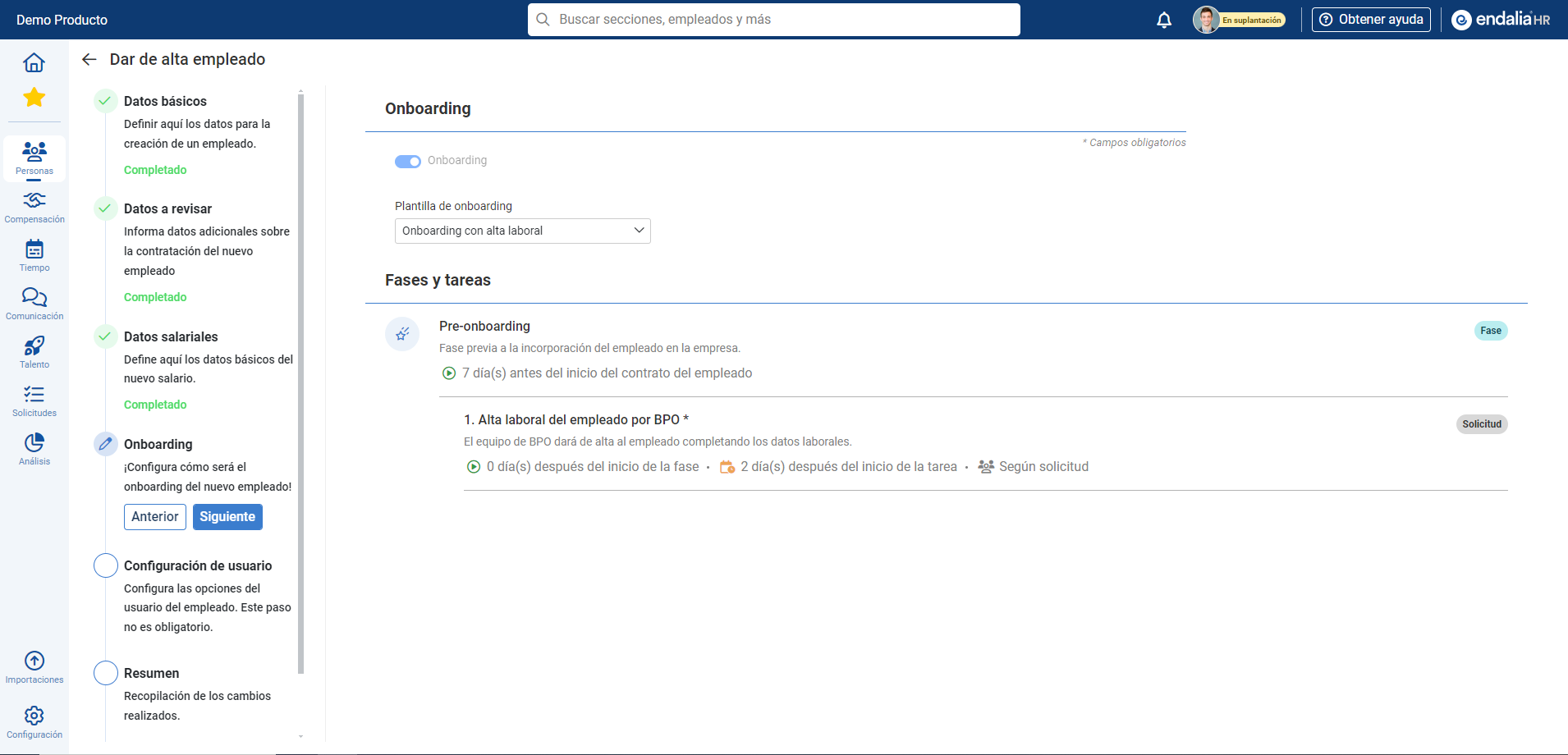
- The next step, Onboarding, will allow you to configure the actions to be carried out with the employee upon their incorporation into the company. Once you have completed the fields (at least, as always, the mandatory ones), click on Next
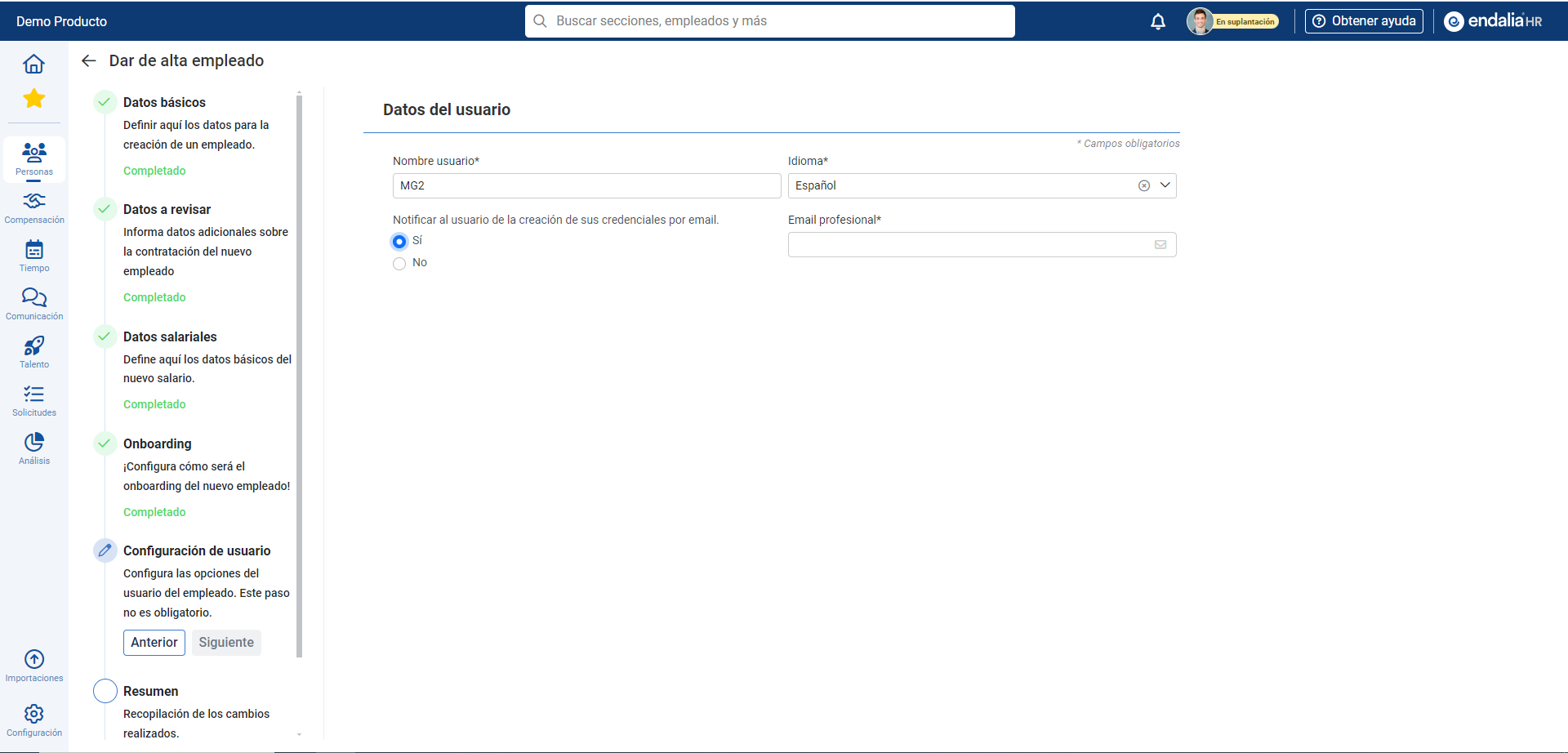
- The User Configuration, in the next step, is optional, and allows you to assign language and username, notify by mail of the creation of their credentials, etc. Again, as throughout the process, click on Next
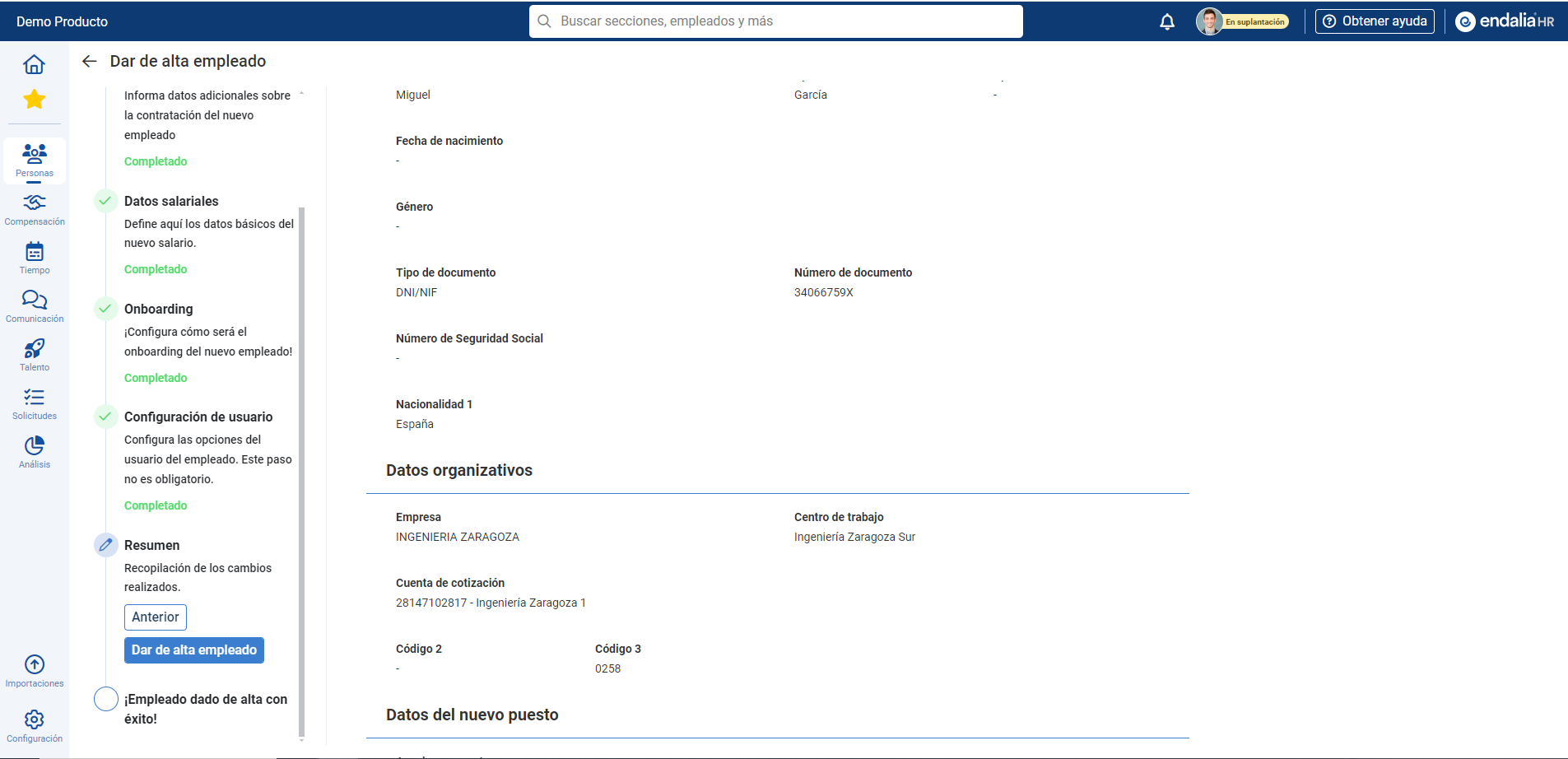
- The summary screen allows you to view a compendium of all the data entered in the previous steps on a single screen. Once verified, click on Register Employee
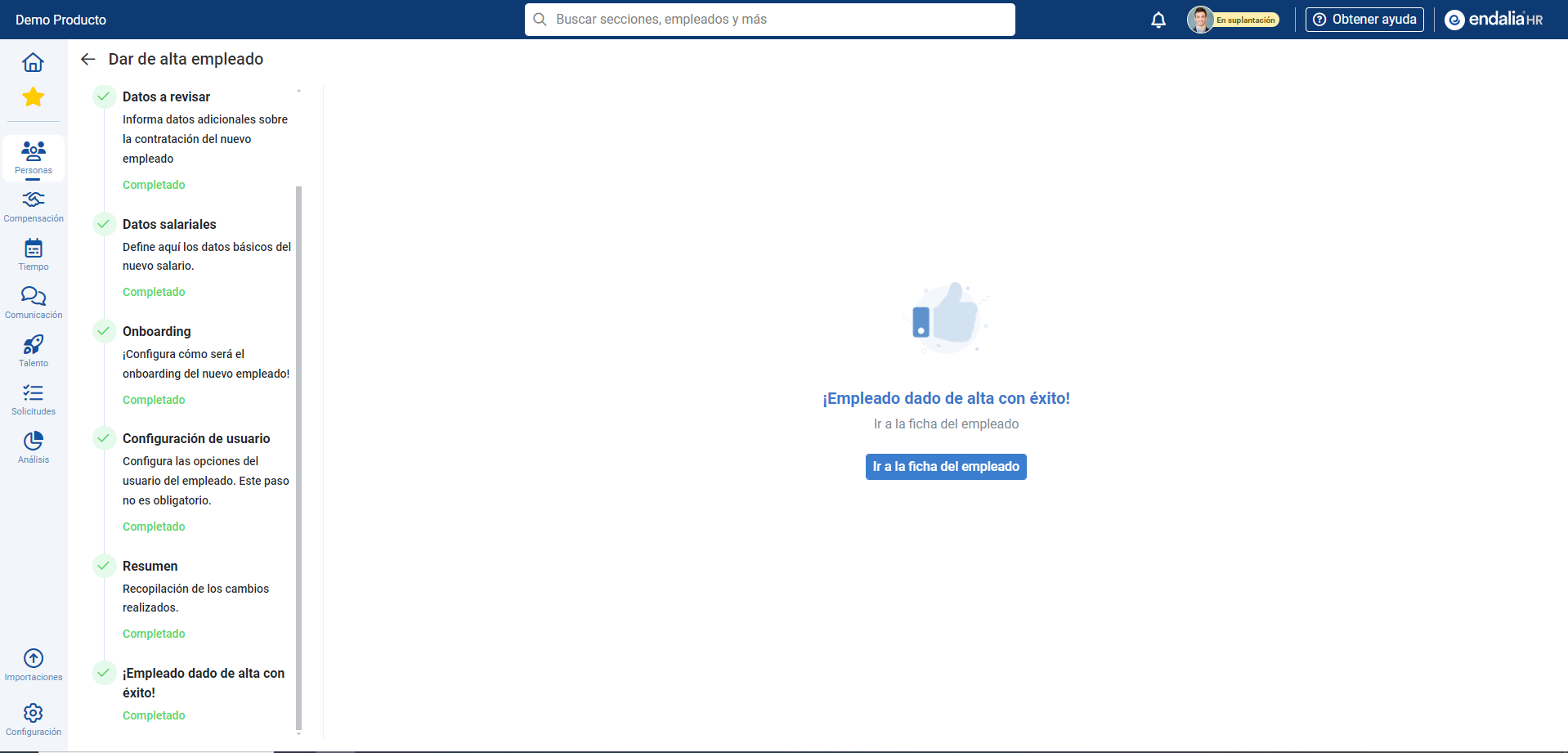
- Employee successfully registered! Now you can go, with the corresponding button, to the newly created employee's file or use the Back button, in the top left part of the screen, to return to the general employee list.
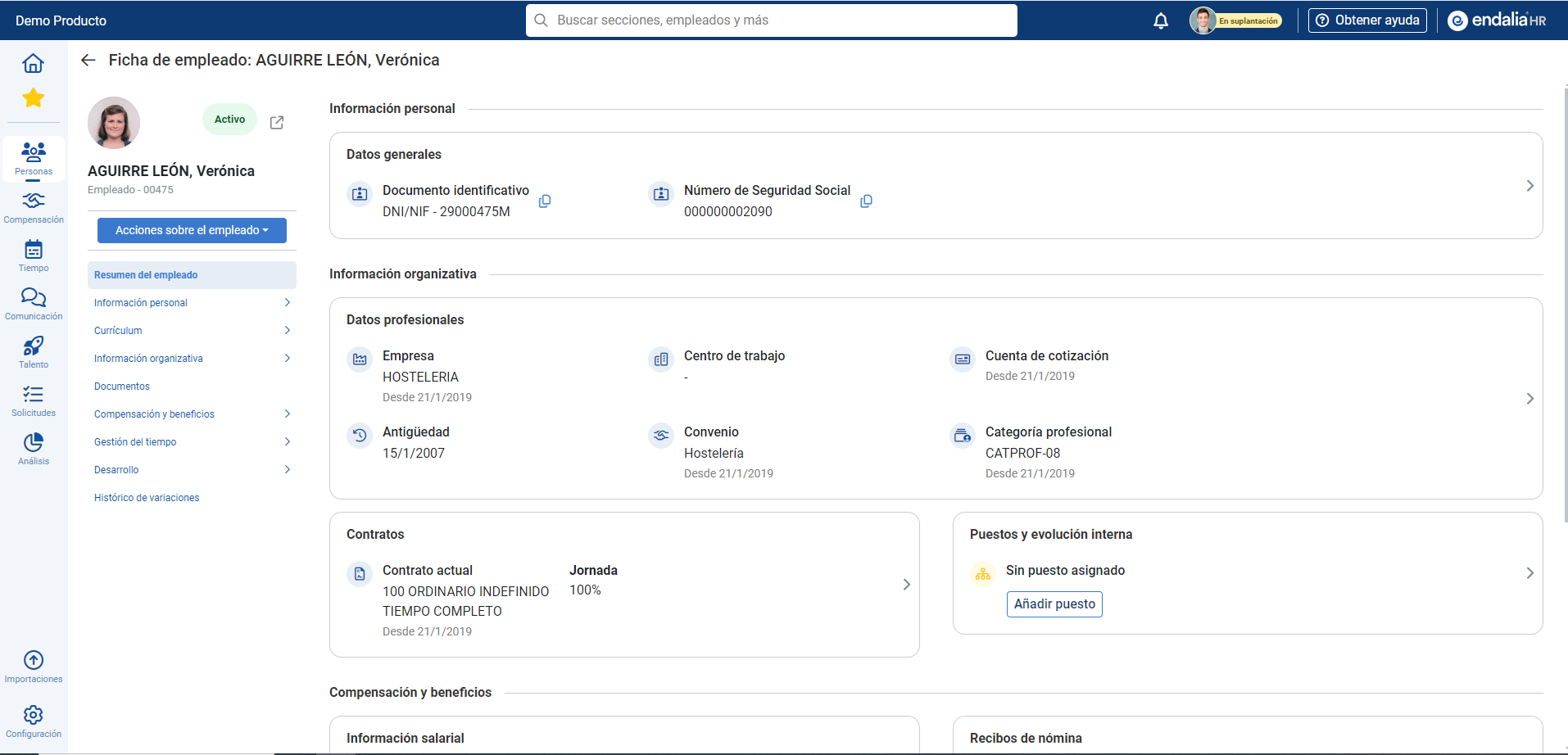
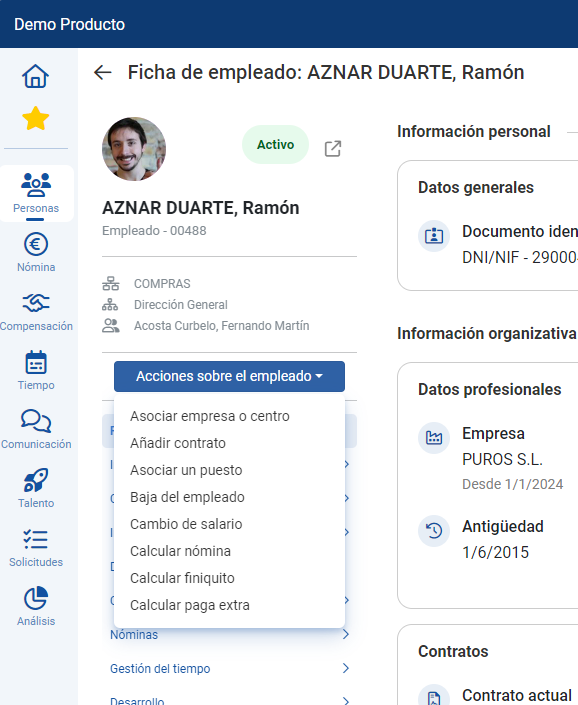
Note: Within the record of each employee, in the path Organization and People > People > Employees > Edit employee, there are numerous variables to complete (Personal Information, Curriculum, Documents, Payroll, etc.), as well as a button for Actions on the employee, for greater convenience.
Finally, remember that from Configuration > People > Module Options > Employee registration options, you can activate various options to customize the functionality that is the title of this article.

Want to know more? See the following related articles:
If you have doubts about the terms, take a look at our glossary in this link.
Was this article helpful?
That’s Great!
Thank you for your feedback
Sorry! We couldn't be helpful
Thank you for your feedback
Feedback sent
We appreciate your effort and will try to fix the article