This article is not available in Portuguese/Portugal, view it in Spanish
Important: this article is aimed at Endalia HR users with an Administrator profile.
Managing templates involves controlling a series of basic functionalities: hires, renewals, promotions, salaries... and also terminations. If you want to learn to manage them, pay attention to these simple steps.
In this article:
Delete an employee
- Go to the Organization and People hub and from there, click on People> Staff Monitoring >
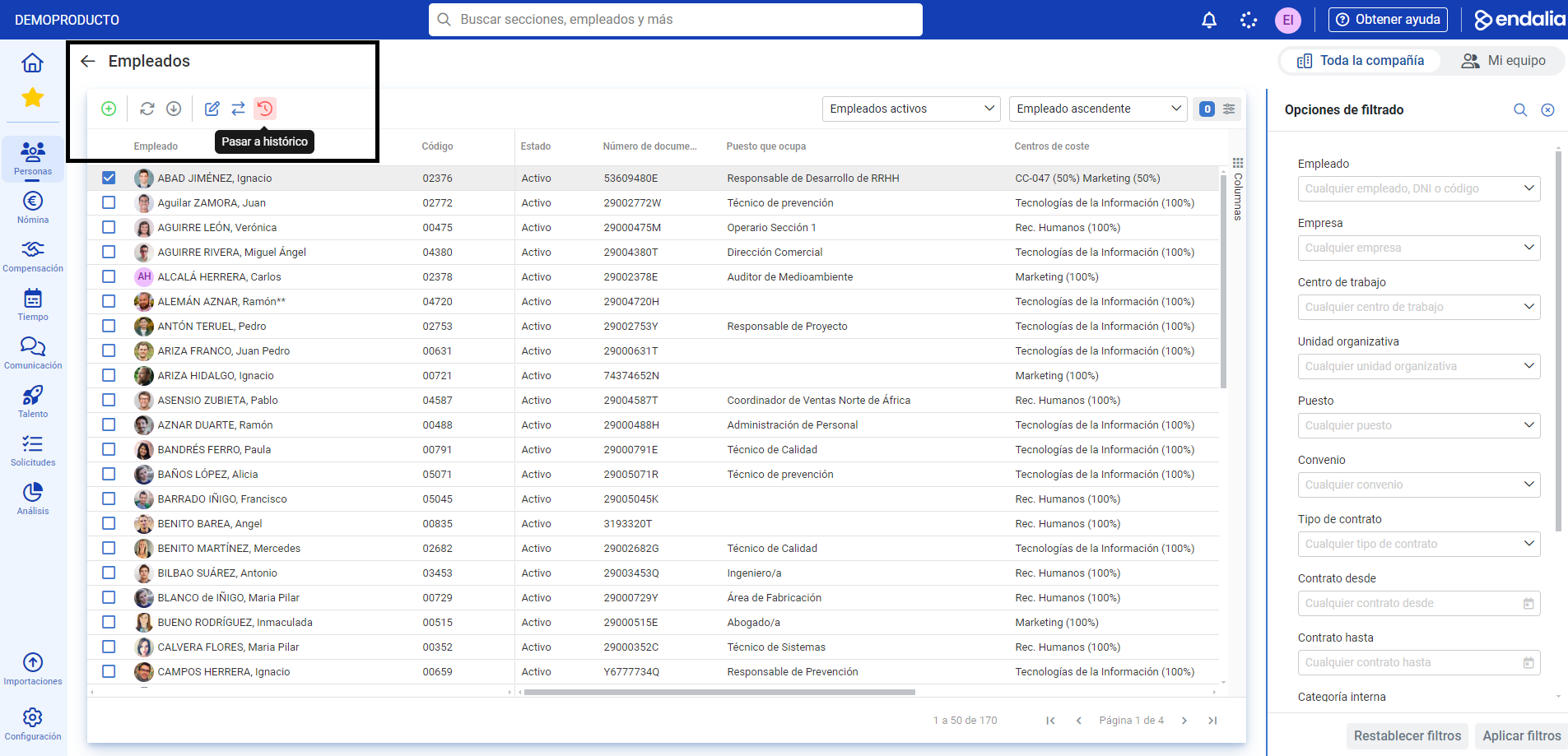
- On this screen, a list of active employees and their data is presented. Click on the employee's box or corresponding row and press the Move to historical button, located on the toolbar:
- In the confirmation modal window of the same name, two fields are presented: Termination date (mandatory) and reason (optional). Then, confirm the Move to historical
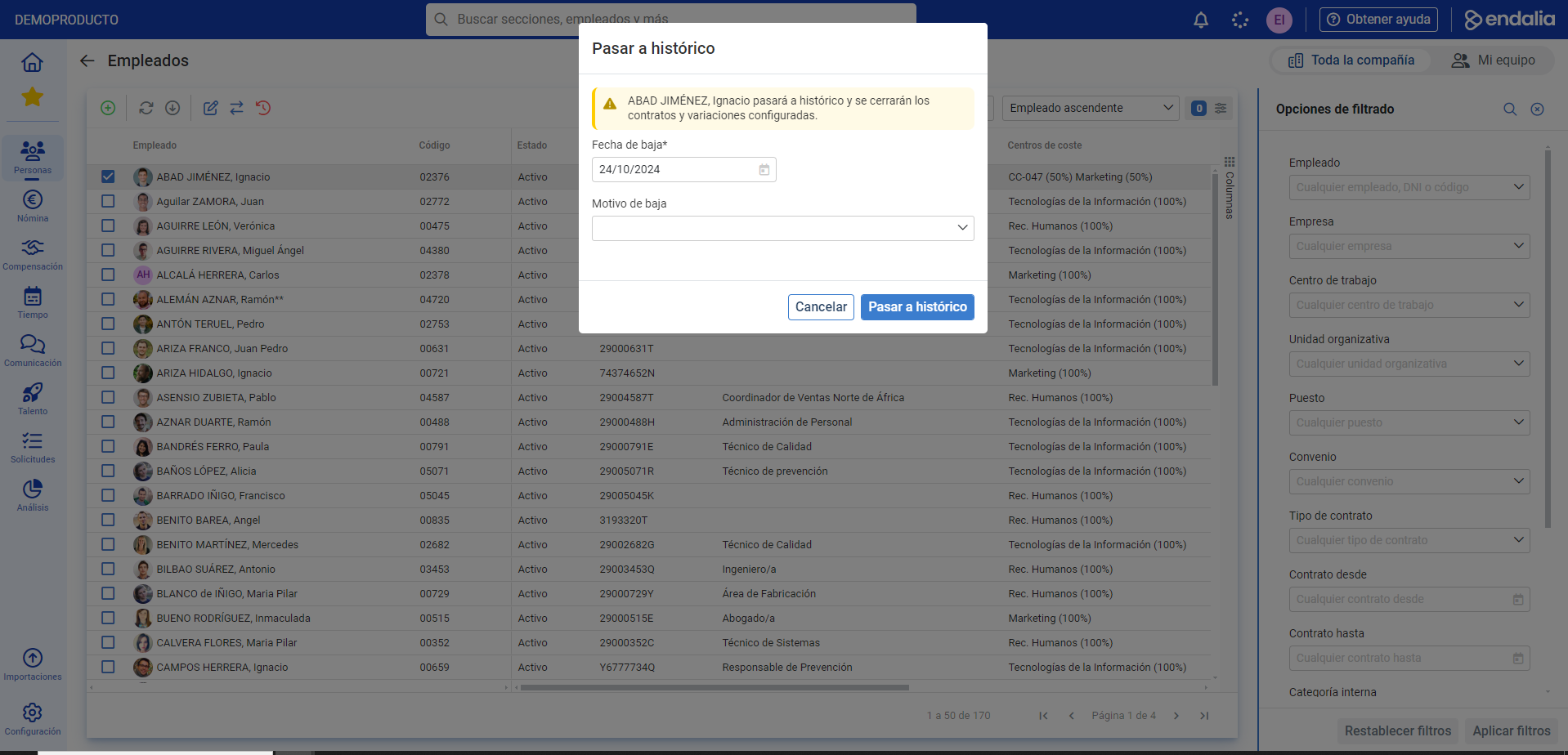 order.
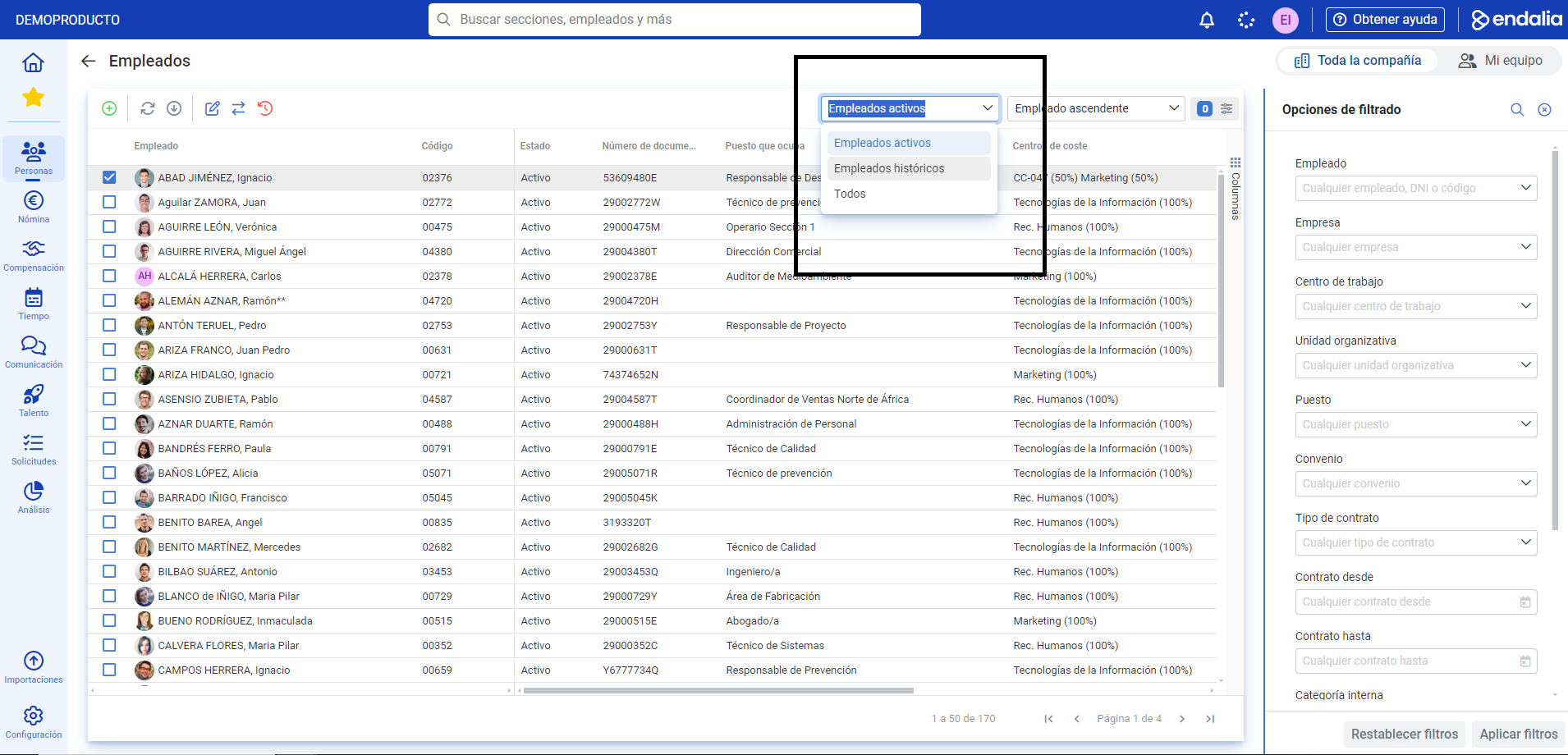
 - In the filter found also in the toolbar, select Historical Employees
- Again, click on the corresponding box or row of the worker and then press the Delete employees button, located on the toolbar:
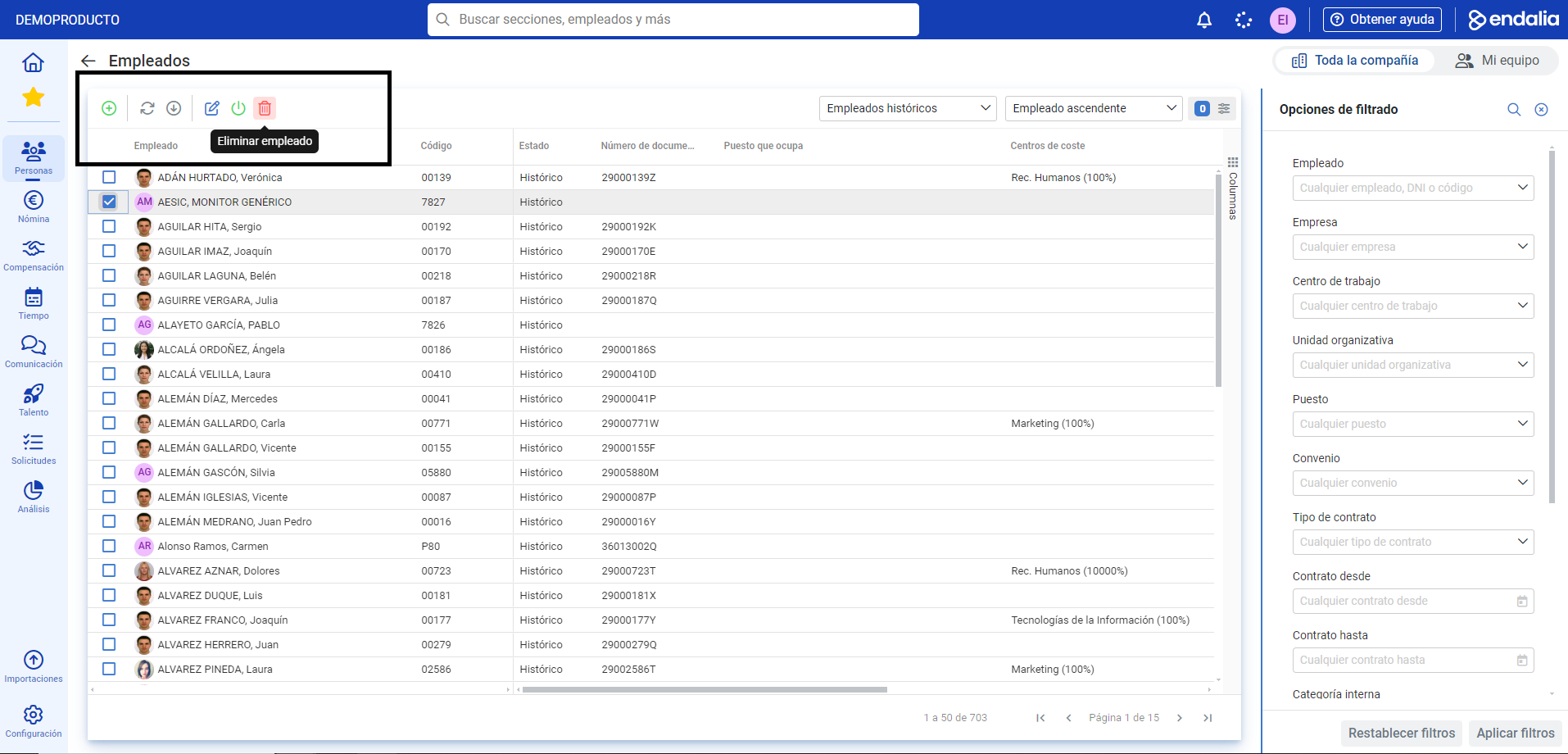
Tip: You can delete multiple employees at once within the historical employee list by selecting the corresponding box or row and pressing Delete employee.
Process video
Here, this functionality is summarized:
Want to know more? Check the following related articles:
If you have doubts about terms, take a look at our glossary at this link.
Was this article helpful?
That’s Great!
Thank you for your feedback
Sorry! We couldn't be helpful
Thank you for your feedback
Feedback sent
We appreciate your effort and will try to fix the article