Remember: this article is intended for Endalia HR users with an Administrator profile.
As with other modules, you have the option to track data, essential for obtaining metrics and results related to surveys.
Here we offer you:
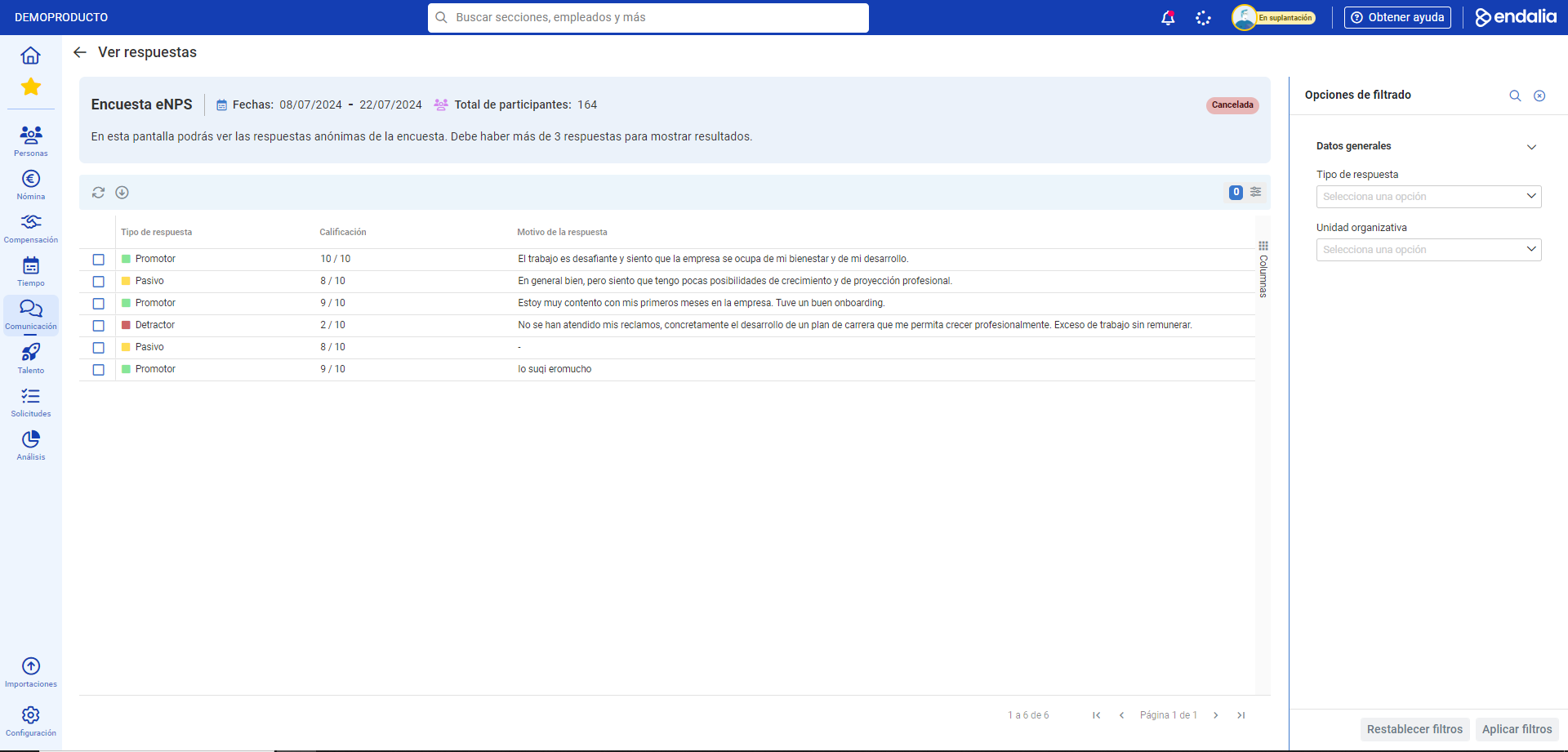
Note: Regarding the measurement of eNPS surveys, on a scale of 0-10, employees are divided into:
Detractors (0-6): they do not recommend working in the company, and their opinion about it is generally negative.
Passive (7-8): they do not have a negative opinion of the company, but their level of commitment is not high.
Promoters (9-10): their opinion of the company is very good, and they actively recommend working there.
Monitoring
- In the Internal Communication hub, go to Surveys > eNPS
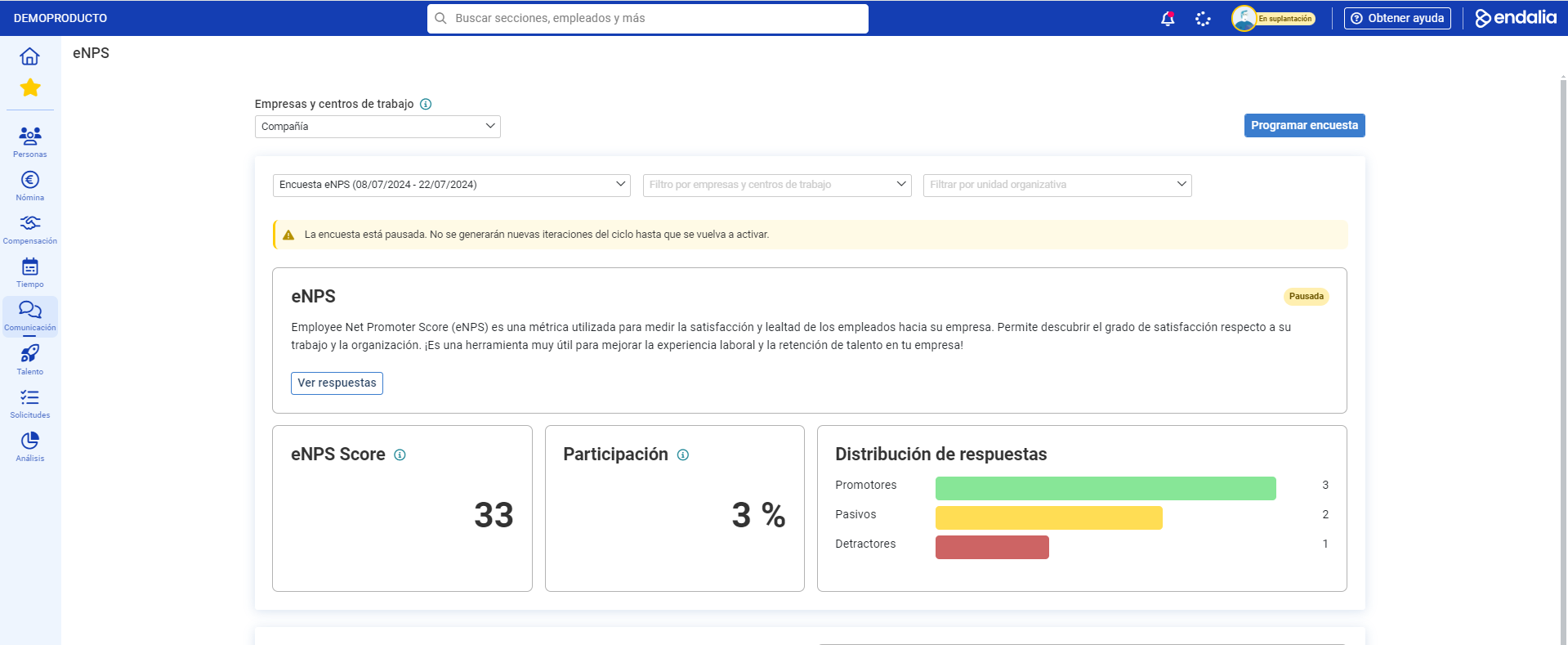
- On this first screen, the dropdown shows you, first, the companies and work centers with surveys conducted. Keep in mind that if an aggregator entity is pre-configured, you will be able to see both historical and current data, while for previous ones, only historical data:
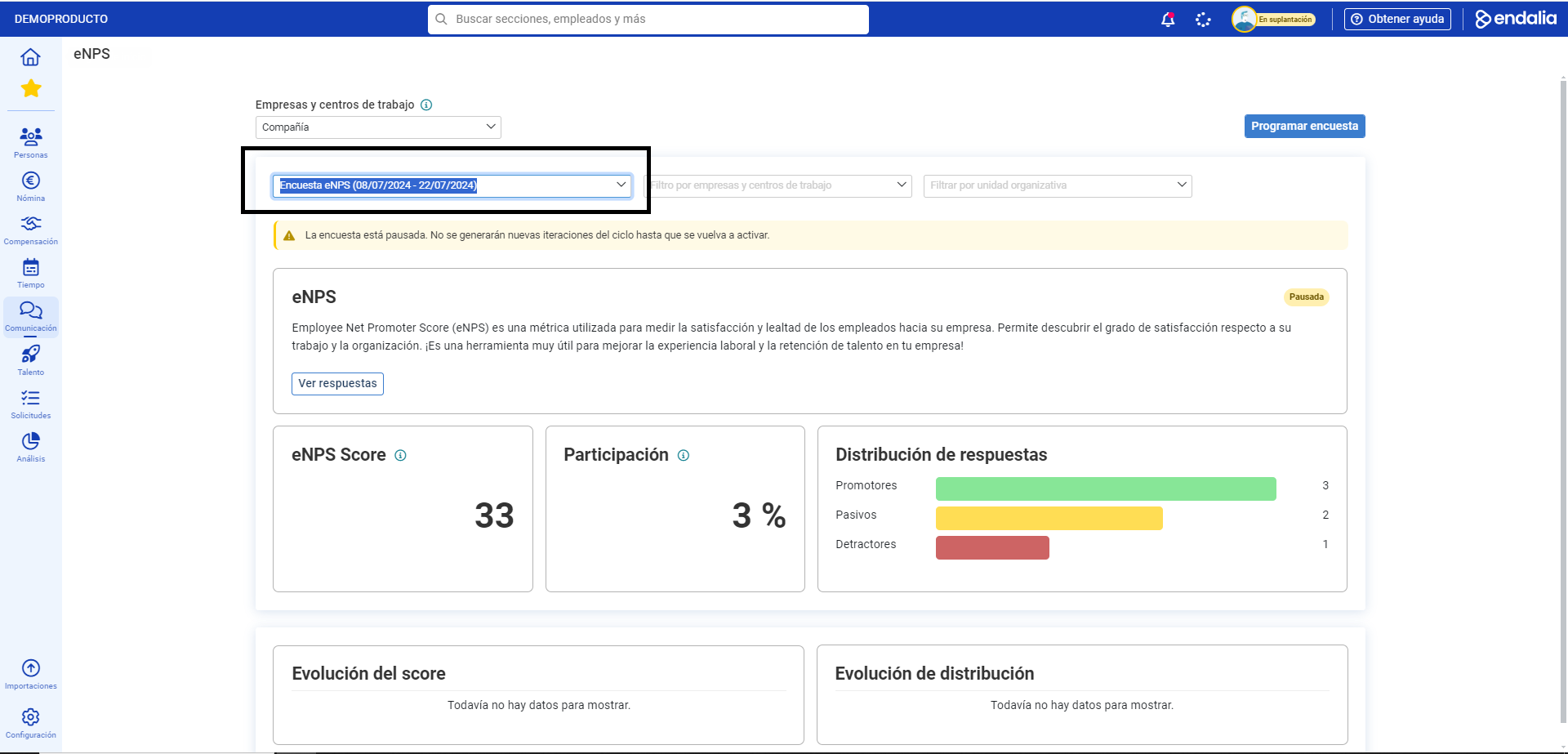
- Once the Company/Work Center is selected, it is time to go to the iterations located just below. Iterations are understood as the number of times a survey is repeated over a time span:
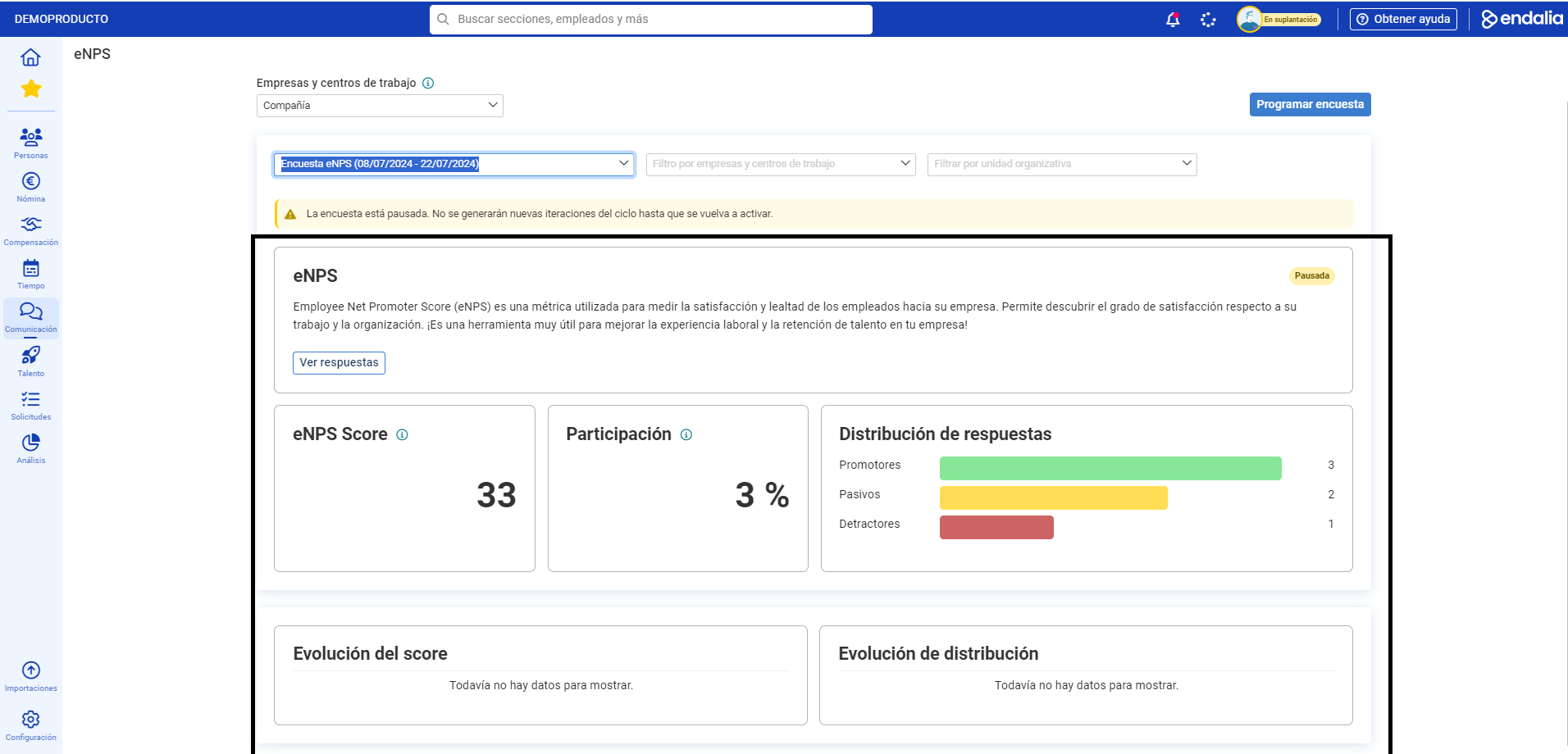
- Once a specific iteration or repetition is chosen, you will find all the related data right below the screen in graph form. Also, note that by clicking on the See responses button, you will be able to view, in detail, the eNPS scores for a given iteration and a specific number of participants:
Also, take a look at these related articles, in case they might be helpful:
If you have doubts about the terms, take a look at our glossary at this link.
Was this article helpful?
That’s Great!
Thank you for your feedback
Sorry! We couldn't be helpful
Thank you for your feedback
Feedback sent
We appreciate your effort and will try to fix the article