Important: this article is aimed at Endalia HR users with a Managerial profile.
Team leaders can access this screen to manage their pending expense notes. If you want to learn more about this interesting functionality, don't miss these lines.
In this article:
Expense Notes
- Within the Compensation hub, click on Expenses > Expense Notes.
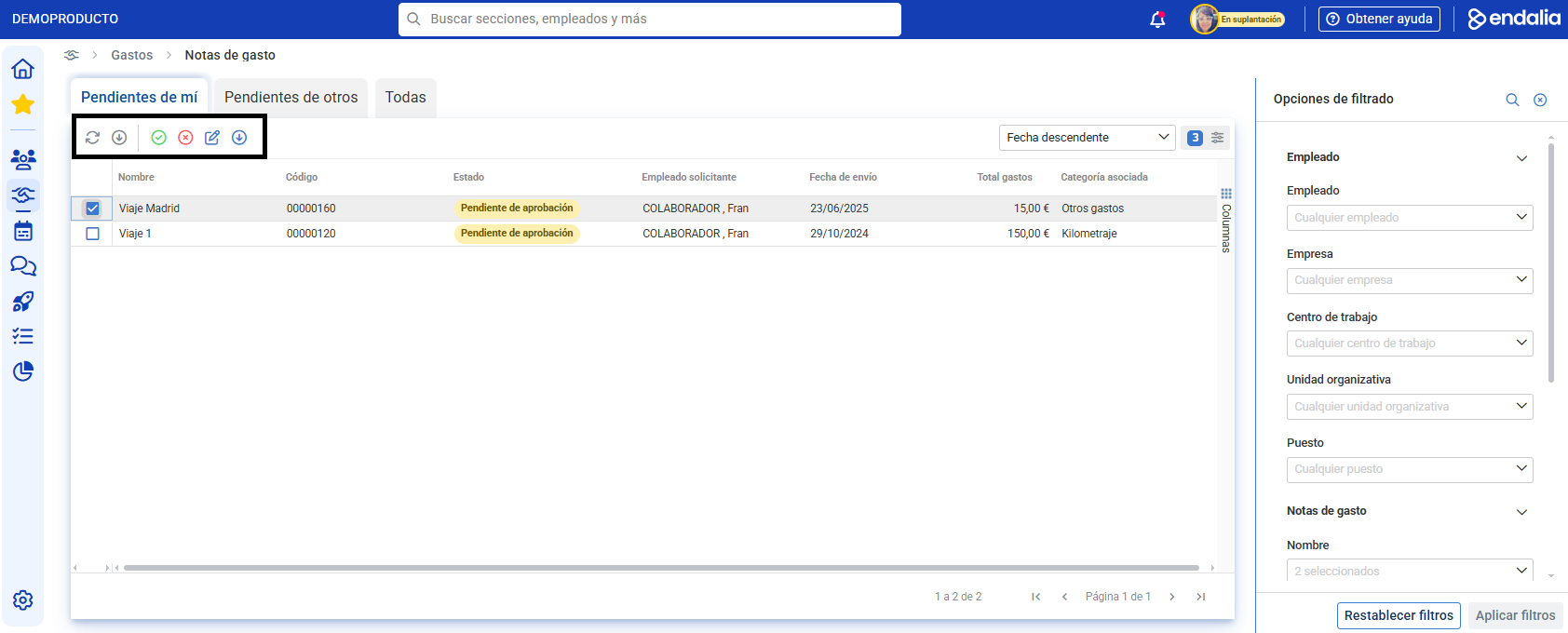
- On the screen displayed, you will see all information related to the expense notes. The different tabs will allow you to filter the notes according to their status:
- Pending my validation
- Pending validation from others
- All notes
- To manage an expense note, click on the corresponding box or on the row of the note you want to review. In the toolbar, you will find the following options:
- Validate or reject the expense note (in case of rejection, the collaborator will receive a notification).
- Edit expense note (explained below)
- Download summary of expenses to see the details.
- The Edit expense note option allows you to access:
- General Data of the note. At all times, you will have the option to Resolve Request active. From there, you can validate it or reject it when there are active phases, if you are responsible for its validation.
- Validation Processes. View the validation history and status.
- Complementary Documents associated with the note.
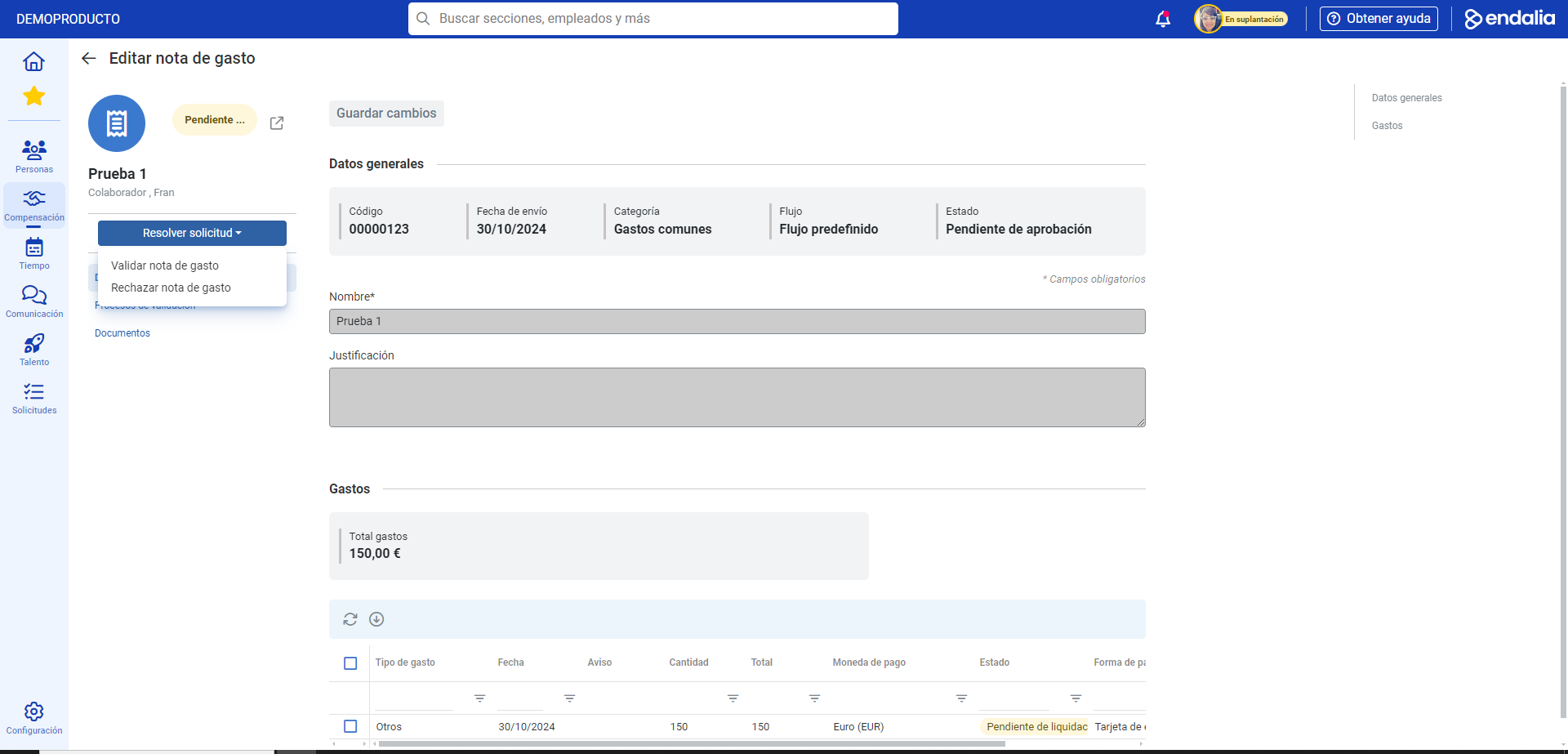
As a team leader, you can access this screen to manage pending expense notes. However, you will not be able to make changes to the notes nor the expenses included in them; your role will be solely to validate them to proceed with the approval process or reject them.
About Cost Units
If the cost unit field is enabled in your settings, you will see it when reviewing the expense note. This field shows the cost unit associated with each expense, but will not be editable by you as the manager.
The cost unit can be configurable and depends on how the company has established the functionality. If you do not see this field, it may not be enabled in your company.
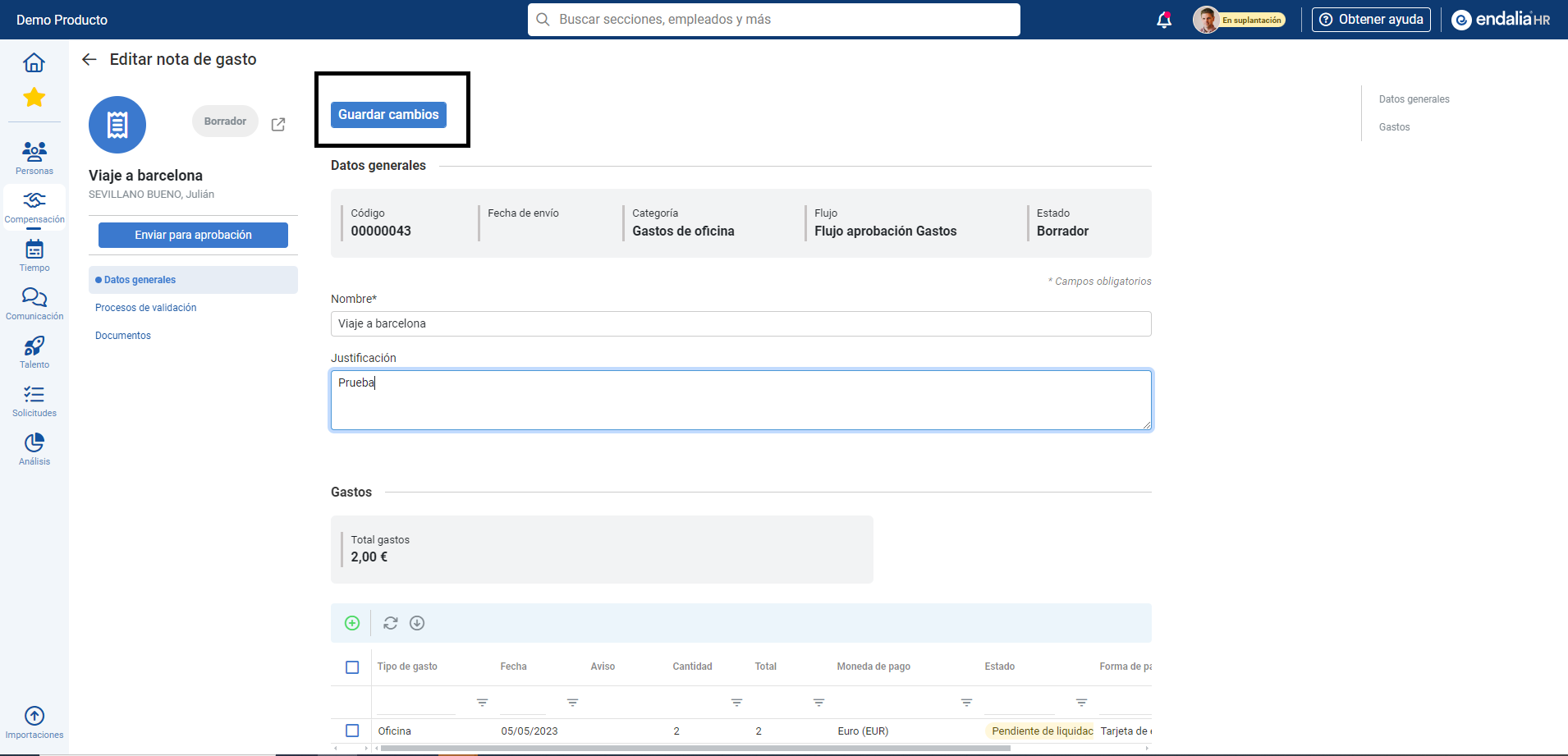
Note: Remember to click Save Changes, whenever you make changes.
Process Video
Pay attention to this brief explanation we offer here:
If you have questions about the terms, check our glossary at this link.
Was this article helpful?
That’s Great!
Thank you for your feedback
Sorry! We couldn't be helpful
Thank you for your feedback
Feedback sent
We appreciate your effort and will try to fix the article