Important: this article is intended for Endalia HR users with Collaborator profile.
Expense notes are records through which employees inform their company about expenses incurred in relation to their work. Next, we explain how to correctly create and manage your expense notes within the software.
In this article:
My expense notes
- Within the Compensation hub, click on Expenses > My expenses.
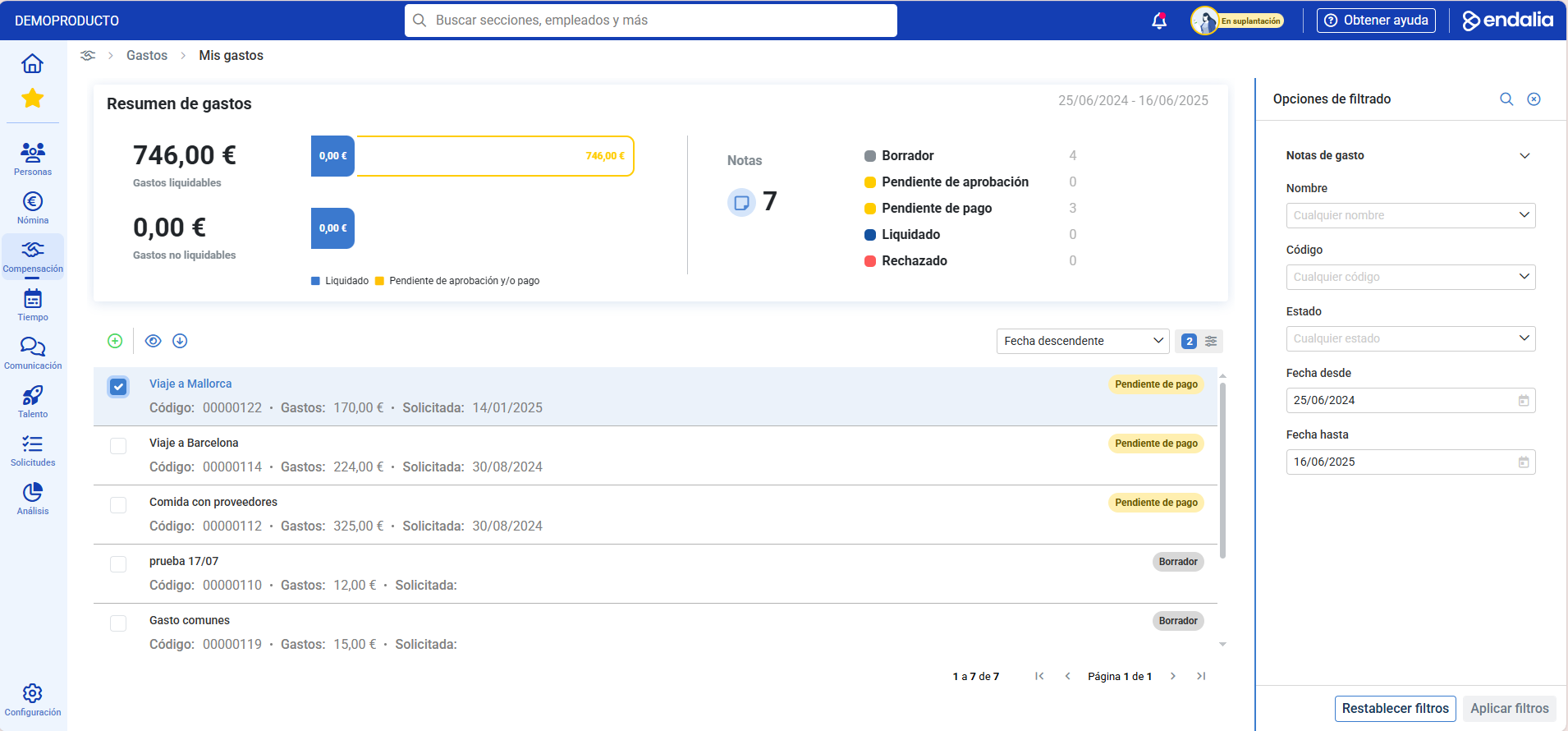
- On the upcoming screen, you will find all the information related to your expenses.
- First, a summary of them, which includes total expenses, the notes they are divided into, and the states of each disbursement.
- At the bottom of the screen, the concept of contributions, the amount, the date, and again, the state they are in appear.
- To add an expense note, click on the Add button, which you will find in the toolbar. Similarly, click on the expense box or the name of the corresponding row to View expense note or Download expense summary, both buttons are also located on the toolbar.
Add expenses to a note
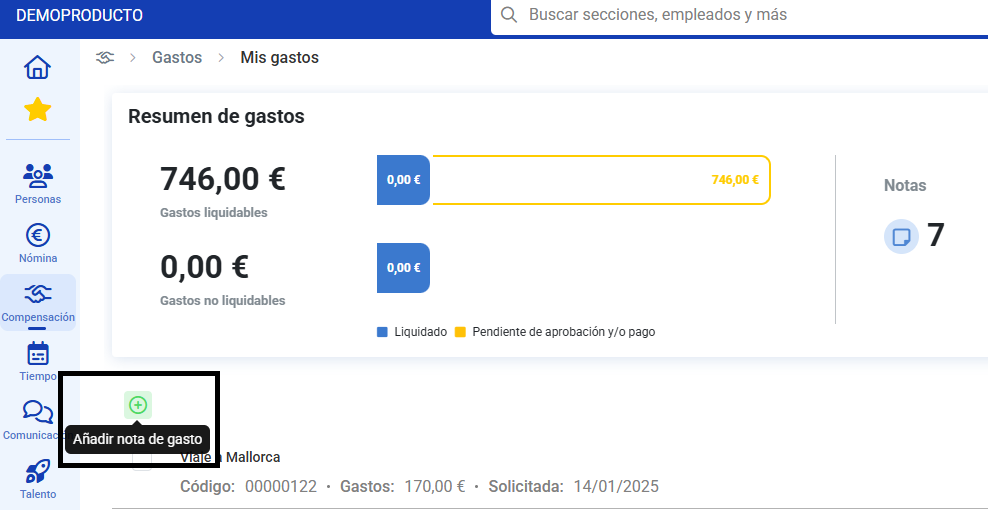
- Within My expense notes, click on Add expense note, button located on the toolbar.
- In the window that will open, write the name and category, then click on Add.
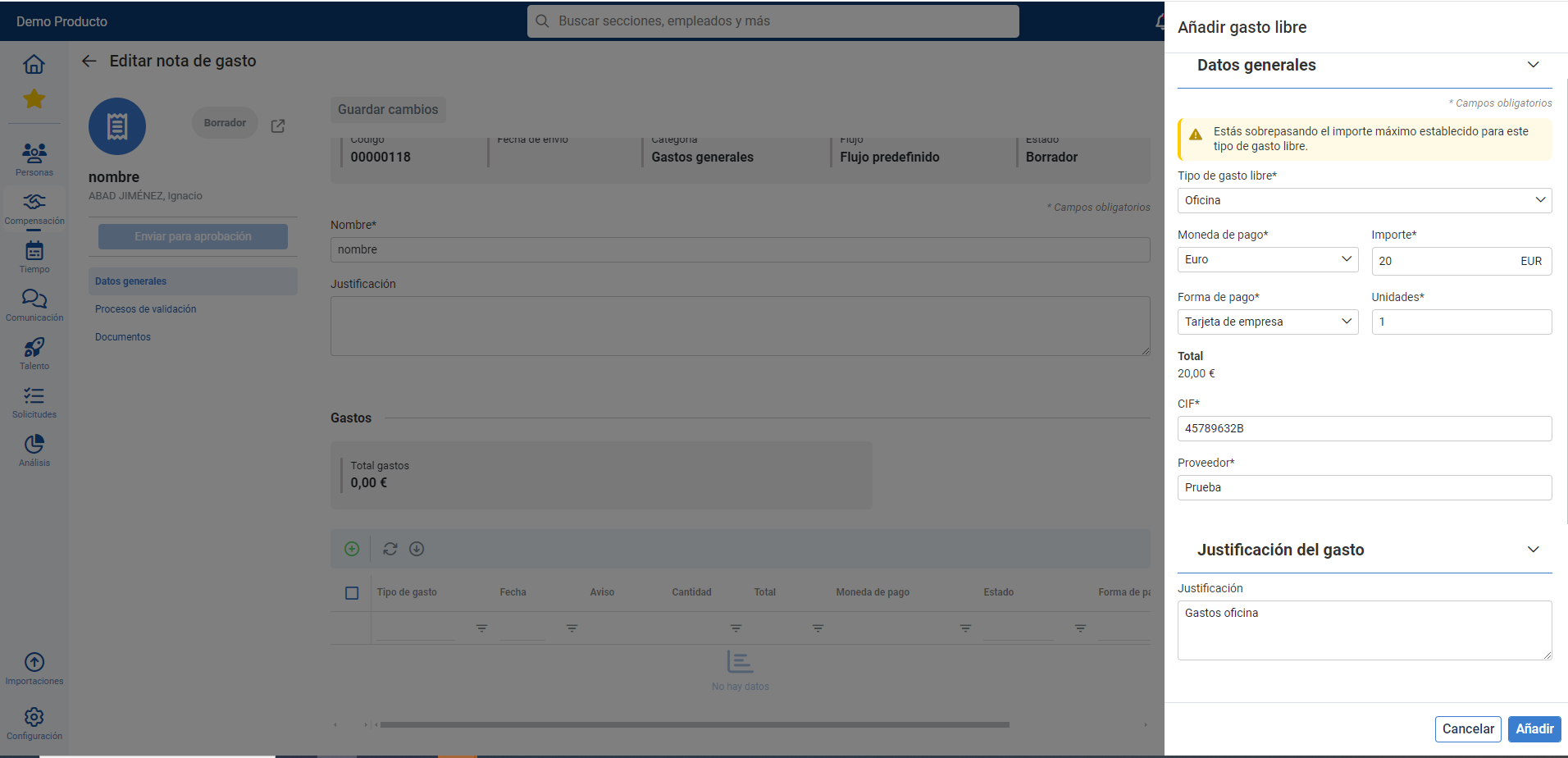
- The note’s sheet will automatically open. Go to the Expenses section and click the Add expense button, in the toolbar. For this, you will have to select the type offered by the program.
- In the side modal window, fill in the corresponding details and click on Add:
- The new expense will appear as pending settlement within the note.
- Once you have fully completed the expense note, you can Send for approval.
Use the back button to return to the general list of notes. From the toolbar, you can also edit or delete a complete note.
About cost units
It’s possible that your organization has activated the cost units functionality. If so, you will see an additional field when creating an expense note.
- You can select a cost unit when creating the note. This will serve as the default value for all expenses you add within that note.
- The cost unit will be preloaded automatically on each new expense you add to the note. You can modify it on each individual expense if needed.
If you do not see the cost unit field, don’t worry, it’s a custom setting that may be deactivated in your case.
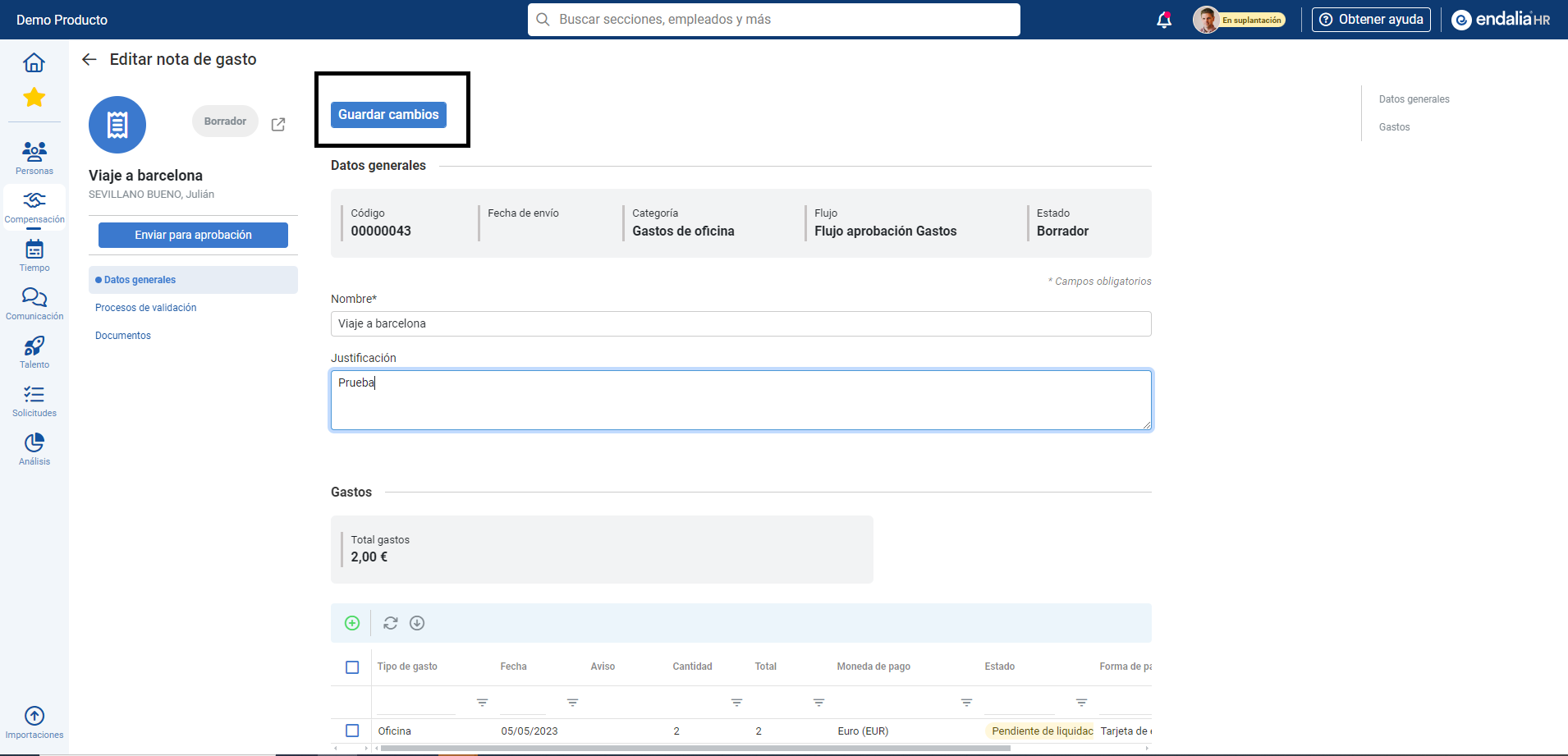
Note: Remember to click on Save changes whenever you make changes to consolidate your preferences:
Process video
Don't worry, we explain these features in this brief informational pill:
Related articles
Do you want to know more? Check the following related articles:
- Create/Delete an approval flow
- Add/Delete expense type - free, allowance, and mileage
- Create/Delete a category of expenses
If you have questions about the terms, take a look at our glossary on this link.
Was this article helpful?
That’s Great!
Thank you for your feedback
Sorry! We couldn't be helpful
Thank you for your feedback
Feedback sent
We appreciate your effort and will try to fix the article