This article is aimed at Endalia HR users with an Administrator profile.
Expense sheets or notes are records through which employees notify the company of expenses incurred as part of their professional activity. As an administrator, you have full access to create, edit, and monitor the entire validation process. Continue reading to learn how to properly manage notes through the software.
In this article:
Important: Before creating an expense report, ensure you have the following properly set up:
- Available expense types (free, diet, mileage)
- Expense categories, which must be associated with the relevant groups or employee collectives. You can check this in Configuration > Expenses > Category > Edit Category > Associated People).
Create an expense report
- Within the Compensation hub, click on Expenses > Expense Notes.
- On the following screen, click the Add button, which you will find on the toolbar:
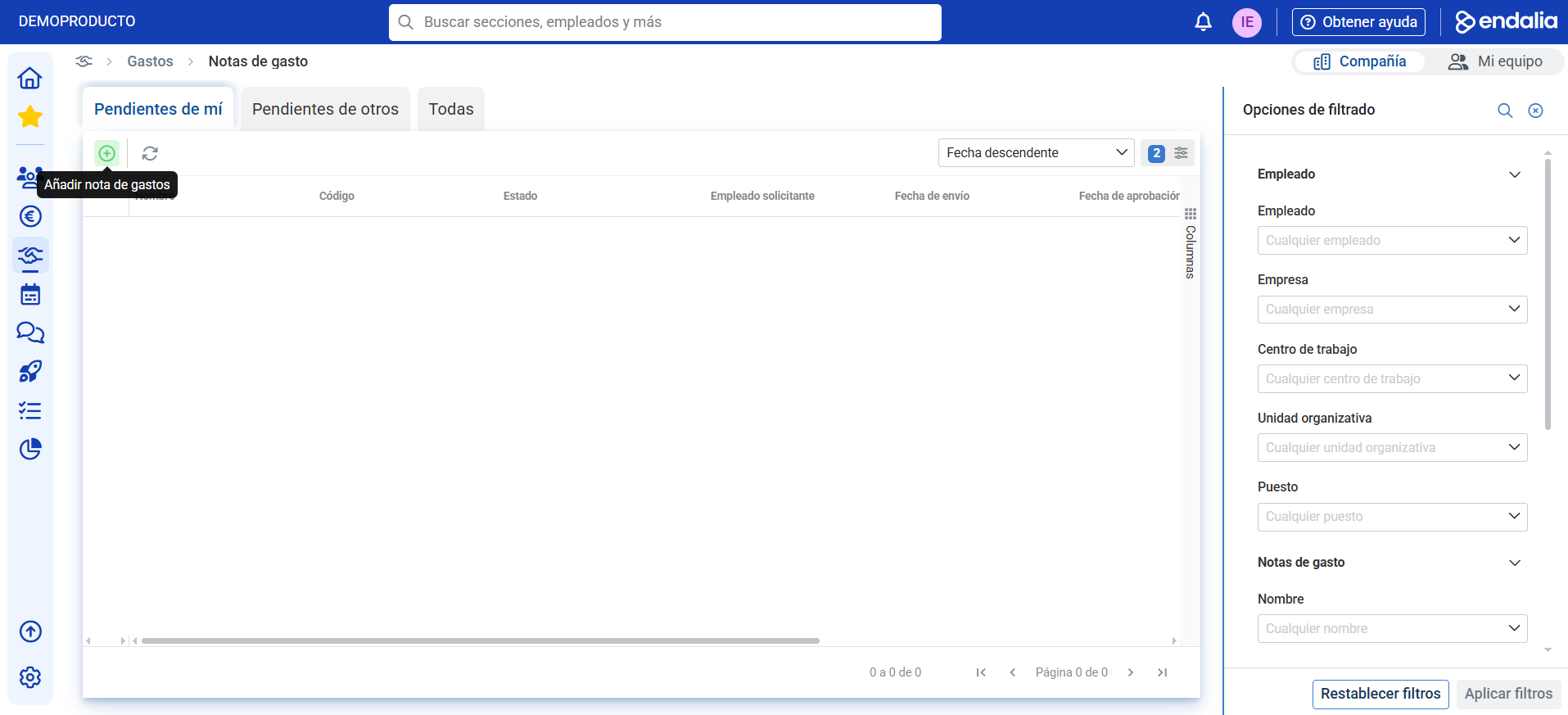
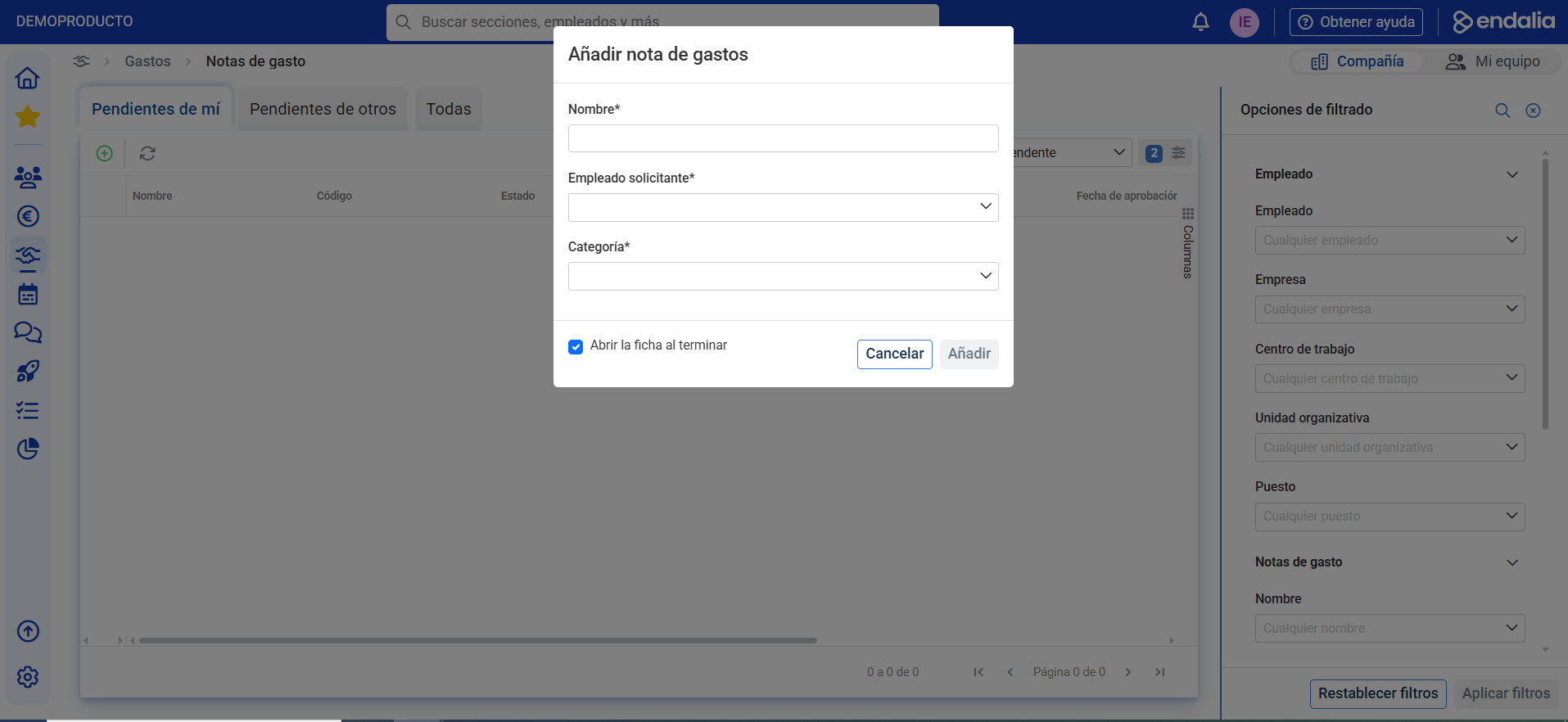
- In the pop-up window, complete the required fields (Name, Requesting Employee, and Category). Next, click on Add. By default, the record for editing the expense note will open directly::
Add expenses to a note
- Once the note is created, you can include the corresponding expenses. In the expense note record, head to the Expenses section.
- Click on the Add Expense button in the toolbar.
- Select the type of expense (free, diet, or mileage). These options can be selected based on the configuration of the category selected when creating the note.
- Complete the required fields according to the selected type. Click on Add to register the expense.
About cost units
If the functionality is enabled in your environment, when reviewing or editing an expense note, you can view the Cost Unit field associated with each expense.
As an administrator:
- You can view and edit the cost unit.
- You can select a cost unit when creating the note. This will serve as the default value for all expenses you add within that note.
- The cost unit will automatically preload for each new expense you add to the note. You can modify it for each individual expense if needed.
The cost unit can be configurable and depend on how the company has established the functionality. If you do not see this field, it may not be enabled in your company.
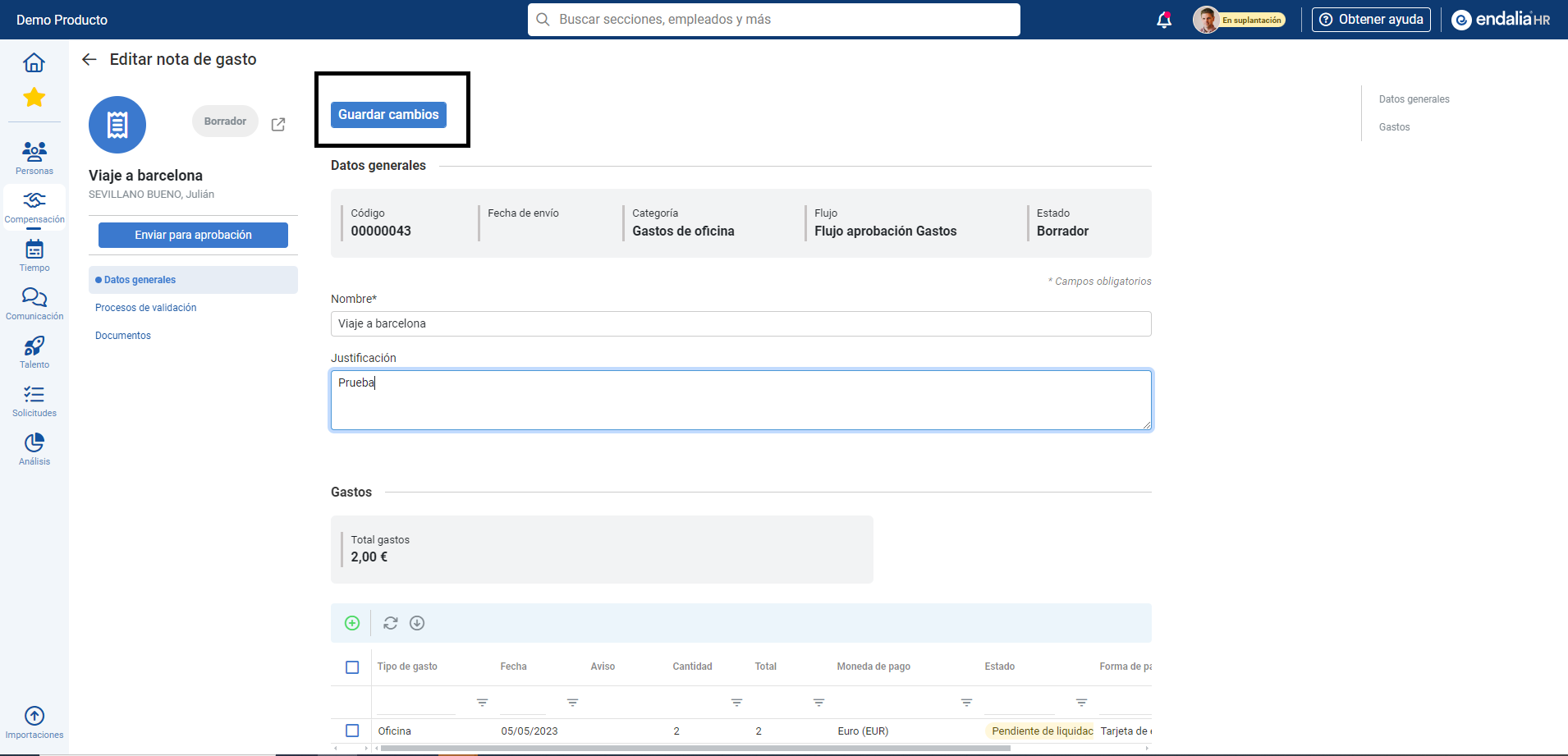
Note: Remember to click on Save Changes every time you make modifications to the expense note or the expenses included in it. This will ensure that all actions are saved correctly.
Video of the process
Don't worry, we explain these functions in this brief informative video:
Related articles
Want to know more? Check out the following related articles:
If you have doubts about the terms, take a look at our glossary at this link.
Was this article helpful?
That’s Great!
Thank you for your feedback
Sorry! We couldn't be helpful
Thank you for your feedback
Feedback sent
We appreciate your effort and will try to fix the article