Important: this article is aimed at Endalia HR users with an Administrator profile.
Competencies are understood as the skills an employee possesses for the development of a specific activity, which are evaluated through questionnaires. Managing this menu might seem complicated, but it is not; take a look at these steps, and goodbye doubts!
In this article:
- Competency Catalog
- Add areas/competencies/knowledge
- Edit areas/competencies/knowledge
- Other functionalities
- Process Video
Note: before delving into the subject, it is important to differentiate between:
-Areas: These are spaces that serve to group competencies.
-Competencies and knowledge: These are the basic elements that make up the catalog. They are defined as the ability or understanding to grasp and/or perform specific tasks required for a job position.
Competency Catalog
- Within Performance and Talent, follow the path: Development > Competency Catalog
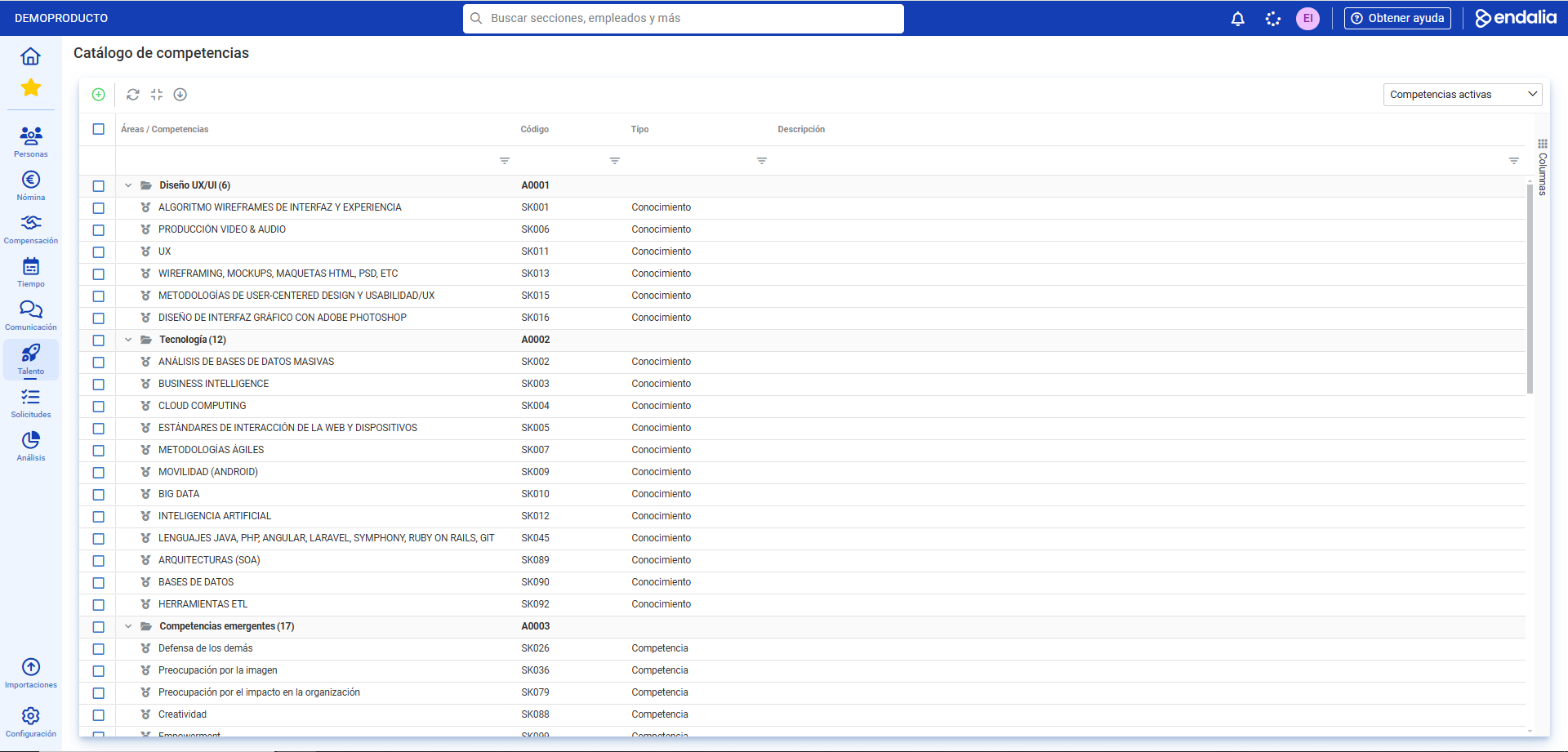
- On this new screen, you have a list of different areas, as well as competencies and knowledge, required for certain positions. As you can see thanks to the dropdowns, the areas act as containers of concepts;
Add areas/competencies/knowledge
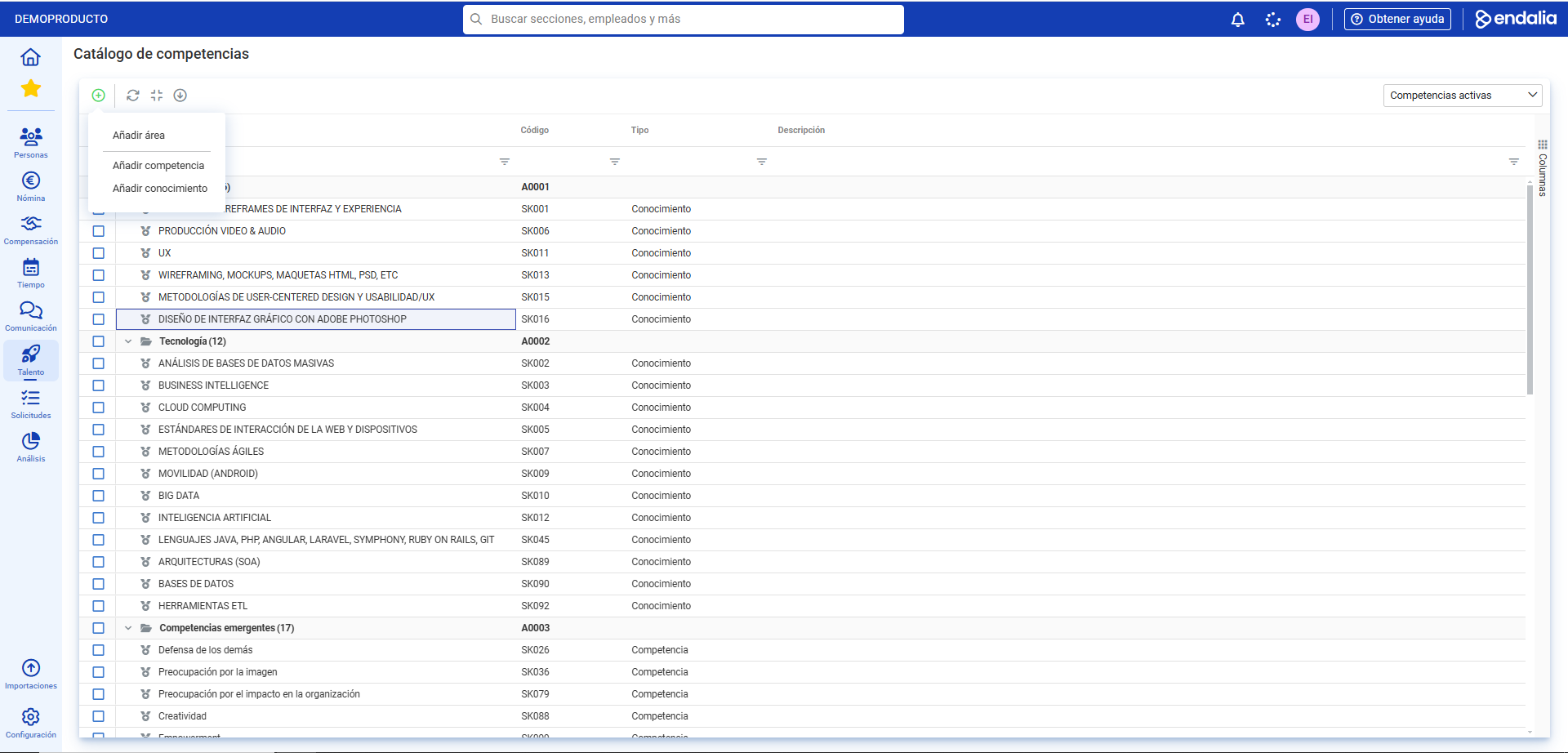
- On the toolbar of the main screen, Competency Catalog, click the Add area button; in the dropdown, you can choose among the three contemplated options.
- In the modal window displayed next, you must complete two steps; in the first, enter the name and the code, and in the second, place the new element within the structure. Don't forget to click on Add to finish this process, which is the same for the three concepts described in this section:
Edit areas/competencies/knowledge
- To activate this functionality, simply check the box in the corresponding row and click the Edit button situated on the toolbar.
- If you choose to edit areas, the sections you can change are General Information and Levels (edit and delete); the latter will apply to all competencies below the area and any sub-areas that do not have their own defined levels.
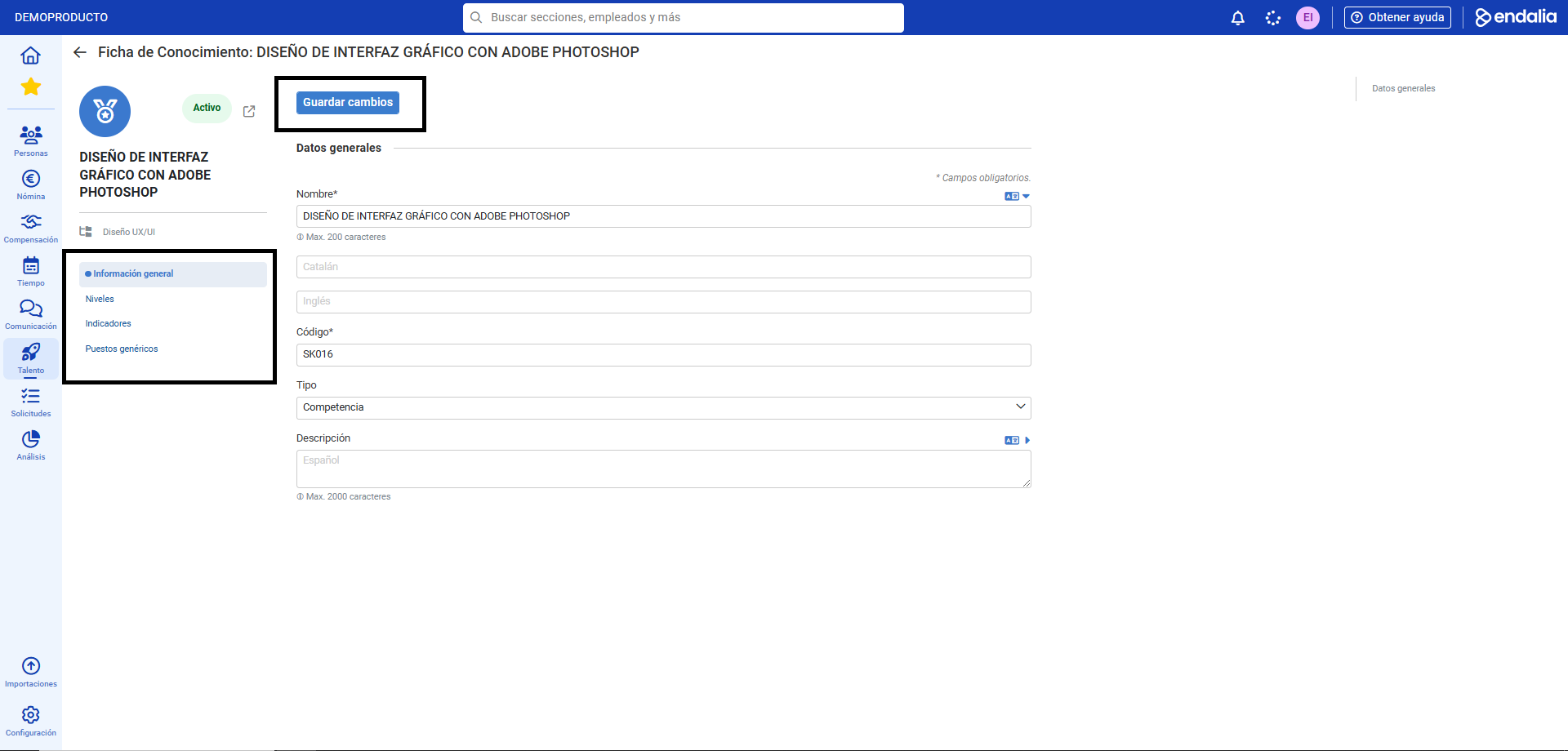
- In the case of competencies/knowledge, you can develop general information, levels, indicators (if they are used in future questionnaires, optionally) and generic positions (i.e., which part of the organizational structure they will be associated with):
Other functionalities
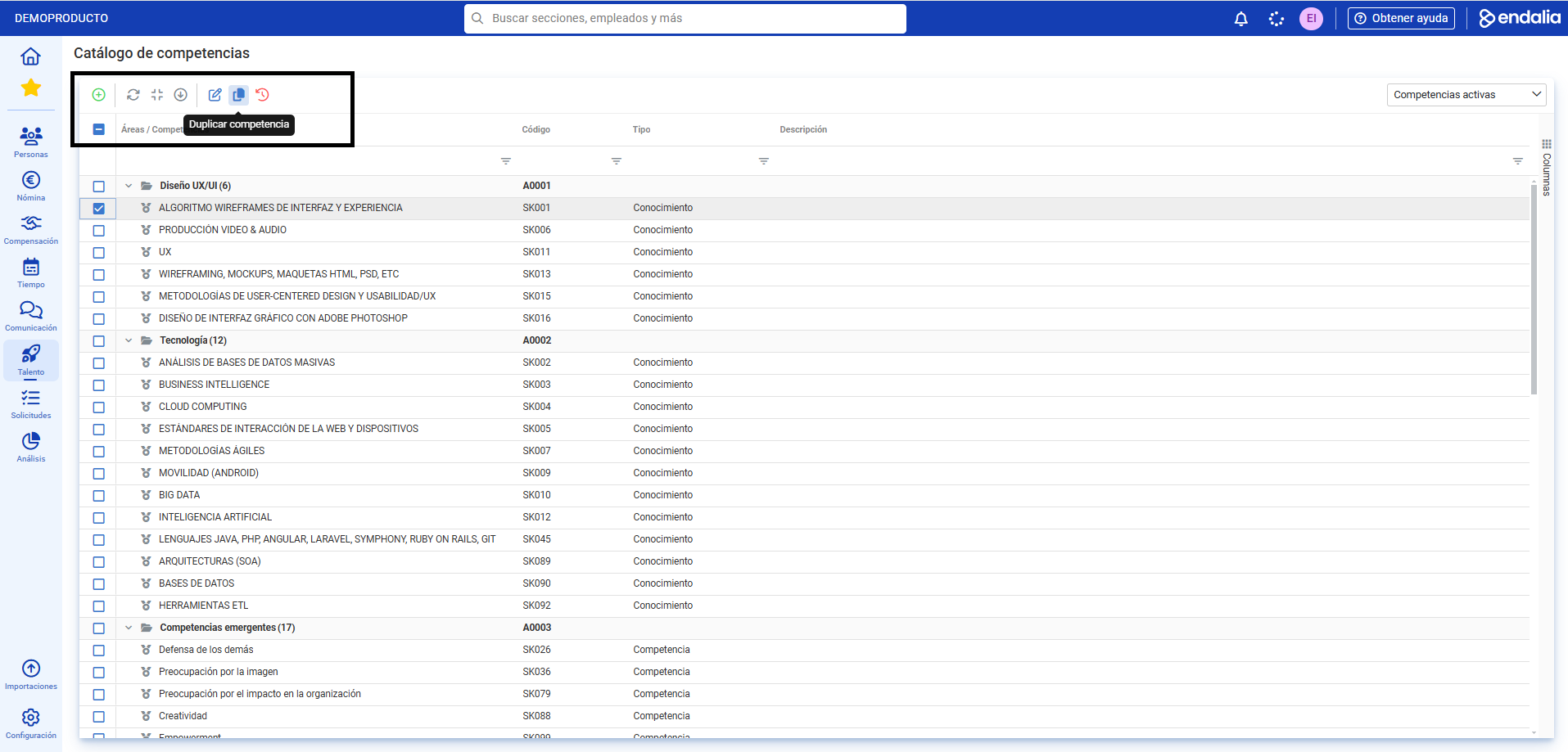
- Similarly, other interesting options exist in the toolbar, such as Duplicate area and Archive.
- If you opt for the first, you will need to complete the two steps presented in the emerging modal window. Observe that, in the first step, you have the option to duplicate not only the area itself but also everything it contains. If you decide to use the second, the element (or elements, since you can archive several at once) will disappear from the list and from the associated generic positions (in structure), but not from the questionnaires created previously. Note also that if you use the bulk, or mass, option, the user can use the Import Center to generate a new catalog:
Note: What is defined in competencies and knowledge may be the same but, when creating evaluation questionnaires, it will appear separately, affecting how conclusions and results are drawn.
Additionally, you have a glossary of useful terms at this link.
Was this article helpful?
That’s Great!
Thank you for your feedback
Sorry! We couldn't be helpful
Thank you for your feedback
Feedback sent
We appreciate your effort and will try to fix the article