Important: this article is aimed at Endalia HR users with an Administrator profile.
The configuration of the "virtual bulletin board" will allow your employees to stay up to date with all the news happening in the company. Take a look to configure it correctly!
Here you will find:
Current Events
Within the hub Communication, click on the module Internal Communication > Publication Management
- On the next screen, Manual Content, you can see the relationship of events, news, and announcements that employees will see, according to your previous configuration, and all related information. Check the box of the corresponding row or click on the name of each one to see the options available in the toolbar:
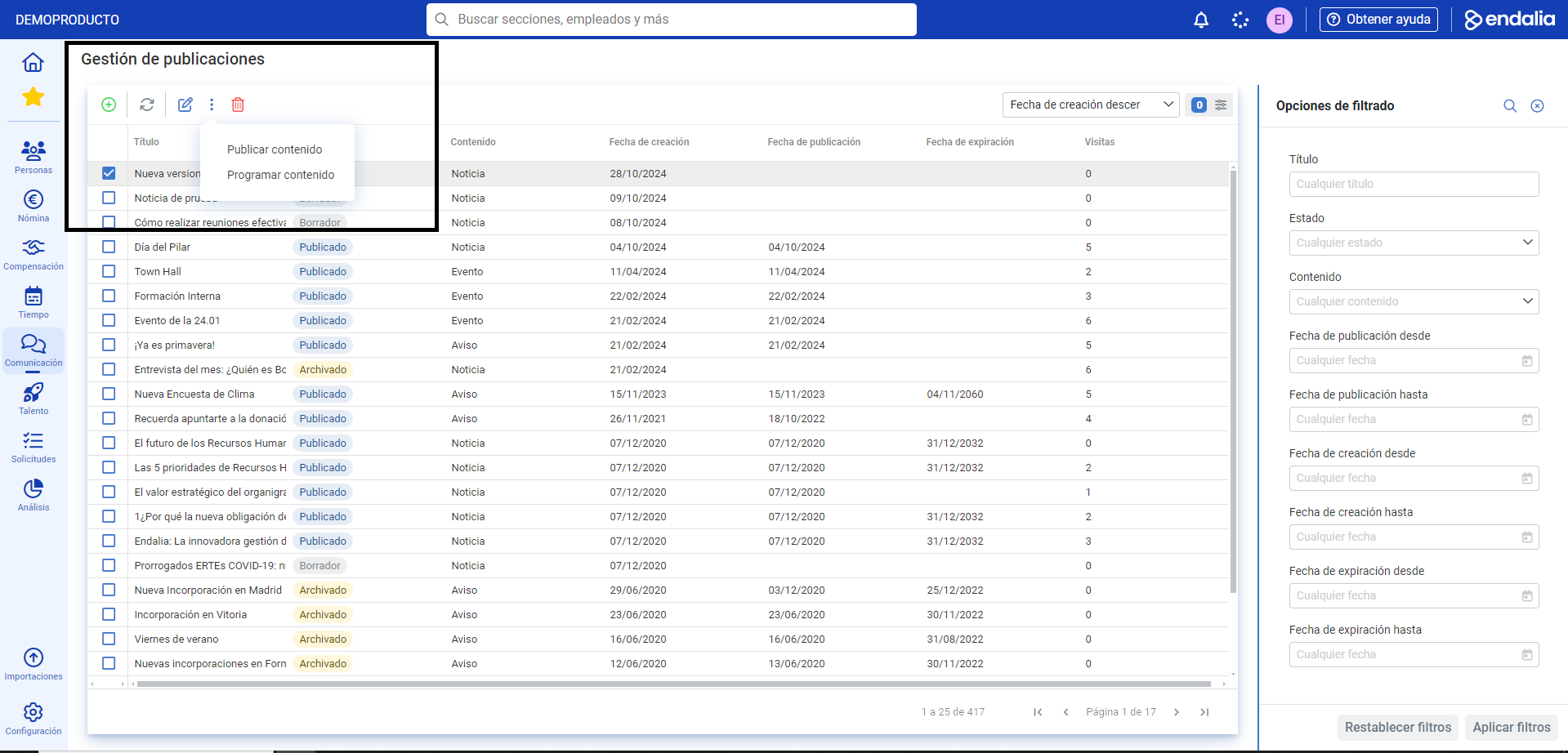
- To Edit a news item: check the corresponding box and click on the Edit content button, present in the toolbar.
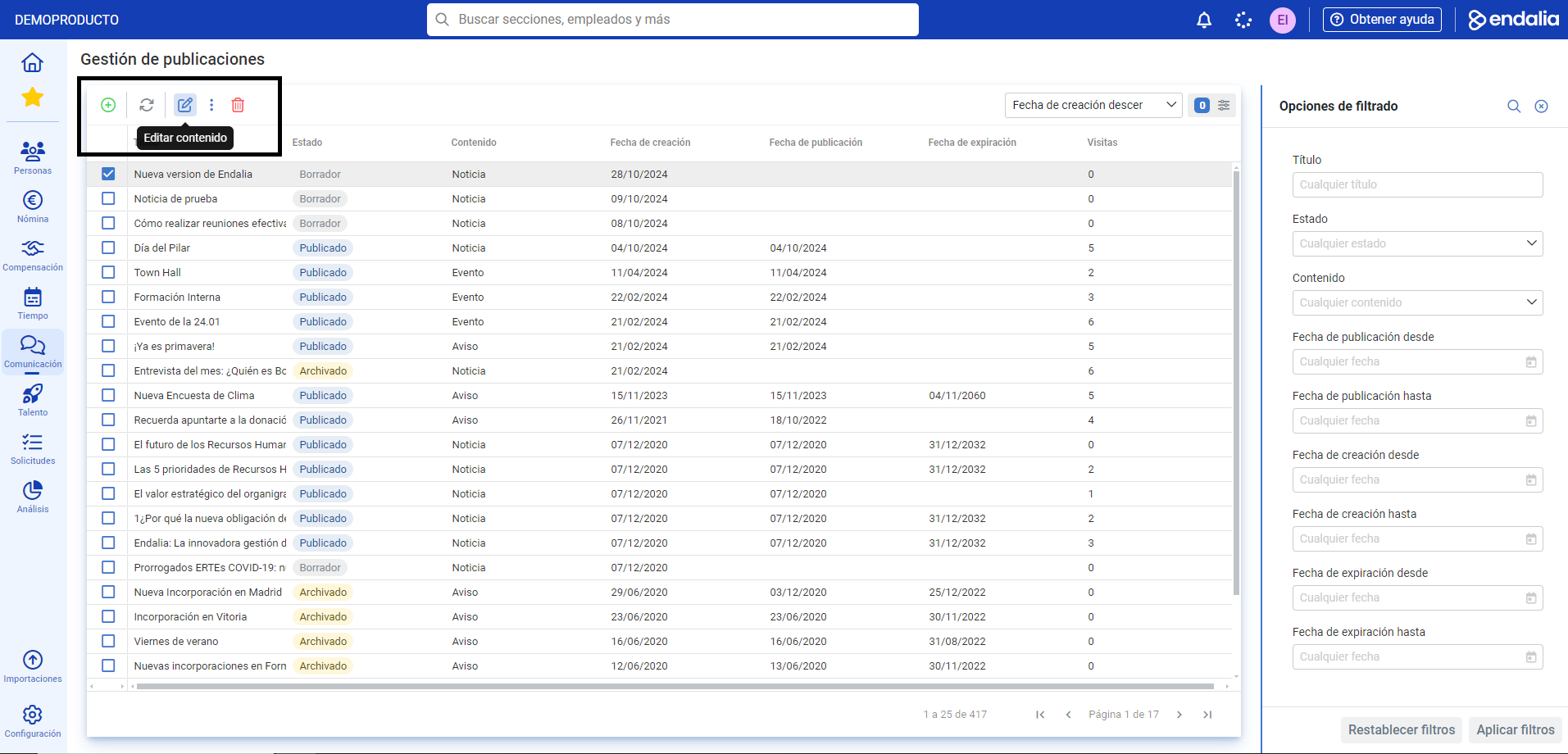 Edit the main information and its content, following the corresponding steps. Remember, you also have a Visibility section, allowing you to select which people will see the created content. Remember that there are Publish content and Schedule buttons, also available in the main screen toolbar, that you must use to set your preferences. Finally, the Interactions menu item will allow you to access additional information, such as seeing the reactions to the news, the number of times it has been viewed, or surveys, for example, about attendance.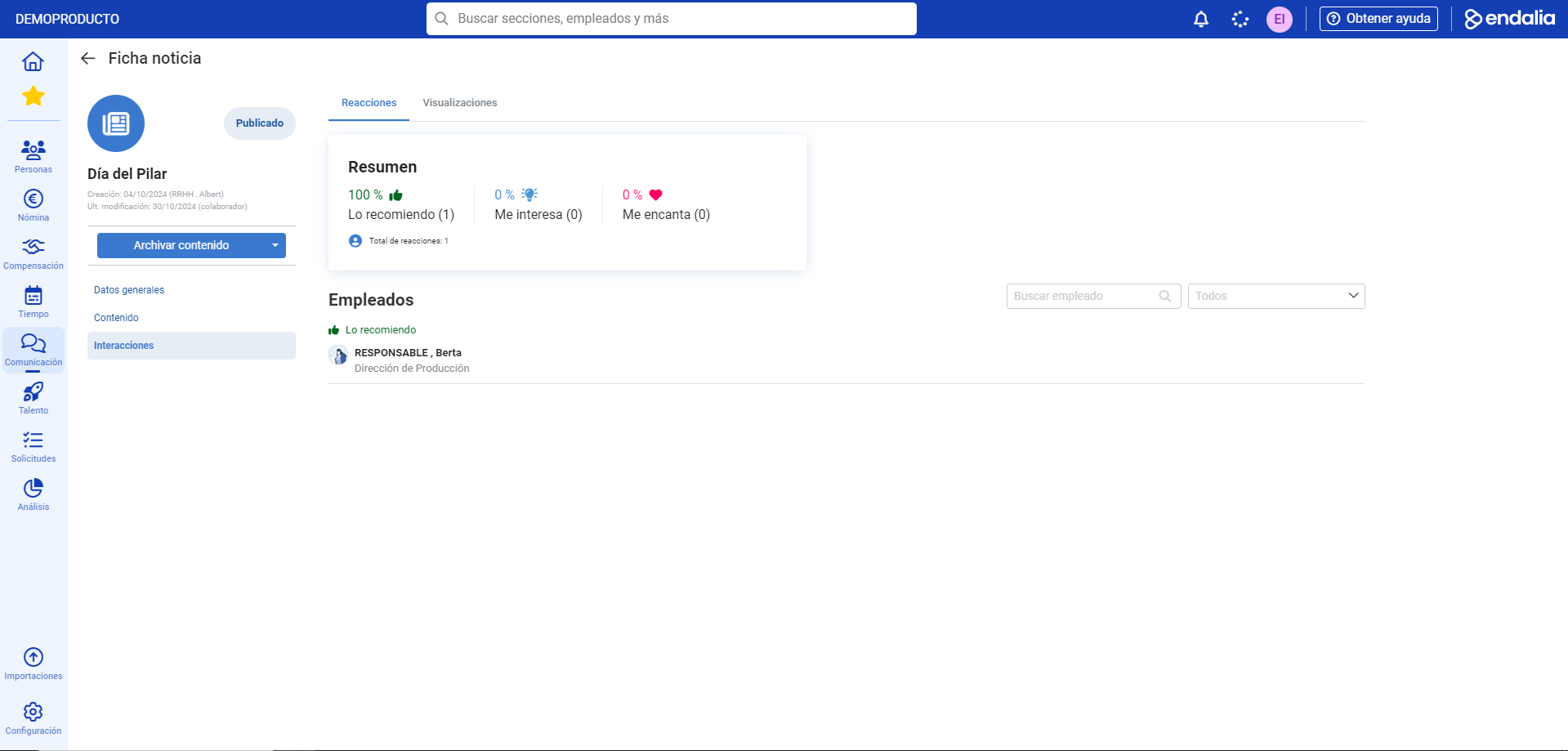
- To create a news item: On the main screen, click on the Add, button, and then on Add news/Add announcement/Add event
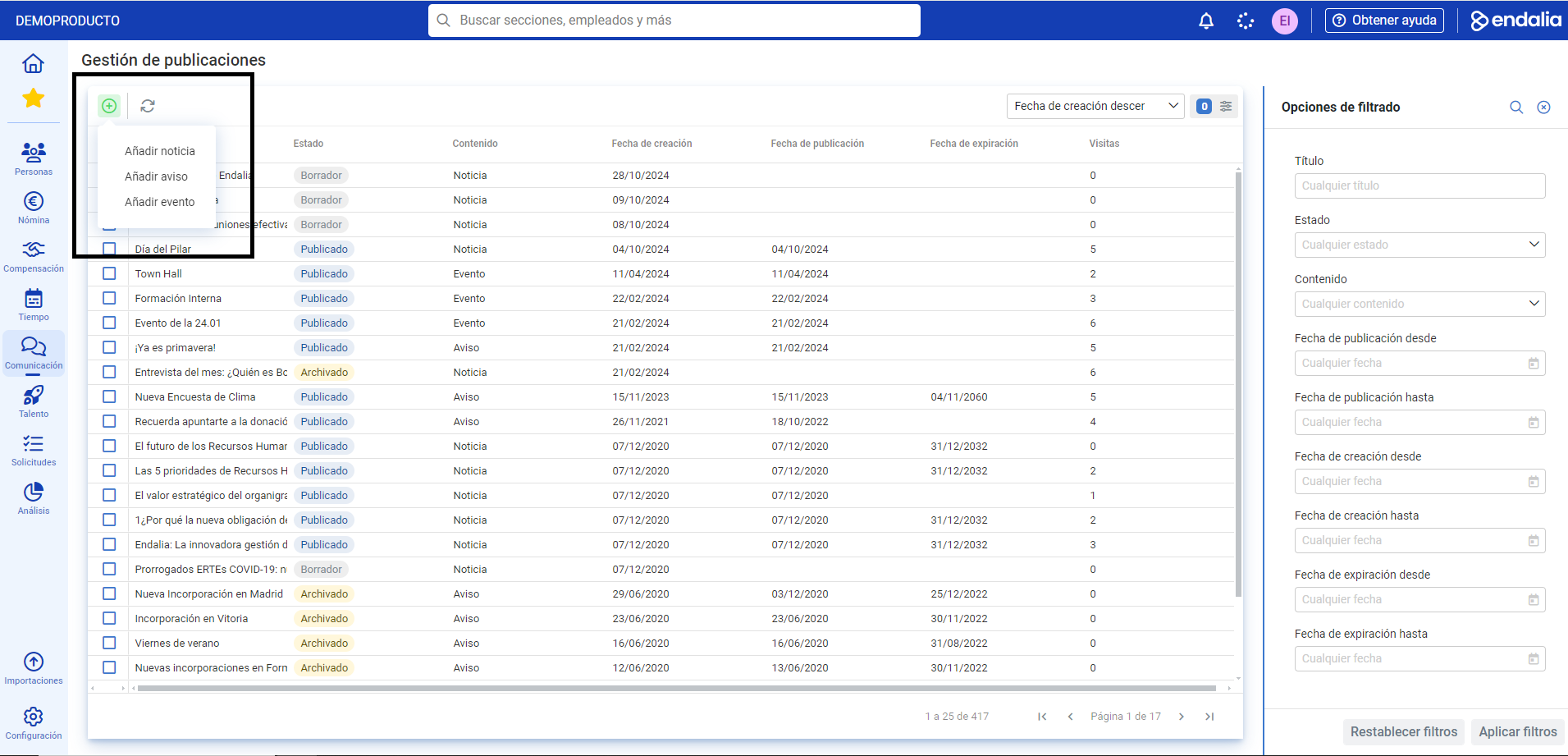
Note: If you choose to Add a news item, an announcement, an event, etc., you must first configure the name and add an image. Once you have clicked on Save, the option to generate content will automatically open in the side tab without leaving the window you are in.
Remember:
- The information employees see will depend on the previous configuration of the module, as well as the manual content you wish to generate.
Process Video
Do you have questions? Take a look at these tips, in a very succinct manner:
Furthermore, you can view our glossary, available at this link.
Was this article helpful?
That’s Great!
Thank you for your feedback
Sorry! We couldn't be helpful
Thank you for your feedback
Feedback sent
We appreciate your effort and will try to fix the article