This is the initial contact with the product, allowing you to quickly access a wide variety of interesting features. Let's get started!
Here you will find:
Main Screen
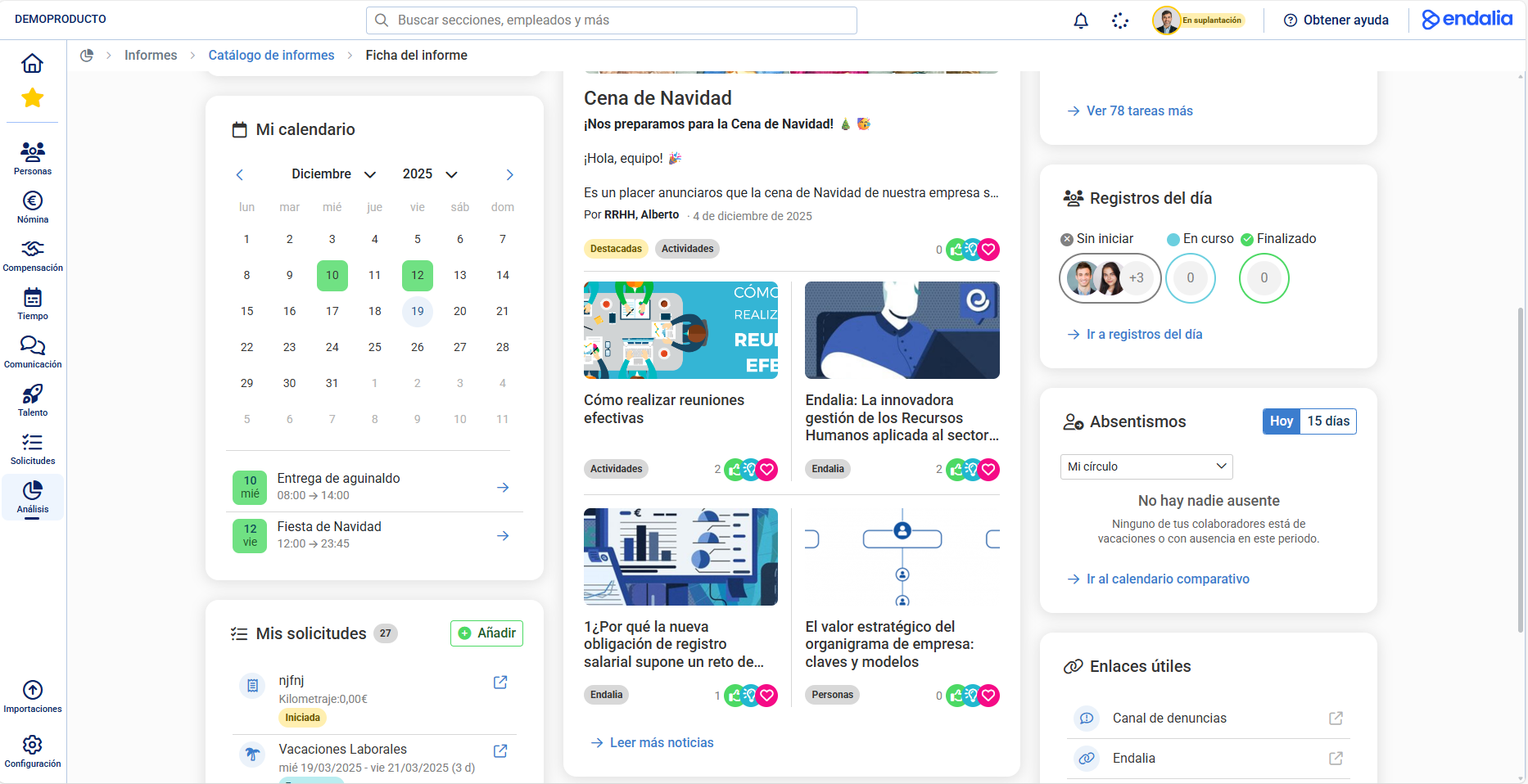
This is the so-called home, from where you can access all the information you need. Bear in mind that the usage will be the same for all roles, and some widgets will be fueled by the information and personal usage of the employee (each collaborator, manager, etc., might have access to use/modify certain features, depending on the contracted modules, and some functions will be pre-programmed by default by Endalia without modification possibilities). Take a look at the following detailed information to know all the sections contained on this page:
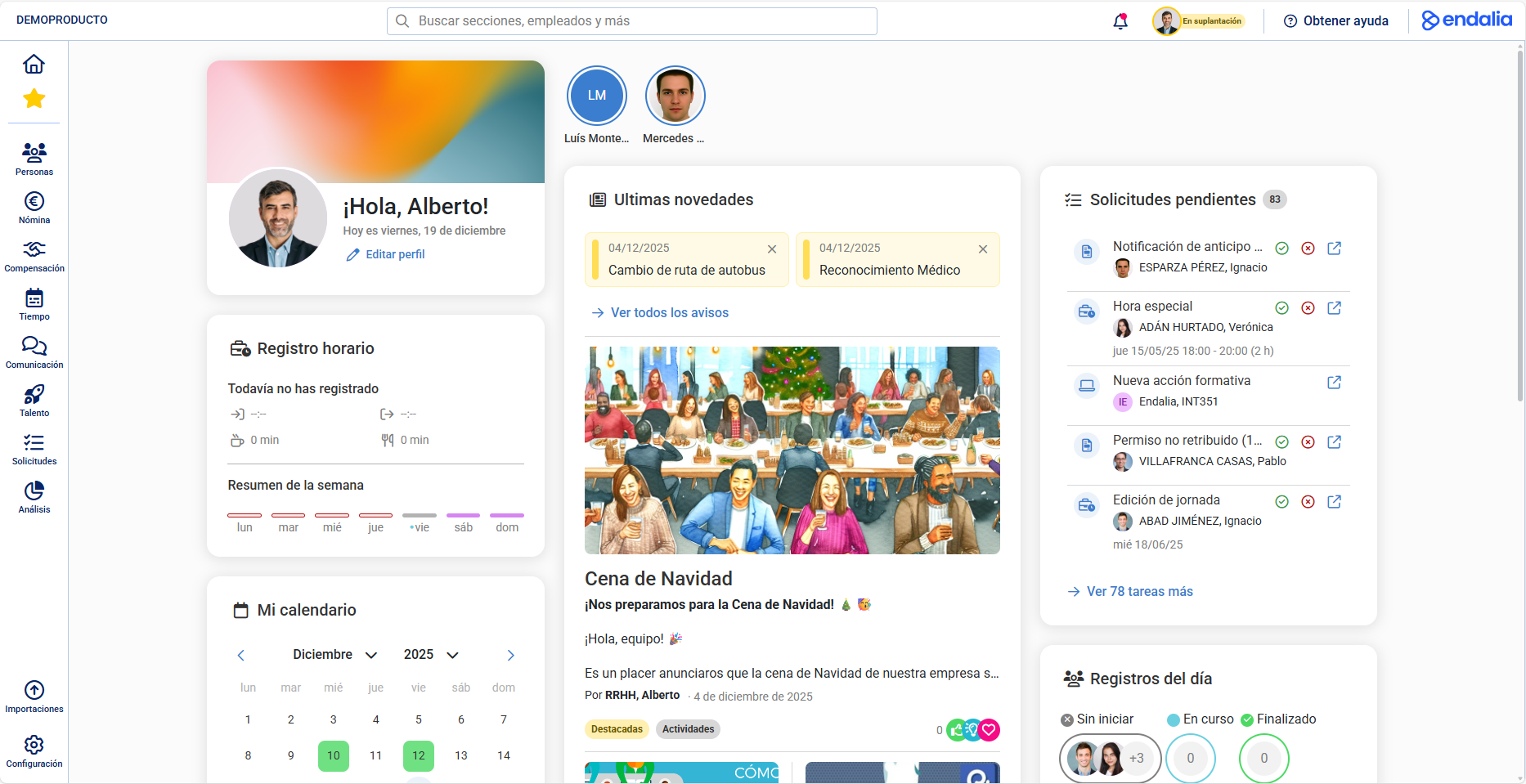 |
Sections:
Search
Thanks to this option, finding everything you're looking for is just a click away. It's located at the top of the screen, next to the magnifying glass icon: 
Click on the framed text to open the search. The system will automatically segregate four categories, namely: recent searches, employees, sections, and settings: 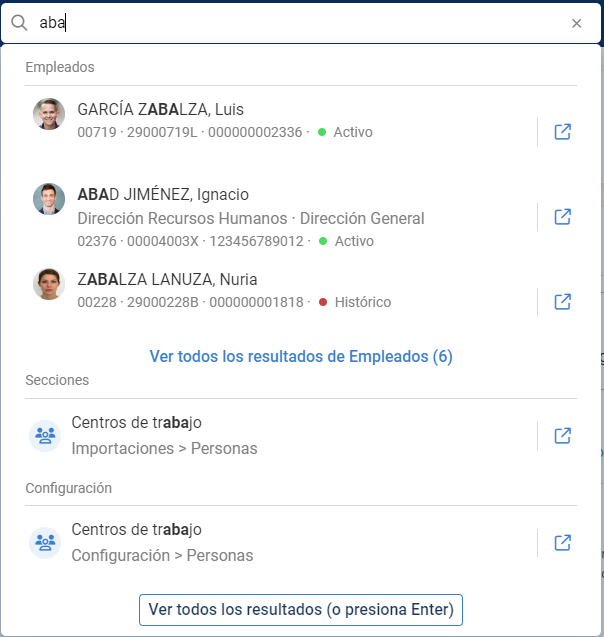 Additionally, through the enabled buttons (See all results, Open in a new tab), you can perform different actions aimed at extending the information. Keep in mind that visibility will depend on your role in the company and the permissions you have.
Notifications
Through this functionality, it is possible to view all pending notices. Initially, up to a maximum of five are displayed. Click on See all to get all the information related to this section, in full screen, and filter it using the tools shown at the top right of the same. 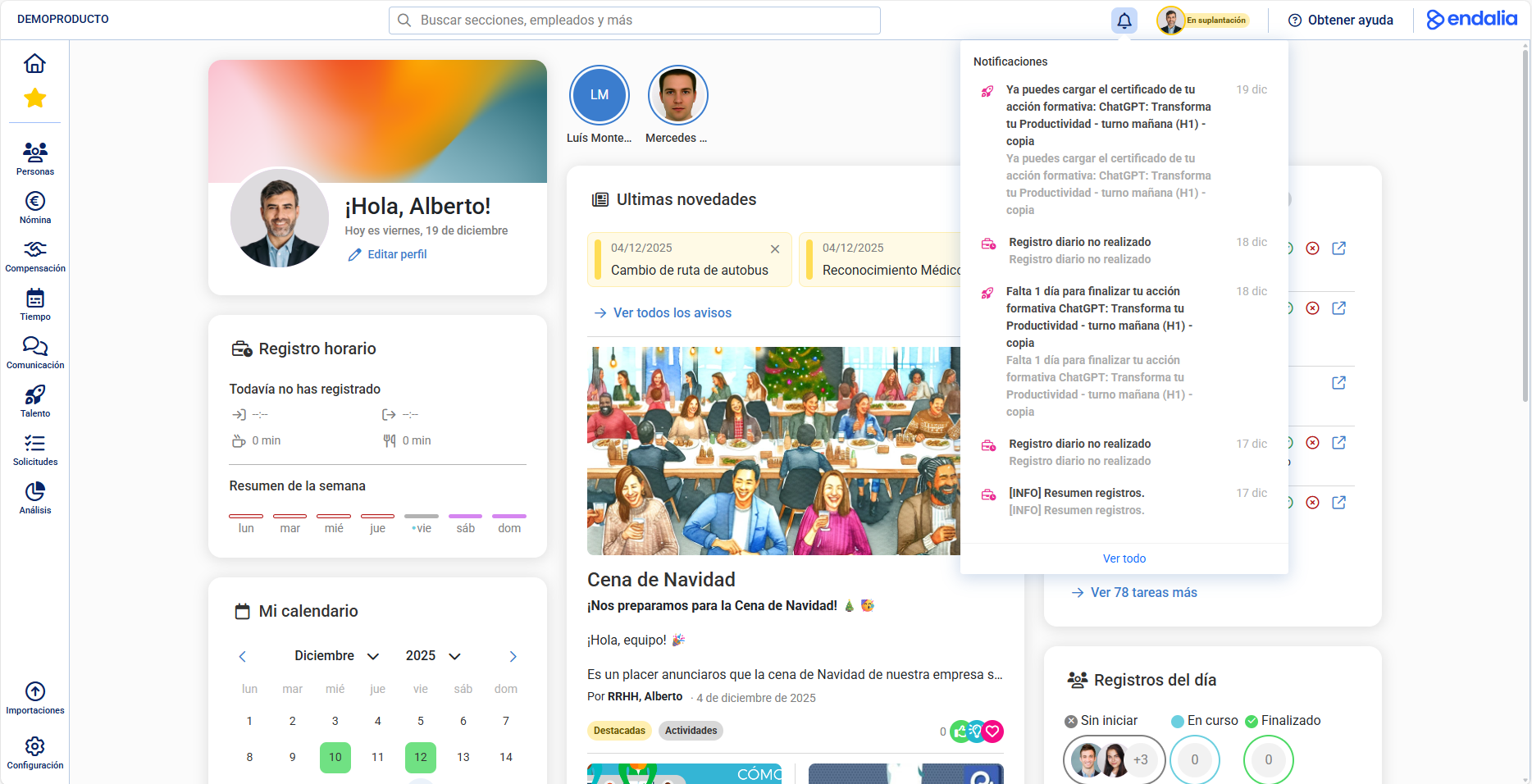
Activity Log
It will only appear when there is activity, additionally showing the status of the same at the bottom of each previously initiated process (In progress, Completed, etc.).

Help Center
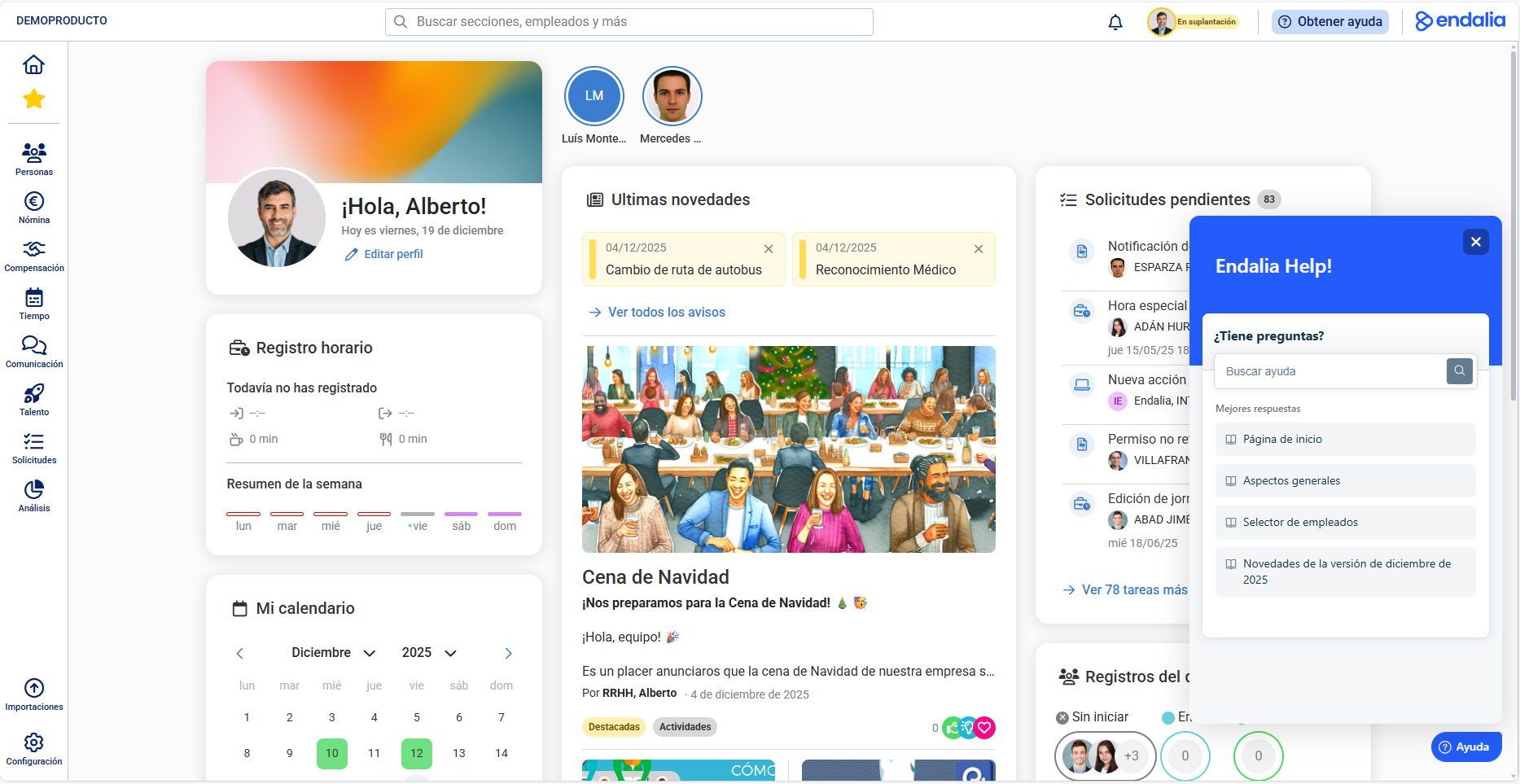
It appears at the top right of the screen ("Get help"). This is a comprehensive help guide for consulting all queries related to our software.
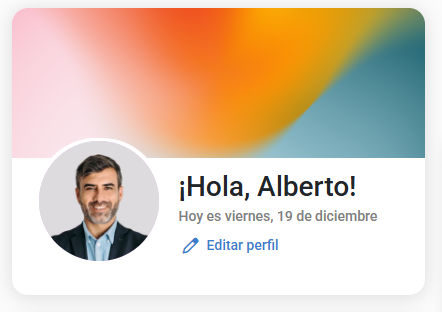
Welcome Widget
It contains the corporate image. the current day's date and a corporate background, defined by the company.
If permissions are enabled through Organization and People Configuration, the employee can edit their profile picture. The background image will be managed by the administrator.
Stories
In a similar way to what was established in HR.It reflects events of the company's daily life such as birthdays, anniversaries in the company, etc., and is managed via the Internal Communication module > Company > Current Affairs > Autogenerated Content.
Just click on each of the balloons to see the associated dropdown.

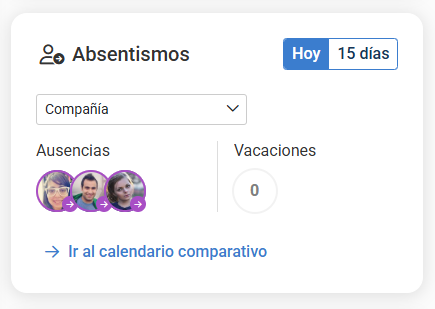
Absentees
Displays forecasts of vacations and absences according to the filter (Company, My unit, My circle, My Team, and My Direct Team).
The system distinguishes between those occurring today and in the next 15 natural days, provided they are validated. Hovering over the images will display a popup window with additional information.
Finally, the View comparative calendar option allows for broader functionality management, instead of obtaining a brief summary of the same through this widget.
Links
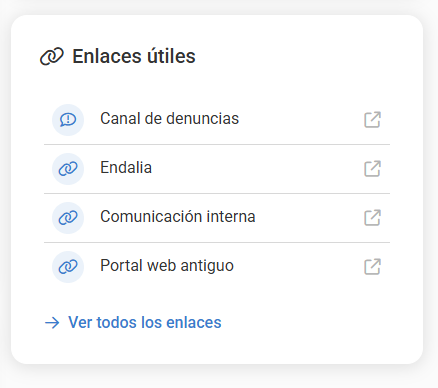
This is information of interest to the user. By default, three are displayed in the home section, but they can all be viewed via the designated button (and edited/generated according to permissions, as we have already mentioned).
It also includes access to the Complaint Channel, as stipulated by Law 2/2023, allowing for anonymous complaints within the company:
Latest News
Displays highlighted or interesting news, pending reading, cataloged as alerts, and up to a maximum of three. They disappear as they are read. The See all option allows you to filter them and access all relevant historical information. Additionally, this widget displays a representative news option at the bottom.
Pending Requests
Shows all your requests that require actions; for example, approval or rejection,
By clicking "See all", you can access the complete listings that lead to a new screen with different steppers or step-by-step processes for handling your requests, easy to complete and very intuitive.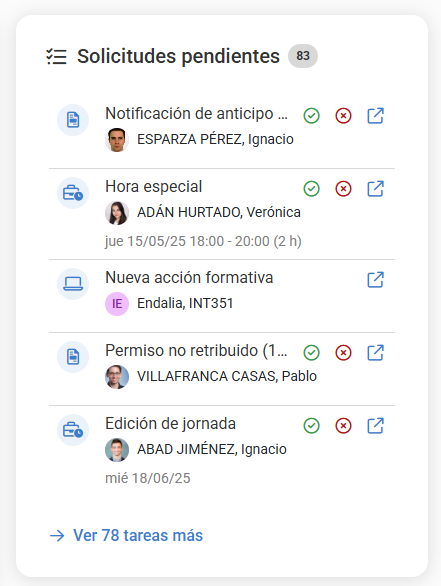
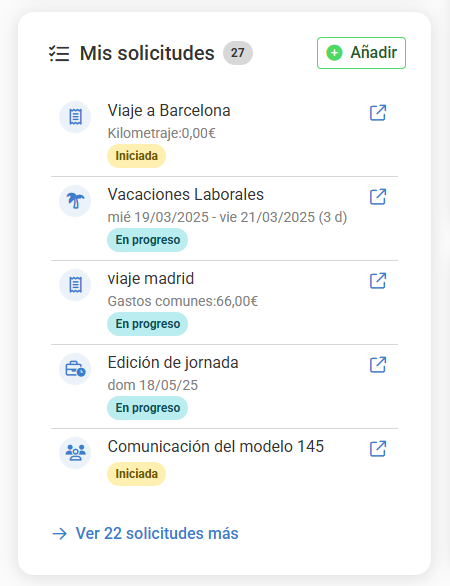
My Requests
Allows you to view the requests you have launched. In addition, you can add new requests by clicking "Add".
Calendar
Functions as an agenda, with different types of dates and their parameterization. It has two sections:
- Calendar : displays the month in progress with the employee's own calendar settings, highlighting the current day, weekends, and holidays. It shows all events interacting with the current month, with the same color legend and defined ordering. If multiple events occur on the same day, the system highlights them numerically; clicking on a particular day displays the type and duration of each of those events.
- Lower List: Displays all events interacting with the current week, whether they start, end, or occur during it, with a defined color legend and ordering.

Was this article helpful?
That’s Great!
Thank you for your feedback
Sorry! We couldn't be helpful
Thank you for your feedback
Feedback sent
We appreciate your effort and will try to fix the article