Important: This article is aimed at Endalia HR users with an Administrator profile.
In the case of temporary incapacity, work accidents are one of the most common setbacks in the workplace; don't miss these tips to learn in detail about this software feature.
In this article:
Manage a work accident
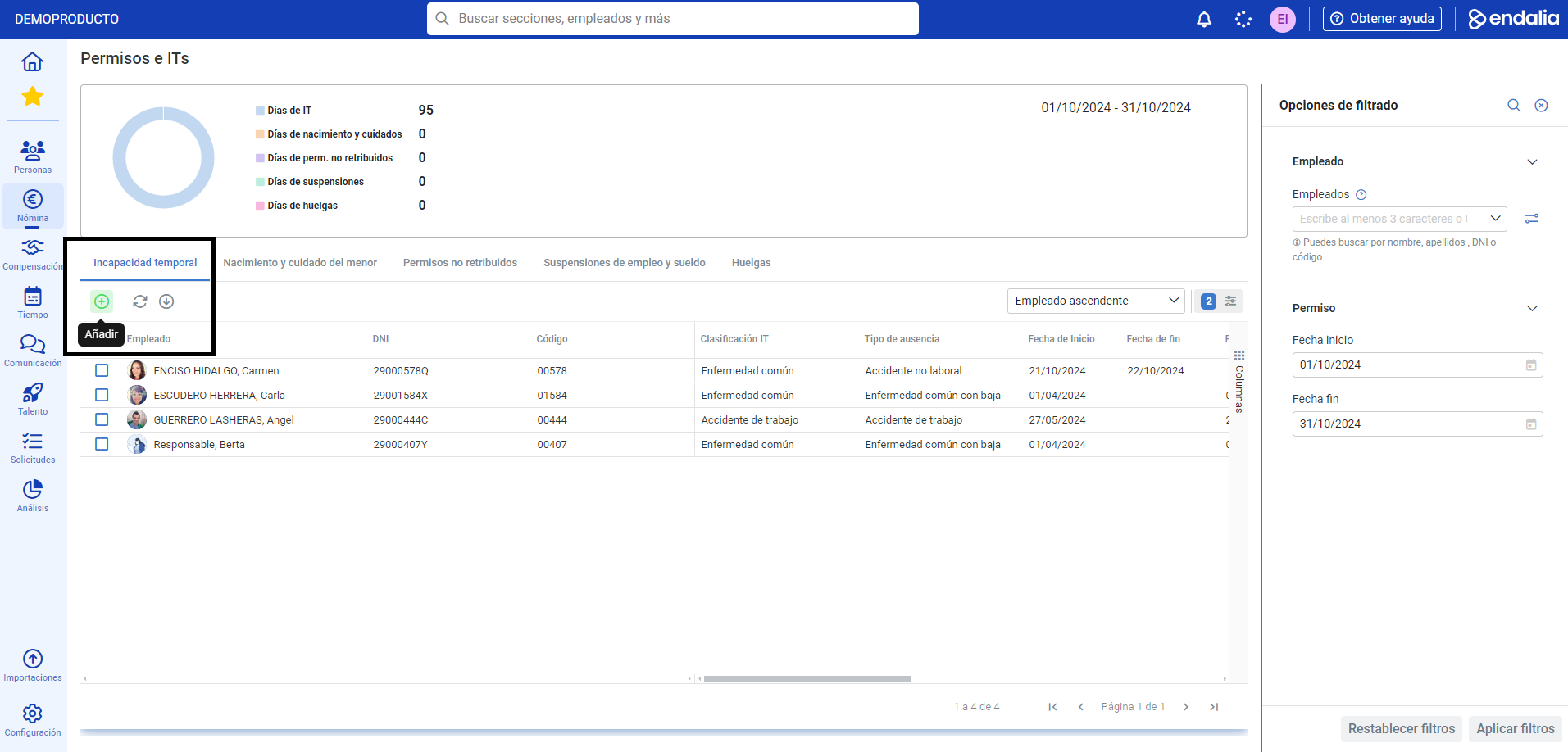
Inside the Payroll Hub, click on Payrolls > Payroll Incidents > Permits and ITs
- On this first screen, at the top, you will find a list of permit types and the number of workers who have requested them. Keep in mind that this graph only refers to the current month, so if you want to see other data, you must enter them in the corresponding filters, located on the right side of the screen.
- The lower half displays a complete list of workers with their IT classification, type of absence, start date, etc. As usual, you can use employee selection and the toolbar buttons to edit or delete their record.
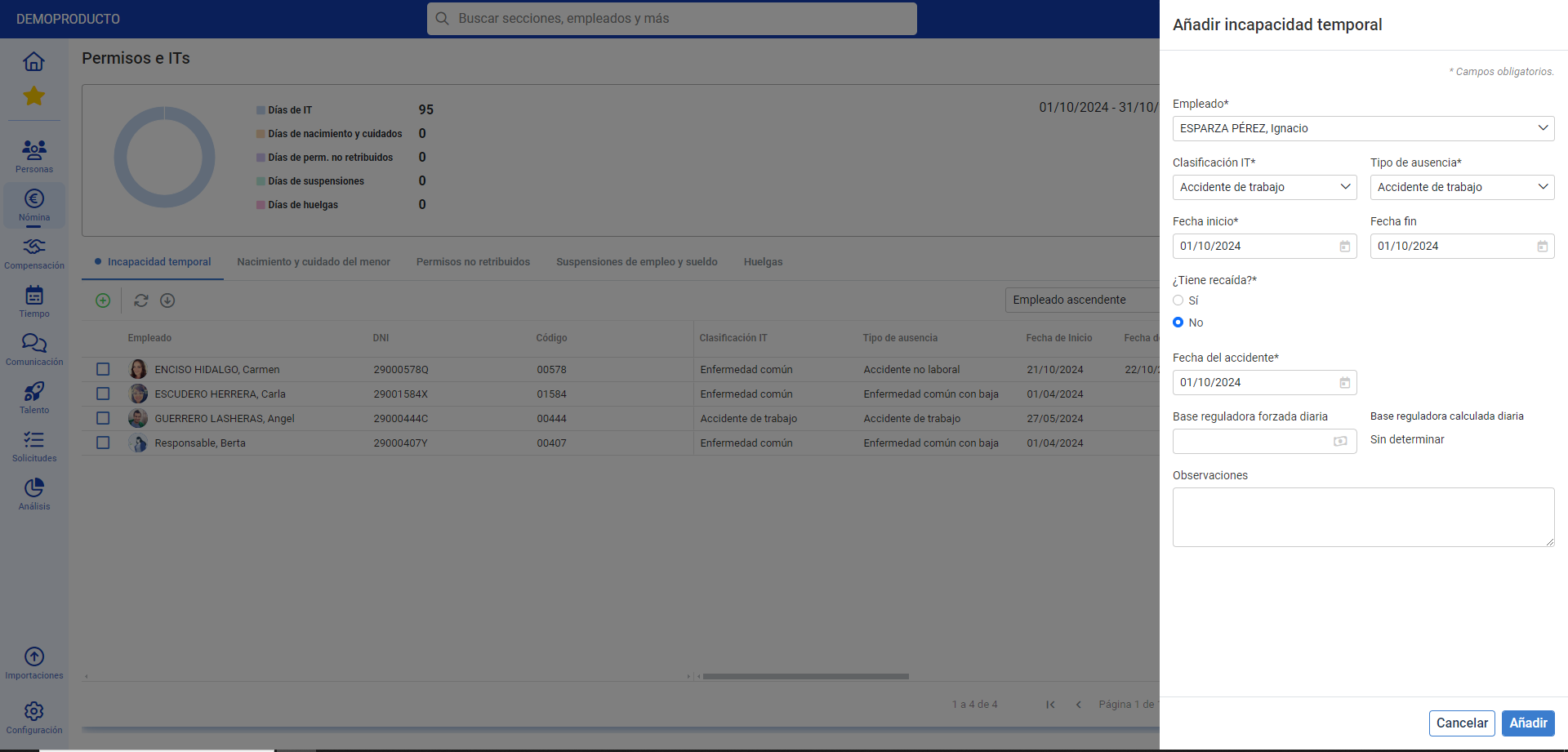
- To add a new entry related to the work accident, click on the corresponding button on the toolbar, within the IT tab, which is displayed by default in the current module menu. In the lateral modal window that appears next, you have the following fields to fill in, some of them mandatory(*):
- Employee: the search tool allows you to select the worker, to assign an IT.
- IT Classification: used to discriminate between available types of incapacity. Select Work accident and, in Type of absence, which provides a further degree of specification to the classification, the specific mishap or incapacity.
- Start/End Date: First, you must specify the exact day the worker suffered the mishap, while the end date refers to when the employee completes the sick leave to return to work.
- Is there a relapse?: if affirmative, the system will offer a list of previous related IT, if there is a history.
- Start date of application: in this case, it will correspond to the day after the mishap.
- Forced Daily Regulatory Base: in this field, you can specify the worker's contribution base, to consider for incapacity calculation and delegated payment derived from it. It can be forced daily (for example, if there are no records from previous months), by entering the corresponding amount in euros.
- Observations: additional comments. This is the last field of this modal window; don't forget to click the Add button, to apply your preferences and add the employee's name to the main screen list:
Note: The regulatory base should only be specified if it is to be forced. The system will calculate the contribution base for the accident.
Note: Real Decreto Legislativo 1/1994 states that no prior contribution periods are required for the right to benefits that derive from accidents, whether work-related or not, or from occupational diseases, unless expressly required by law. Therefore, in this case, the waiting period does not apply.
Process Video
We demonstrate this feature in just a few seconds:
Still have questions? Check out the following related articles:
Additionally, you can view our glossary, available at this link.
Was this article helpful?
That’s Great!
Thank you for your feedback
Sorry! We couldn't be helpful
Thank you for your feedback
Feedback sent
We appreciate your effort and will try to fix the article