Important: this article is for Endalia HR users with an Administrator profile.
Every payroll can have one or several concepts, and they must be correctly reflected in the receipt. Thanks to this simple functionality, you can manage them at your leisure. Keep reading!
In this article:
Note: You must remember that some concepts will appear as locked by default in the system, so you will not be able to modify them, you'll know which ones because they have a lock.
Create Concepts
In the Configuration hub, click on Payrolls > Concepts
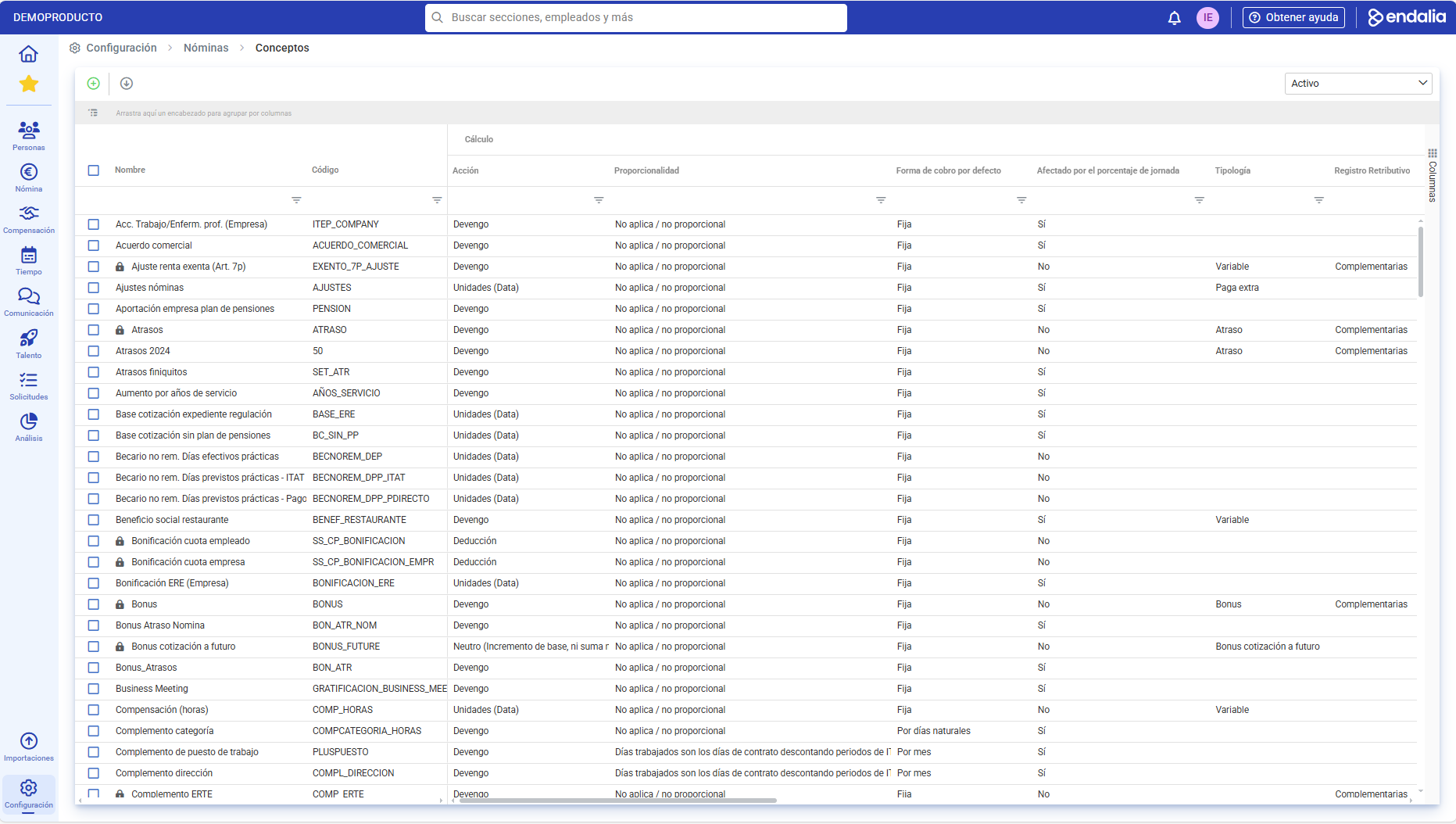
- On the screen, you have a long list of generated concepts to add to the payroll. From here, you can create new concepts, edit the ones you already have, or copy a concept to create a new one from an existing one.
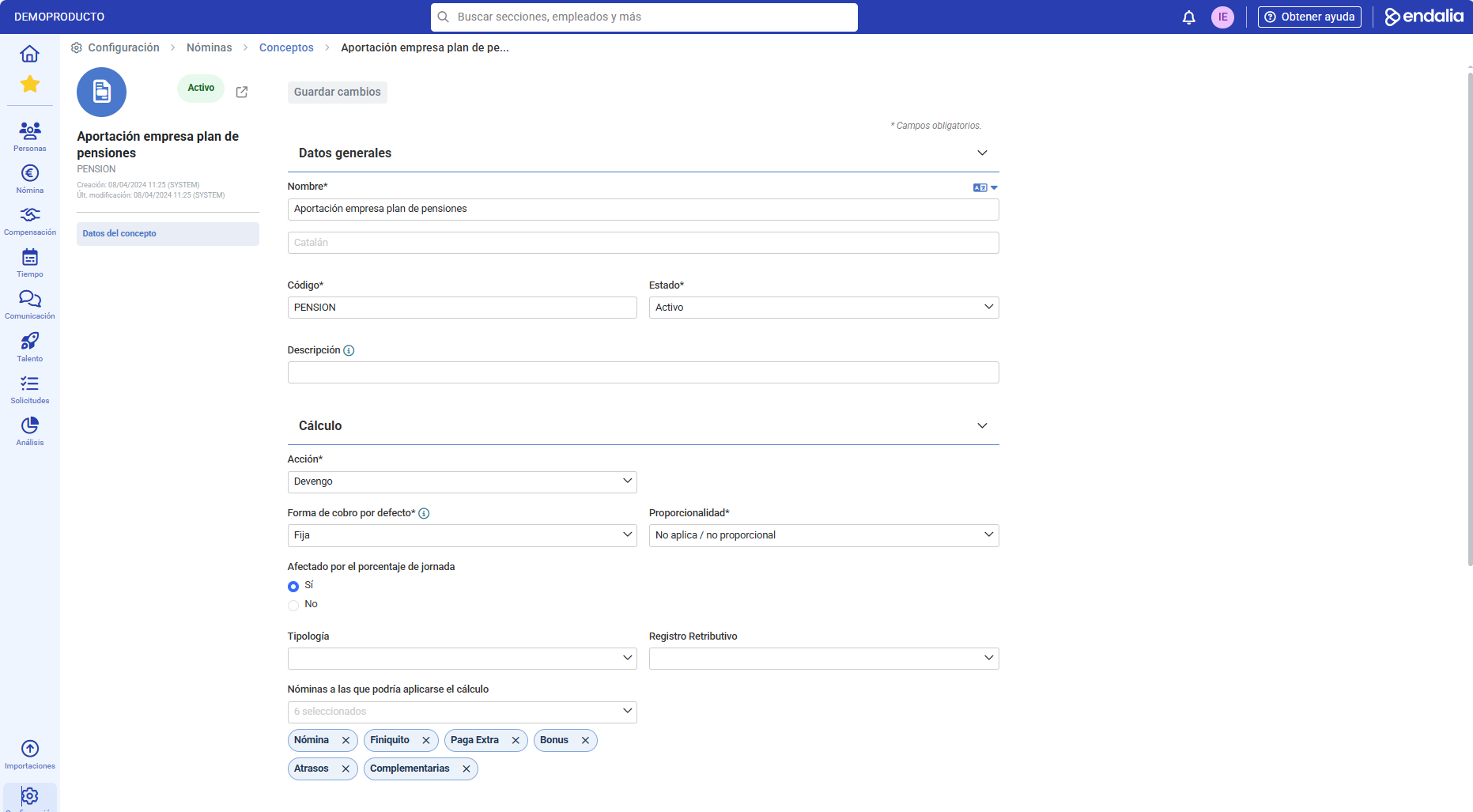
- To create or edit a concept, you'll find the actions in the toolbar at the top. Next, you'll find various sections:
- General Data: give a name to your concept, choose its code
- Calculation: indicates the different types of receipts to which it can be applied and the behavior that the concept will have within the calculation.
- Quotation: select how the concept should quote and where we will reflect it in the CRA
- Taxation: informs how the concept behaves with the treasury and indicates the keys you need for the tax models.
- Receipt: orders the concepts within your receipt and which type of unit is applicable
Finally, remember to click the Save changes button at the top left of the screen to make your preferences effective:
If you have questions about the terms, check our glossary on this link.
Was this article helpful?
That’s Great!
Thank you for your feedback
Sorry! We couldn't be helpful
Thank you for your feedback
Feedback sent
We appreciate your effort and will try to fix the article