Important: this article is aimed at Endalia HR users with an Administrator profile.
An essential functionality for a company, allowing you to manage this supplementary savings plan effortlessly. Take a look at this text to learn more about the topic.
Here you will find:
Creation and Monitoring of Pension Plans
Within the hub Compensation and Benefits, go to Compensation > Pension Plans
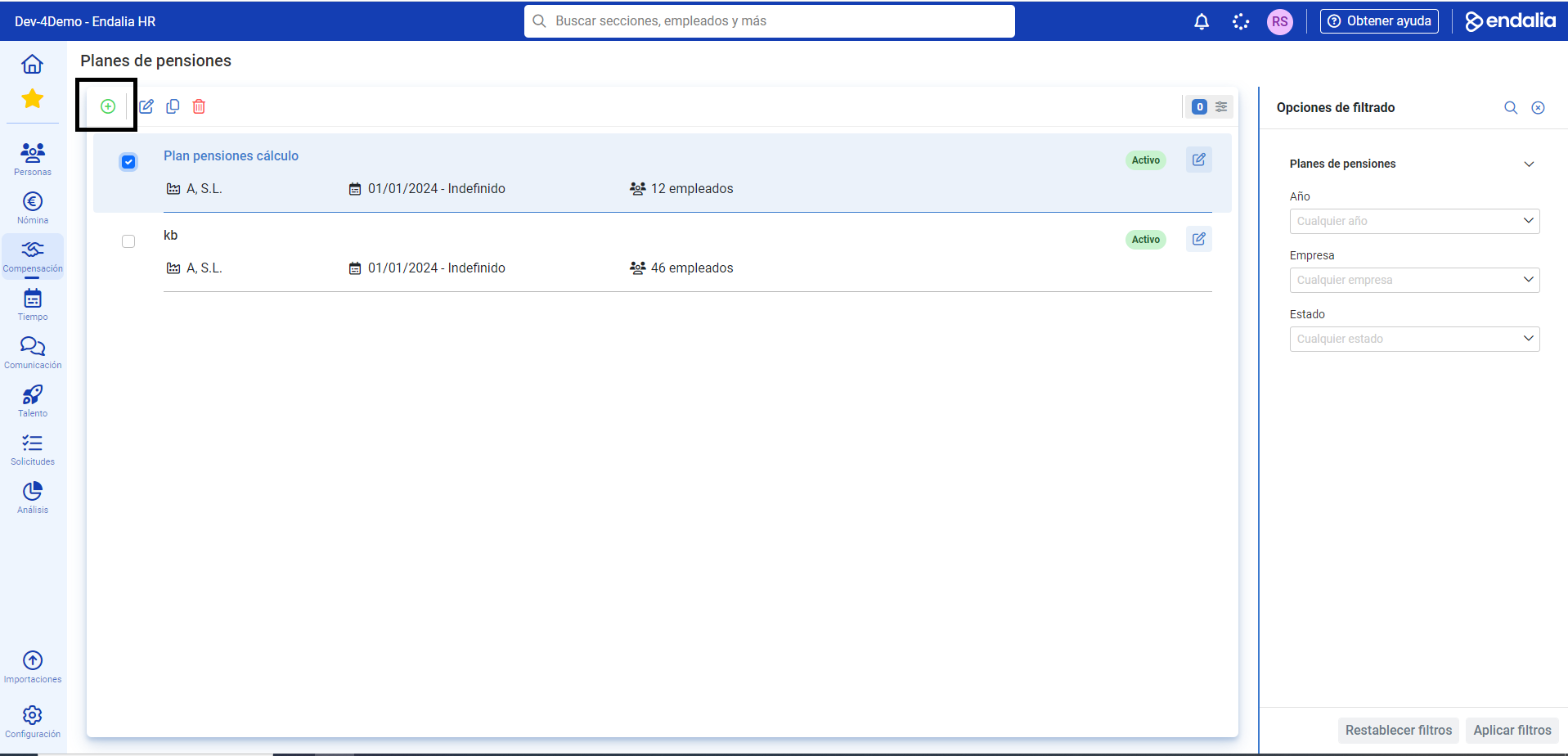
On the first screen presented, called Pension Plans, you have a list of those already generated. To create a new one, click the Add button which, as in other occasions, is found in the toolbar:
Next, we present a streamlined process with several steps. In the first, Definition of the Pension Plan, you must enter all the essential data for creating the plan, such as name, start date, company, agreement, seniority, etc. Once you have completed the required data, click Next
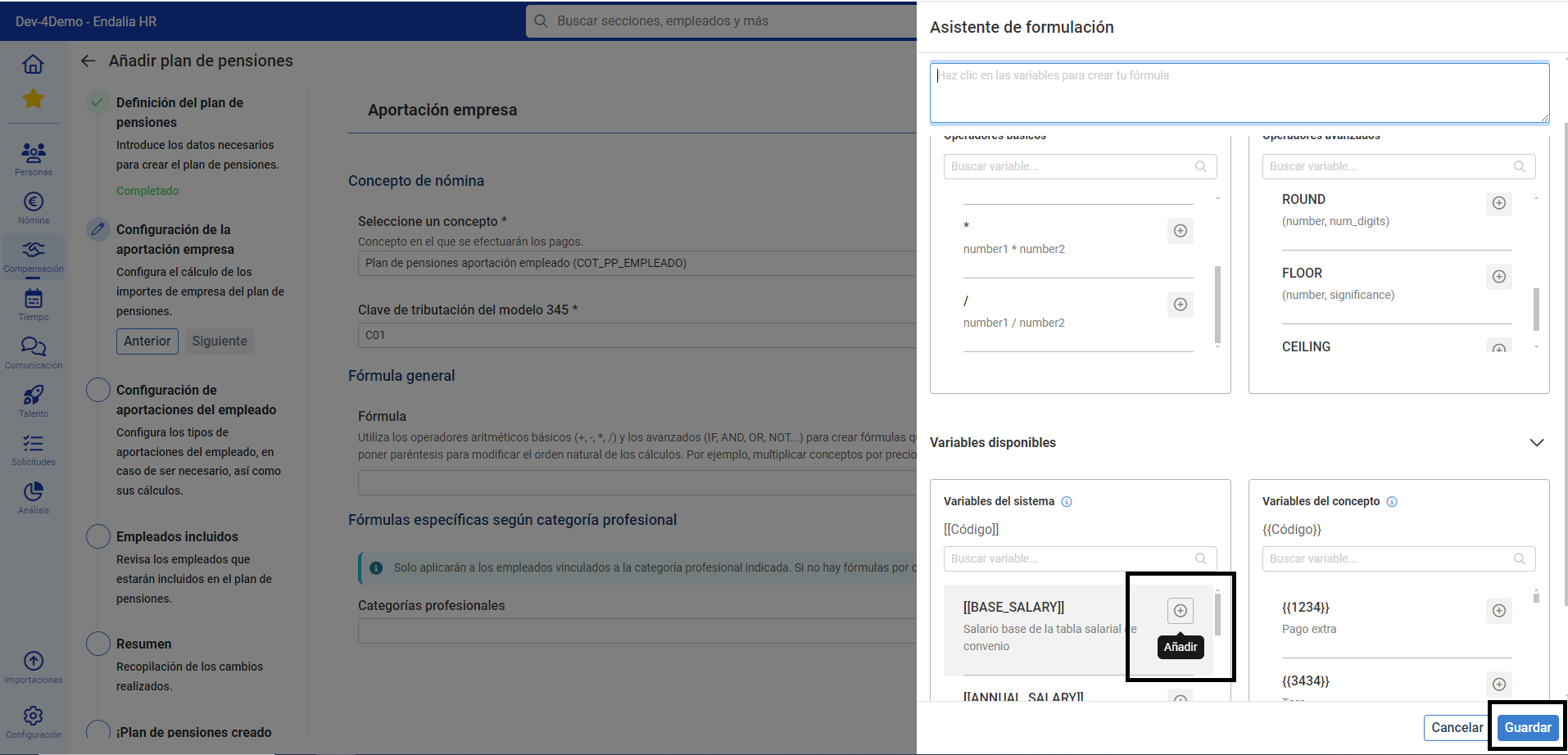
The second step, Configuration of Employer Contribution, aims to calculate the employer amounts in the pension plan. First, fill in the concept and tax key, and establish the general formula using labels; for this, you can enter it directly in the field provided or Open the assistant. Within the formula assistant, use the available operators and variables to create the formula; for example, if it will consist of 5% of the base salary, in the available variables section, add [[BASE_SALARY]] and add to the formula "*0.05". Don't forget to click Save after, to return to the assistant, and Next, to proceed to the next stage. Remember that you can also set formulas for a specific professional category in the last section of this step:
The next step is reserved for configuring employee contributions and is optional. If you decide to complete this step, activate the Participant Contribution option with the designated button. Whether you complete this step or not, click Next to advance the process.
In the next phase, you will be offered a list of employees who meet the criteria previously established for the pension plan; in the proposed list, workers who belong to another pension plan will not be present. Additionally, with the toolbar buttons, you can Update, Edit the profile of an employee or Discard them from this same list. Once again, click Next
The Summary step provides you with an overview of all the data entered. If you agree, click Add Pension Plan
Pension Plan Successfully Created! Now you can open its corresponding file, or return to the list: choose the first option to monitor and edit your pension plan.

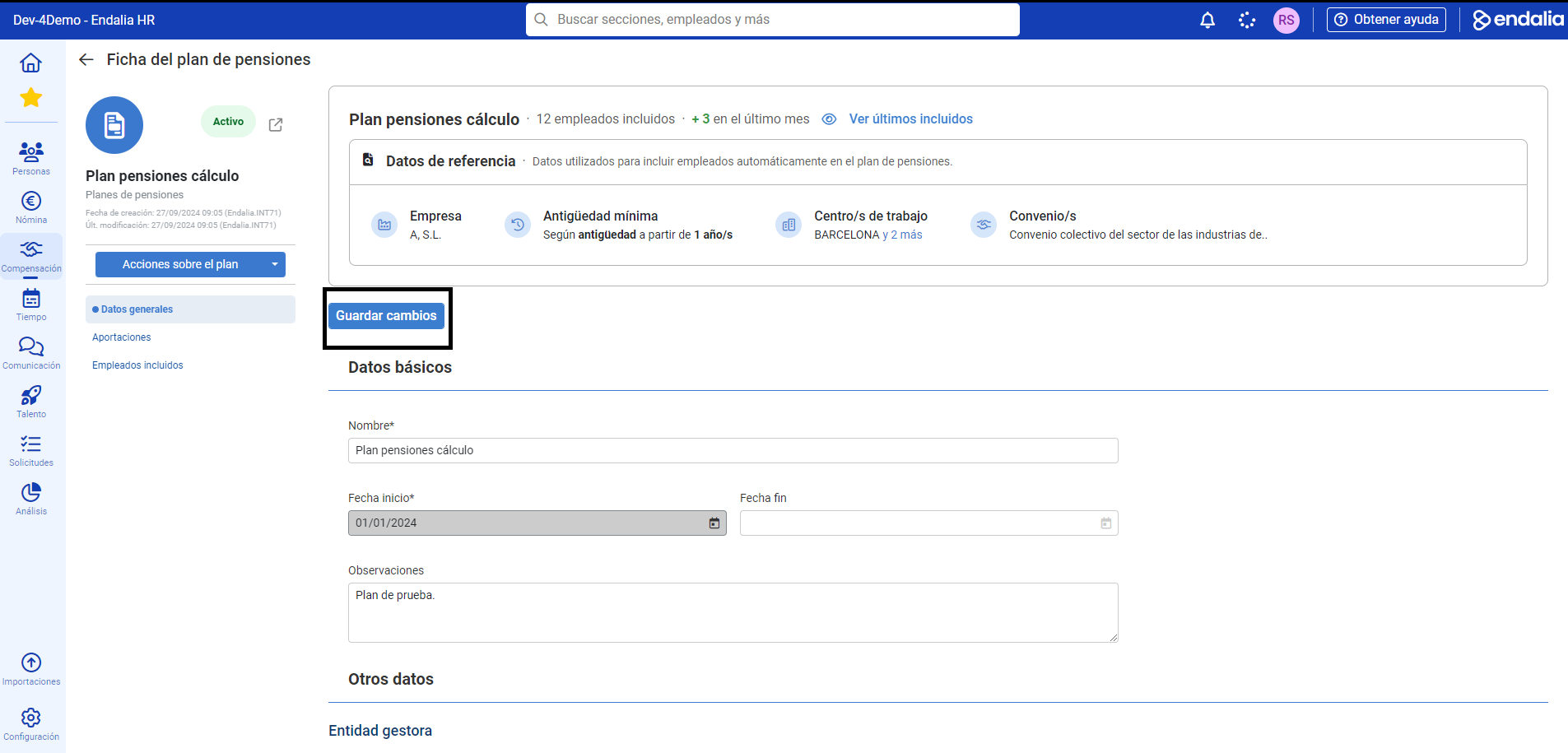
After opening the file of your new plan, you can now edit it. On the first screen, within the General Data menu item, you can see a complete overview and modify the basic data you deem appropriate. Remember to click Save changes, to make your preferences effective:
Similarly, in the second item, Contributions, you can consult and edit the data you have previously entered during the period creation. Once again, click Save changes
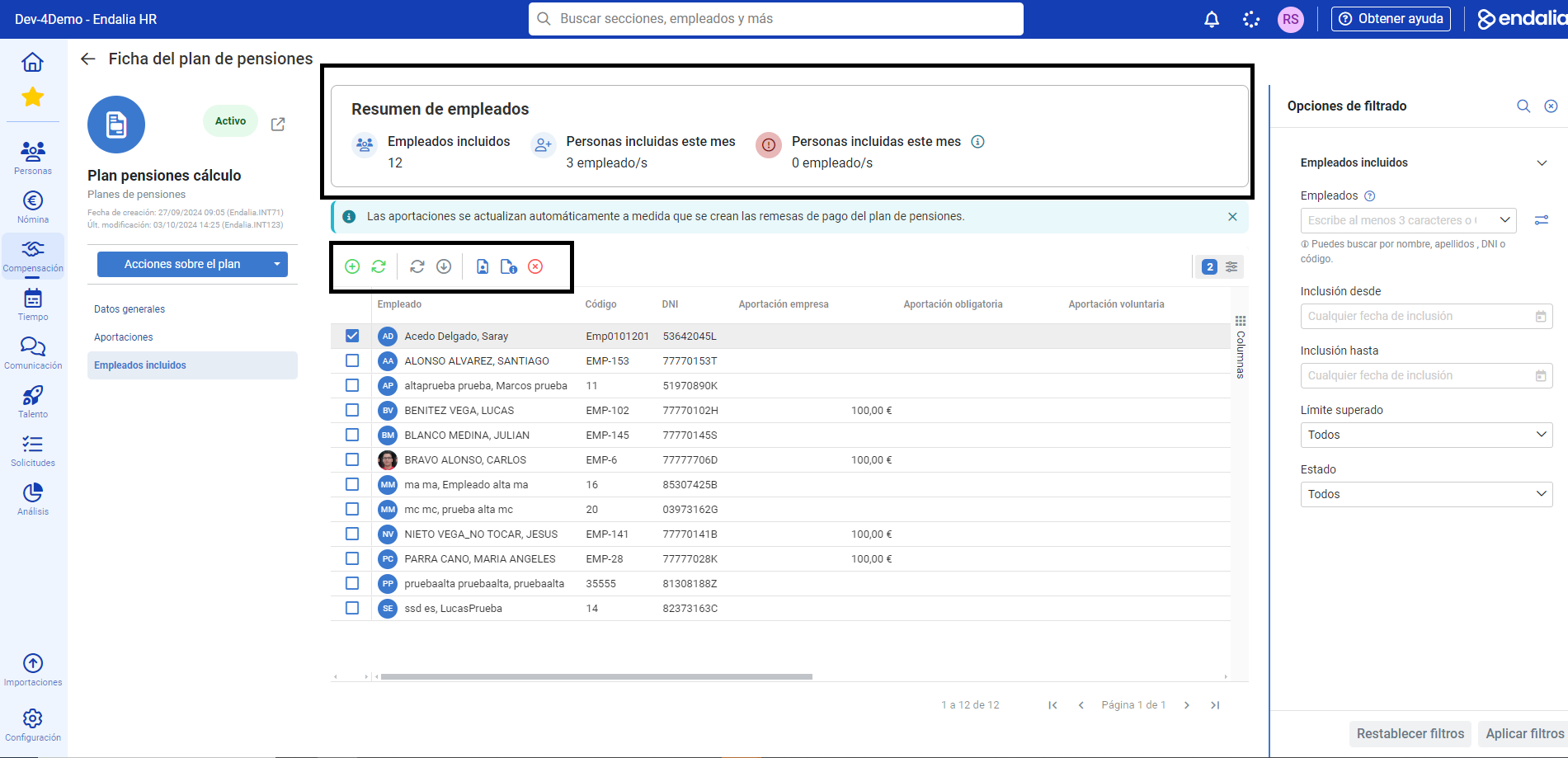
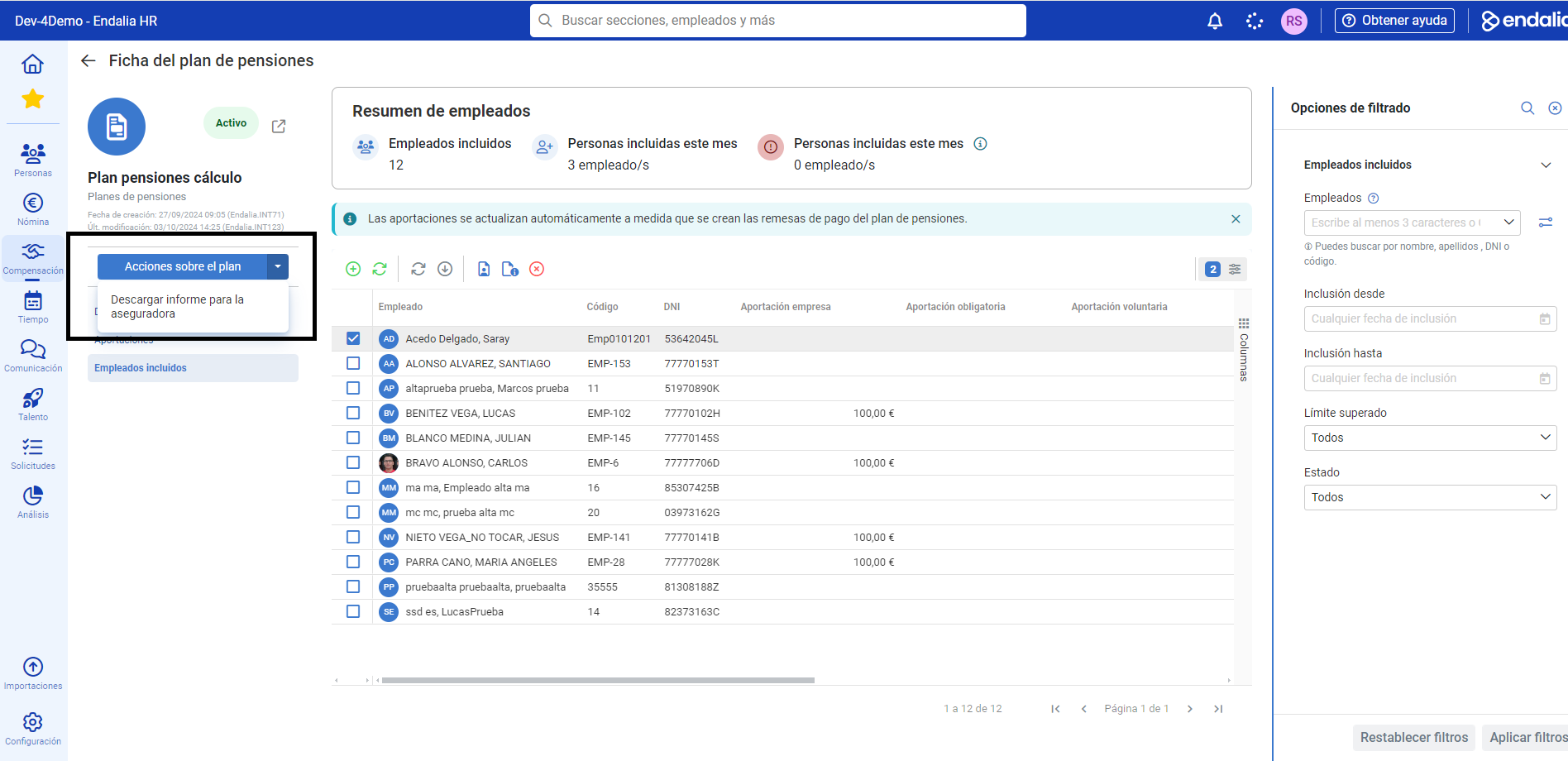
Finally, in Included Employees, you have a list of those who are part of the pension plan. Remember that, with the toolbar buttons, you can perform various actions on the workers after selecting them; Add, Update contributions, View details (contributions by month and year), Open profile in another tab and Discard, among others:
Note: Additionally, you can download a report for the insurer, using the "Actions on the plan" button available in the file. Once you have chosen the option, select the month and year of the report and click Download; the file will be downloaded in Excel format to your computer, in the previously selected location:
You might be interested in:
Still have questions? Take a look at our glossary at this link.
Was this article helpful?
That’s Great!
Thank you for your feedback
Sorry! We couldn't be helpful
Thank you for your feedback
Feedback sent
We appreciate your effort and will try to fix the article