Important: this article is aimed at Endalia HR users with Administrator profile.
Generate different periods to adapt to your company’s payments and tracking, and deploy the tracking of addresses to the persons responsible.
In this article, you will see:
Manage bonus and incentive periods
- Within the Configuration hub Settings, navigate to Compensation > Bonus and Incentive Periods
- On this first screen, you have a list of periods already generated. To find a specific period, you can use the filters located on the right side of the screen; similarly, the various buttons on the toolbar will allow you to carry out different actions (Edit, Move to history, Add period, etc.):
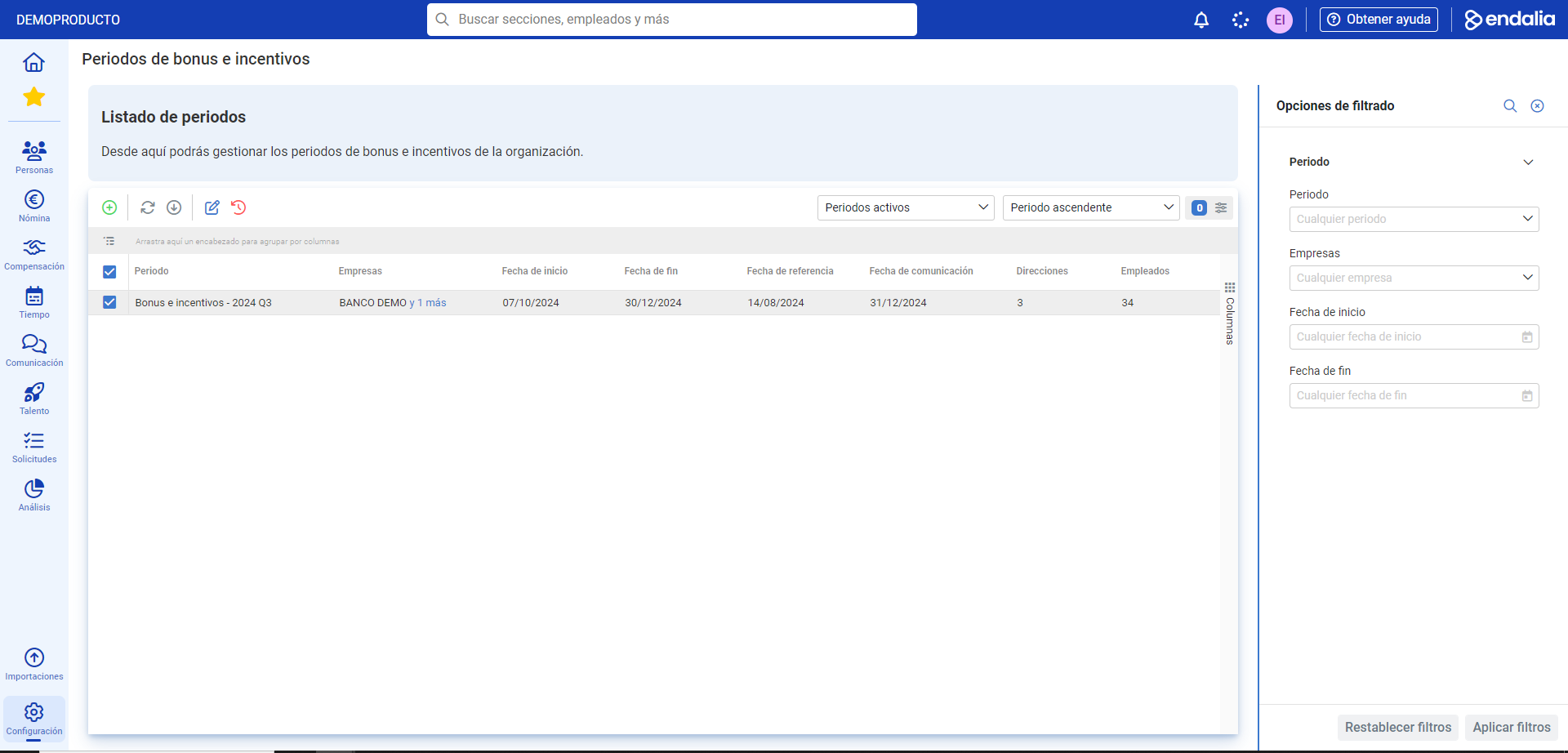
- To add a period, simply click on Add period, the button located, as mentioned, on the toolbar.
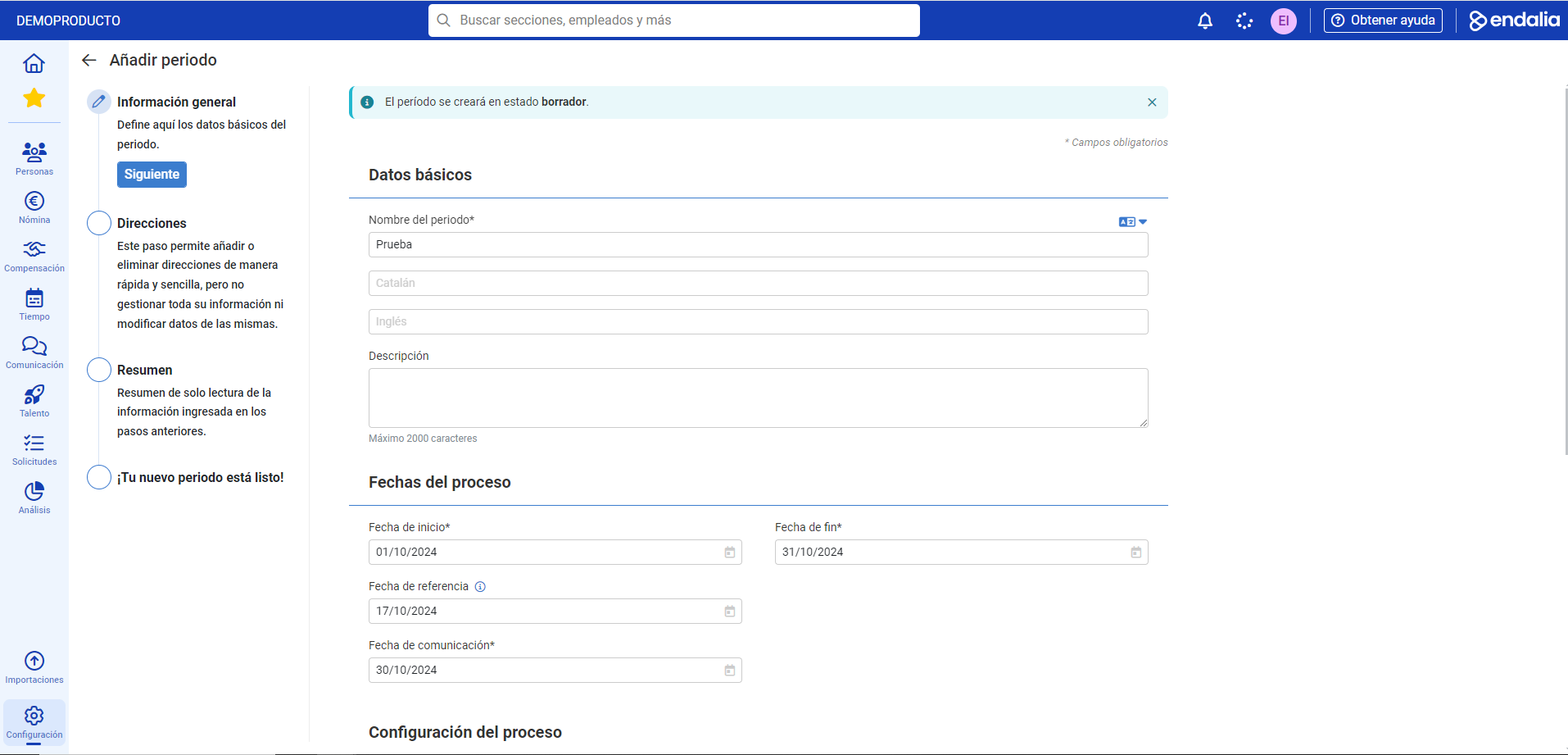
- On the next screen, you will need to configure your period, which consists of four steps:
- General Information: as usual, you have different sections and optional and mandatory fields; fill them in to proceed to the next step. Some considerations about the fields are:
- Reference Date: determines the specific date on which the data of the employee variations included in the addresses will be taken.
- Companies: determines which employees will be added automatically when creating the addresses by organizational unit (only employees linked to these companies on the reference date will be added). Only companies whose currency is the euro can be selected.
- Bonus target: "Bonus" type concept (configured in the Compensation module options), on which the payment to the employee is calculated and calibrated. If the employee has the "Bonus" type concept in their salary information, then in the Bonus and incentive period, the bonus value will be initialized in the salary. If the employee does not have the "Bonus" type concept in their salary information, then in the Bonus and incentive period, the value will be initialized at 0, and the payment must be defined manually. Once the period is created, this data cannot be modified.
- Calibration: determines if the percentage applied to the Bonus target to define employee payment can be adjusted.
- Objectives Period: allows retrieving of the achievement and payout data from the completed goal evaluations of the employees.
- Payroll Payment: defines the payroll concept on which the payment will be specified. It is a simple selector of payroll concepts, with year and month of payment, and you can only select a payroll concept if the Payroll module is contracted and activated.
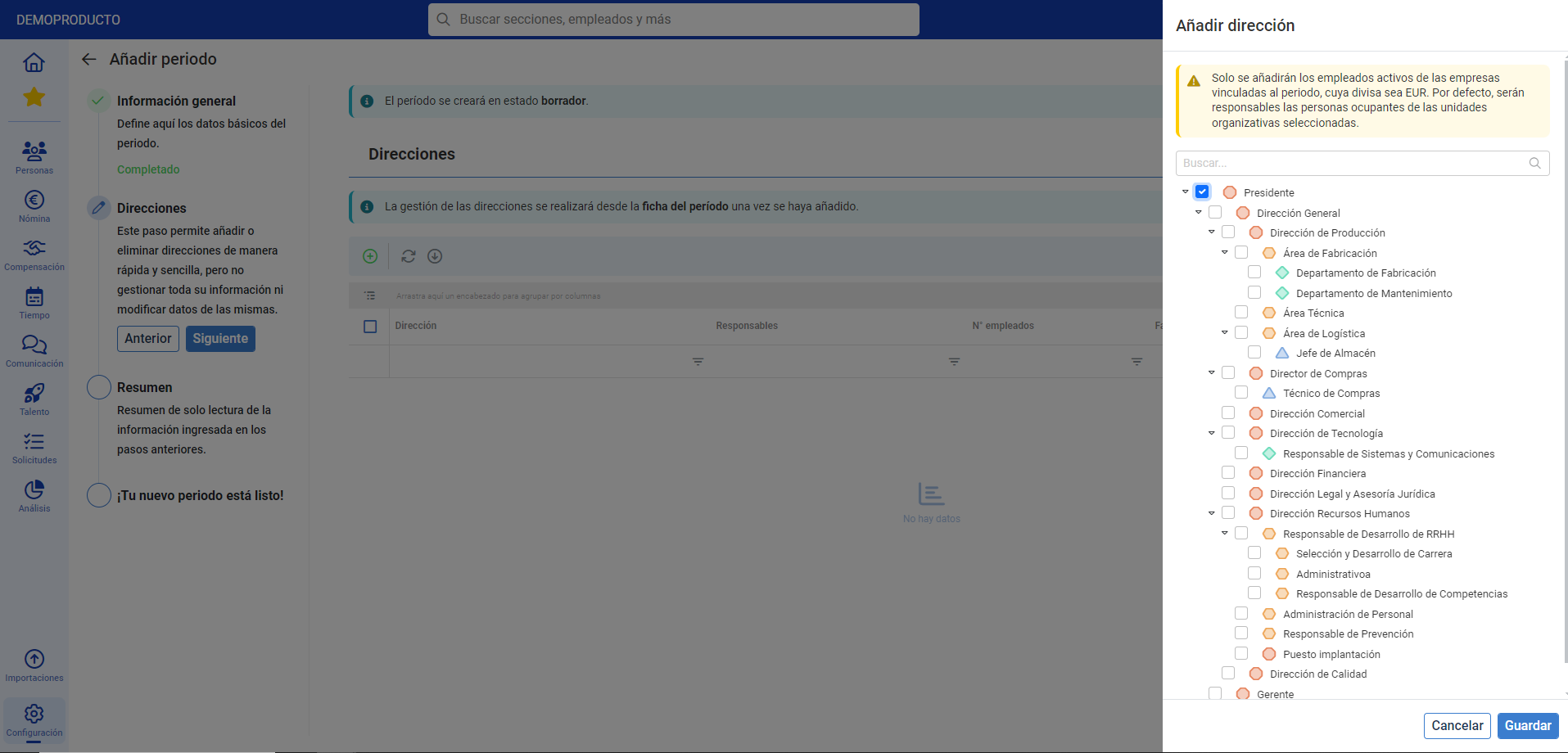
- Step 2, Addresses, can be defined from creation and/or from the file of an already created period. They can be added by organizational unit (employees linked to the selected companies on the reference date are automatically added; the persons responsible for the direction are determined automatically according to the organizational structure). Alternatively, they can be added manually, that is, through the free selection of persons responsible and employees (the latter, only those linked to companies whose currency is the euro, on the reference date). To add an address, click on the button enabled for this purpose, in the toolbar, and select one of the mentioned options. In the lateral modal window presented, choose them and click Save, to make your preferences effective.
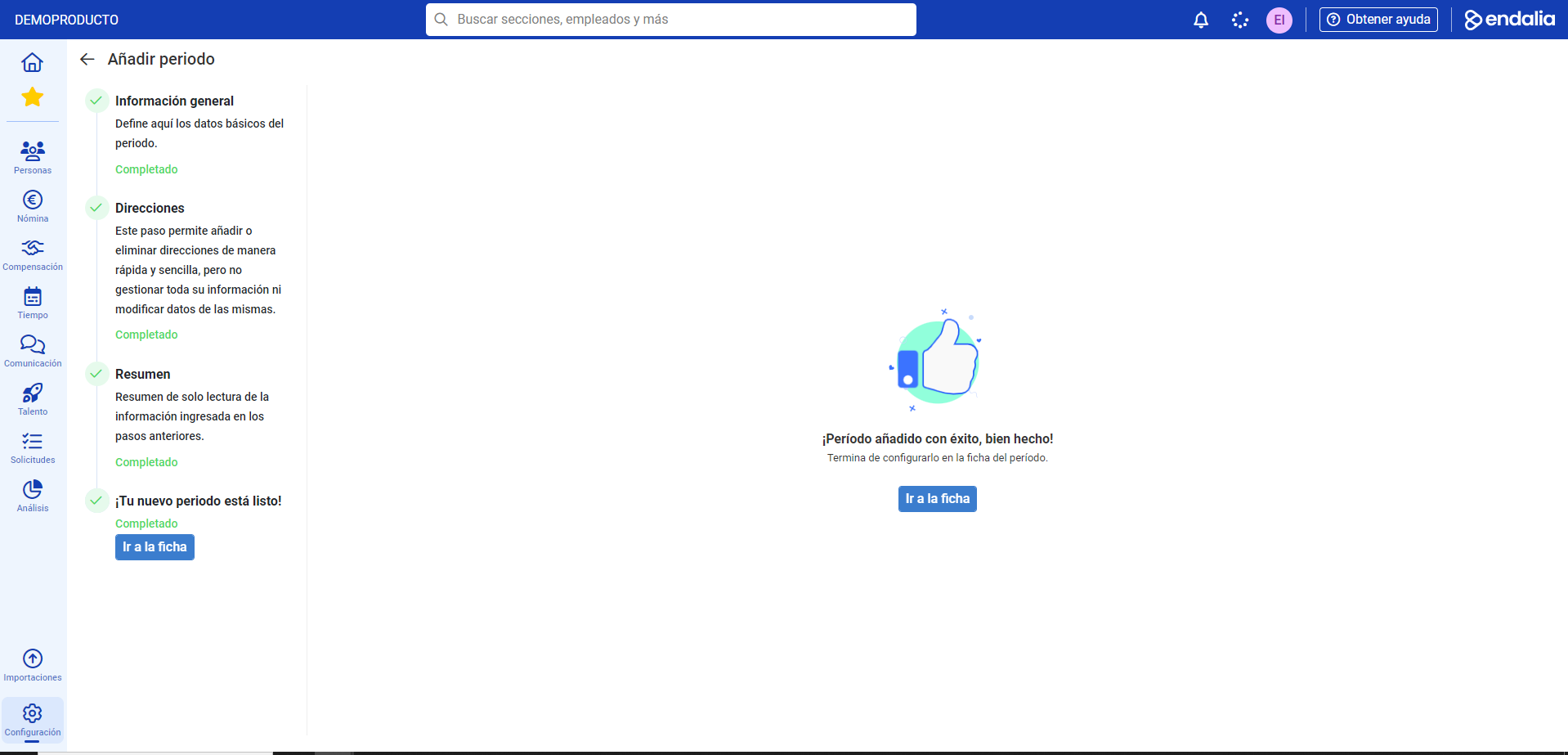
- Finally, in the Summary step, check that the selected information is correct and click on Add period, a button you will find in this section. A confirmation message will be displayed on the screen, allowing you to access the record of the said period:
5. If you want to edit an existing period, just select it in the main window, Bonus and incentive periods; click on Edit, a button that you will find on the toolbar again.
6. Once inside the period record, use the Actions on the period button (blue button) you can, depending on the state of the period, change state, activate a draft period, or move an active period to historical. 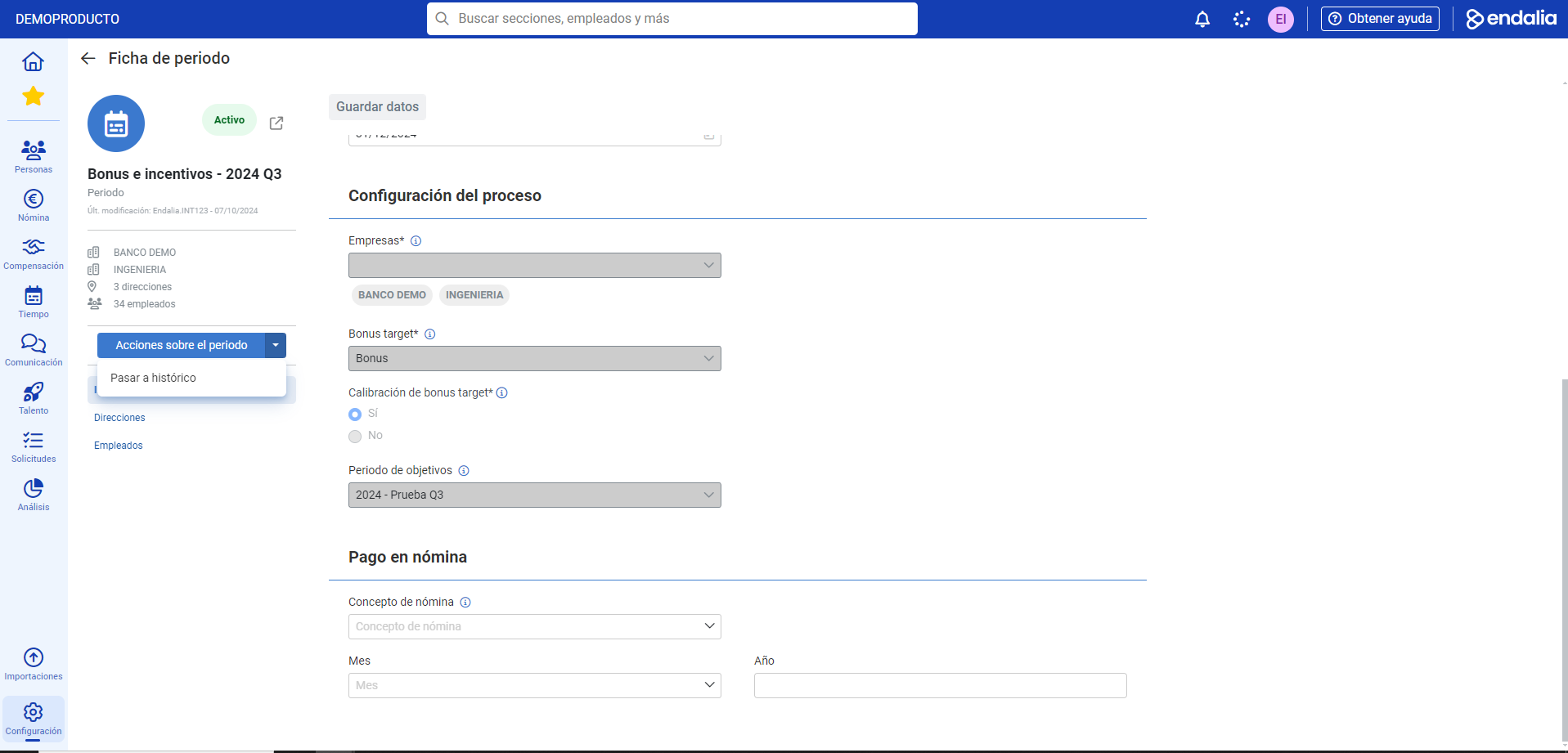
7. Regarding menu items, there are three: General Information, from which you can only modify specific data since the period was created earlier; Addresses, to add new ones to the period, change their status, or add a budget to them (Edit button):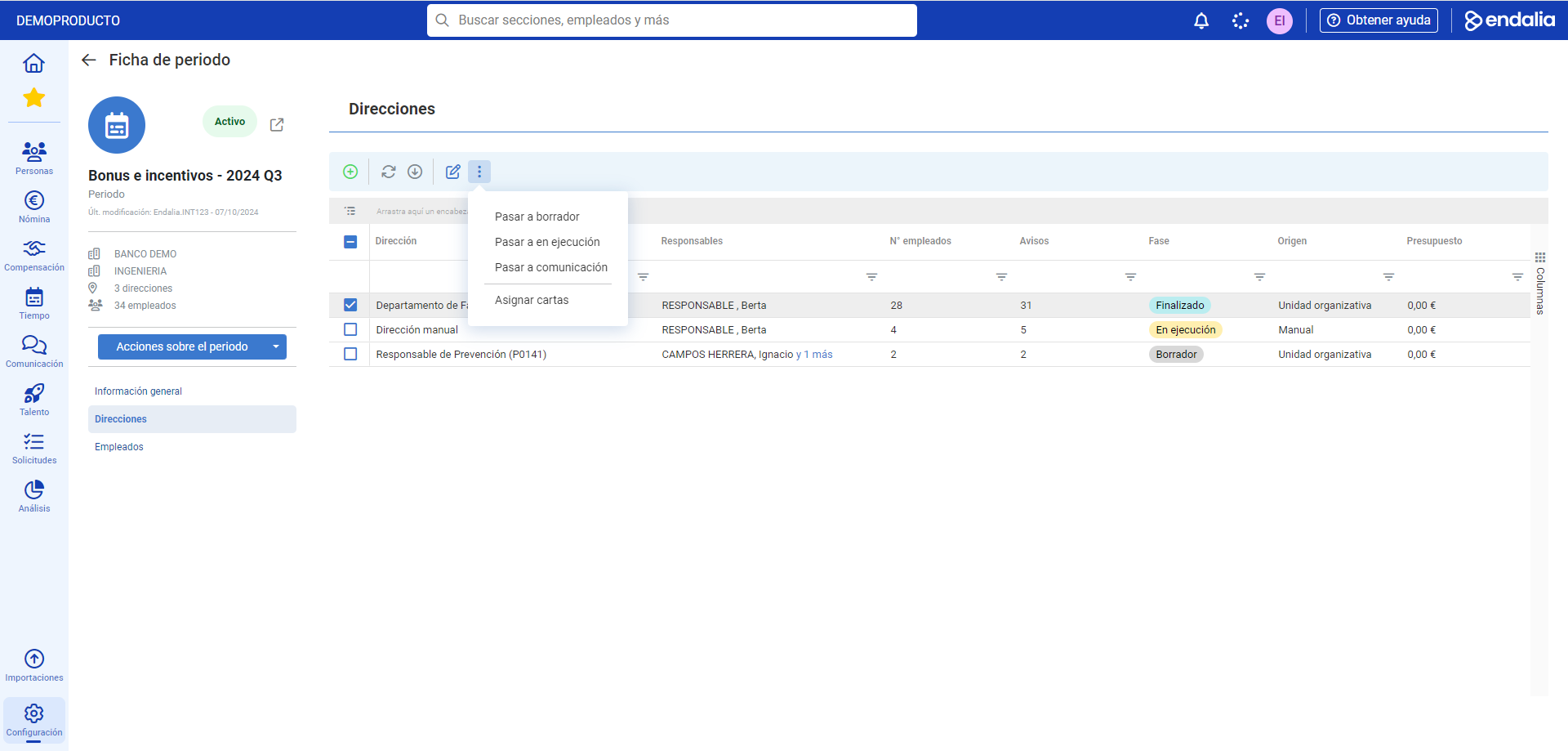
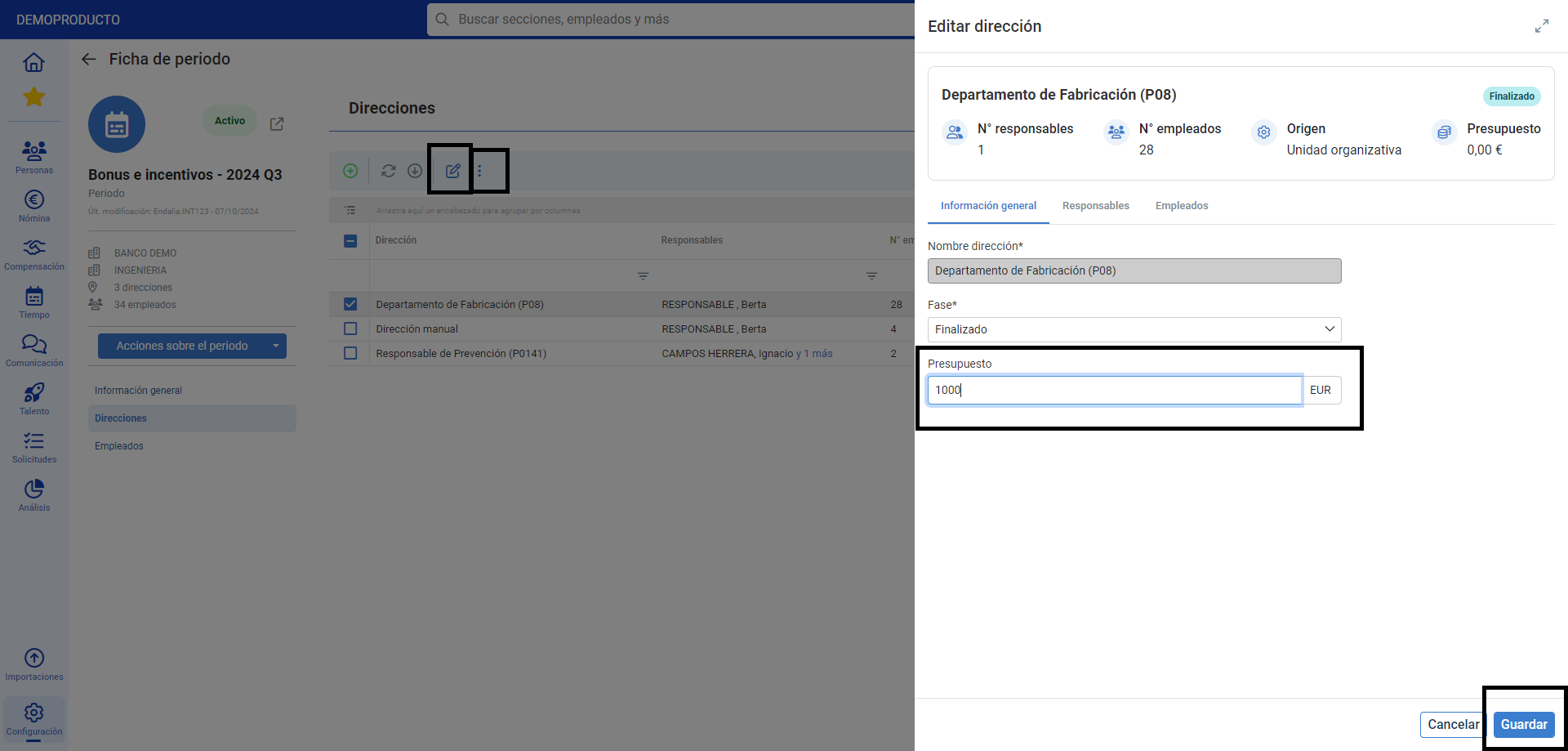
And finally, the listing of the third item, called employees, to move their direction (although the system will only allow you to do this from directions in draft phase to draft phase or in execution).
Here is this link, to access the glossary of terms.
Was this article helpful?
That’s Great!
Thank you for your feedback
Sorry! We couldn't be helpful
Thank you for your feedback
Feedback sent
We appreciate your effort and will try to fix the article