Important: this article is intended for Endalia HR users with an Administrator profile.
In the labor world and especially in HR. HR, agreements have a key significance because they regulate the working conditions of a specific sector. Thanks to our system, learning its management and keeping control of them is now easier than ever. Check it out to learn more!
In this article:
Add agreements
- Within the hub Configuration, click on Payroll > Agreements
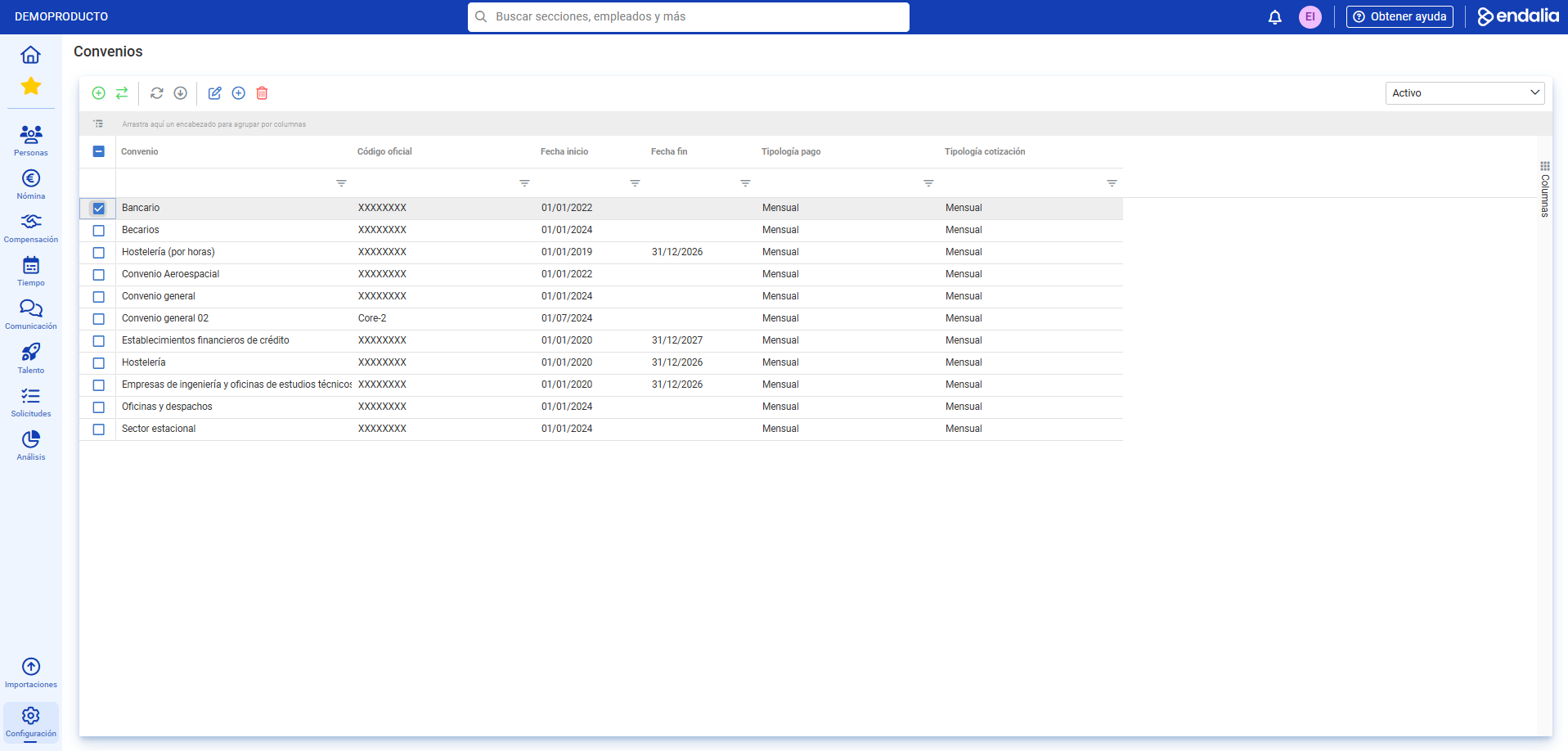
- Here, you will find the list of available agreements. As in other occasions, the toolbar will enable you to perform various actions (Update, Export to Excel, Change status, etc.).
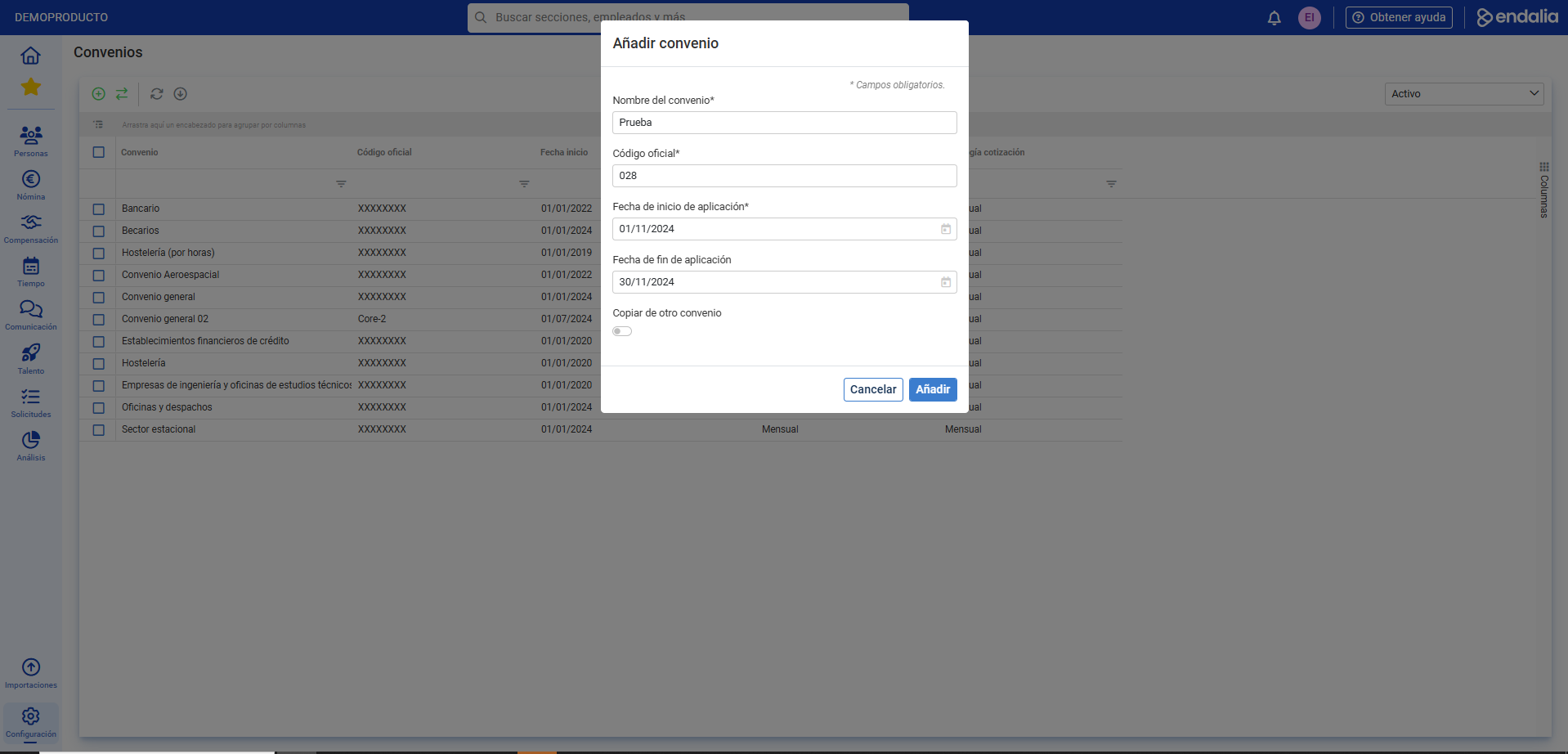
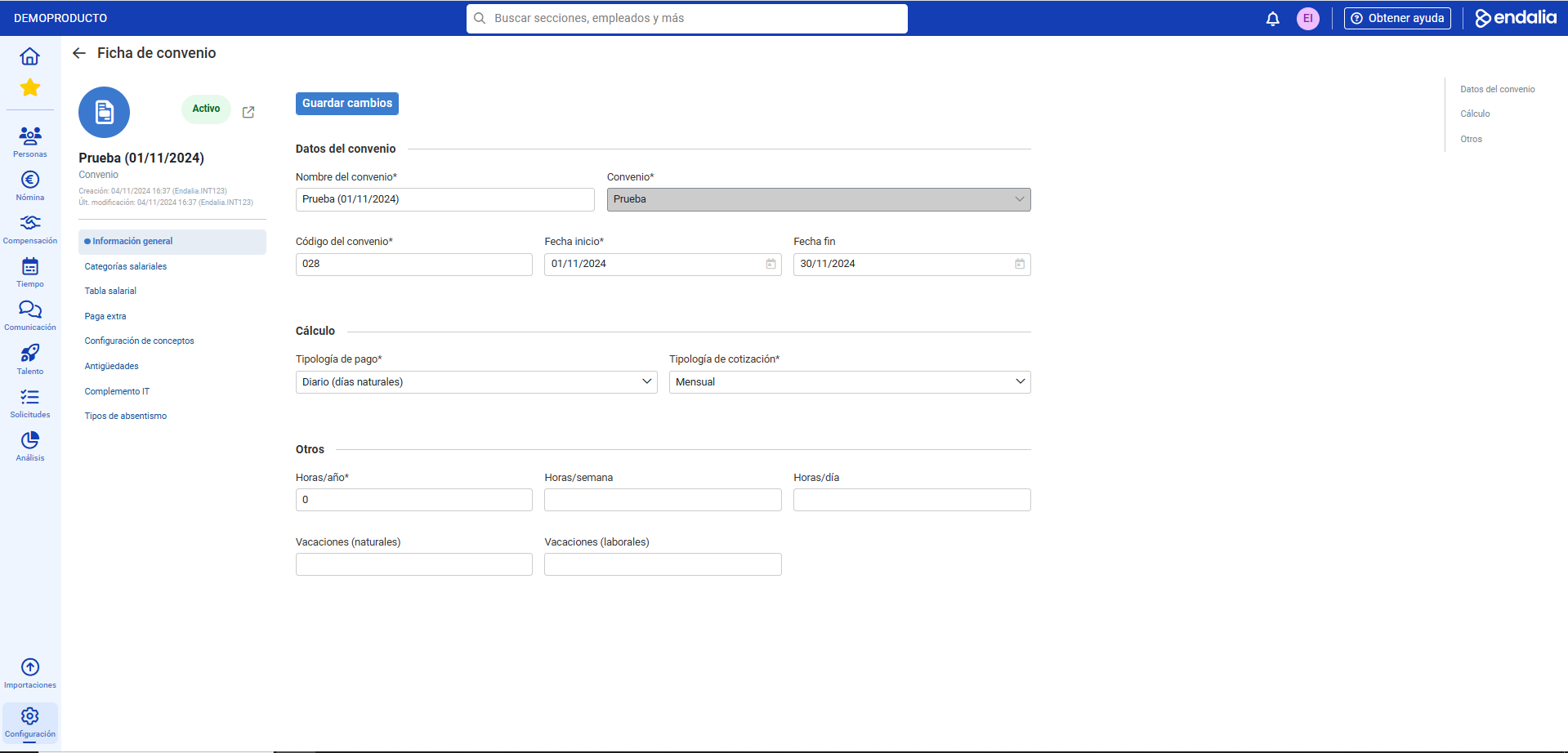
- To add an agreement, click the corresponding button also located on the toolbar (Add agreement). In the modal window presented, fill in the required fields with the necessary information and finally click on Accept. The system will automatically redirect you to the complete agreement file, divided into the following menu items:
- General information: this section allows you to enter primary information, as well as calculations on the payment type and contribution. Remember to click Save changes to finalize your preferences.
- Salary categories: here you have the option to choose a category from the list, or add a new level of compensation for various job positions in a company, using the add (+) button. If you opt for this option, fill in the fields with information on working hours and holidays, then click Add. Now, the new category appears in the main screen list.
- Salary table: this menu item allows you to enter the gross salary of employees belonging to a particular category, which you can choose from the proposed list or add it using the corresponding toolbar button. If you choose this second option, select the category from the list offered by the side modal window and then click Add. You can now edit it with the designated button, adding the base salary first, and the desired concepts afterwards (Add + Add concept button), which will appear in the list of this menu item.
- Extra payments: as the name suggests, this is an additional salary remuneration to the base salary received by a worker. Click the Add button, located at the top left of the screen, to add this concept.
- Special concept behavior: if any, including concept and concept type. Remember that they can be deleted, edited, and added at any time, with the toolbar buttons on the main screen of this menu item.
- Antiquity: to add remuneration by agreement and by the time the employee spends in the company.
- IT Allowance: to add a sum of money in case of temporary incapacity:
- Types of absenteeism: to establish this typology in the agreement.
Feature video
If you still aren't clear on the concepts, take a look at this brief video summary:
Still have doubts? Take a look at the following related articles:
Additionally, you can view our glossary, available at this link.
Was this article helpful?
That’s Great!
Thank you for your feedback
Sorry! We couldn't be helpful
Thank you for your feedback
Feedback sent
We appreciate your effort and will try to fix the article