Important: this article is intended for Endalia HR users with an Administrator profile.
This functionality allows you to fully customize the various agreements present in your company, with minimal effort. If you're curious, you've come to the right place. Come in and take a look!
In this article, we show you:
Contract Templates
Within the Configuration hub, click on Payroll > Contract Templates
- In the following screen, titled Contracts, you will see a list of the different templates available for contracts provided by the system by default. The toolbar offers multiple initial options such as Export list, Update and collapse. To take action on a specific template, check its box or click its name to see other actions you can perform: Edit, Compare configuration and Download template
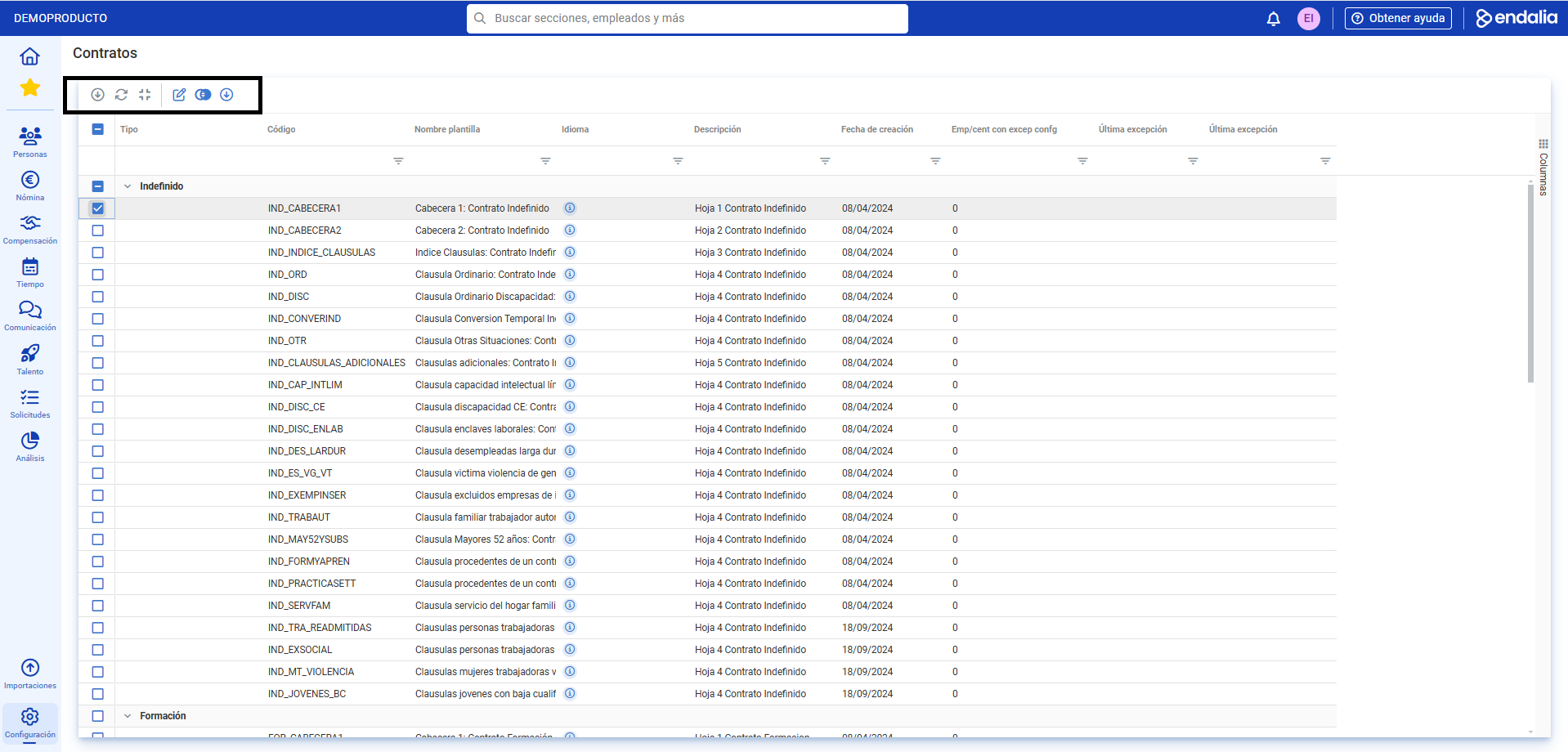
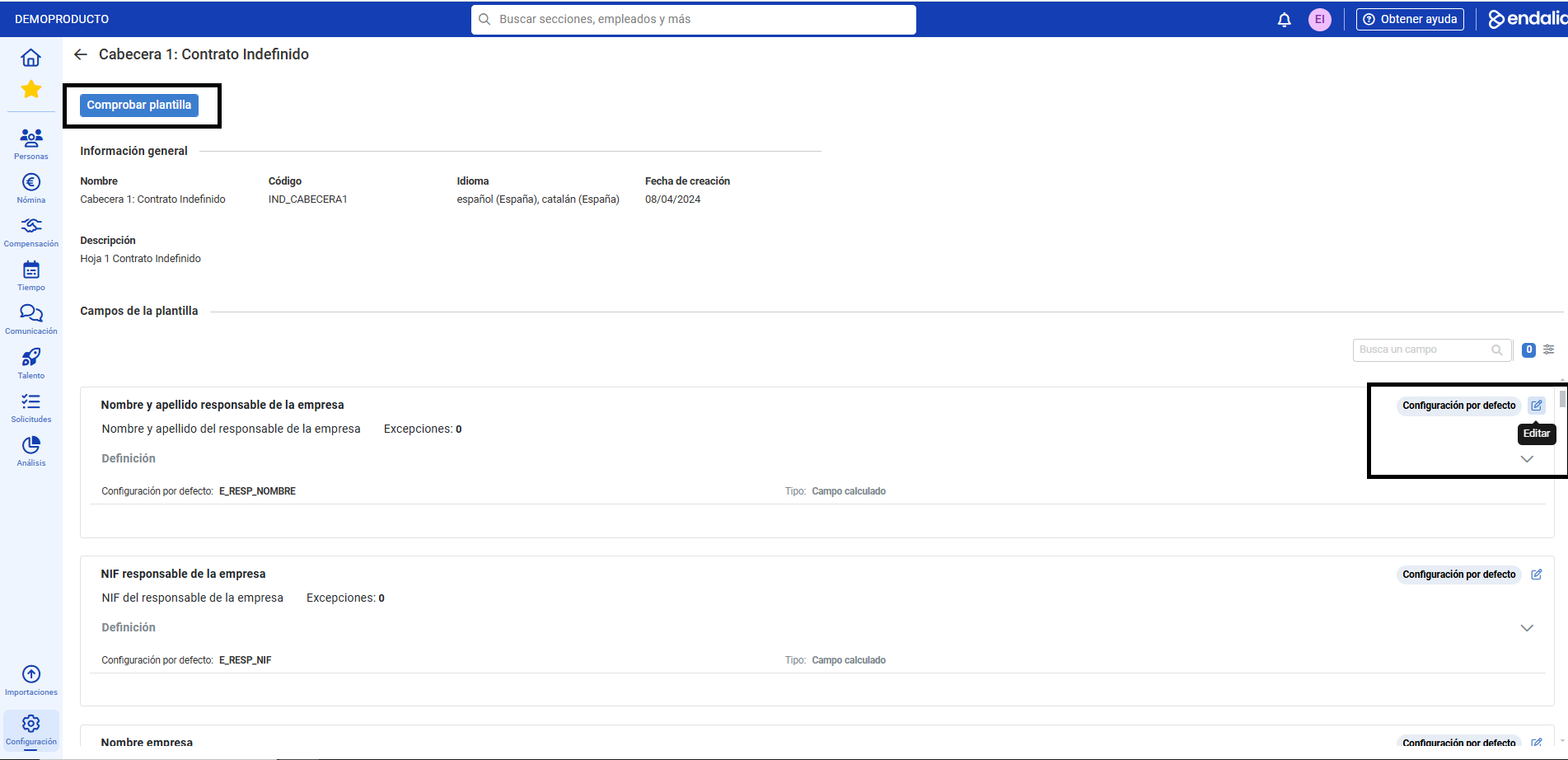
- If you want to Edit a contract, click the corresponding button. On the next screen, you can view both the General Information and the sections into which the template is divided. Each of these sections can be modified using the button located within them. If you select this functionality, you can change the general data and add exceptions in the side modal window, which will apply to the respective fields you modify and appear highlighted in the different subsections of the contract, next to the edit button (Configured with exceptions or Default configuration). To complete this phase, remember that the Check Template button at the top of the screen allows you to see how the contract would look with the changes made:

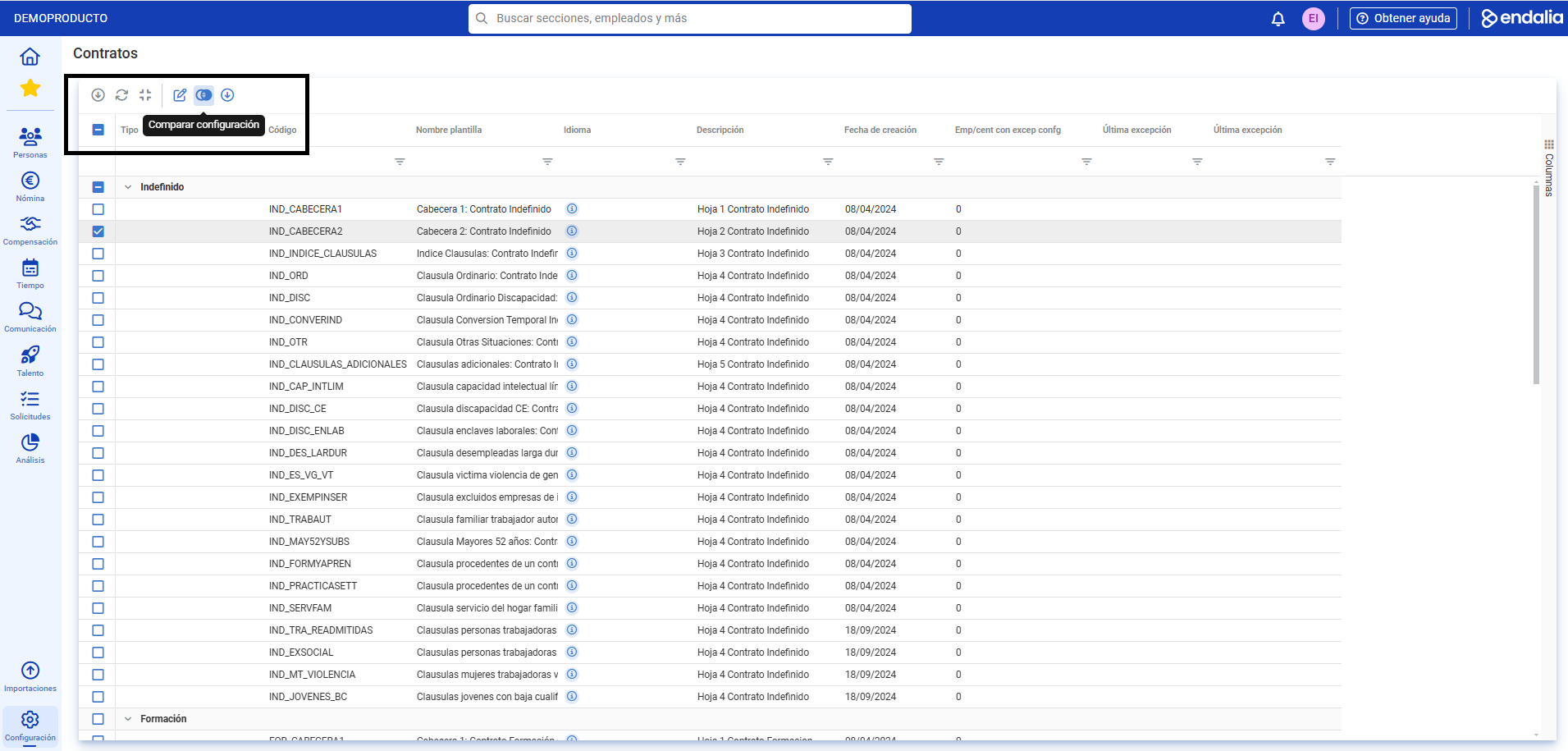
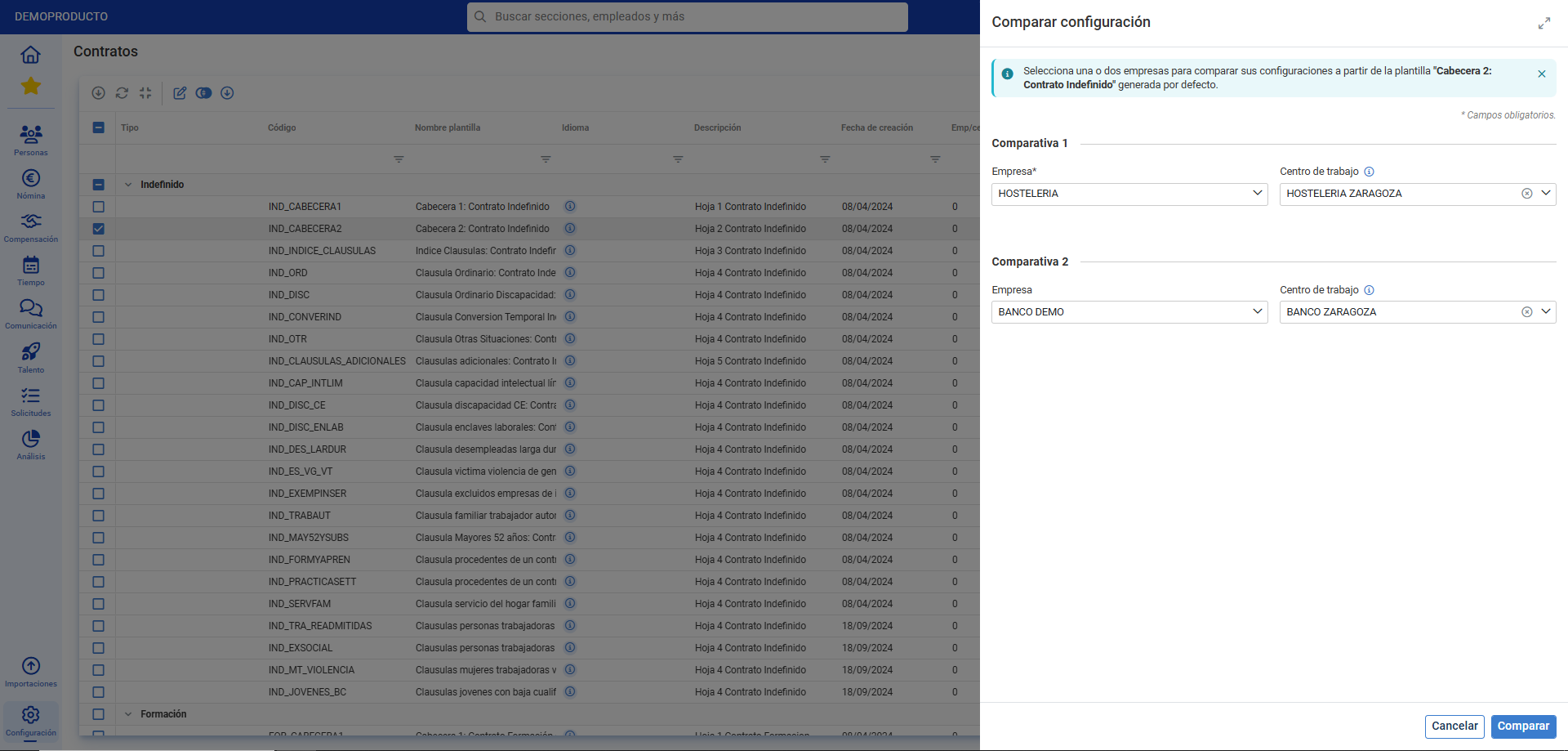
- To compare a configuration between contract templates, return to the main Contracts screen, select one of them, and click on the Compare Configuration button found in the toolbar. In the modal window presented next, fill in the mandatory fields and click on Compare. In the next step, the system shows you both the content of the default template and the selections you made, with differences highlighted and marked with a blue dot. Additionally, you can copy each of the configurations on this page and, through the Copy button in the side modal window, transfer it to the corresponding template:
Process Video
We show you this functionality, in just a few seconds:
You can also take a look at our glossary, available at this link.
Was this article helpful?
That’s Great!
Thank you for your feedback
Sorry! We couldn't be helpful
Thank you for your feedback
Feedback sent
We appreciate your effort and will try to fix the article