Important: this article is intended for Endalia users with an Administrator profile.
Onboarding and offboarding templates are the foundation for organizing the necessary tasks in employee entry and exit processes. Thanks to them, you can standardize steps, assign responsibilities, and ensure each process is managed correctly and without oversights.
In this Article
Activate the Functionality
Before creating templates, make sure the module is enabled.
Steps:
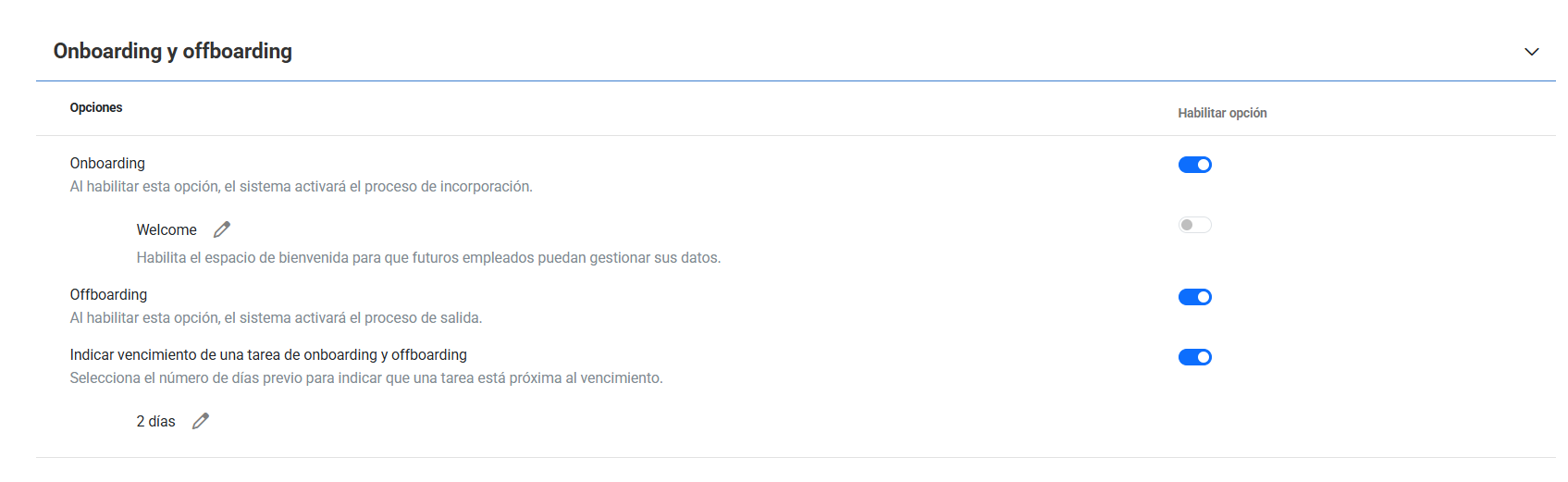
Access the Settings, in People and Positions > Module Options.
In the Onboarding and Offboarding section, activate the corresponding tabs.
If desired, indicate the days in advance on which the system should notify you of processes.
Click Save Changes.
Create an Onboarding and Offboarding Template
Once the module is activated, you can start creating your templates.
Steps:
Access Settings > People and Positions > Onboarding & Offboarding Templates.
Press the Add Template button in the top left corner.
Choose whether to create the template from scratch or based on an example template.
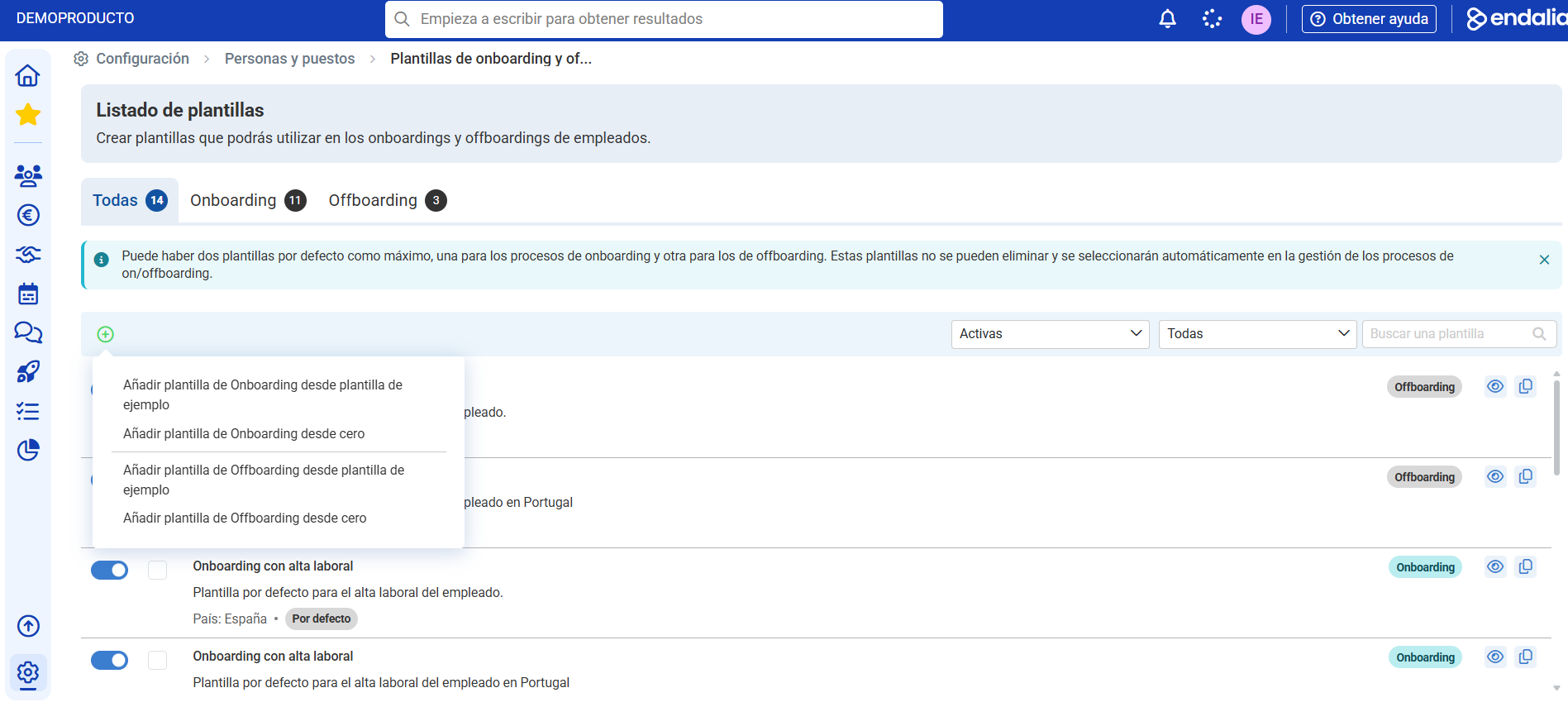
Fill in the required fields for each phase until you reach the summary, and click Add Template to save.
Note: When creating a template from scratch, no tasks are added in the creation flow. In this step, you only define the phases (e.g., Pre-onboarding, Follow-up, etc.)). Tasks must be configured later within the template already created.
Available Task Types
Within each template, you can add as many tasks as you need. These are divided into:
Check → Confirm that an action has been performed.
Request → Send a request configured in Requests (Example, Model 145 Communication).
Signature → Automatically send a digital signature template filled with employee data.
Task Configuration
When you configure a task within a template, you can define:
The phase and order it needs to be in.
The obligation of the task.
The start date and the due date of the task.
The responsible who should complete it (employee, manager, HR, etc.).
New: Check tasks now feature a rich editor that allows you to add:
- Formatted text description and links.
- Illustrative images
- Explanatory videos (from YouTube or Vimeo)

Thanks to this new feature, check tasks have evolved from being a simple "mark as done" to becoming a comprehensive resource for guiding employees clearly and visually.
Note: Template configuration follows the same pattern, except that in the onboarding phases you must manage the contract start date, whereas in offboarding the reference date is its end:Once your template is configured, go to People and Positions > People > Employees to associate these processes (onboarding/offboarding) with a specific worker. Within this file, in the section Organizational Information > Onboarding/Offboarding, follow the steps the system offers to add the new information to the employee.
Related Articles
Want to know more? Check the following related articles:
If you have questions about the terms, check our glossary in this link.
Was this article helpful?
That’s Great!
Thank you for your feedback
Sorry! We couldn't be helpful
Thank you for your feedback
Feedback sent
We appreciate your effort and will try to fix the article