Important: Shifts: Work periods (e.g. from 9 to 5 PM).
Segments: Work periods recorded during the day (e.g. work from 9 to 1 PM; lunch break from 2 to 3 PM, etc.).
This article is aimed at Endalia HR users with an Administrator profile.
Thanks to this interesting functionality, you will learn to visualize what employees input into the system in an aggregated form. If you want to know more, keep reading!
In this article:
Shift Registration
- Within the hub Time Management, click on the Time Registration module > Planning > Shift Registration
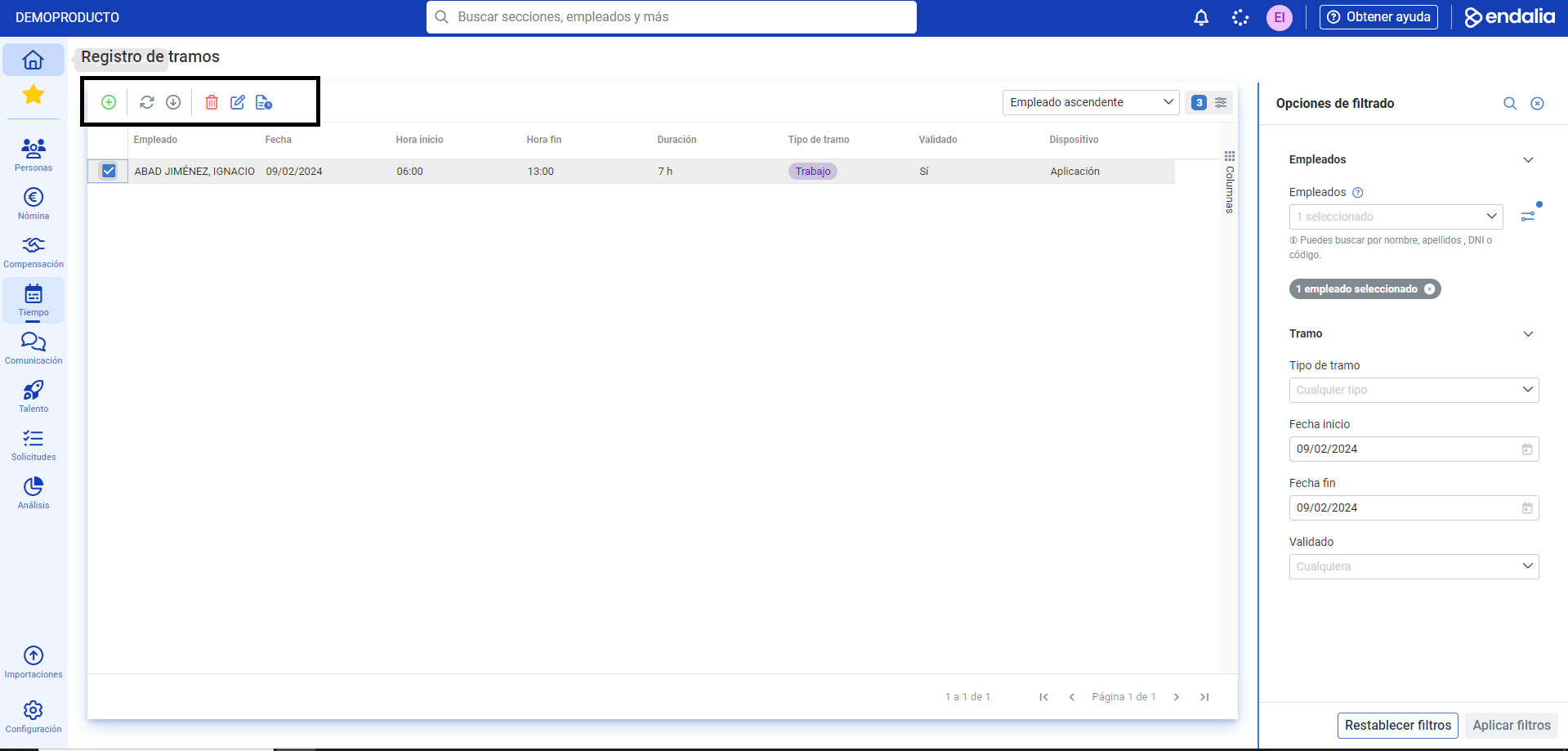
- On this first screen, you can check at a glance what each employee has registered individually; from the date and time, to whether their segment request has been validated, including the type of segment. To edit a record, click inside the corresponding box and select Edit in the toolbar. You can also double-click on the employee's row to access the same modal window. Remember to click Save to apply your preferences, and you can use the filtering options + Apply Filters present on the right side of this first screen, to sort the list:
- Lastly, you have the option to generate a new record for the employee using the Add button, located on the toolbar, in addition to other classic actions (Delete, Edit, History). In the emerging modal window, fill in the required fields for the record and press the corresponding button to execute them:
Note: With asynchronous segment registration, there is an option for an employee to record the actual start time of their work. To do this, go to Settings > Time Registration > Module Options > Asynchronous Segment Registration Mode and, using the Edit button, select Asynchronous segment registration > Save, followed by Save Changes again on the main page:Afterward, returning to the main screen (the already mentioned Module Options), go to the Time Registration > Autofill Start Time section. First activate the option, and then edit this parameter again with the edit button, which is, the pencil icon. Select the option "Based on the time it is registered, and click on Save and again on Save Changes at the main window:
Now, when the employee registers their shift from the home or from their Time Registration menu, they can only input the actual time they check in for work, instead of the planned time.
Process video
All the steps, summarized here:
Still have questions? Check out the following related article:
Additionally, you can view our glossary, available at this link.
Was this article helpful?
That’s Great!
Thank you for your feedback
Sorry! We couldn't be helpful
Thank you for your feedback
Feedback sent
We appreciate your effort and will try to fix the article