Important: this article is directed to Endalia HR users with an Administrator profile.
Management of this type of compensation should be simple but rigorous; therefore, we have prepared this short tutorial, which you shouldn't miss. Take a look!
In this text you will find:
Note: Before starting this process, you must configure the bonus concept within the employee record. To do this, follow these steps: 1. Go to Organization and people > People > Company > Employees 2. Select the employee to whom the bonus is to be applied from the list and click the Edit employee record button located on the toolbar. 3. Within the Payrolls menu item, select Custom Concepts. 4. In the same-named section, click Add, again on the toolbar, and search for the concept Bonus.5. In step 2, Configuration, select the calculation range dates and amount, and click Next. 6. Review the summary and don't forget to click Save to make your preferences effective:

Bonus Calculation
Within the hub Payroll, click on Payrolls > Payrolls > Calculation
- On this first screen you have different options, but you should focus on the following: go to the Calculations > Bonus section and click the Calculate
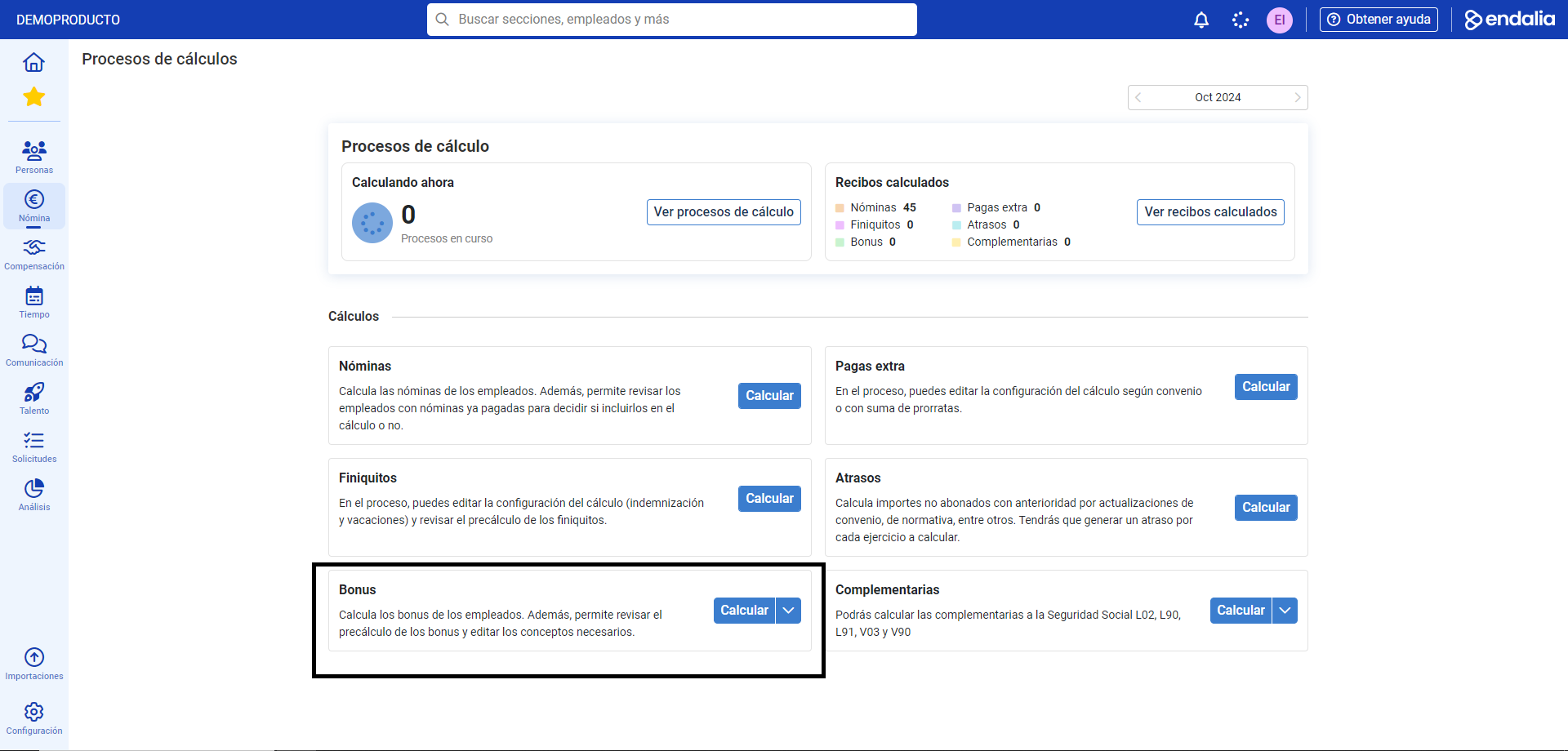 button
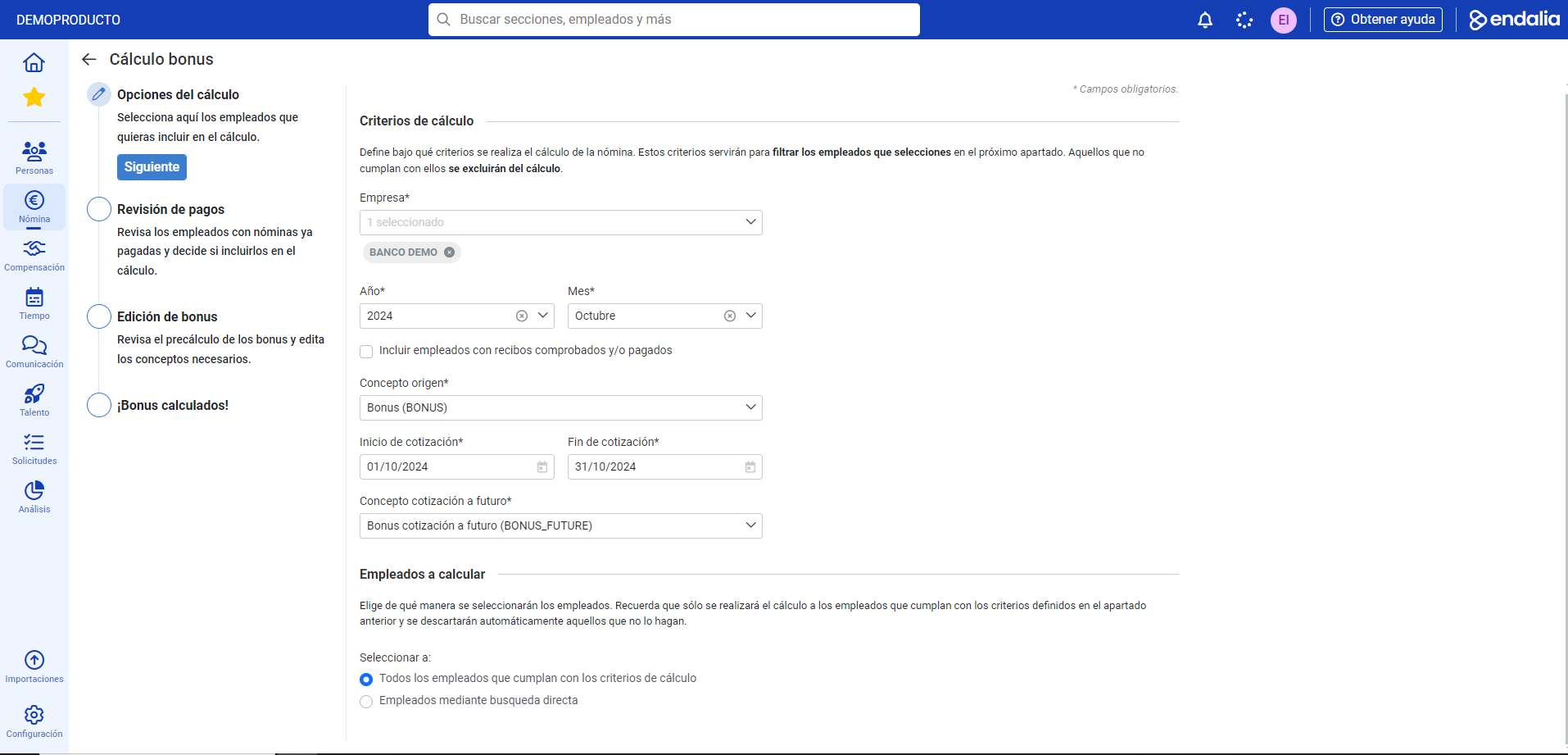
 - Now, you have a calculation assistant, divided into four steps. In the first section, Calculation Criteria, fill in the mandatory fields (*), such as Company, Year, and Month (by default, those in progress are displayed). In the Source field, the concept (bonus) must always appear, while the start/end of contribution dates can be in the past, present, and future; even so, in the Concept of future contribution, the option Bonus_future must always appear. Once your preferences are established, click Next
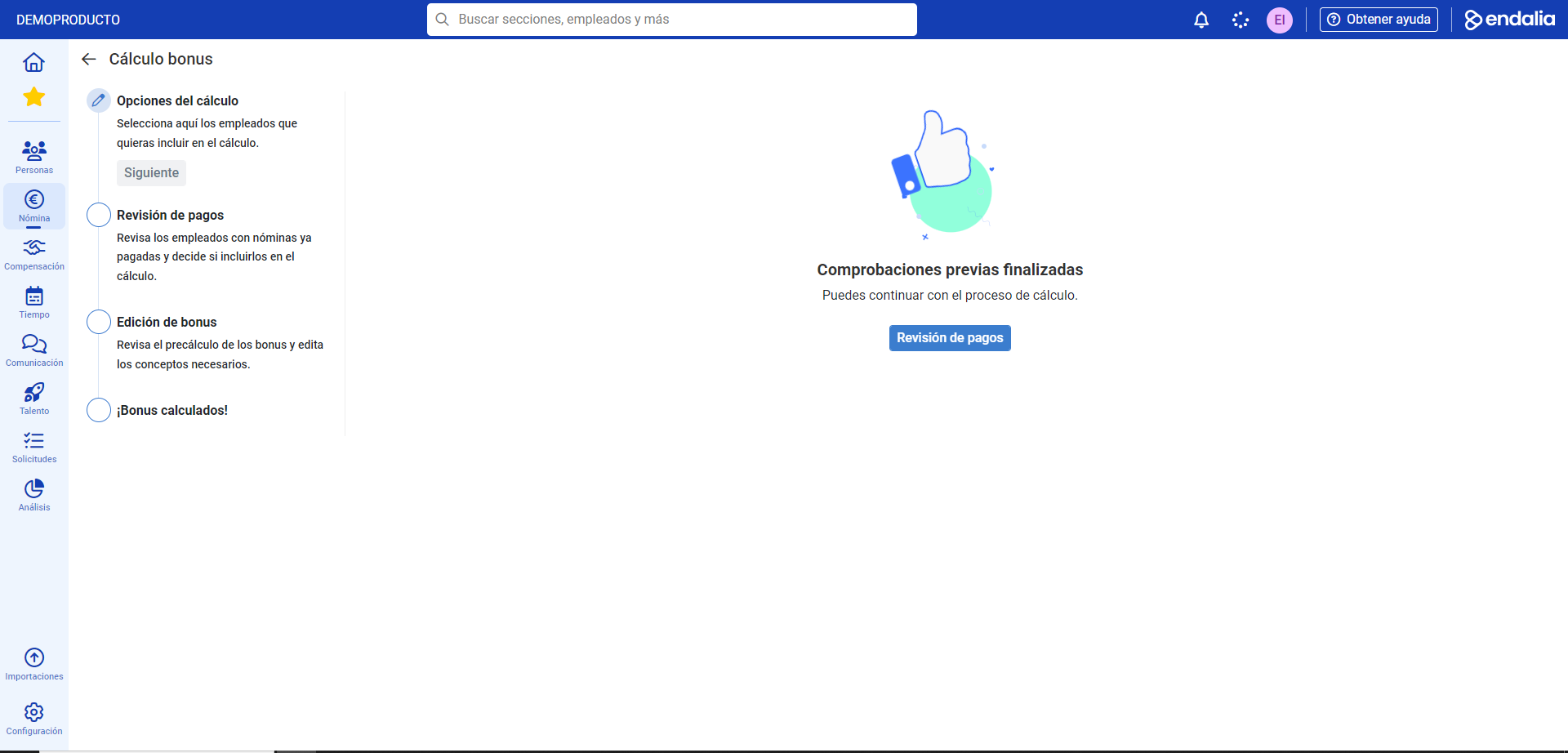
- Now, the system will perform preliminary checks before proceeding to the next phase. Click on Payment Review
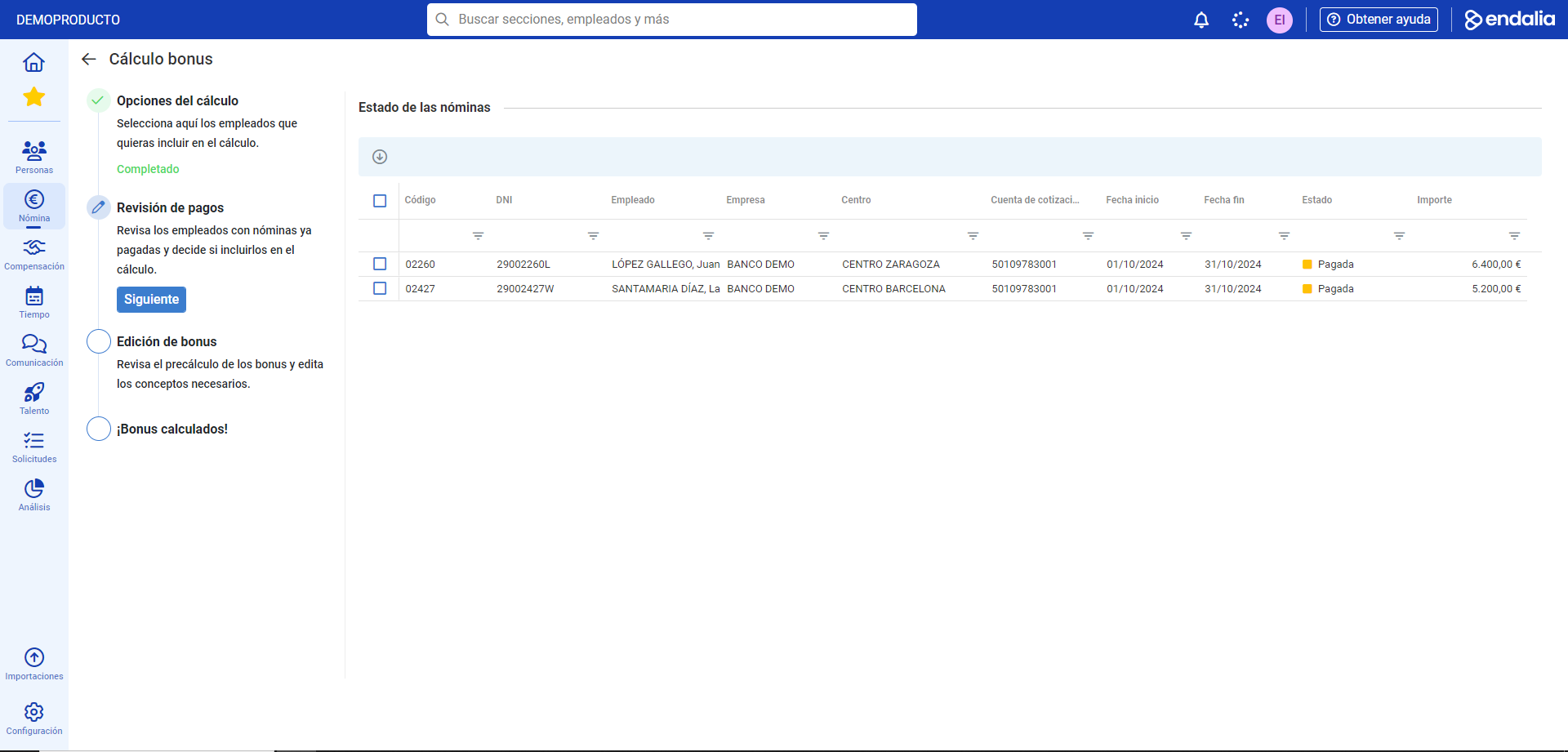
- Now you can check the bonuses in the list provided by the program, select one or more, delete them, etc. Click Next
- After a small automatic check by the system, you can move on to the next phase using the corresponding button (Precalculation Editing):
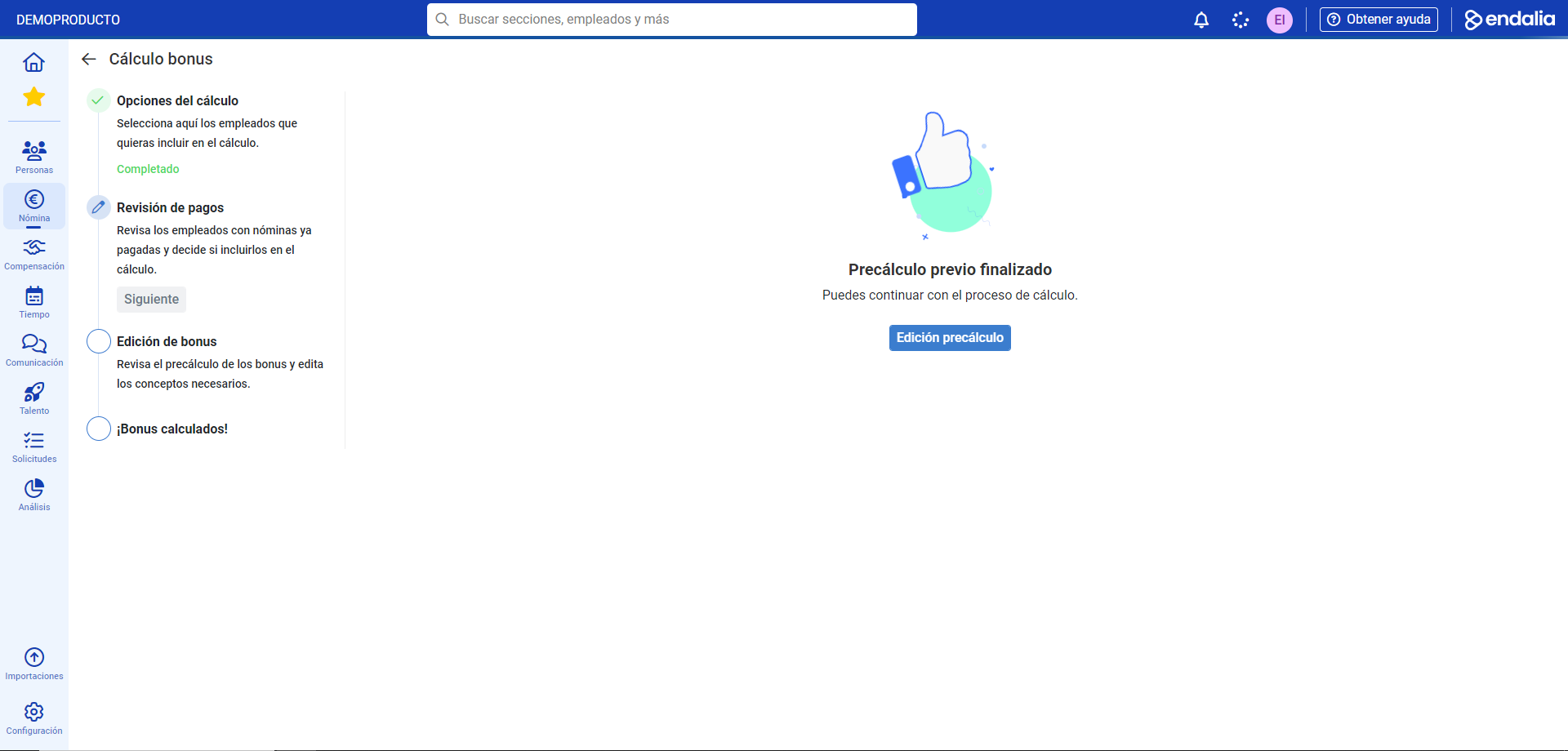
- On the next screen, you have a list of employees with precalculated bonuses, with which you can perform different actions by selecting them individually (edit, view employee record, delete, etc.). If you select this first option, the system will guide you to a side modal, from which you can make adjustments to the contributions:
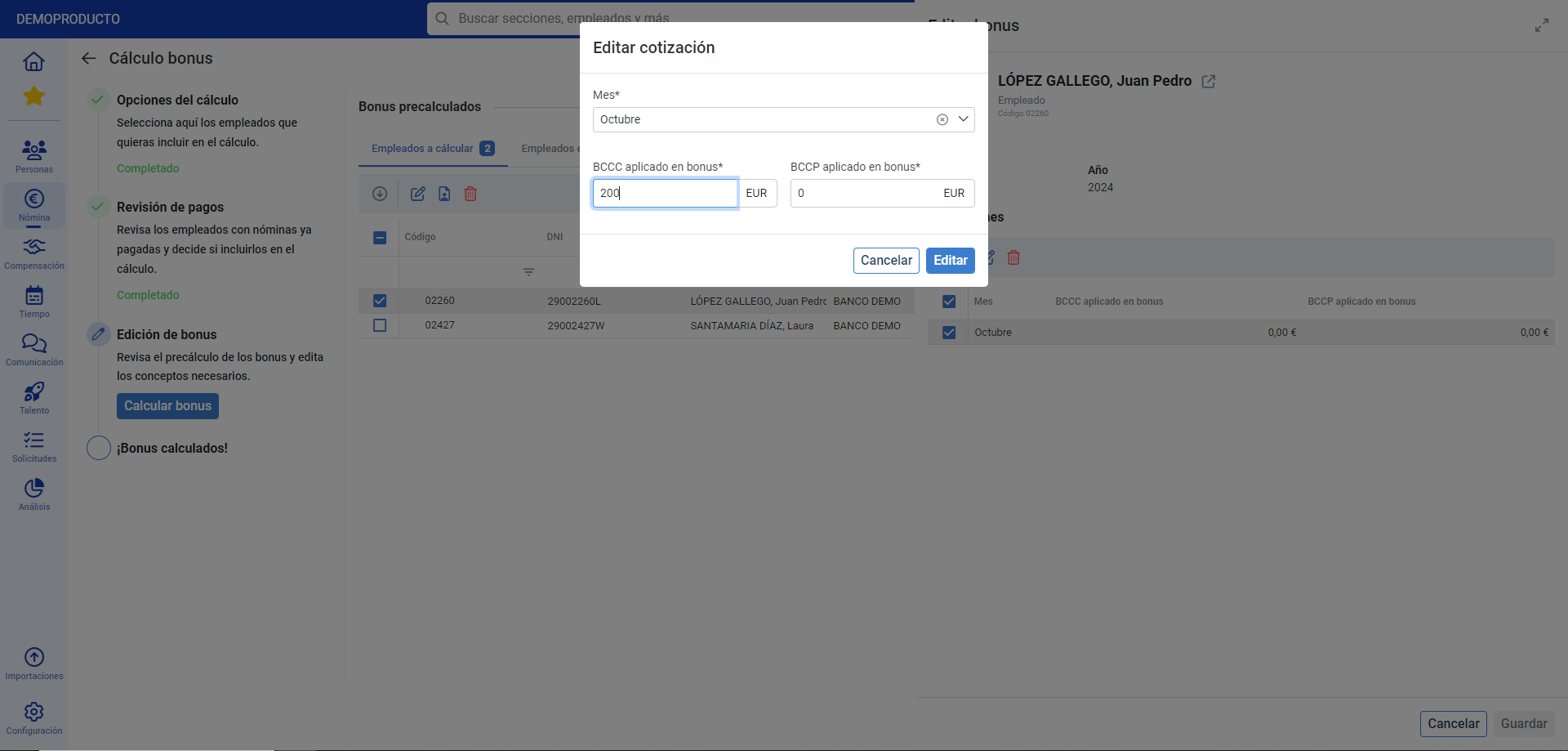
- Once you have made these changes, click Calculate bonus in step number 3. Finally, you will receive a completion message (Bonus calculated!), as proof that the process has been successfully completed.
Video of the process
Still have doubts? Take a look at the following related articles:
In addition, you can view our glossary, available at this link.
Was this article helpful?
That’s Great!
Thank you for your feedback
Sorry! We couldn't be helpful
Thank you for your feedback
Feedback sent
We appreciate your effort and will try to fix the article