Important: this article is intended for Endalia HR users with an Administrator profile.
The management of this type of compensation can also be done automatically, by preloading data. Here you can learn how to do it in the most efficient and simple way possible.
In this text, you will find:
Bonus calculation through file upload
Within the Payroll Hub, click on Payrolls > Payrolls > Calculation
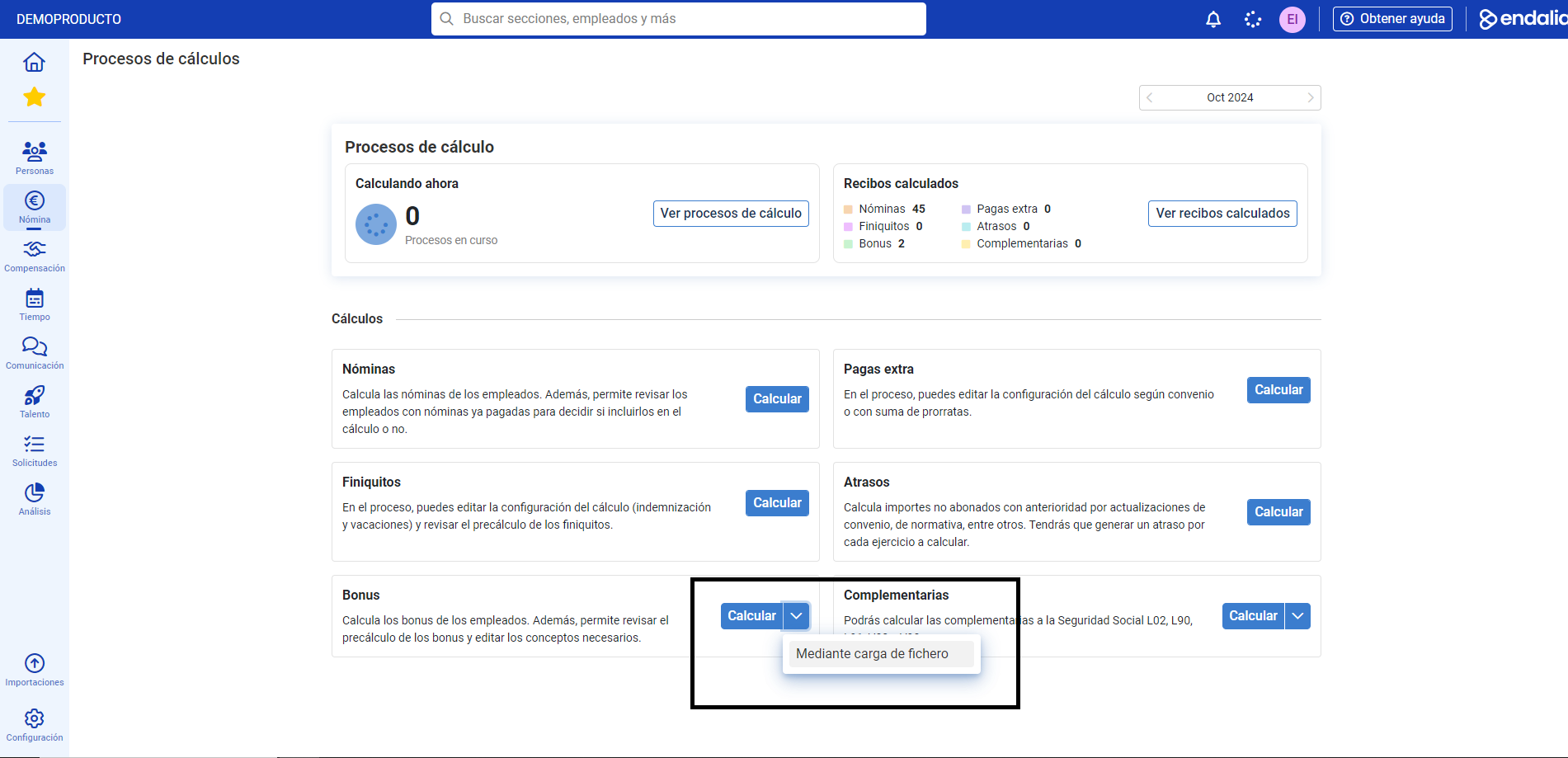
- On this first screen, you have different options, but you should focus on the following: go to the Calculations > Bonus section and click on the button Calculate > Through file upload
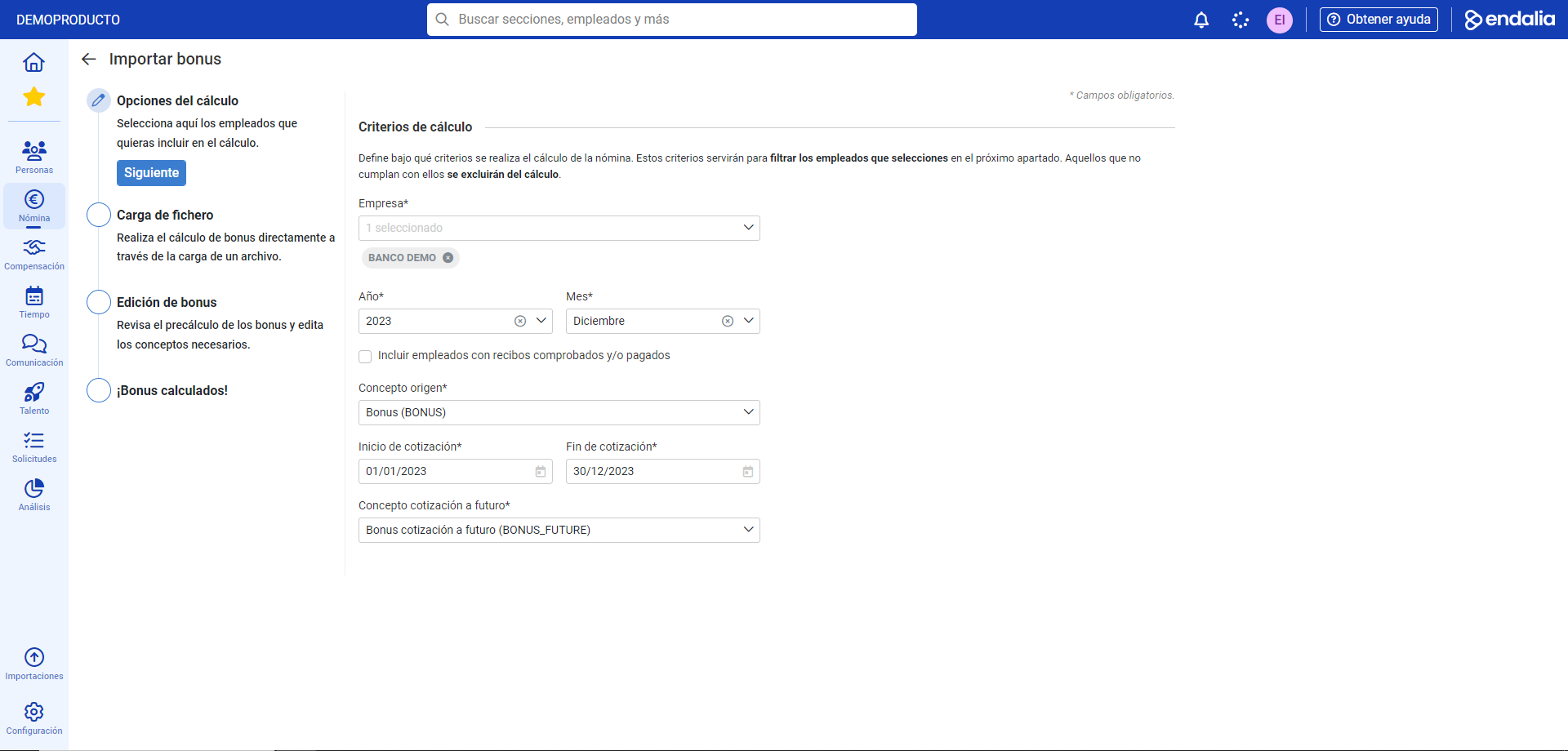
- Next, the system presents you with a calculation assistant, divided into four steps. In the first one, within the calculation criteria section, you must fill in the required fields (*), such as Company, Year and Month (by default, those in progress are shown). In the Origin field, the concept (bonus) must always appear, while start dates/end of contribution can be in the past, present, and future; nevertheless, in the Future contribution concept, the option Bonus_future must always appear. Once your preferences are set, click Next
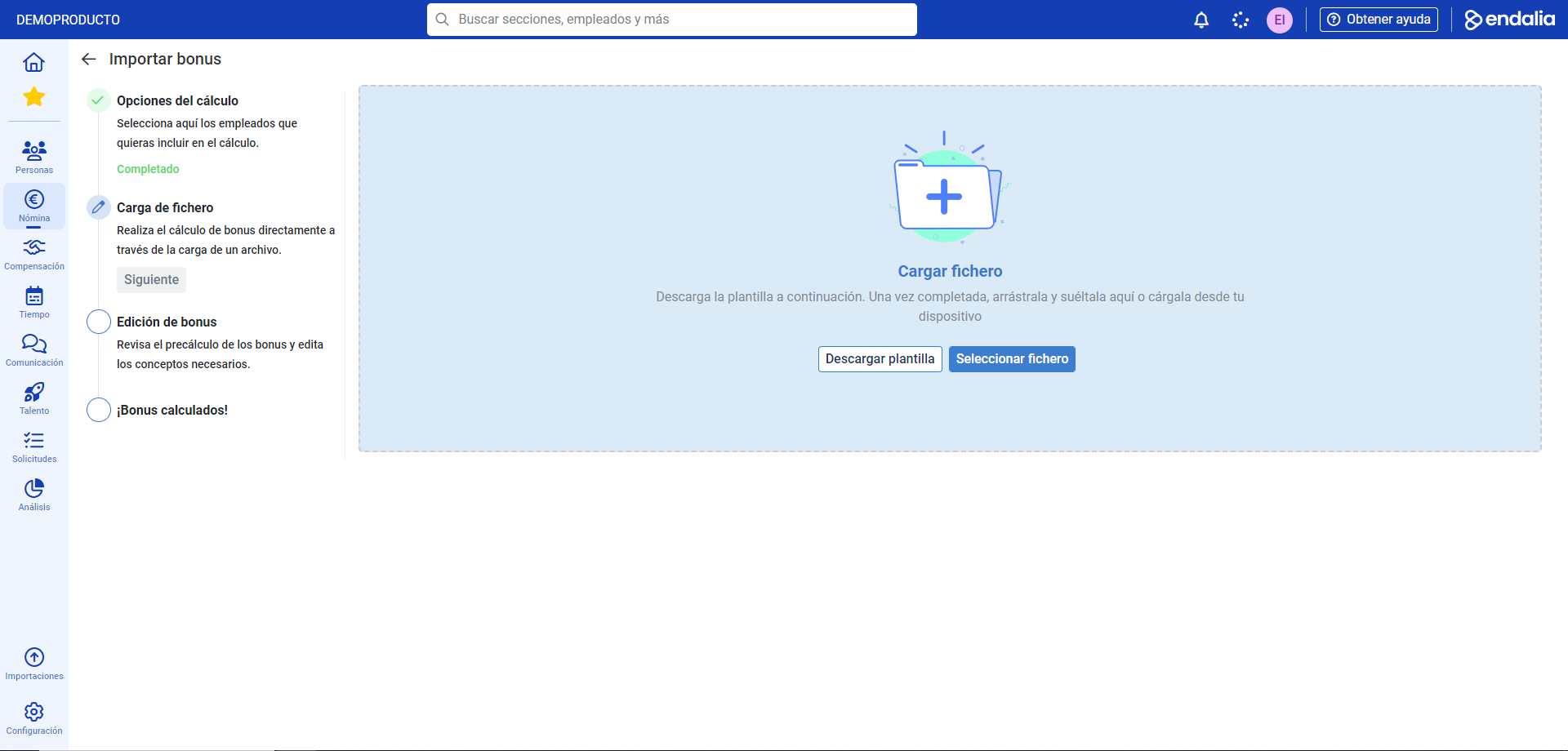
- In the second step, File upload, click on the Download template
 Complete the fields of the Excel file based on the instructions provided in the tab of the sheet itself, and Save the file
- Back at the main screen, use the button next to Download template, called Select file, to retrieve the Excel document previously saved on your computer.
- After a small automatic check by the system, you can move to the next phase using the corresponding phase button (Next).
- After the pertinent checks by the system, you will receive an alert with a message to perform a Pre-calculation Editing, where you can the bonuses in their different variables, based on the estimated data in the Excel file. At this point, you can select the employees from the list and edit or delete their bonuses, through a side modal window provided by the system. Remember to click Save at this point, or your preferences will not be saved.

- Once you have made these changes, click on Calculate bonuses, within step number 3, Editing bonuses. Finally, you will receive a completion message (Bonuses calculated!), as a confirmation that the process has been completed successfully. go to their summary with the corresponding button, to ensure the information entered is correct.
Still have questions? Take a look at the following related articles:
Additionally, you can view our glossary, available at this link.
Was this article helpful?
That’s Great!
Thank you for your feedback
Sorry! We couldn't be helpful
Thank you for your feedback
Feedback sent
We appreciate your effort and will try to fix the article