Remember: this article is aimed at Endalia HR users with an Administrator profile.
Understand the level of satisfaction and loyalty of your company's employees with this new tool, in the simplest way possible.
Here we offer you:
Note: Before scheduling a survey, you must configure the aggregator entity (Company, Corporation, Work Center) in Settings. This module does not allow creating personalized surveys/forms. Check Module Options to learn more.
Regarding the measurement of eNPS surveys, with a range from 0-10, employees are divided into:
Detractors (0-6): they do not recommend working at the company, and their opinion about it is negative, in general terms.
Passives (7-8): they do not have a negative opinion of the company, but their level of commitment is not high.
Promoters (9-10): their opinion of the company is very good, and they actively recommend working there.
Schedule eNPS survey
- In the Internal Communication hub, go to Surveys > eNPS
- On this first screen, click the Schedule Survey button at the top right of the screen:
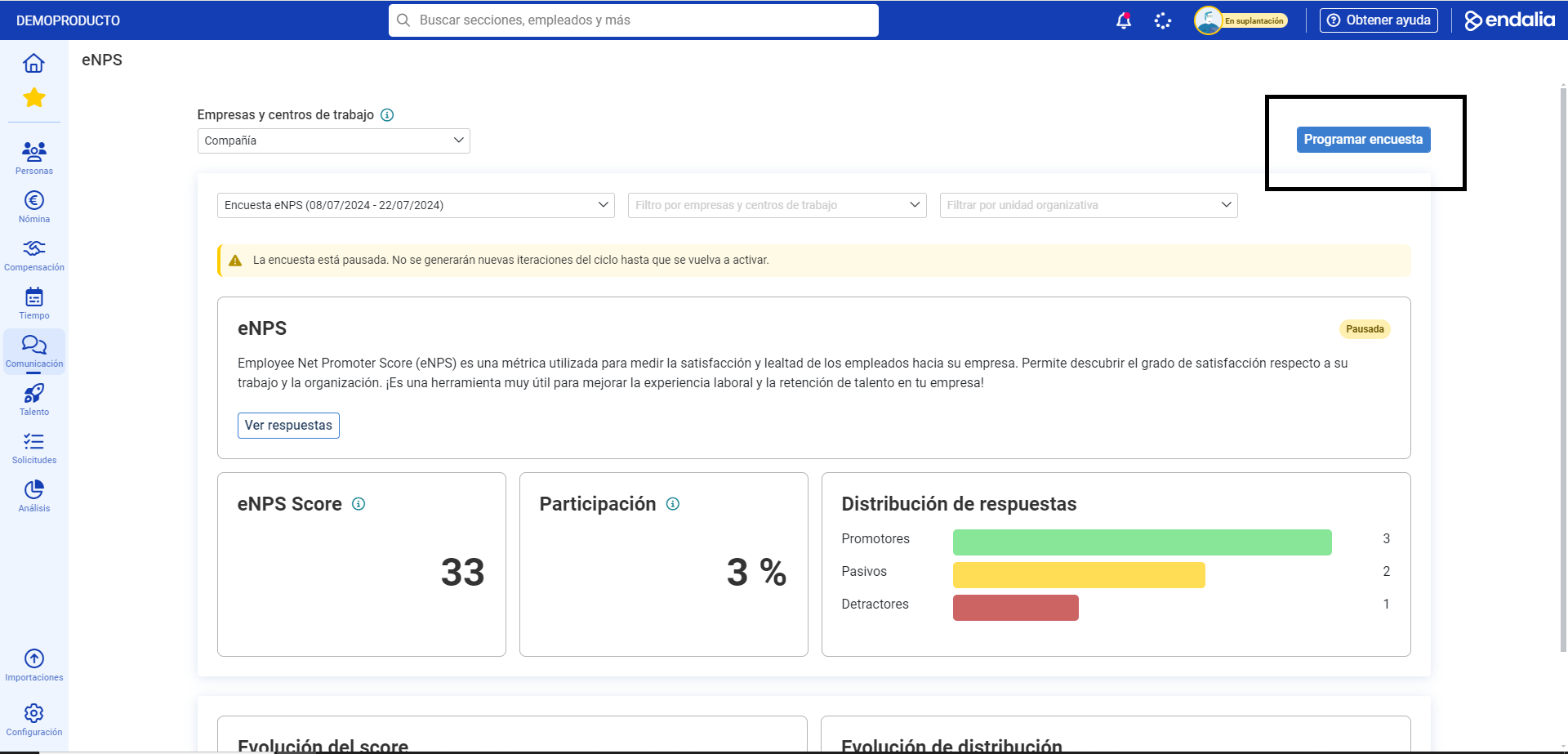
- Now, you can start scheduling your survey. The sections available to you below will guide you to customize it. Remember Save changes to set your preferences:
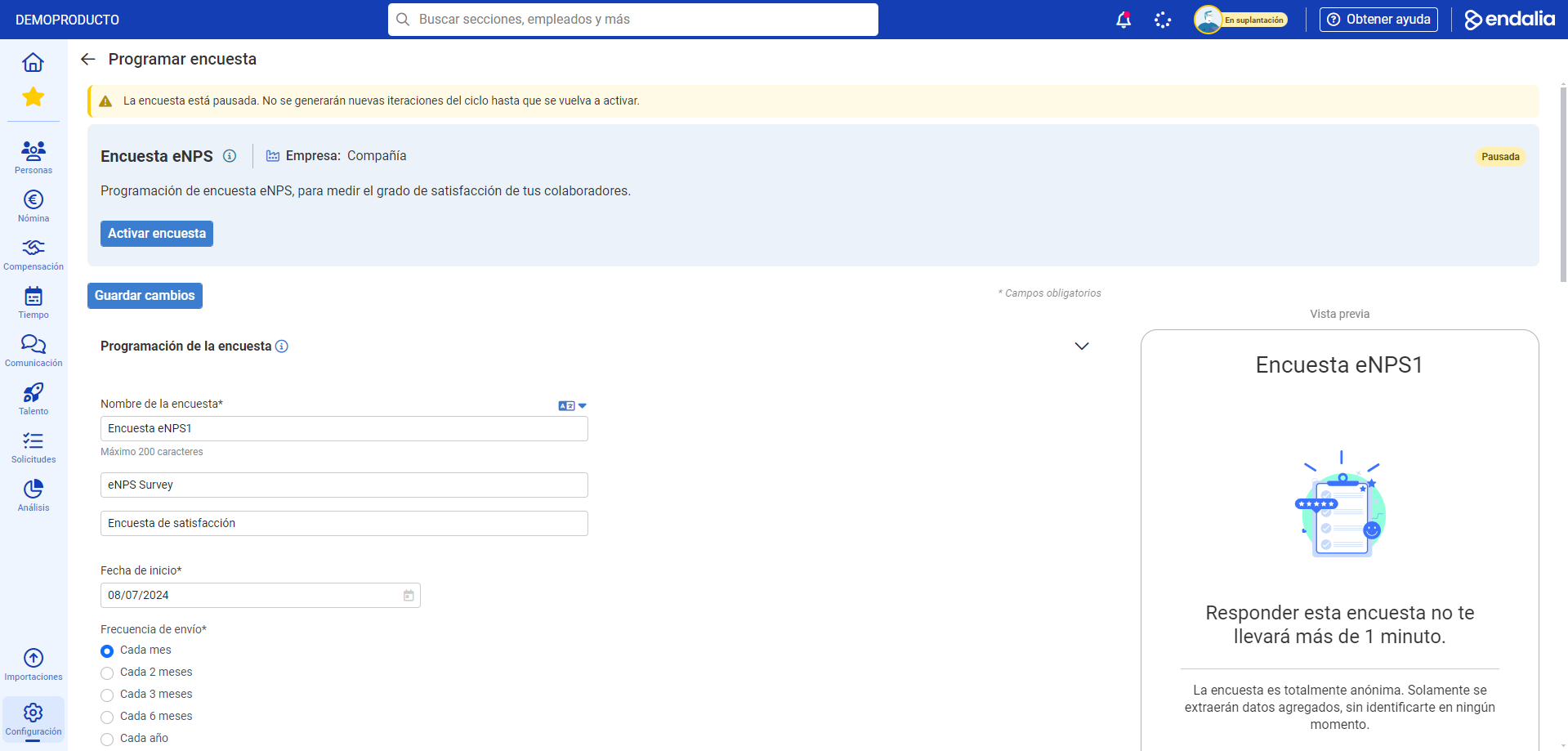
- The first one, Date and frequency, will allow you to set the timeframe for your surveys. You can define the start date, the send frequency, or its repetition. Remember that the start date must always be greater than today's date.
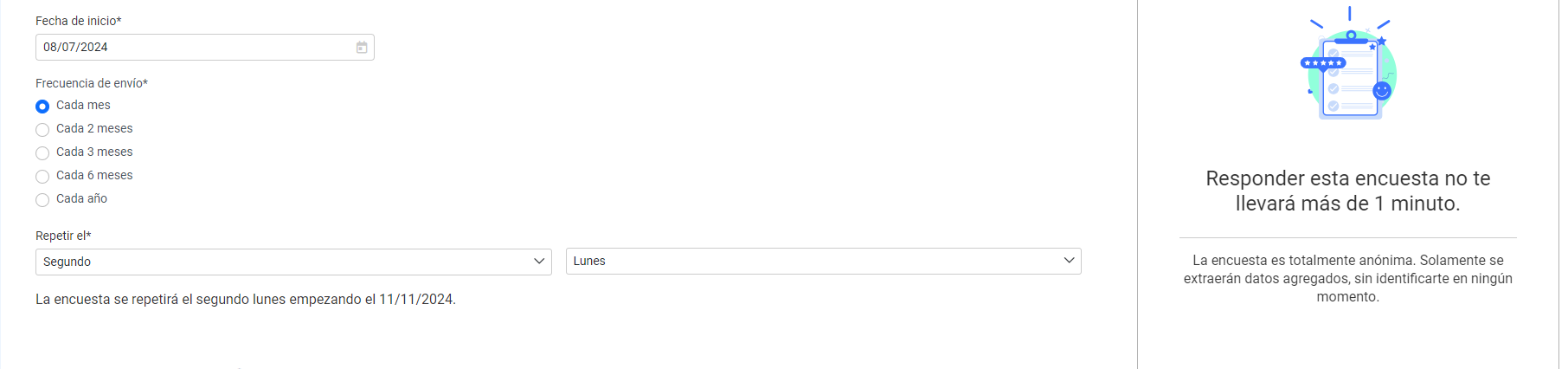
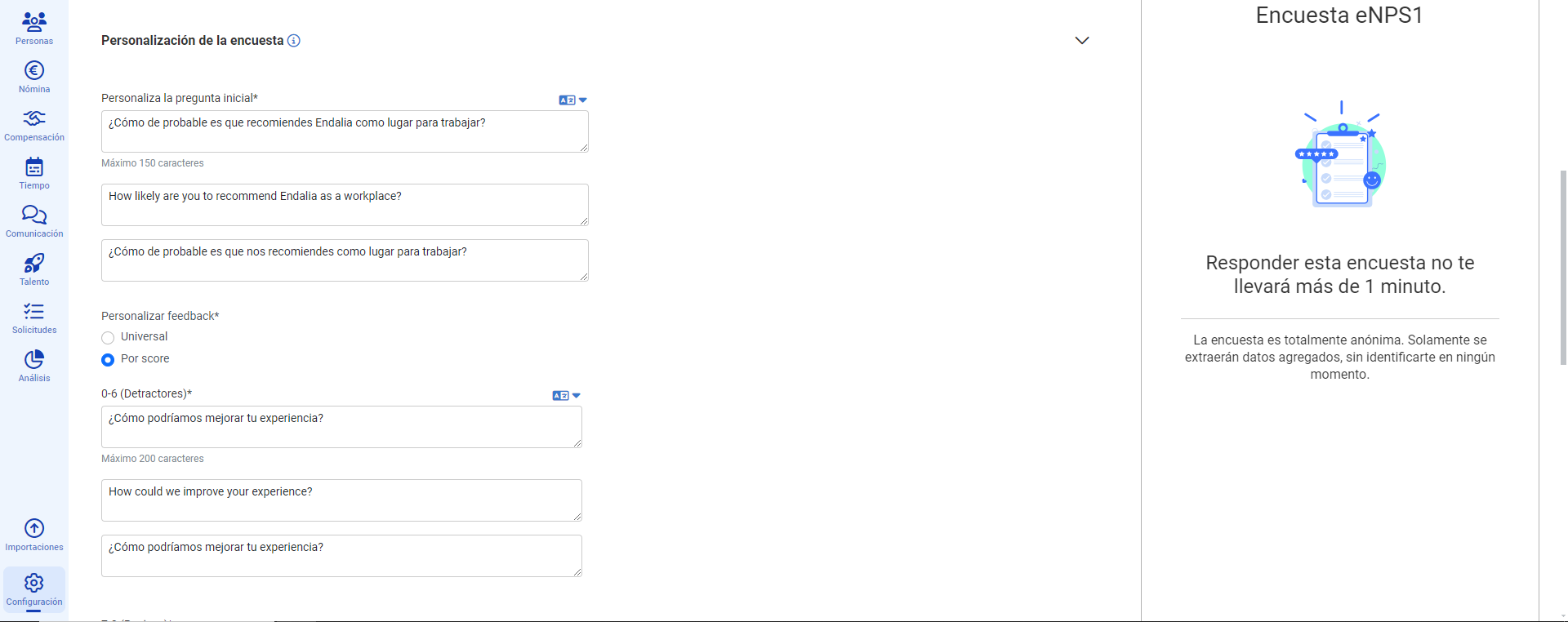
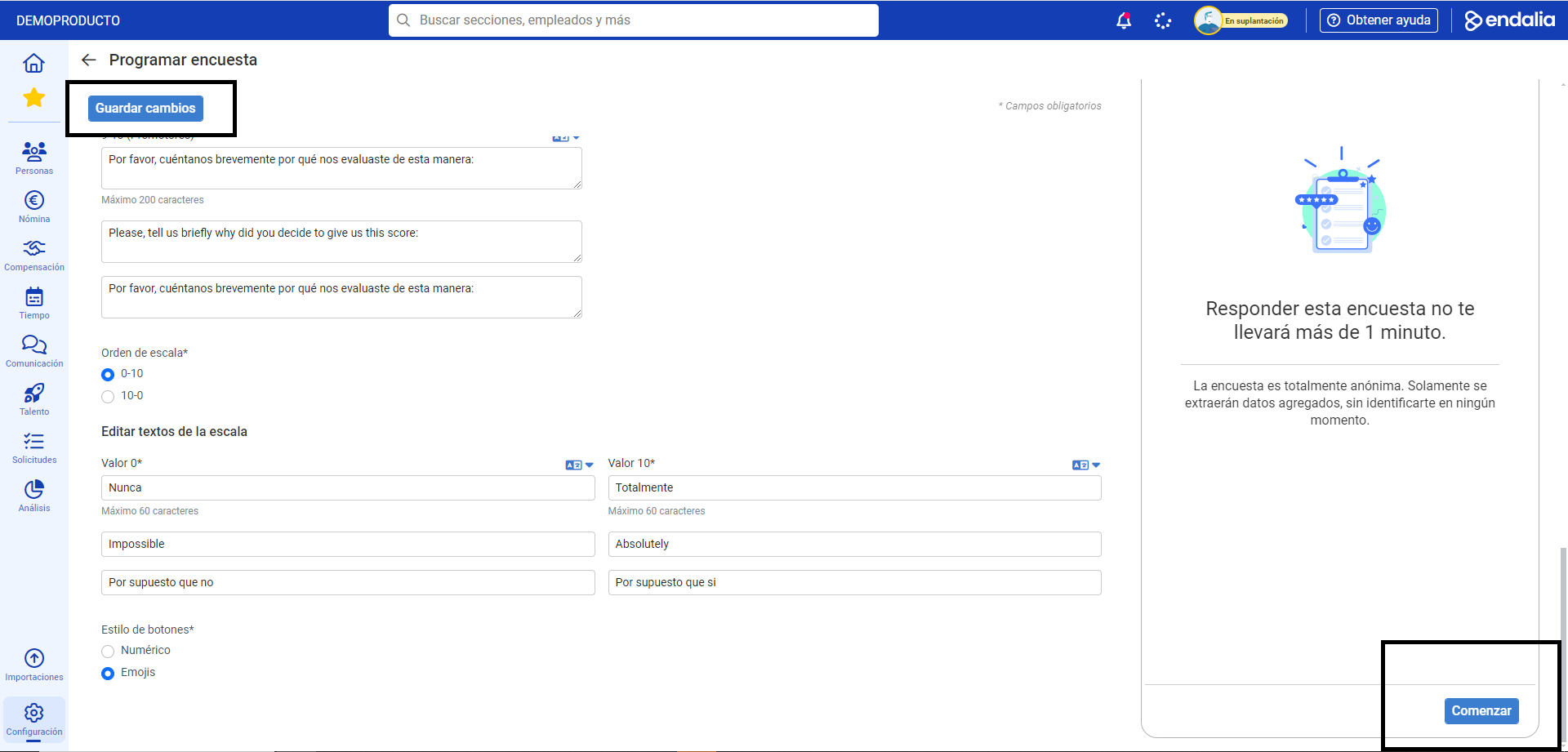
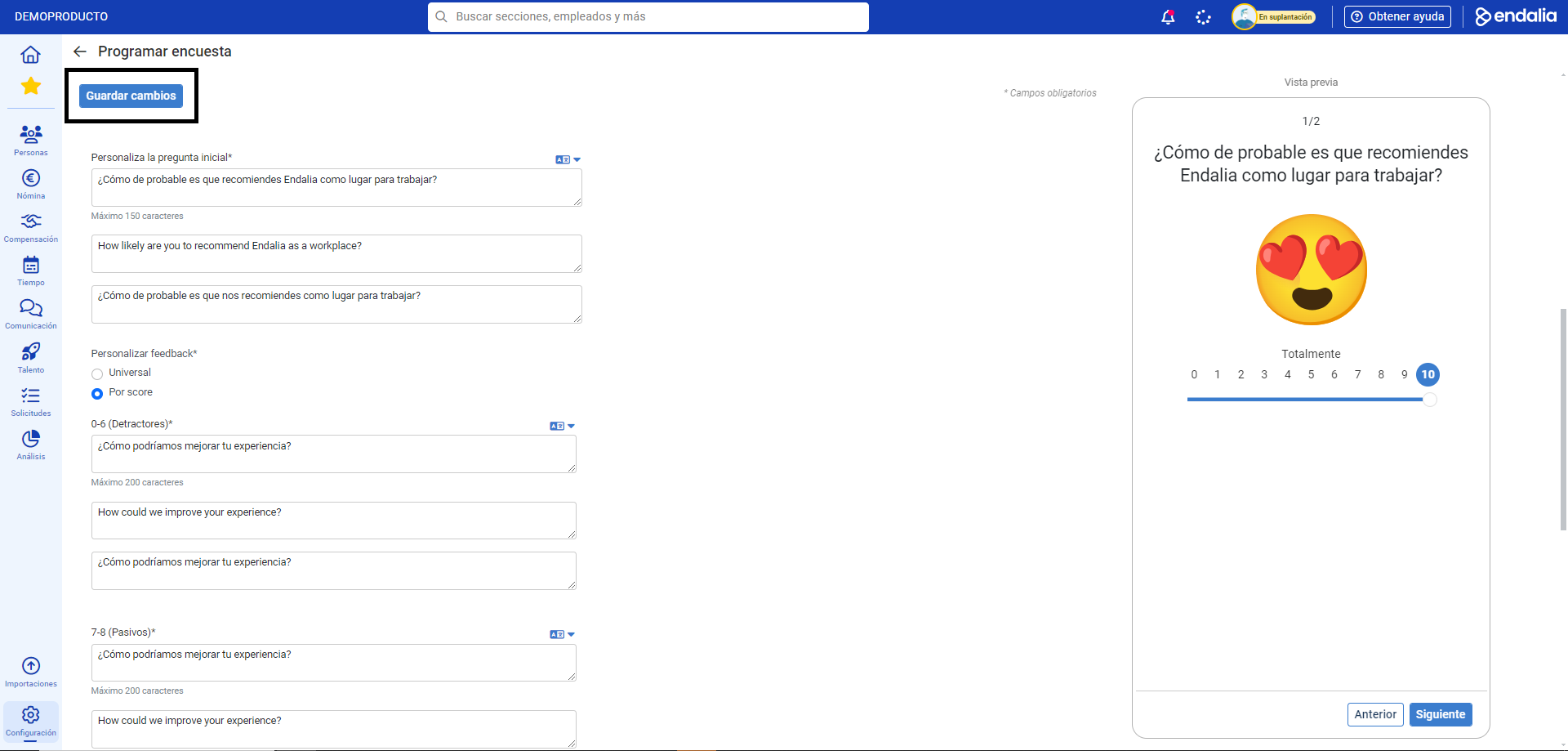
- The second block, Survey Customization, is used to customize various elements such as the name, text of the questions, and the values associated with the ends of the scale, button style (emojis or numerical), etc.:
- Now, it's time to see the preview of your changes in real-time. To do this, click on Start at the bottom right to proceed:
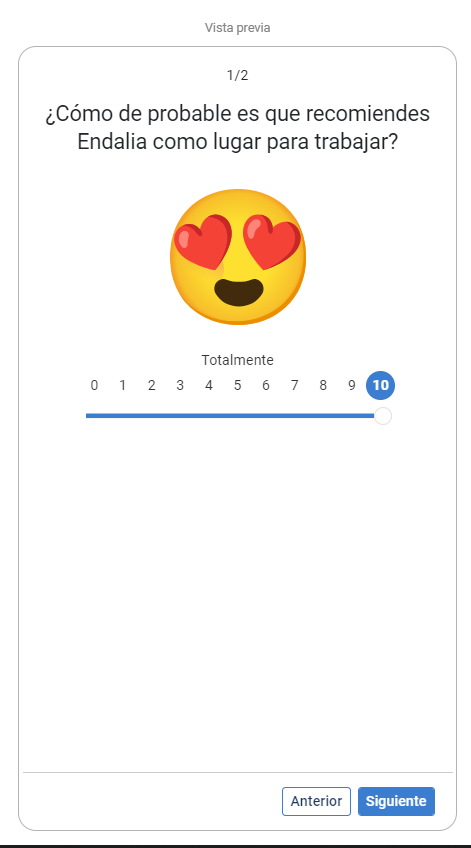
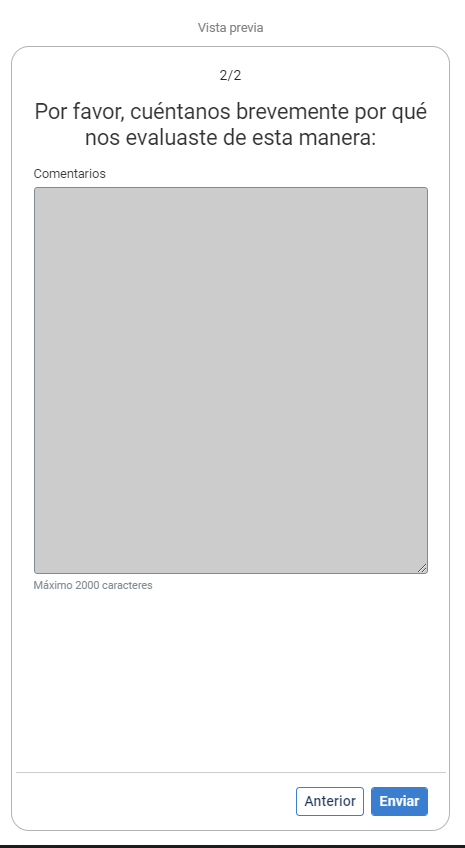
- Play with the preview and finish by clicking the Send button:
Note: As we mentioned, always remember to click on Save changes at the top left of the main screen to make your preferences effective as you go along:
If you have questions about the terms, take a look at our glossary at this link.
Was this article helpful?
That’s Great!
Thank you for your feedback
Sorry! We couldn't be helpful
Thank you for your feedback
Feedback sent
We appreciate your effort and will try to fix the article