Important: this article is intended for Endalia HR users with an Administrator profile.
The salary review will always be framed within a period of time, which will determine the evaluation. Learn to generate it through the steps we offer you below.
In this article:
Create a period
- Within the Configuration hubConfiguration, go to Compensation and Benefits > Salary Review Periods > Add Period (in the toolbar button):
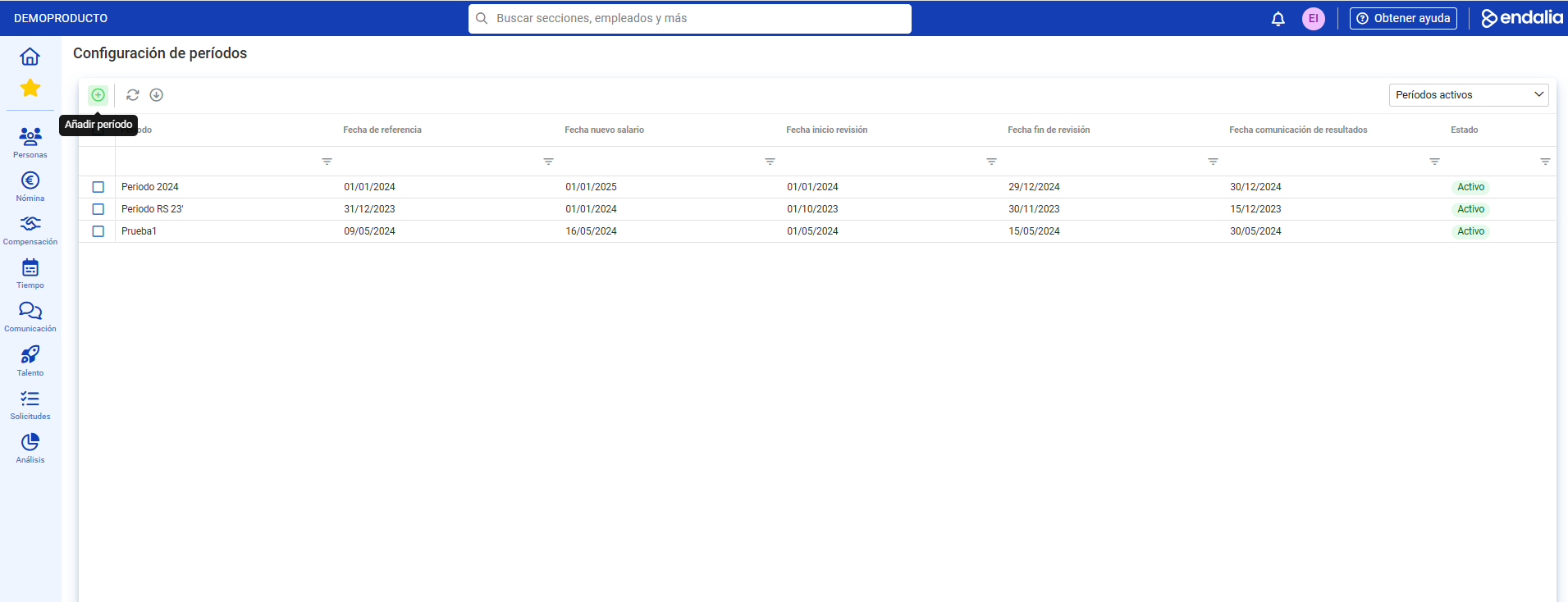
- On the next screen, you will need to configure your period, where four steps are presented to you:
- General Information: includes basic data to complete, such as name, reference date (from which employee data is taken to perform the salary review), new salary date, which includes start, end, and communication dates, and concept configuration (including other concepts besides gross salary, such as bonuses and non-wage items, type of review configuration, etc.). Furthermore, within basic data, the section Related Competency Evaluation Period is noteworthy, a very useful feature that will allow you to use the assessment of the worker's potential and performance; forming the axes of the merit matrix of the period you are creating.
- Salary review configuration: in this step, you can configure both the people who can modify performance results and the level positioning, this is, where an employee's salary is located based on the average established for their position.
- In step 3, Directions, you can determine which employees will be part of the salary review, and how to group them. Use the Add button, on the toolbar, to add employees by organizational unit or manually, individually.
- Finally, in the Summary step, verify that the selected information is correct and click on Add Period, a button you'll find in this same section. A confirmation message will be displayed on the screen, and will allow you to access the file of that period.
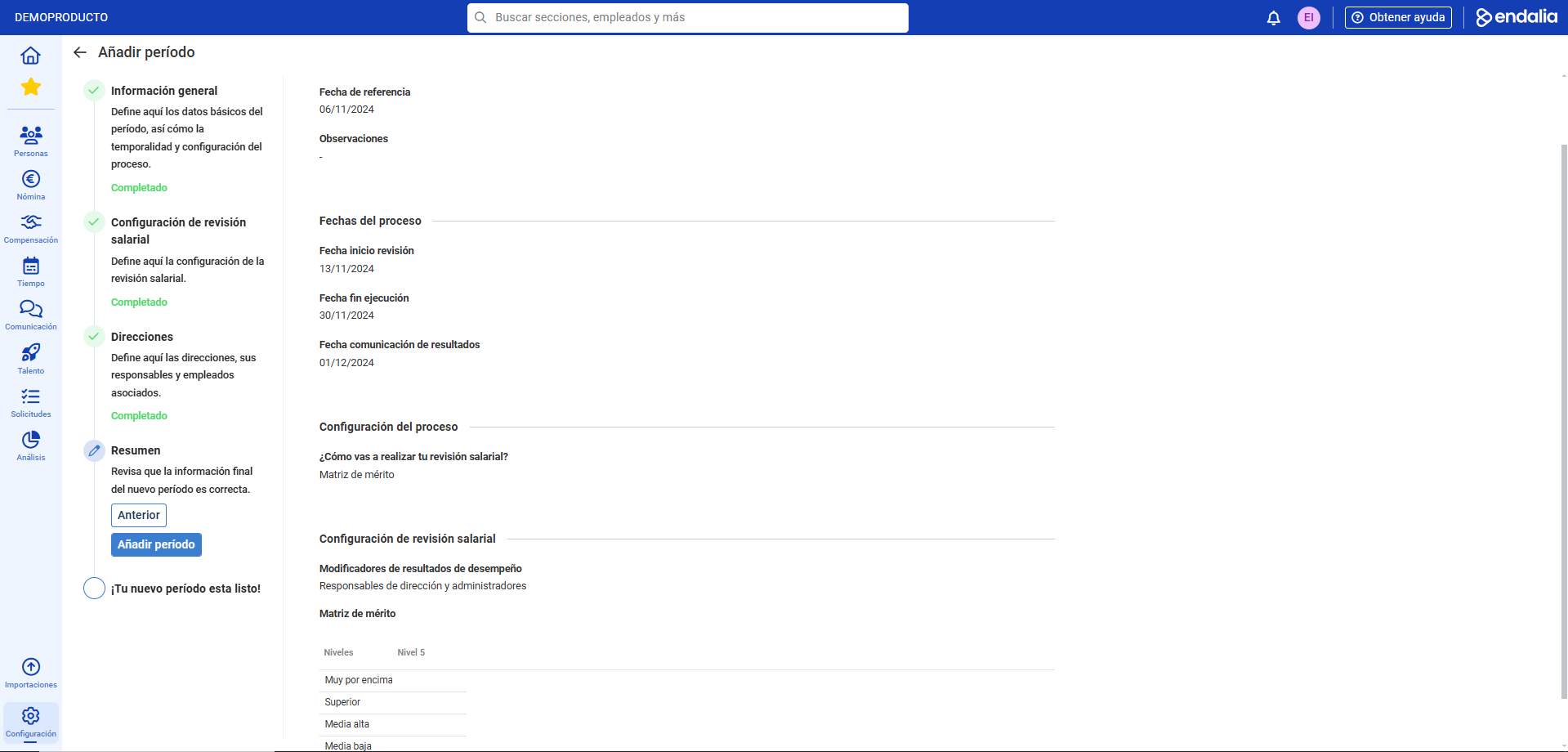
Note: A merit matrix defines as columns the performance values linked to a period, while the rows represent salary levels for an employee.
In the stepper or steps to follow in the process, you always have the option to go back over your steps, but if you modify any data, that information will alter the period and you will have to re-enter the data.

Process video
We show it to you quickly:
We remind you that the following related articles are available:
In addition, here is this link to access the glossary of terms.
Was this article helpful?
That’s Great!
Thank you for your feedback
Sorry! We couldn't be helpful
Thank you for your feedback
Feedback sent
We appreciate your effort and will try to fix the article