Important: this article is intended for users of Endalia HR with an Administrator profile.
Once the salary level is added, the next step is to establish variations, that is, manage the time periods in which you want to evaluate or review the remuneration received by employees. Pay attention to this short article; it will be useful to you.
In this article:
Manage variations
- Within the hub Settings, go to Compensation and benefits > Salary levels
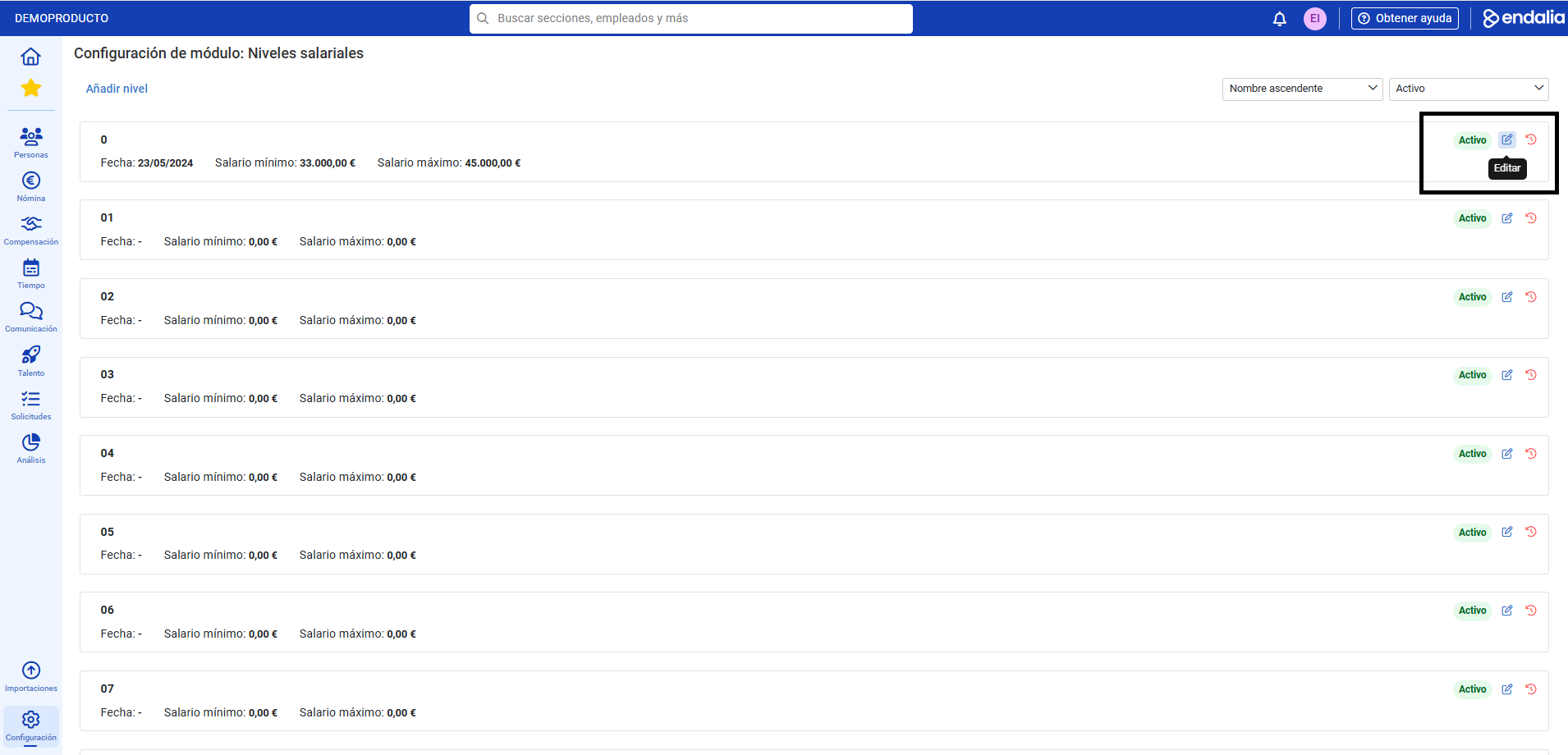
- On the screen presented to you next, choose a salary level from the list (or alternatively, create a new one using the Add level option) and click on the Edit button, which you will find within the corresponding field, within each level:
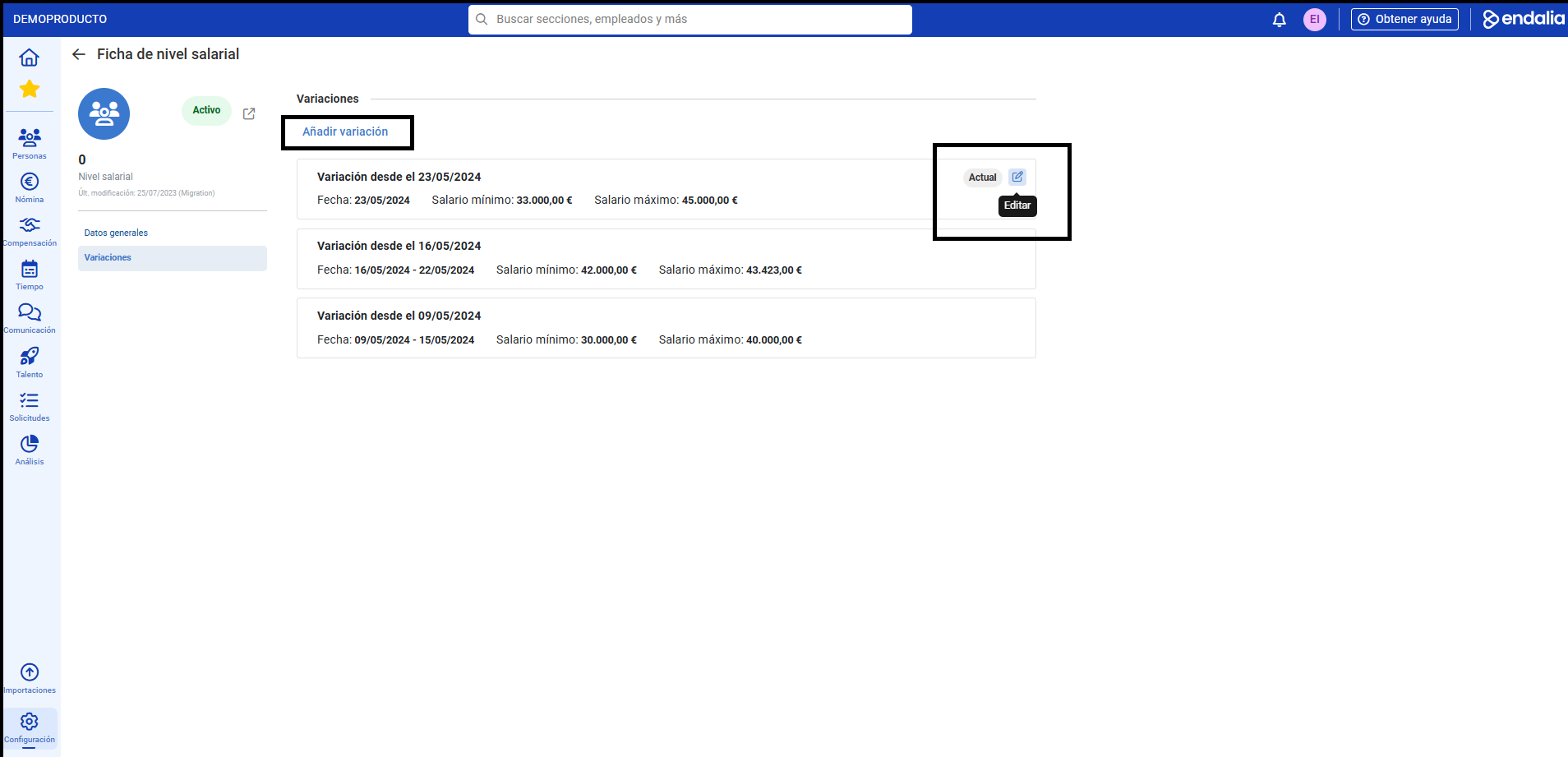
- In the next step, called Salary level sheet, click on the Variations tab. Here you can see the existing list. It is mandatory to have at least one variation, generated prior to creating a level, although you can generate multiple ones for future salary reviews. To perform this last action, go to Add variation, a button located at the top of the screen:
- In the modal window that appears next, Add variation, fill in the fields and finally click on Add to generate a new date range:
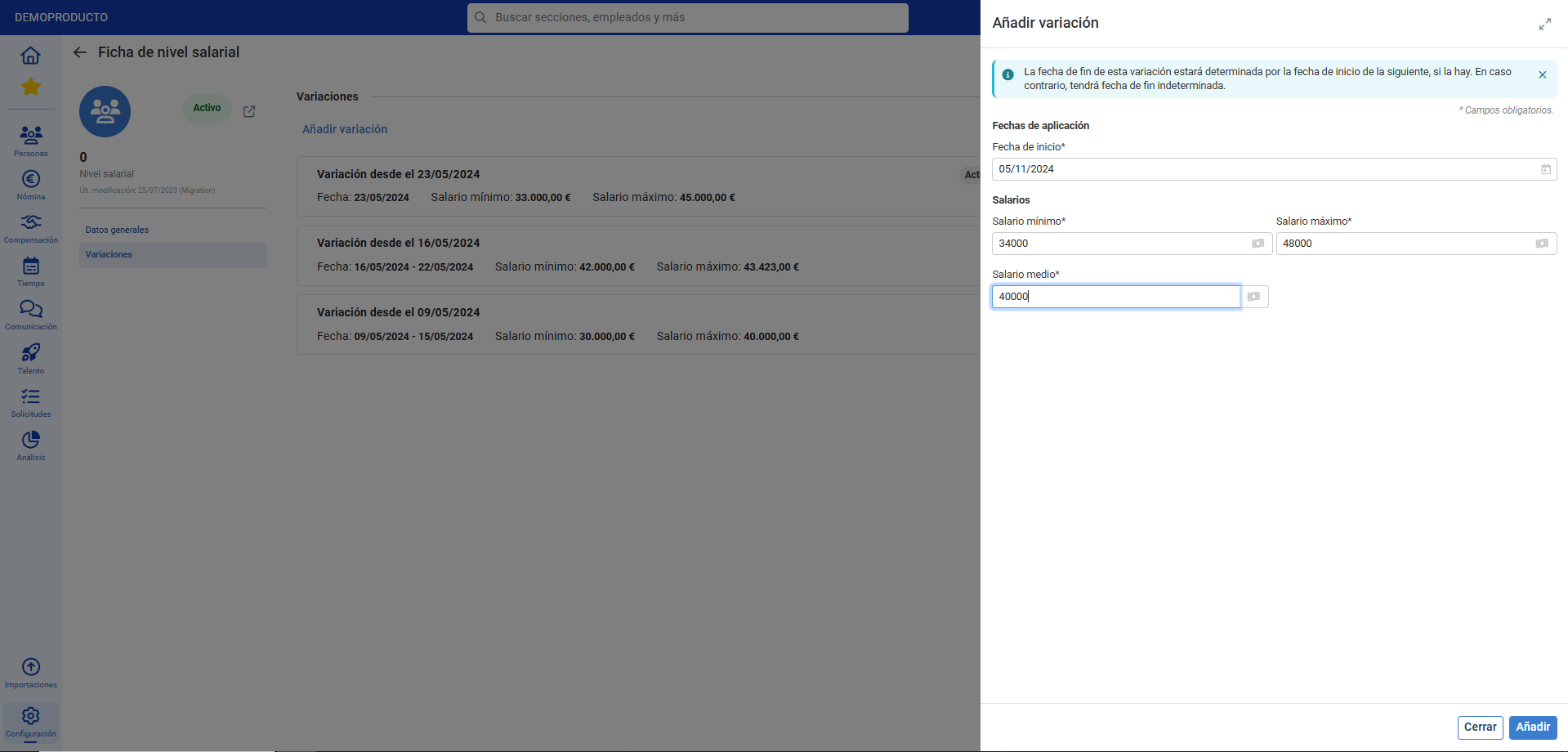
Note: Since there is always at least one variation, this will correspond to the present time we are in, and its end date will be, by default, indefinite. In the case of multiple variations, they will be concatenated (the end date of one variation will be determined by the start of the next, and so on).
Remember that this article refers to the second step in the sequence  Create salary level > Manage variations > Assign salary level to an employee. Consult all the articles in this module to learn more about these features.
Video of the process
We show it to you quickly:
We remind you that the following related articles are available to you:
Also, you have a glossary of terms available at the following link.
Was this article helpful?
That’s Great!
Thank you for your feedback
Sorry! We couldn't be helpful
Thank you for your feedback
Feedback sent
We appreciate your effort and will try to fix the article