Important: this article is intended for Endalia HR users with the profile of Collaborator.
As a collaborator, you can request to enroll in training actions that interest you or deregister from those in which you can no longer or do not wish to participate.
In this article, you can view:
Request registration in a training action
When can I enroll?
You can enroll in a training action if you meet all of these requirements:
- The course is visible to you (according to visibility settings)
- The course has scheduled training actions (editions with dates)
- The training action is "Available"
- You are not already enrolled as a participant in that action
How can I enroll?
Within the Talent hub, go to the module Training > My Training > Available Courses. Browse the course catalog, filter by category if needed, and click on the course sheet that interests you.
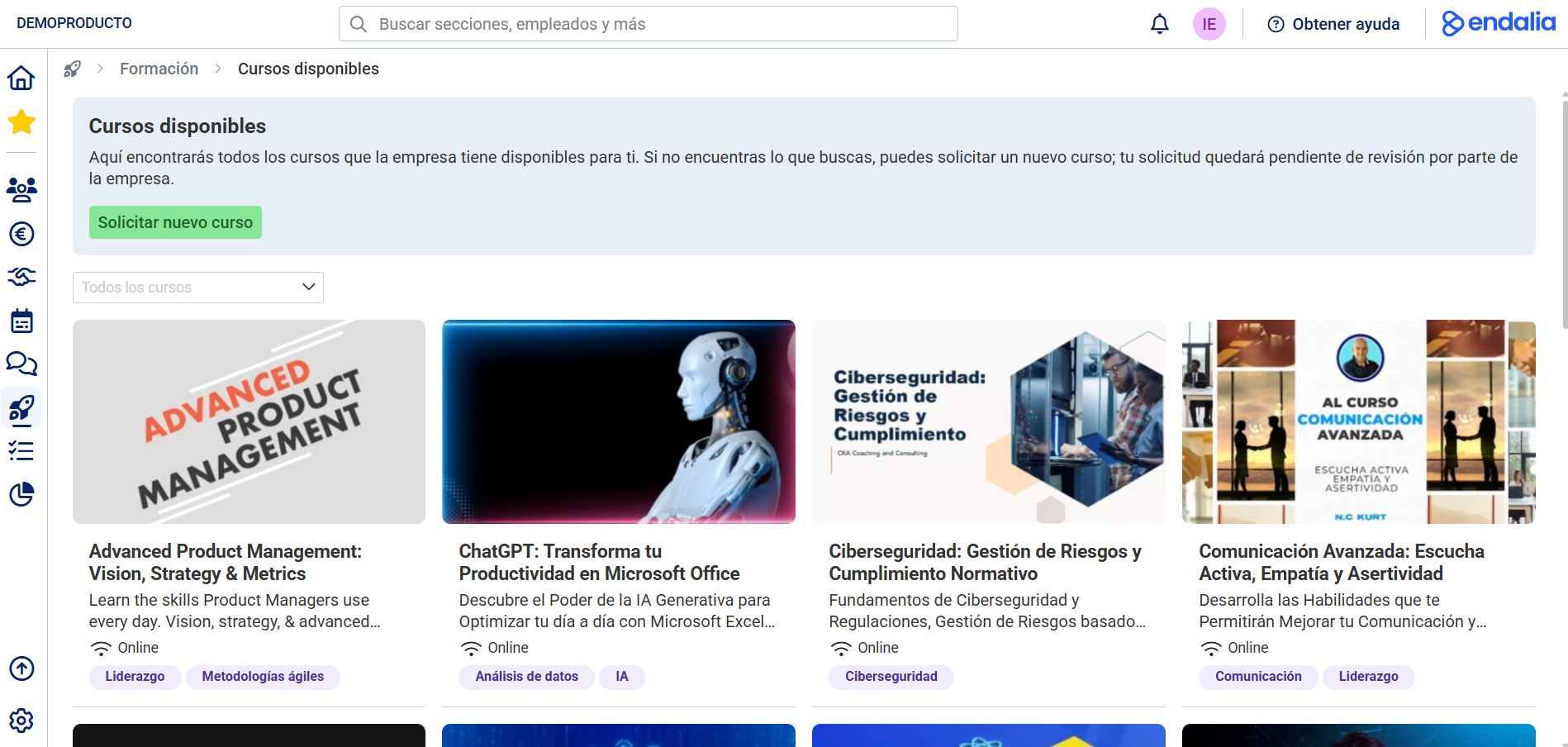
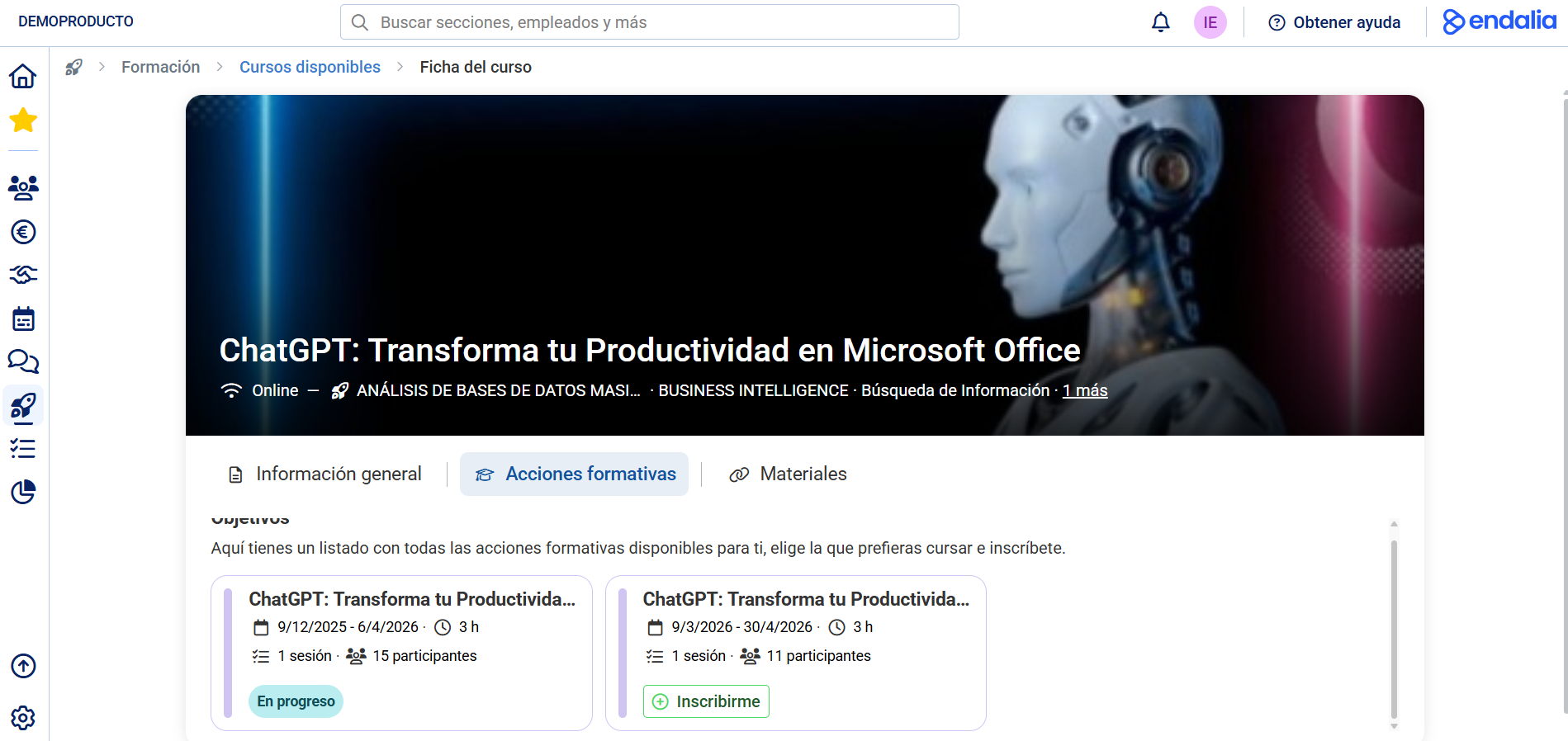
Within the course sheet:
- Go to the "Training Actions" tab
- You will see all the scheduled training actions.
- Find the training action you prefer according to the dates. You cannot request registration for those training actions that are already in the "in progress" state.
- Click the "Enroll" button.
:
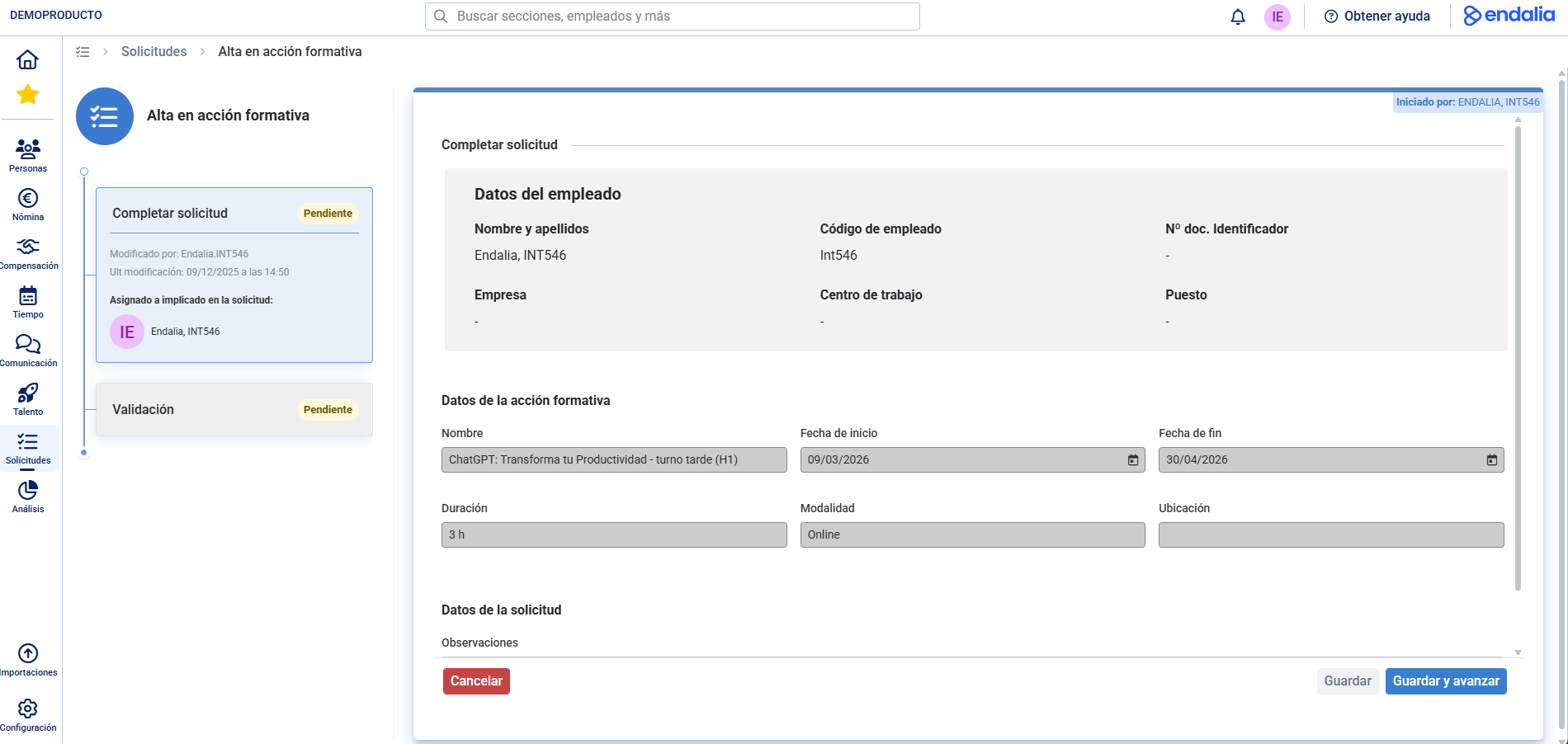
Your request can follow two paths:
- Automatic approval: You are immediately enrolled.
- Requires approval: Your request goes through configurable validation phases (responsible, optional) and processing (HR).
Once approved, you become a participant in the training action, it appears in My Training > My Training Actions, sessions are scheduled in your calendar, and you can access materials if they are available.
Request withdrawal from training action
When can I request withdrawal?
You can request withdrawal if:
- You are enrolled as a participant in the training action
- The action is in these states: Available, Scheduled or In progress
- You have not completed your participation (you are not in the "Completed" phase)
How can I request withdrawal?
Go to Training > My Training > My Training Actions. You will see all the training actions you are enrolled in.
- Option 1 - You can unsubscribe from the "My Training Actions" list, within each training action, where there is an action button called Unsubscribe.
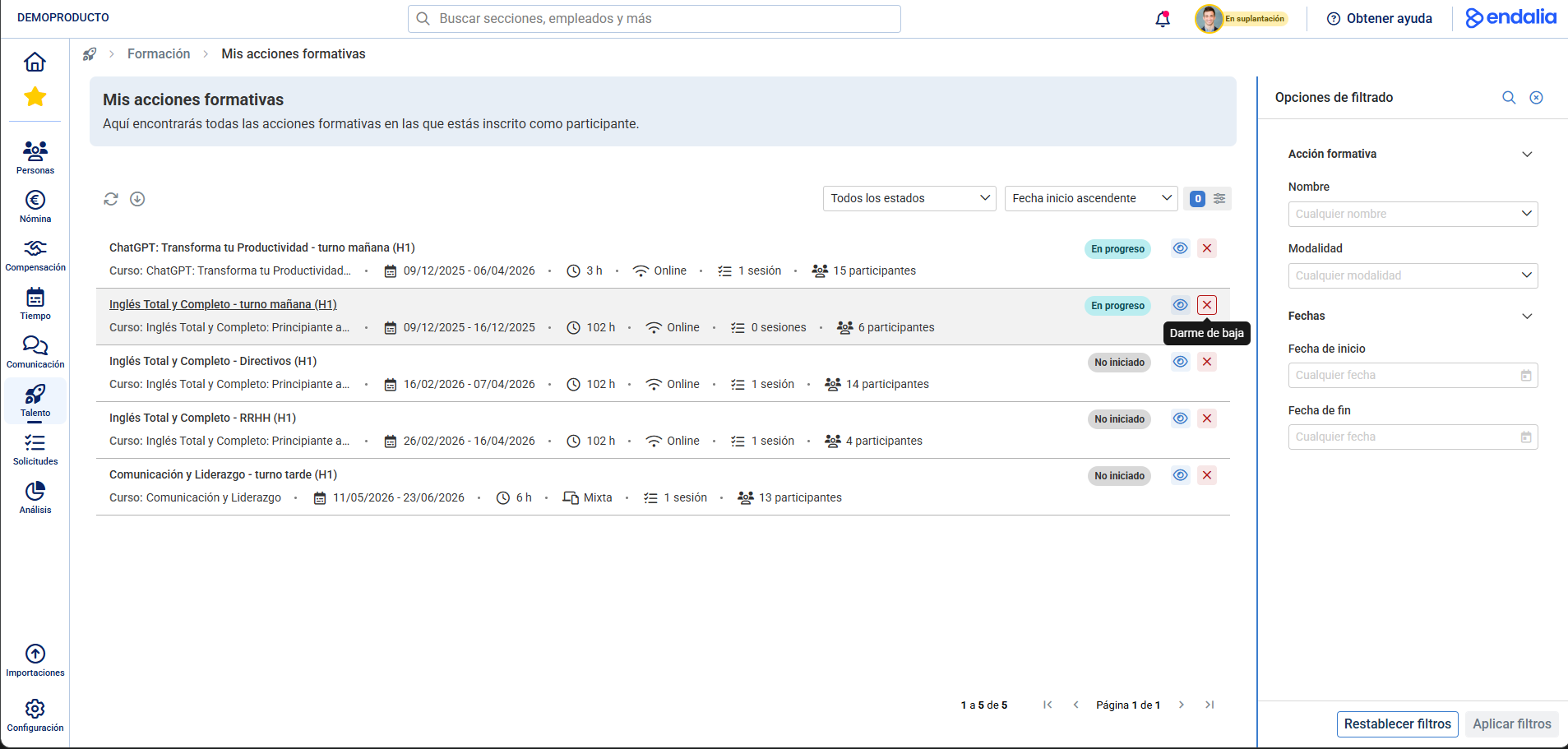
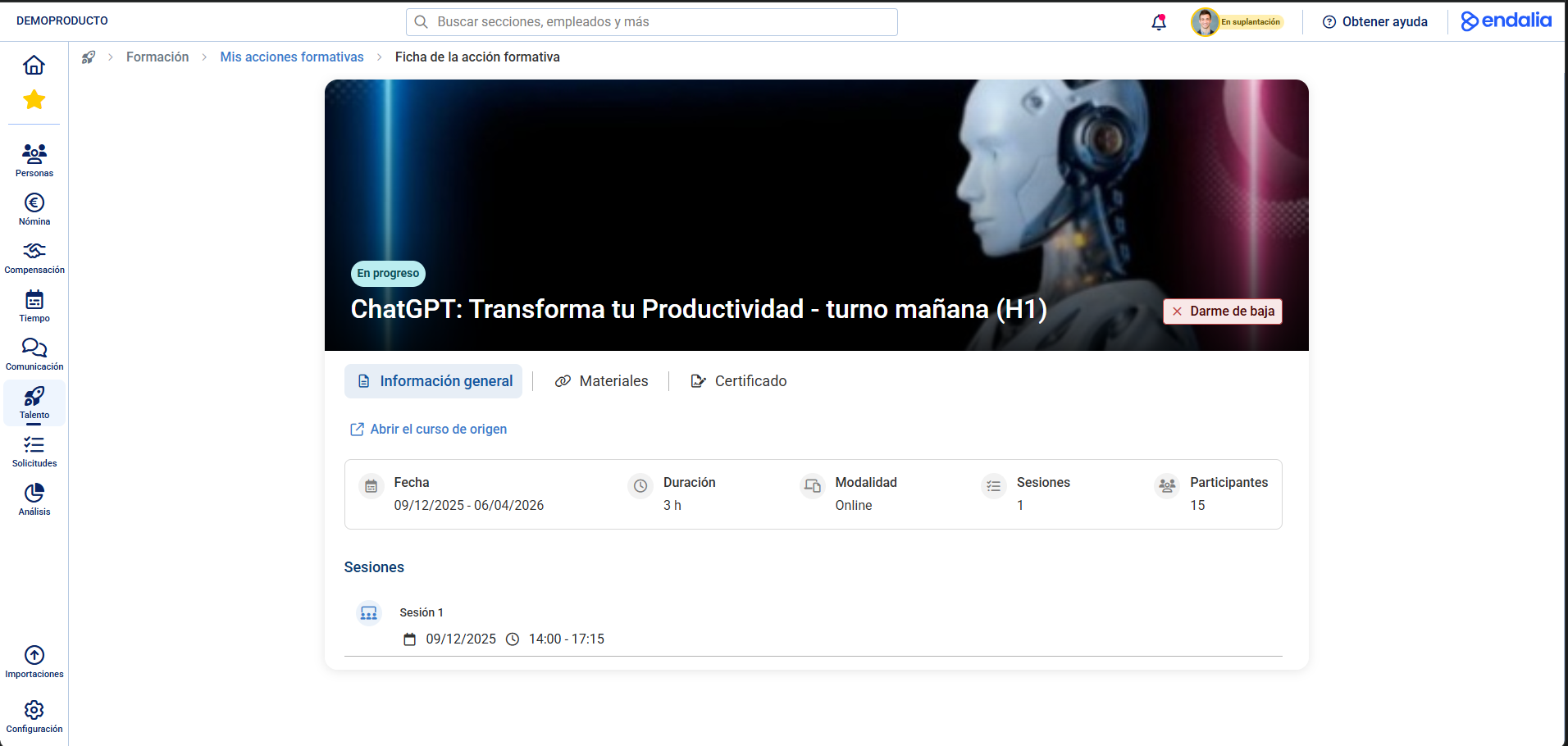
Option 2 - You can unsubscribe from the training action sheet. You can access it from my training actions, or from My available courses,
On the next screen you can fill in the remarks field, to add comments regarding leaving the future training action. Next, click on Save and continue, both on this screen and in the modal window that the system will present to you immediately after
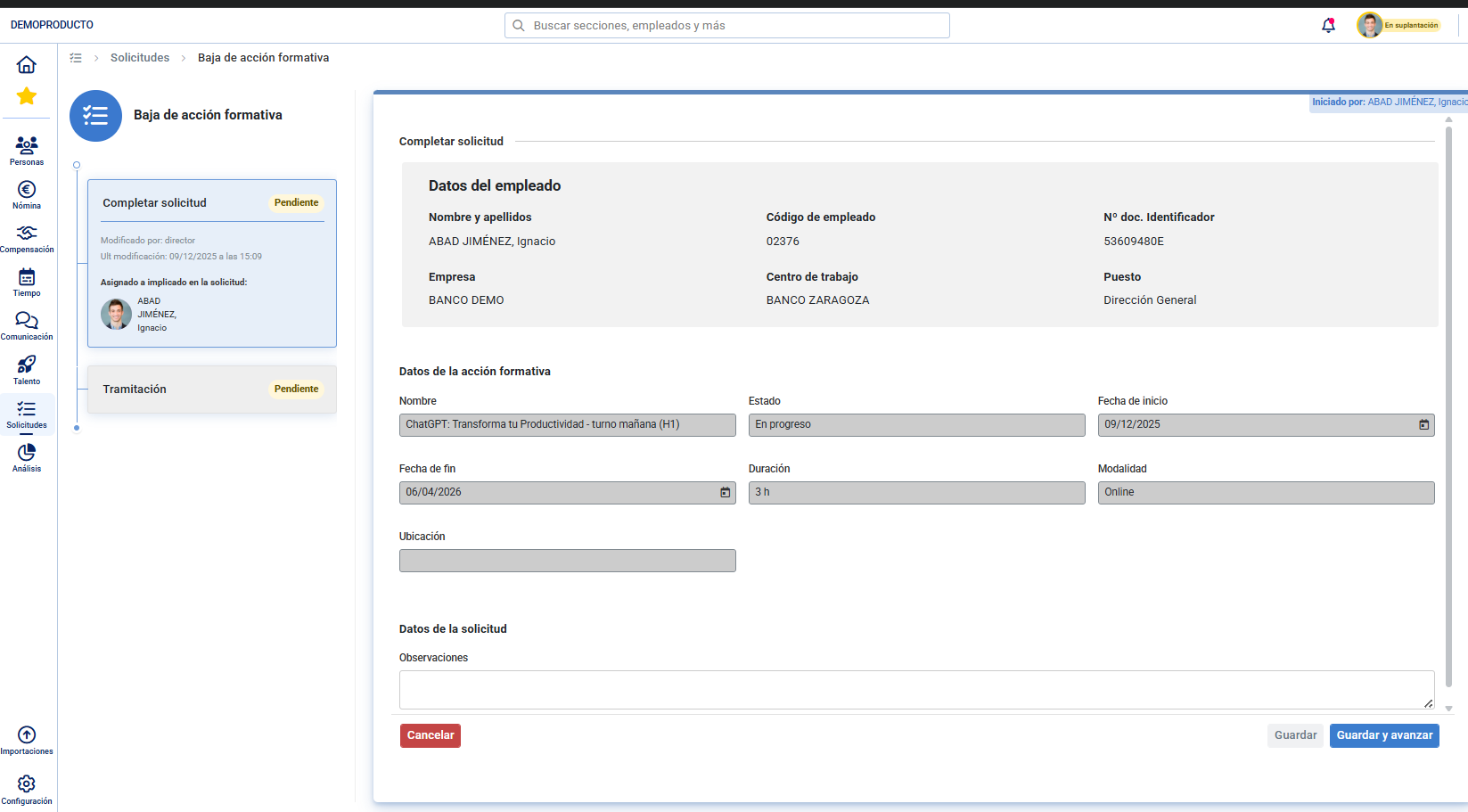
Now, the registration request will proceed to the following phases to be managed by the Responsible (optional) and by HR.HR.
- If the withdrawal request is rejected, you will not see any significant changes (that is, everything will remain as is).
- If the system notifies you that your withdrawal request has been approved (you will see it on the home), the training action will be removed from your calendar and you will not be able to complete the participation in it, so you will not have a certificate nor will you be able to respond to the evaluation questionnaire of the action, if any.
Consult the following related articles:
Furthermore, you can view our glossary, available at this link.
Was this article helpful?
That’s Great!
Thank you for your feedback
Sorry! We couldn't be helpful
Thank you for your feedback
Feedback sent
We appreciate your effort and will try to fix the article