This article is not available in Portuguese/Portugal, view it in Spanish
Important: this article is intended for Endalia HR users with an Administrator profile.
To delegate means to give authority or permission to another person to manage something. This functionality is also available in this module, and here we show you how to manage it.
In this article, you'll find:
Configure delegation
Within the hub Settings, click on the Vacations and Absences > Delegates
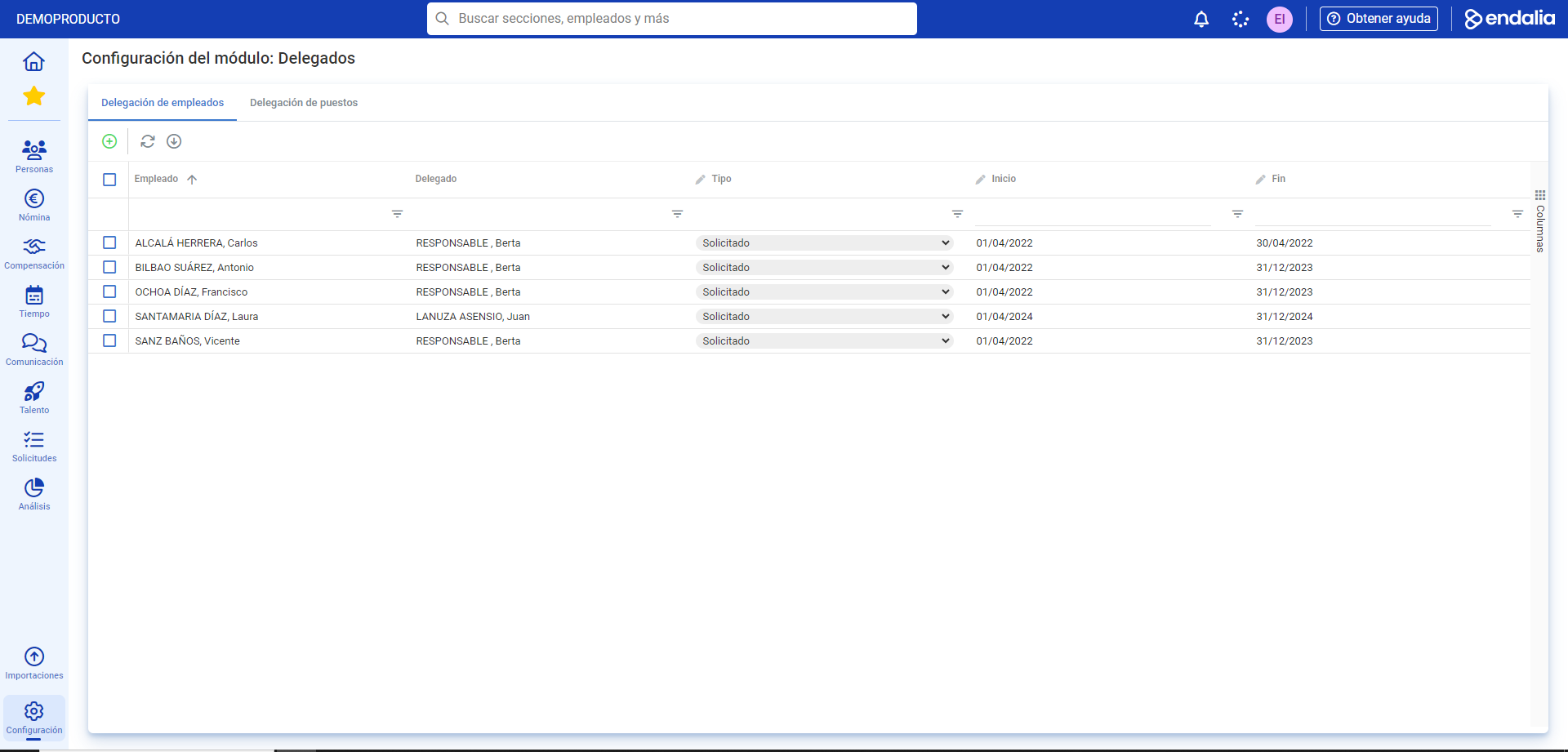
- On this first screen, two tabs are presented; one for Employee Delegation and another for Position Delegation. Select the first and click on the Add button, found in the toolbar:
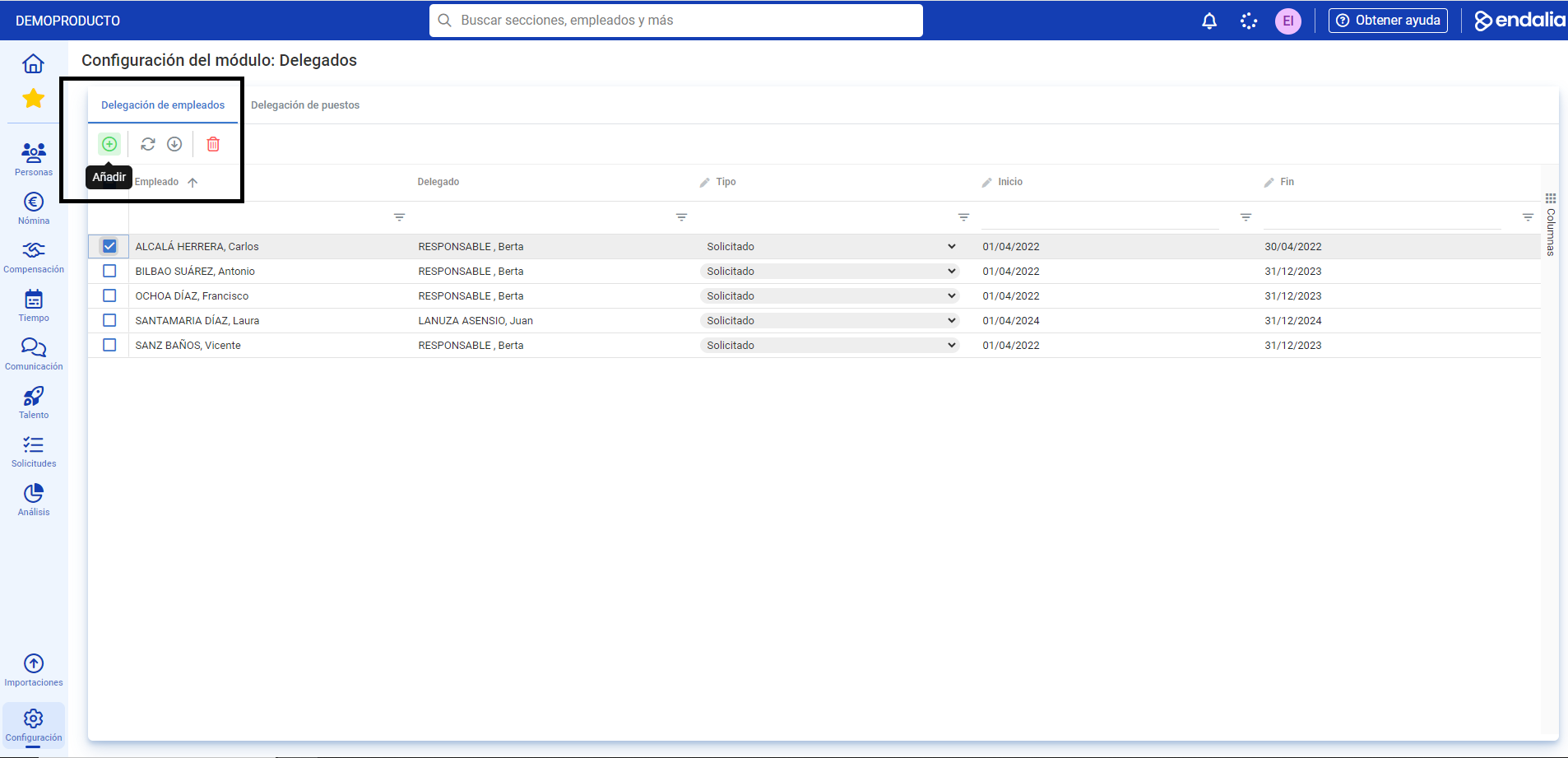
- The following modal window is composed of three steps; first, select the delegate, that is, the person who will take on the work; then, set the type of delegation and the period during which the previously selected employee will assume these functions; finally, select the employees (or, alternatively, areas, positions, departments, etc.) that will depend on the chosen delegate during the specified dates. Remember to click Add to save your preferences:
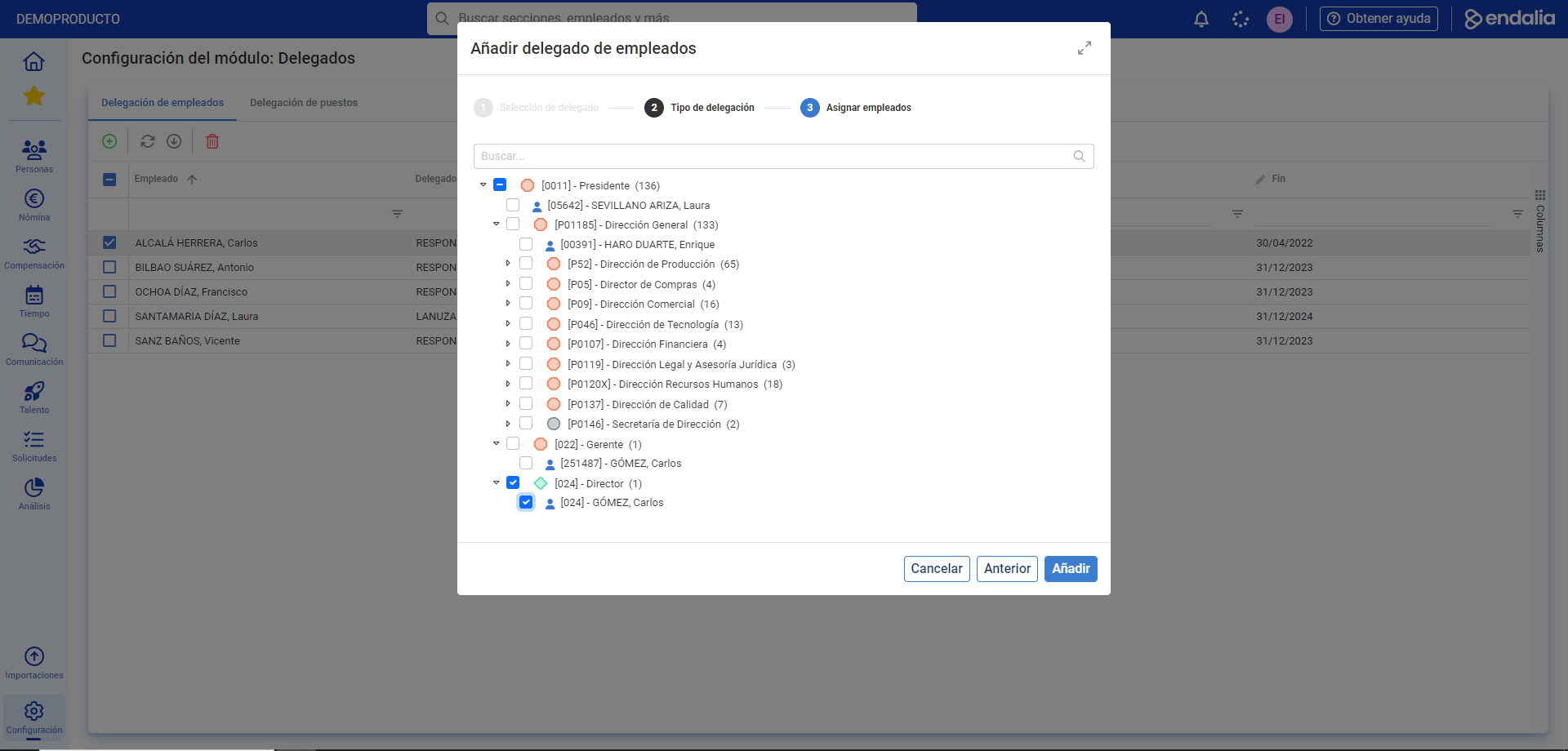 For the second option/tab, Position Delegation, three steps are also presented, after pressing Add
 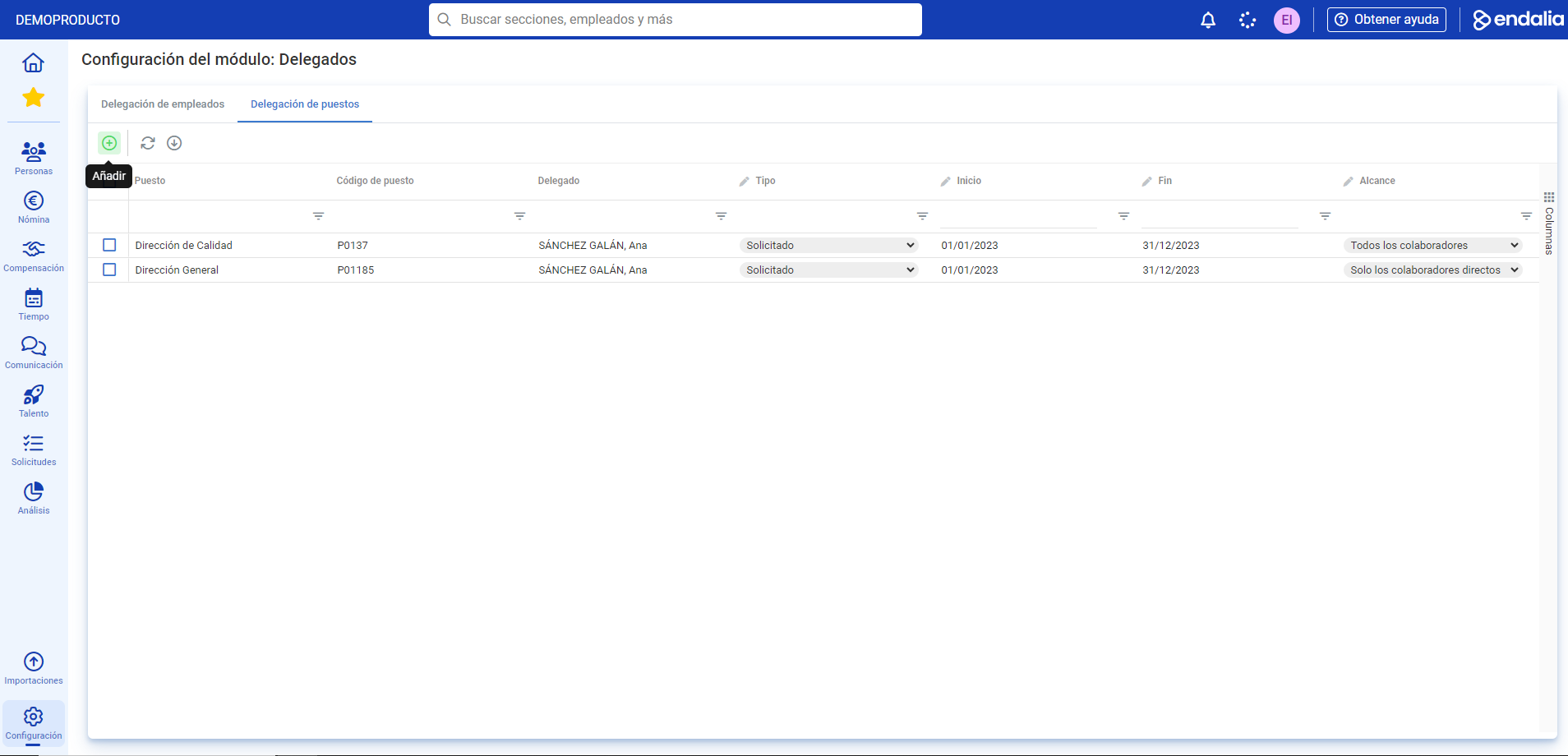 In the first, select the position where the delegation is located. Next, choose the type of delegation, with its start/end date and scope; finally, select the departments, positions, or people over whom the process will be applied, checking/unchecking the corresponding boxes in the structure tree. Again, click on Add for the changes to take effect: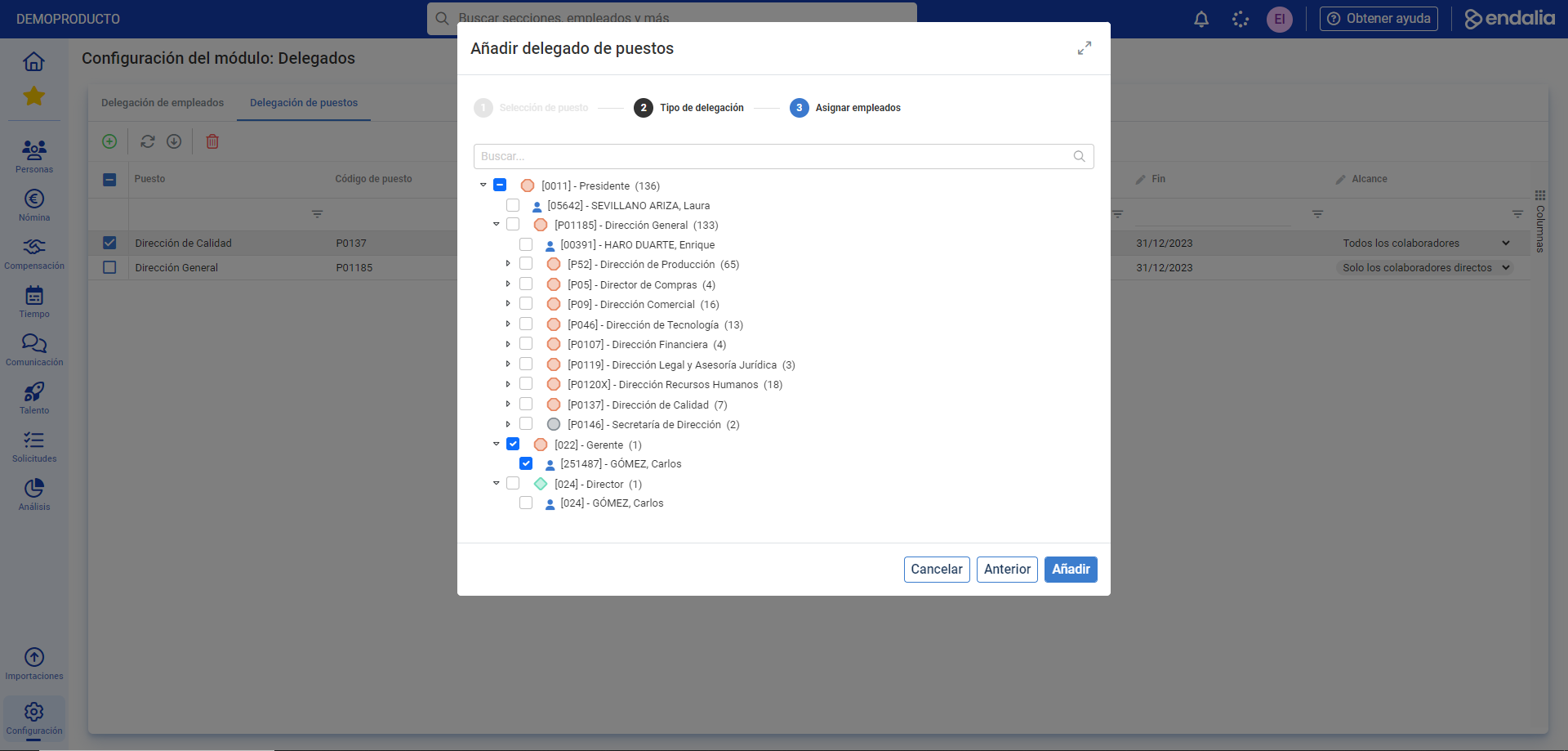
Process video
Here's how both tabs work, summarized in this informative pill:
Still have questions? Take a look at the following related articles:
Additionally, you can view our glossary, available at this link.
Was this article helpful?
That’s Great!
Thank you for your feedback
Sorry! We couldn't be helpful
Thank you for your feedback
Feedback sent
We appreciate your effort and will try to fix the article