Important: this article is intended for Endalia HR users with an Administrator profile.
In addition to the regular schedule, it is sometimes necessary to plan extra time, which also needs to be recorded. Take a look at this article to see everything this functionality offers.
Content of this article:
Manage requests for working time extension
First, the employee must request authorization for extended working time from My Records. Once registered through the established channels, the administrator can monitor its approval status or proceed to compensation. The process is as follows:
Within the hub Time Management, click on Time Record > Time Record Monitoring> Extensions/Compensations
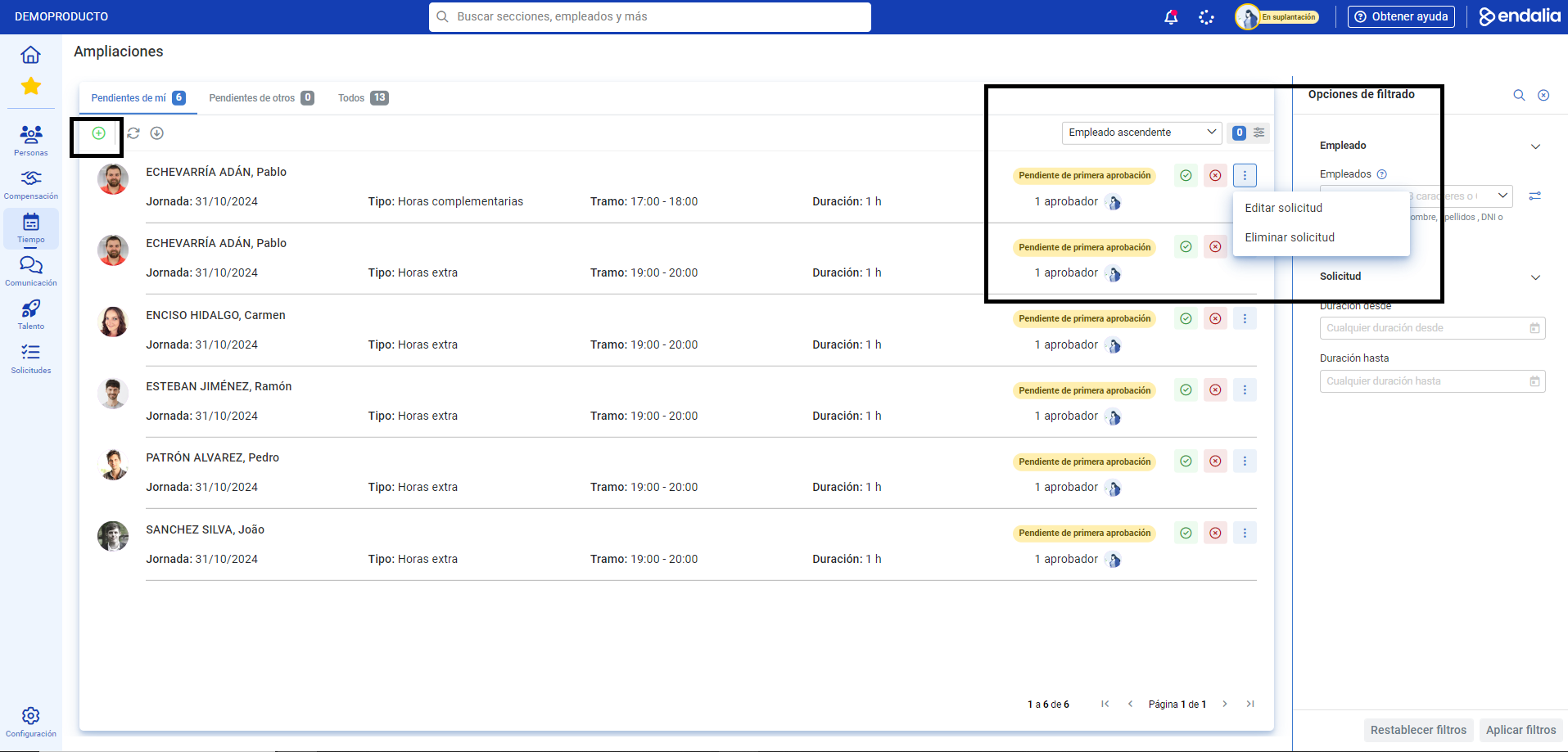
- On the screen that follows, you can use the usual filtering options found on the right side of the screen to find the corresponding employee. In the various cards of each employee, information related to schedule extension is displayed, and in the buttons located on the right side of the screen, you can proceed with the corresponding request, choosing between the options related to the main flows (Validate request, Edit request, Reject request, etc.). Please note that when a request is changed, a confirmation modal window will appear. Remember to click Accept to save the changes:
The availability of compensation types will depend on the company's configuration.
To learn more, take a look at these related articles:
Additionally, you can consult our glossary available at this link.
Was this article helpful?
That’s Great!
Thank you for your feedback
Sorry! We couldn't be helpful
Thank you for your feedback
Feedback sent
We appreciate your effort and will try to fix the article