This article is not available in Portuguese/Portugal, view it in Spanish
Important: this article is aimed at Endalia HR users with an Administrator profile.
To fully explore the functionalities of the tool, there must be communication between Endalia and Biostar. Here we show you, step by step, the configuration.
In this article:
Map Shifts in Biostar
In the hub Configuration, navigate to the Time Registration > Module Options
- Next, go to the Registration Mode section > Registration Type. With the edit button, determine the type of registration to follow in the emerging modal window; in this case, Shift-by-shift registration only in real-time. Click Save and, back in Module Options, select Save Changes
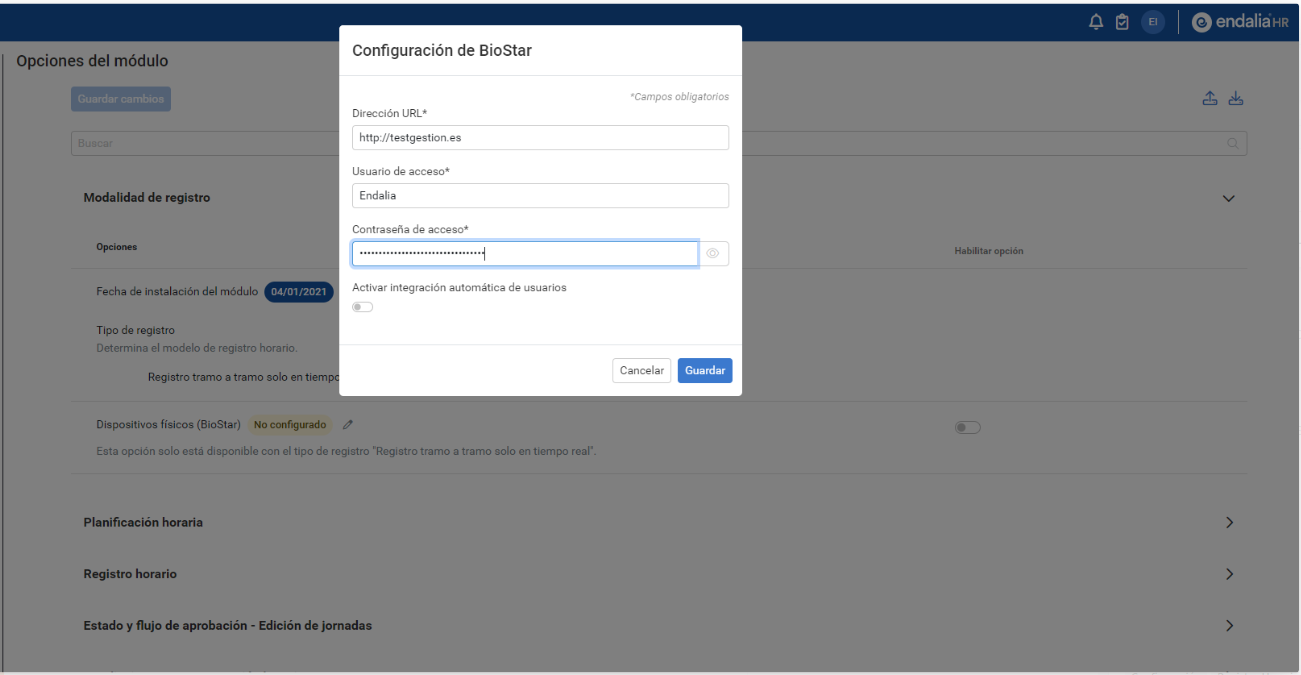
- Go back to the Registration Mode section, where you will find a new option, Physical Devices (Biostar). Enable it with its corresponding tab, and in the emerging modal window, fill in the corresponding parameters (to communicate both environments, Endalia and Biostar) and click Save. Once again, also click on Save Changes, back to the main options window:
4. Next, go to Configuration > Time Registration > Shifts and Segments. Choose one from the available in the current screen list (Module Configuration: Shifts and Segments) and double-click to edit it. In the lateral modal window, within the Registration section, check the box named Has mapping with Biostar; thus, Endalia and Biostar will be synchronized.
Note: To remap a segment, select it and use the More Options button, in the toolbar of the screen Module Configuration > Shifts and Segments.
Still have questions? Check out the following related articles:
Additionally, you can view our glossary available at this link.
Was this article helpful?
That’s Great!
Thank you for your feedback
Sorry! We couldn't be helpful
Thank you for your feedback
Feedback sent
We appreciate your effort and will try to fix the article