Important: this article is for Endalia HR users with an Administrator profile.
-Weekly schedules: configurable from Monday to Sunday.
-Cyclic schedules: configurable based on shifts (e. g. night shift, work ten days and rest three, for staff rotations, etc.).
Find out how to make the most of this Time Tracking feature with this simple explanation.
This article contains:
Configure and edit schedules
Within the hub Configuration, click on the Time Tracking module> Schedule Planning
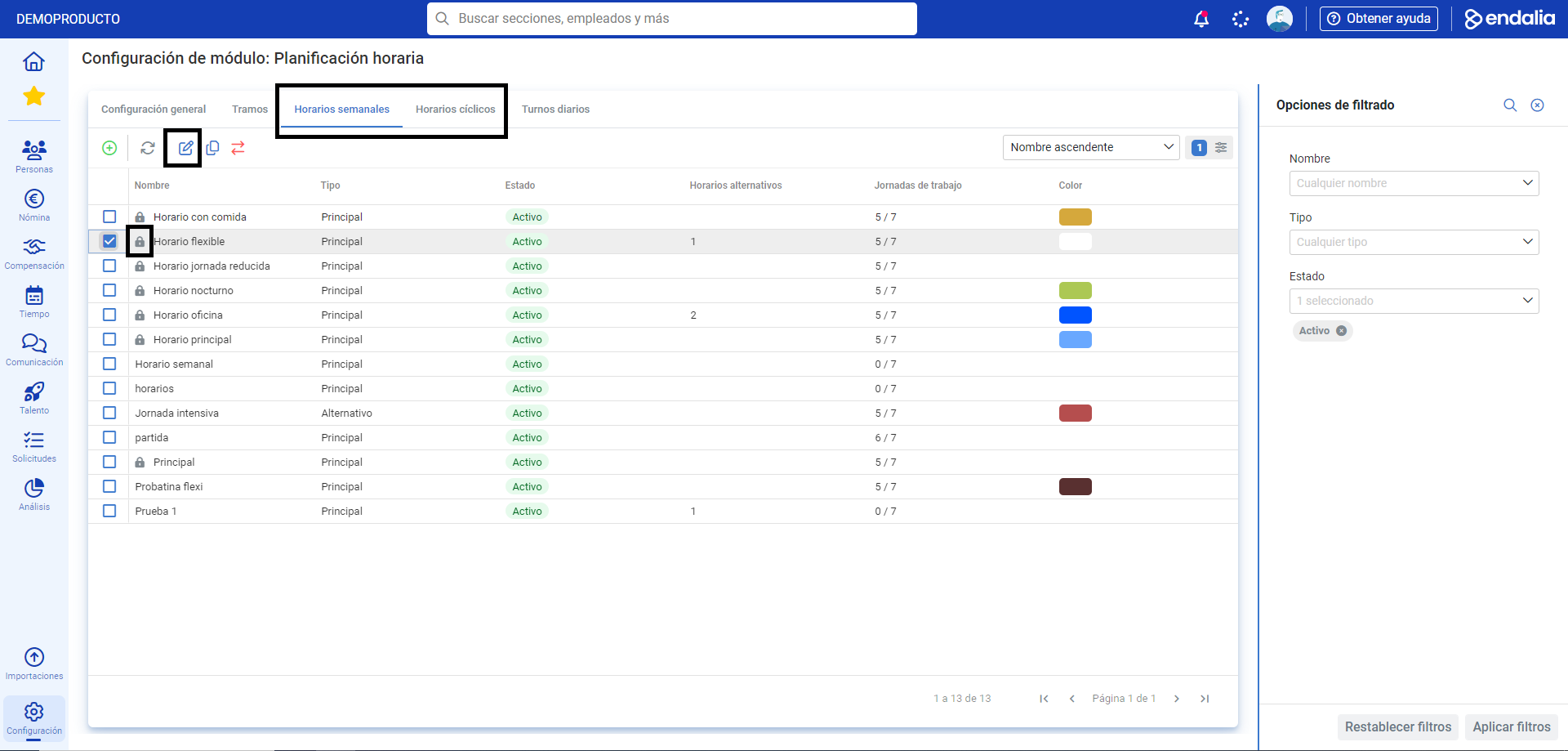
- On this first screen, under the tabs Weekly Schedules and Cyclic Schedules all available schedules are shown; those with the padlock icon are the main ones, and they are integrated into the program by default. Double-click on each one to edit it; alternatively, click on the corresponding checkbox and then on Edit, button you will find in the toolbar:
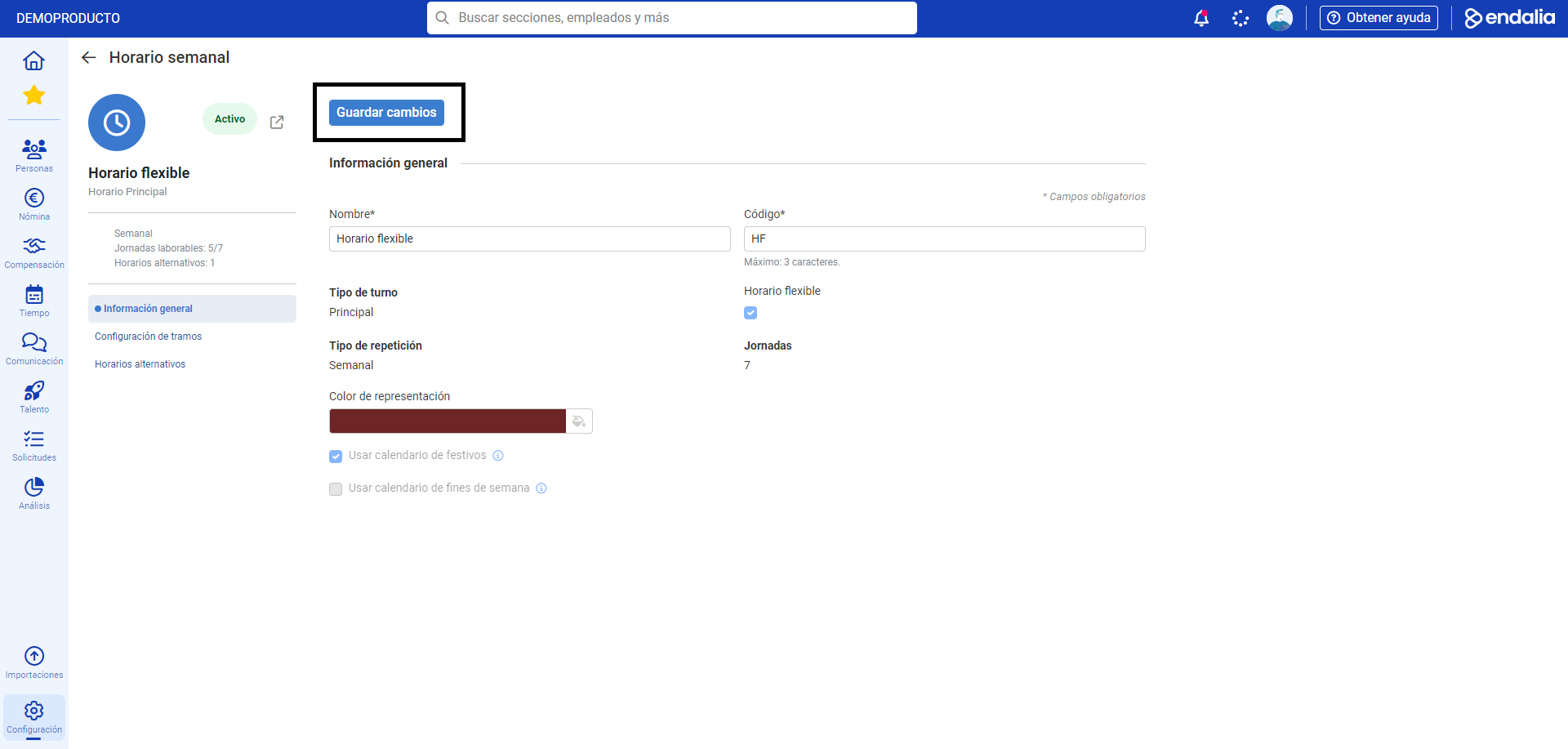
- In the next window, various sections are displayed, the first being General Information. Here you can modify various information, such as the name, code, or representation color. Remember to click Save changes at the top of the screen to make your preferences effective.
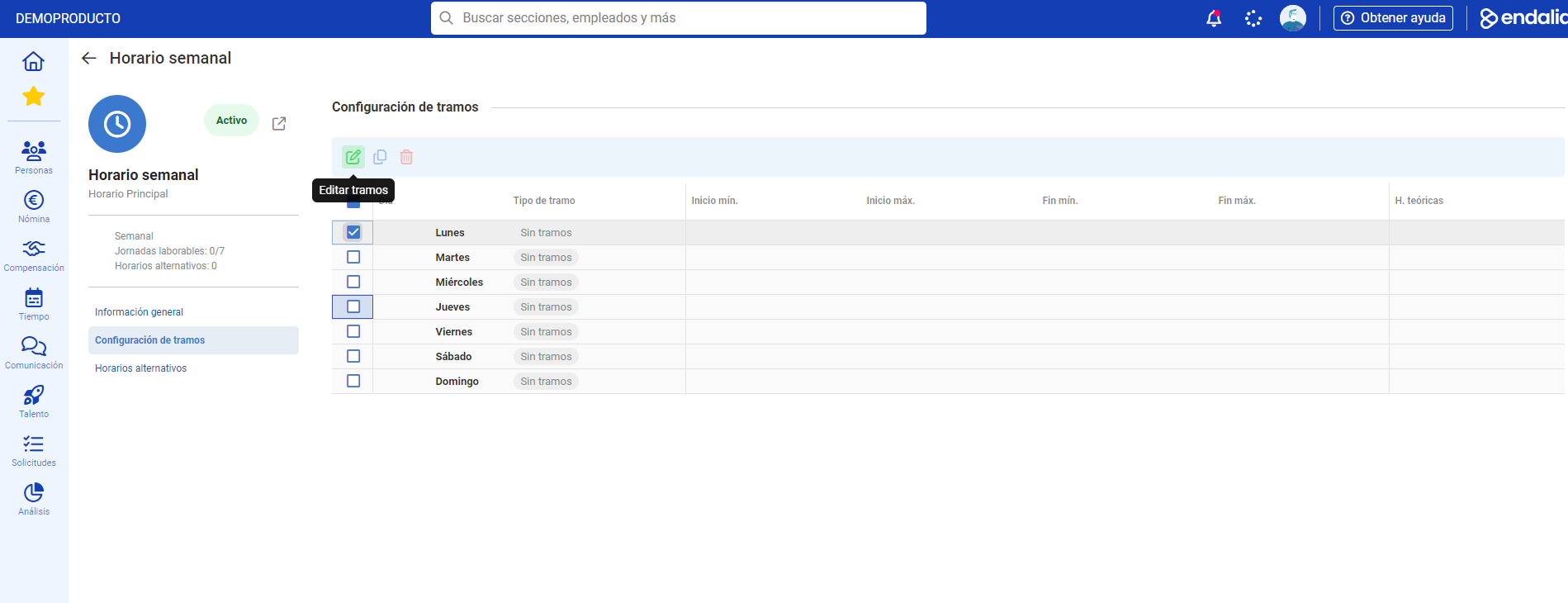
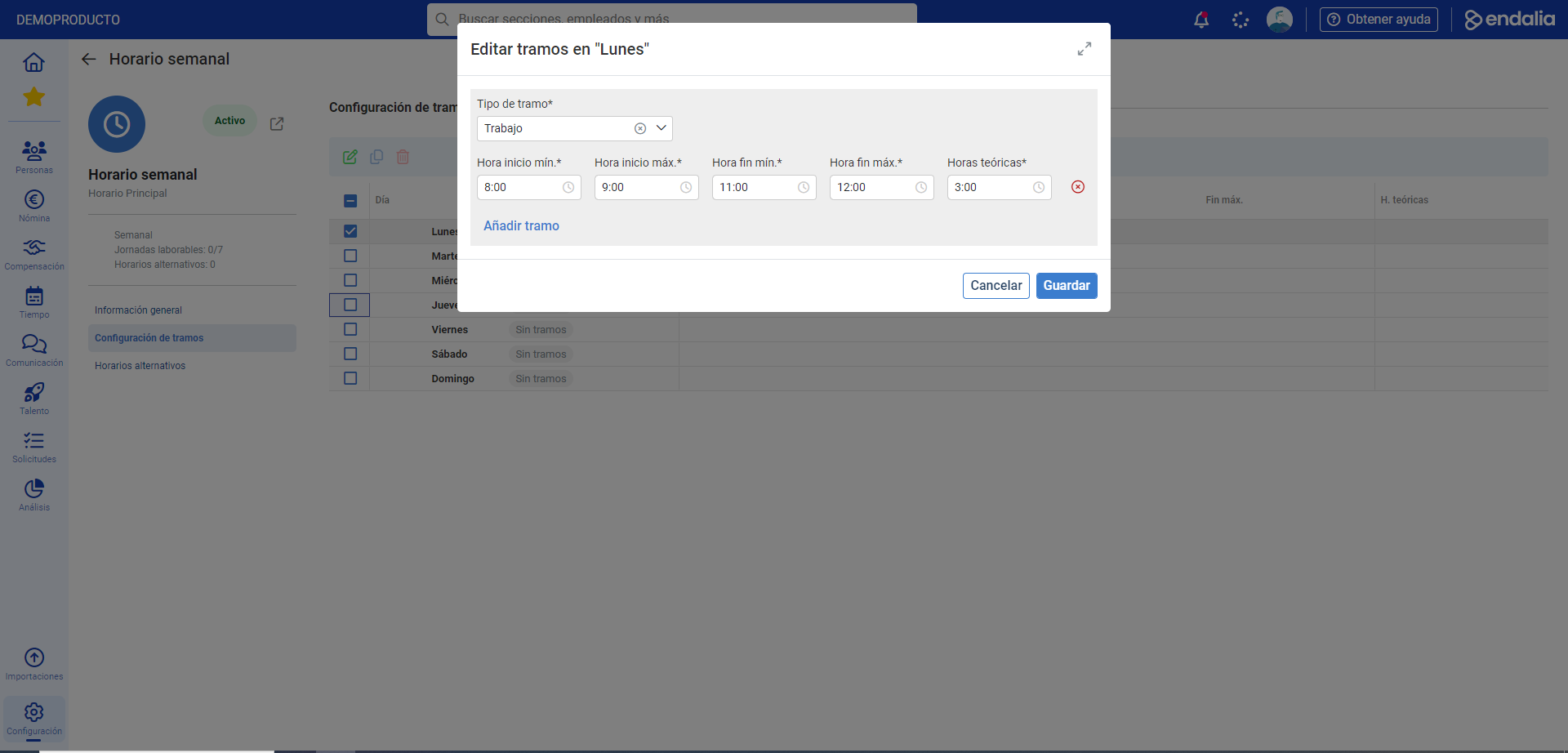
- The second tab, Segment Configuration, offers a perspective of the time slots assigned to each activity of the day. In the case of locked schedules, this screen will be informative only, while in new schedules you generate (Configuration > Time Tracking > Schedule Planning > Add Schedule (+)) or that appear in the list without the padlock icon, you can modify the segments as you like. To do this, click on the box of one of the days of the schedule and click on Edit, in the toolbar, to create as many segments as you deem necessary:
- Finally, the Alternative Schedules tab will allow you to Add, View, Edit, or Delete variations of the schedule you are editing (for example, having an intensive shift in summer for the standard office schedule).
- Remember to click Save changes where the option is available, to set your preferences.
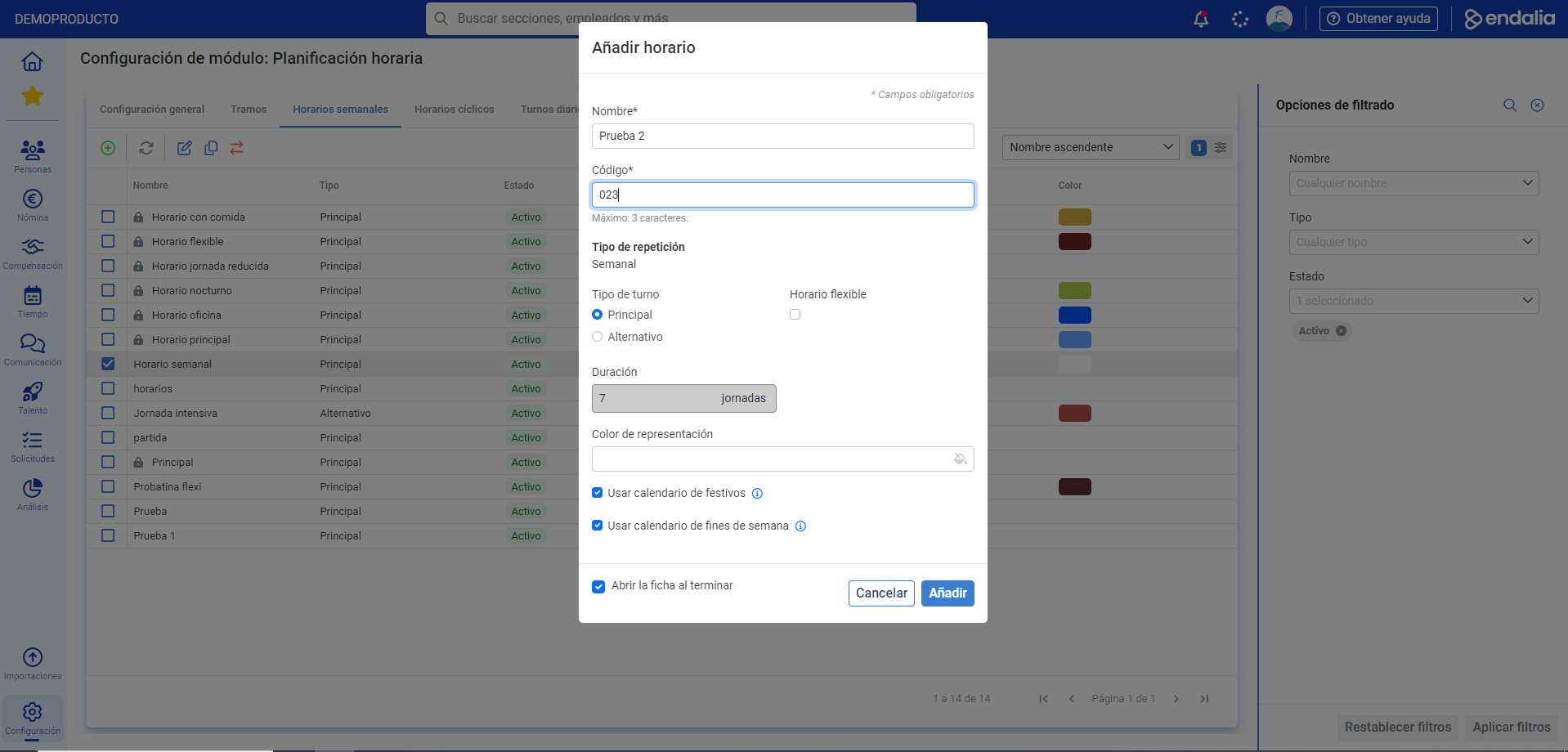
Note: To add a schedule, follow the same procedure. Go to Schedule Planning and, on the main screen, click Add Schedule in the toolbar. Once the schedule is generated in the modal window presented to you, you can edit it in its sheet following the same steps described in this tutorial.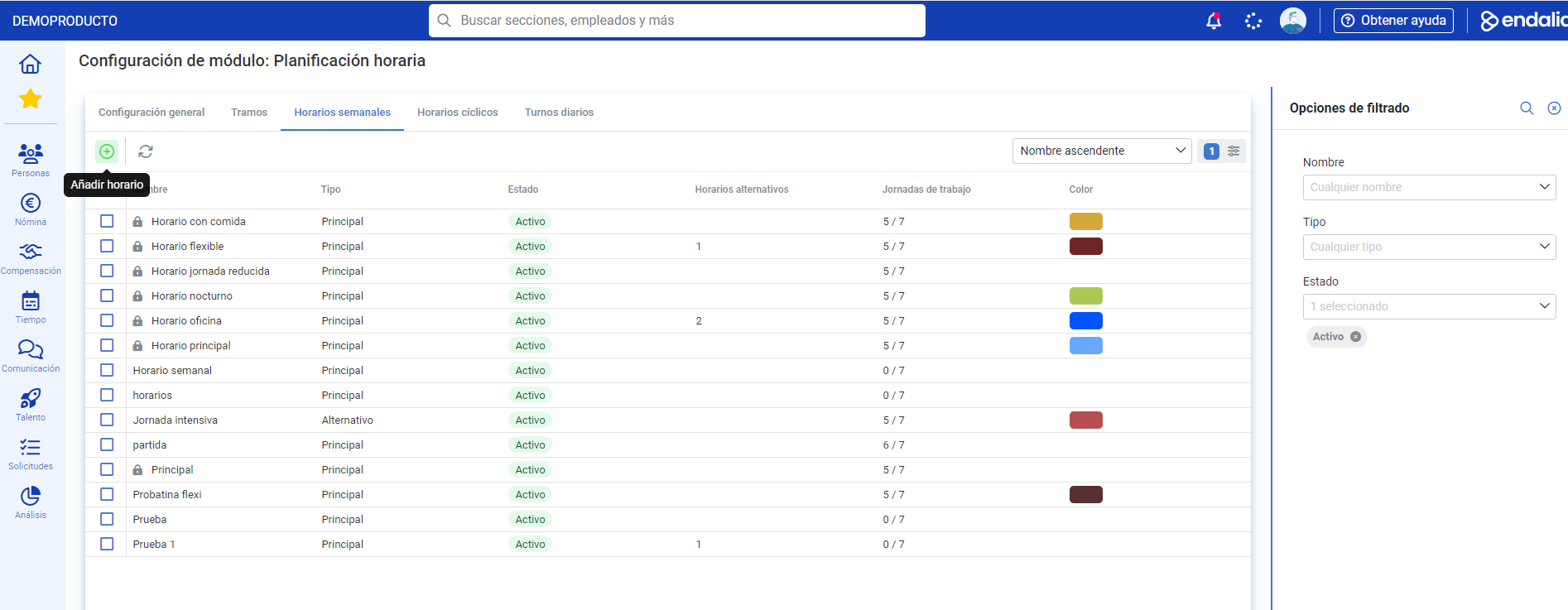
You might also be interested in:
Also, you can view our glossary, available at this link.
Was this article helpful?
That’s Great!
Thank you for your feedback
Sorry! We couldn't be helpful
Thank you for your feedback
Feedback sent
We appreciate your effort and will try to fix the article