Important: this article is intended for Endalia HR users with an Administrator profile.
Thanks to this feature, you can see which employees have a salary review assigned for a specific period, in the simplest way. Do you want to know more? Then pay attention to these tips we present.
In this article:
Manage employees
- Within the Configuration hub, go to Compensation and Benefits > Salary Review Periods
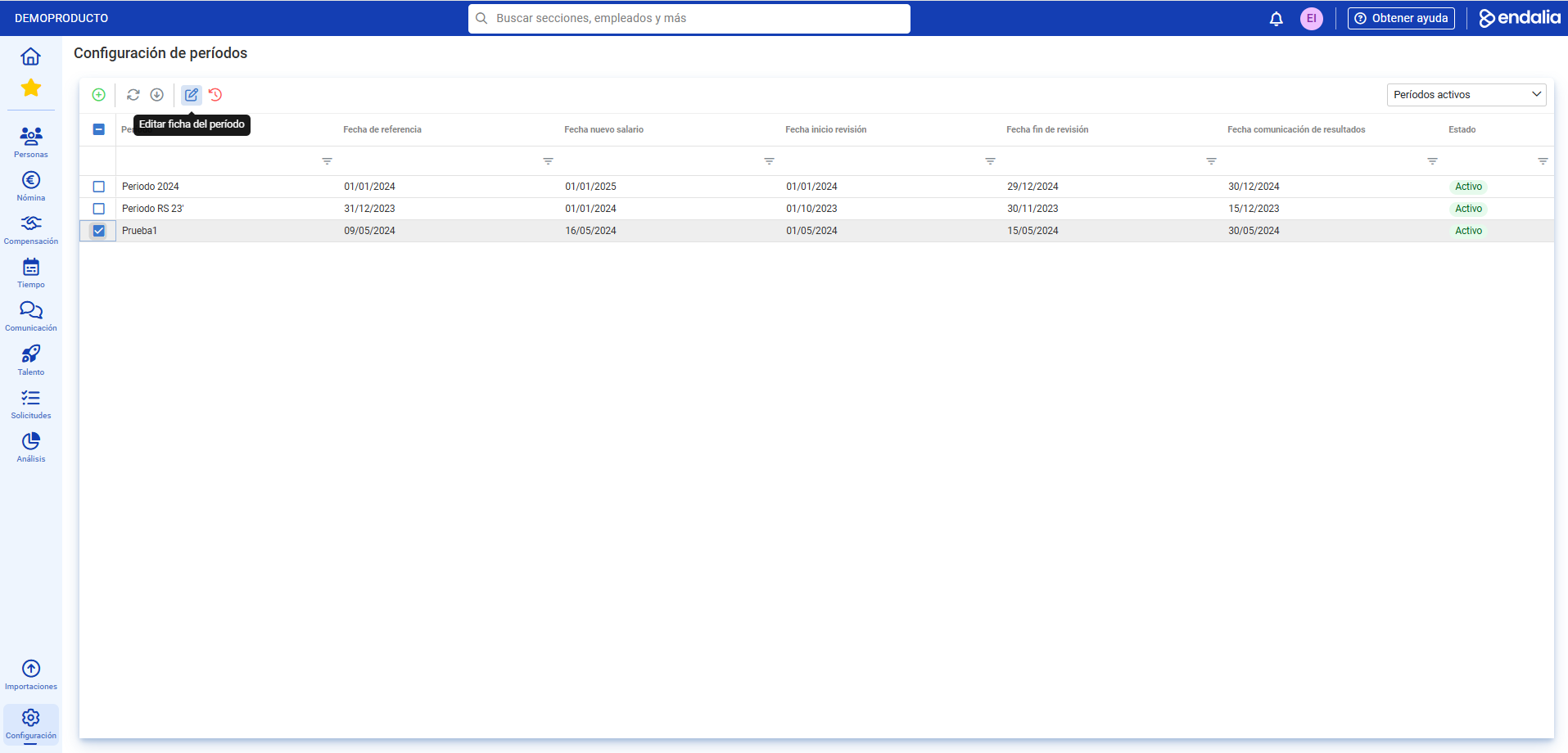
- Select a period from the list and click on Edit Period Record, button located on the toolbar:
- Once inside the period record, go to the Employees section.
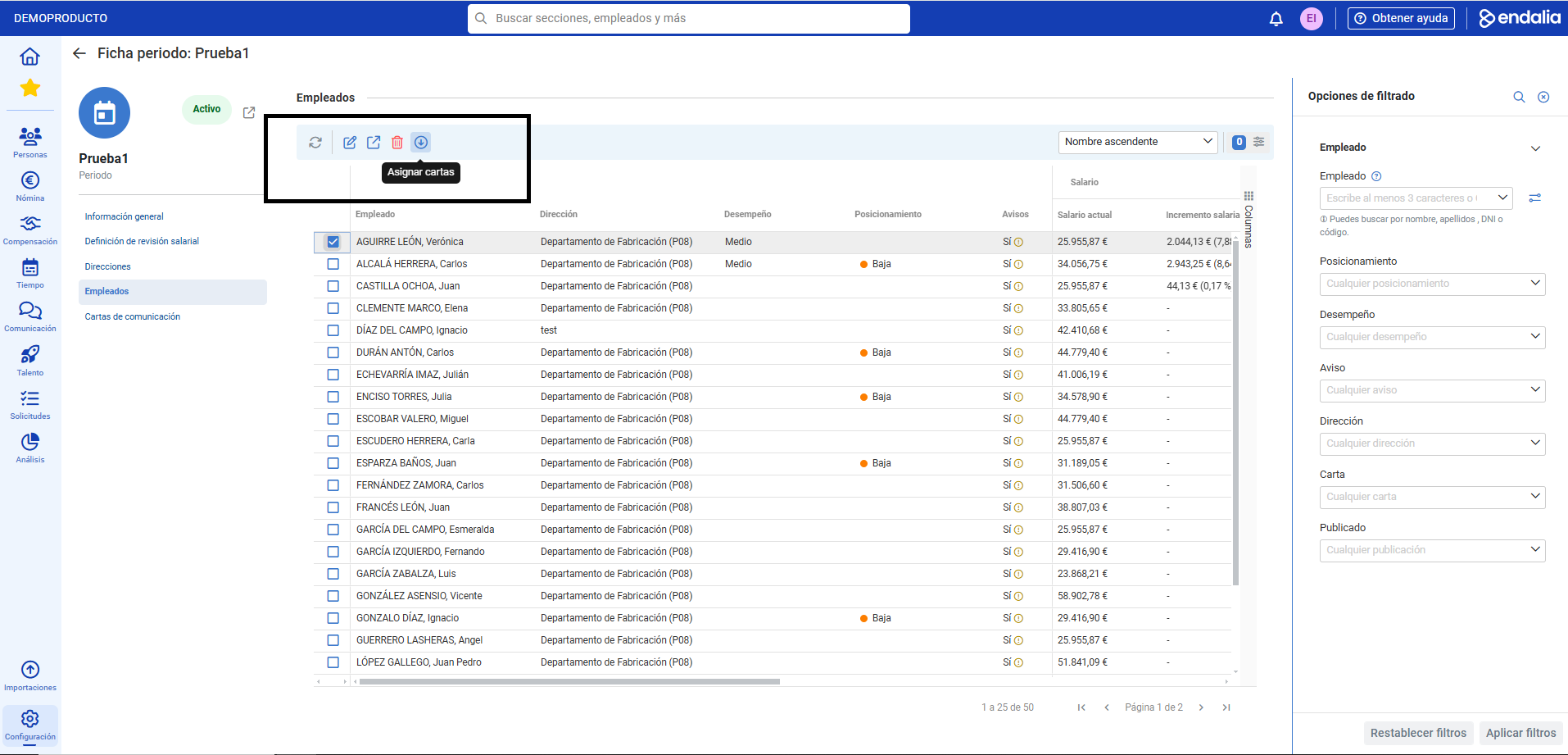
- On the following screen, you have a list of collaborators; it is a table where you can also see different concepts, such as bonuses, salary reviews, alerts, etc. Scroll through the different columns to access all this labor information, transversely across the departments.
- Remember that you also have the toolbar, with various associated functionalities. Click on the corresponding box or row where the employee's name appears and then on the various buttons in that bar: Edit (to carry out the salary review) Open record (to see all salary aspects related to the employee), Delete and Assign letters (to inform the collaborator):
Process video
We show it to you quickly:
Finally, you have the following related articles available:
- Create salary level
- Assign salary level to an employee
- Manage variations
- Publish letters
- Manage letters
- Manage addresses
Additionally, you have a glossary of terms available at the following link.
Was this article helpful?
That’s Great!
Thank you for your feedback
Sorry! We couldn't be helpful
Thank you for your feedback
Feedback sent
We appreciate your effort and will try to fix the article