Important: this article is intended for Endalia HR users with an Administrator profile.
In salary review, addresses refer to the entity grouping a number of employees under specific leadership. If you're looking to create and manage them, you're in the right place.
In this article:
Create addresses
- Within the hub Configuration, navigate to Compensation and benefits > Salary review periods.
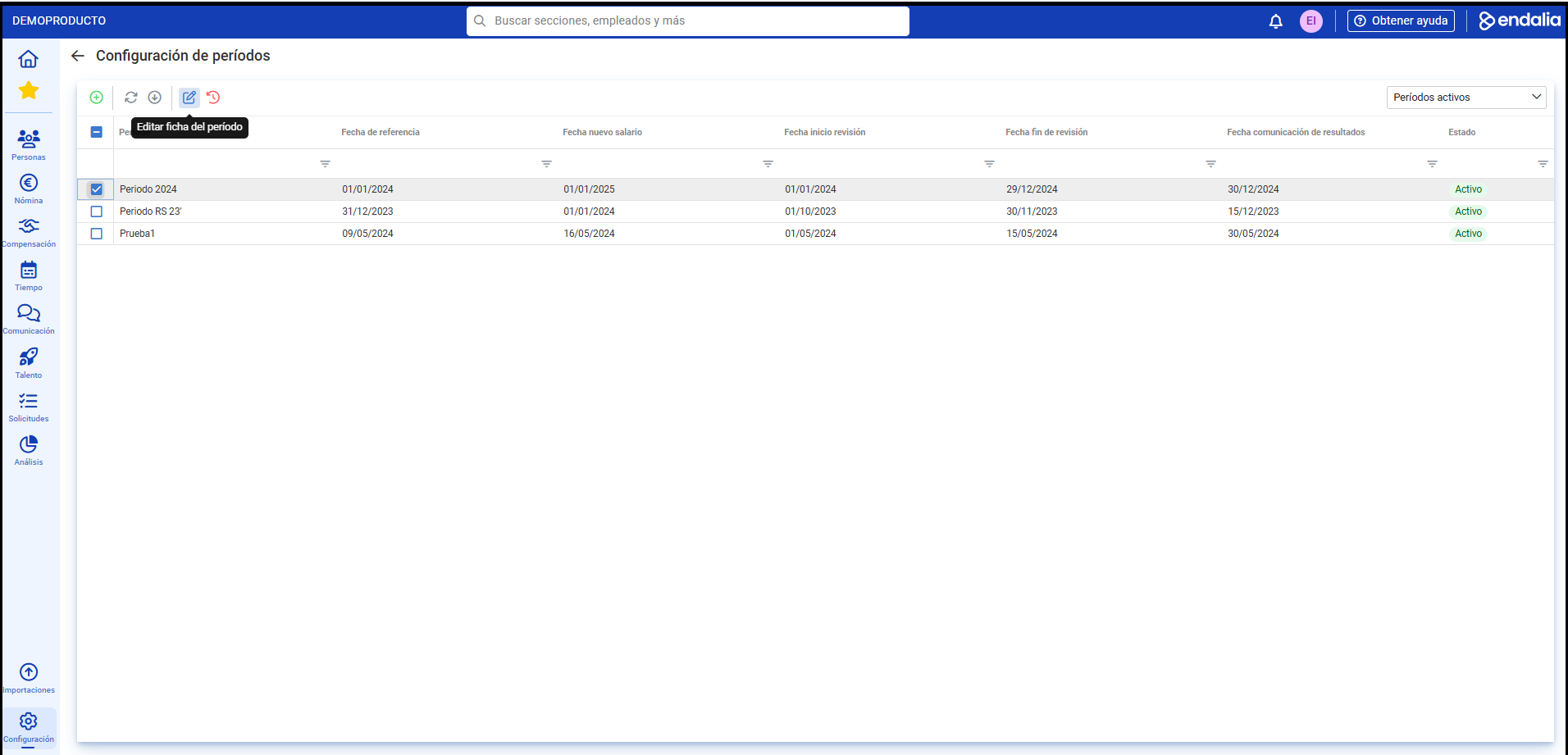
- In the list presented on the next screen, choose a period and click the Edit period file button, found in the toolbar:
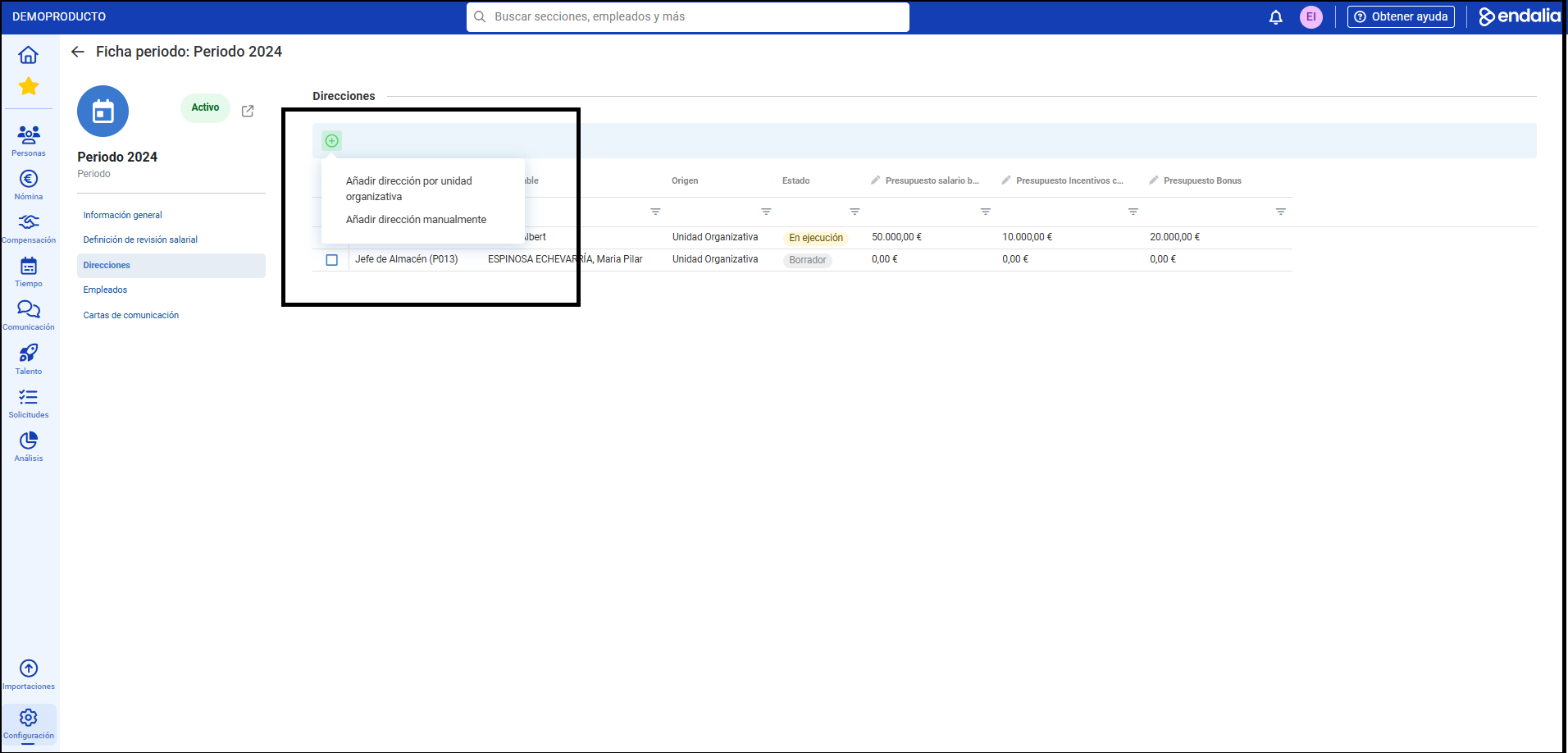
- Next, navigate to the Addresses section and within it, click the Add button to see the following options: Add address by administrative unit or Add address manually
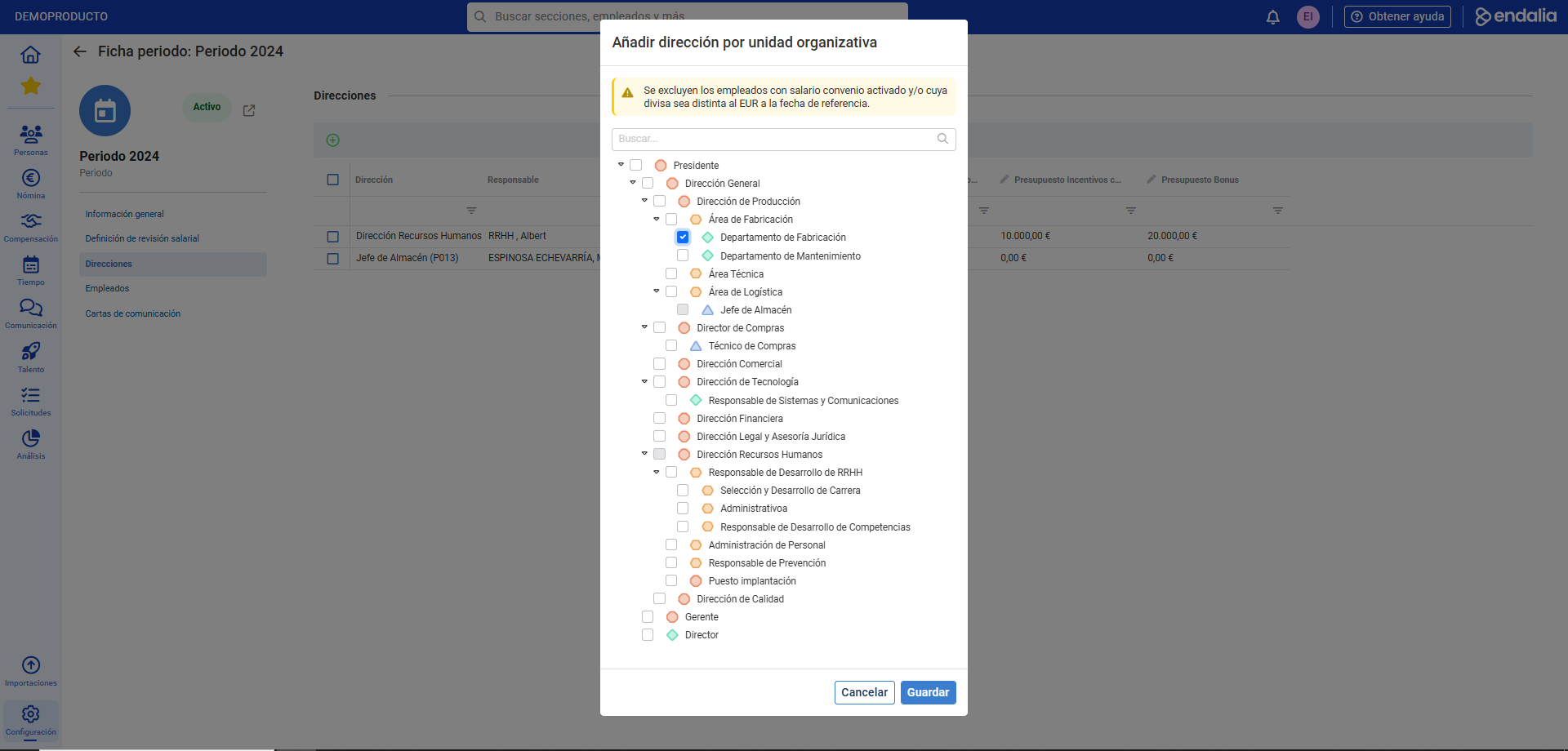
- If you opt for the first option, select the corresponding OU in the structure tree and click Save. Back in the Addresses section, select the one you just created and go to Edit in the toolbar. In the side modal window, complete the sections State, Employees, Responsible Parties, and Budget, choosing names from the list or using the Add button to finish this action again by clicking Save
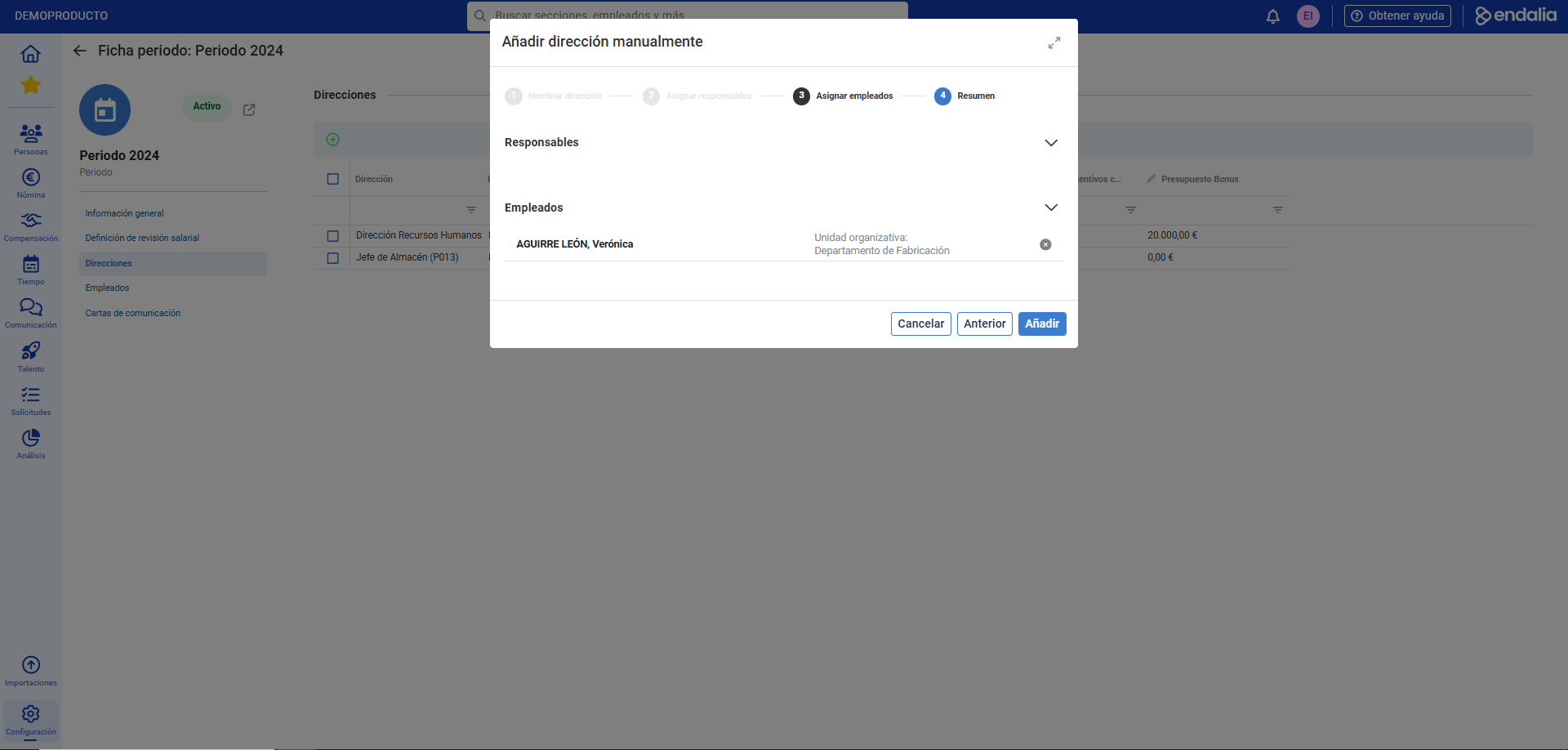
- If you choose the second, the process is based on a 4-phase stepper, in which you must also select employees and responsible parties. Again, click Add to see the address in your period file:
We remind you that the following related articles are at your disposal:
Additionally, here is this link to access the glossary of terms.
Was this article helpful?
That’s Great!
Thank you for your feedback
Sorry! We couldn't be helpful
Thank you for your feedback
Feedback sent
We appreciate your effort and will try to fix the article