Important: this article is intended for Endalia HR users with an Administrator profile.
With this simple functionality, you will learn to select the information each employee can see, gaining full visibility control over these two basic aspects of a company.
Here you will find:
Configure organizational chart and directory
- Within the hubSettings, click on Organization and people > Module options
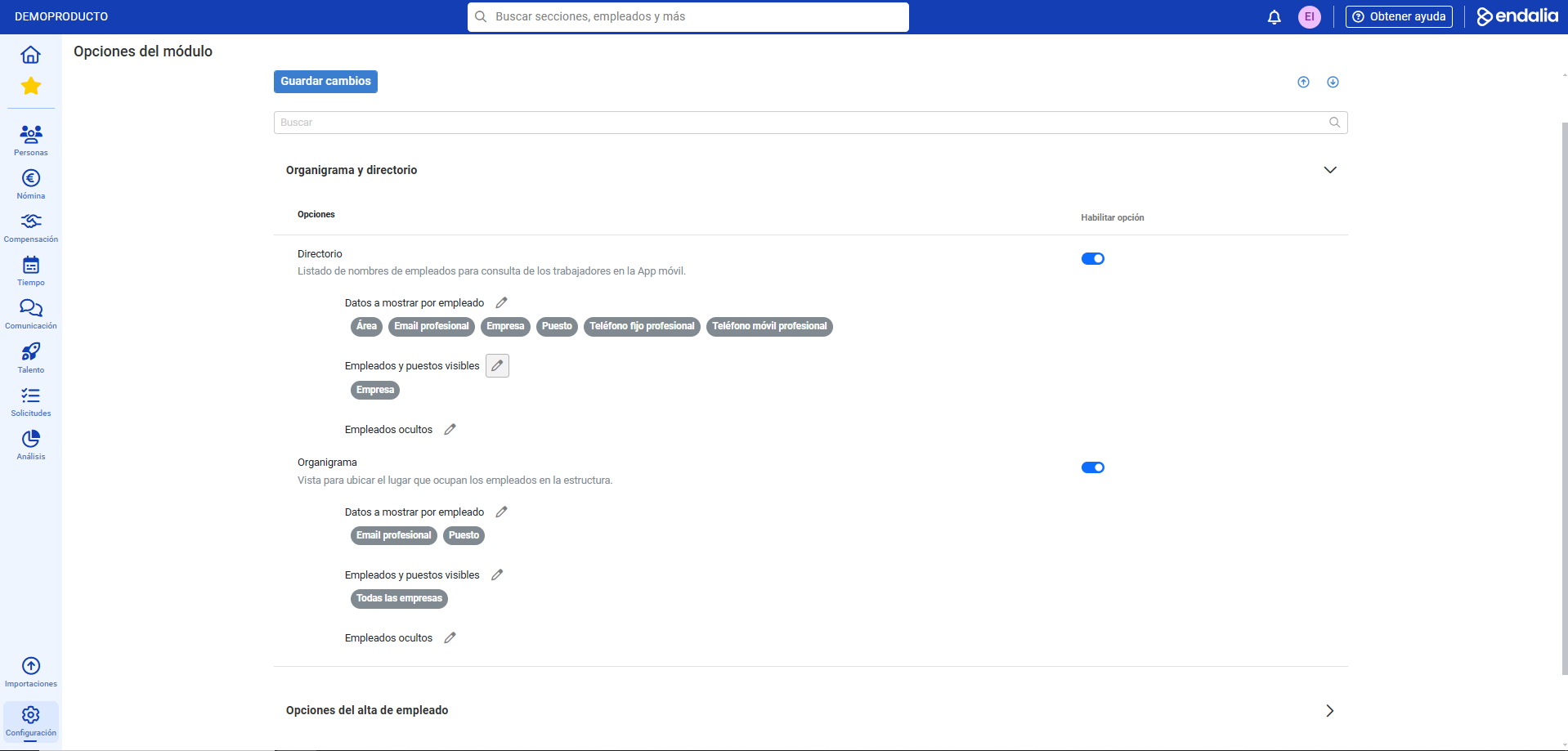
- On the next screen, click the dropdown in the Organizational chart and directory section. In both fields, you can see the same options, as well as enable and disable them. They are:
- Data to display per employee: allows customization of fields that will be shown in each employee's profile in the organizational chart and/or directory detail modal.
- Visible employees: allows narrowing the employee population each user can see based on location in the organizational structure, discriminating by work center and allowing selection of external employees.
- Hidden employees: allows excluding sensitive employees from organizational chart and directory views accessible to the entire organization.
- Finally, do not forget to click on Save changes at the top left of the screen to confirm your preferences:
Note: Keep in mind that the directory section is only available for the mobile App version.
Process video
We'll show you quickly:
Do you want to know more? Check out the following related articles:
If you have doubts about the terms, take a look at our glossary in this link.
Was this article helpful?
That’s Great!
Thank you for your feedback
Sorry! We couldn't be helpful
Thank you for your feedback
Feedback sent
We appreciate your effort and will try to fix the article