Important: this article is intended for Endalia HR users with Administrator profile.
As with any quality software, multiple configuration options are essential to maximize the program's performance, along with having total control over various visualizations available to the information recipients.
In this article, you will find:
Manage module options
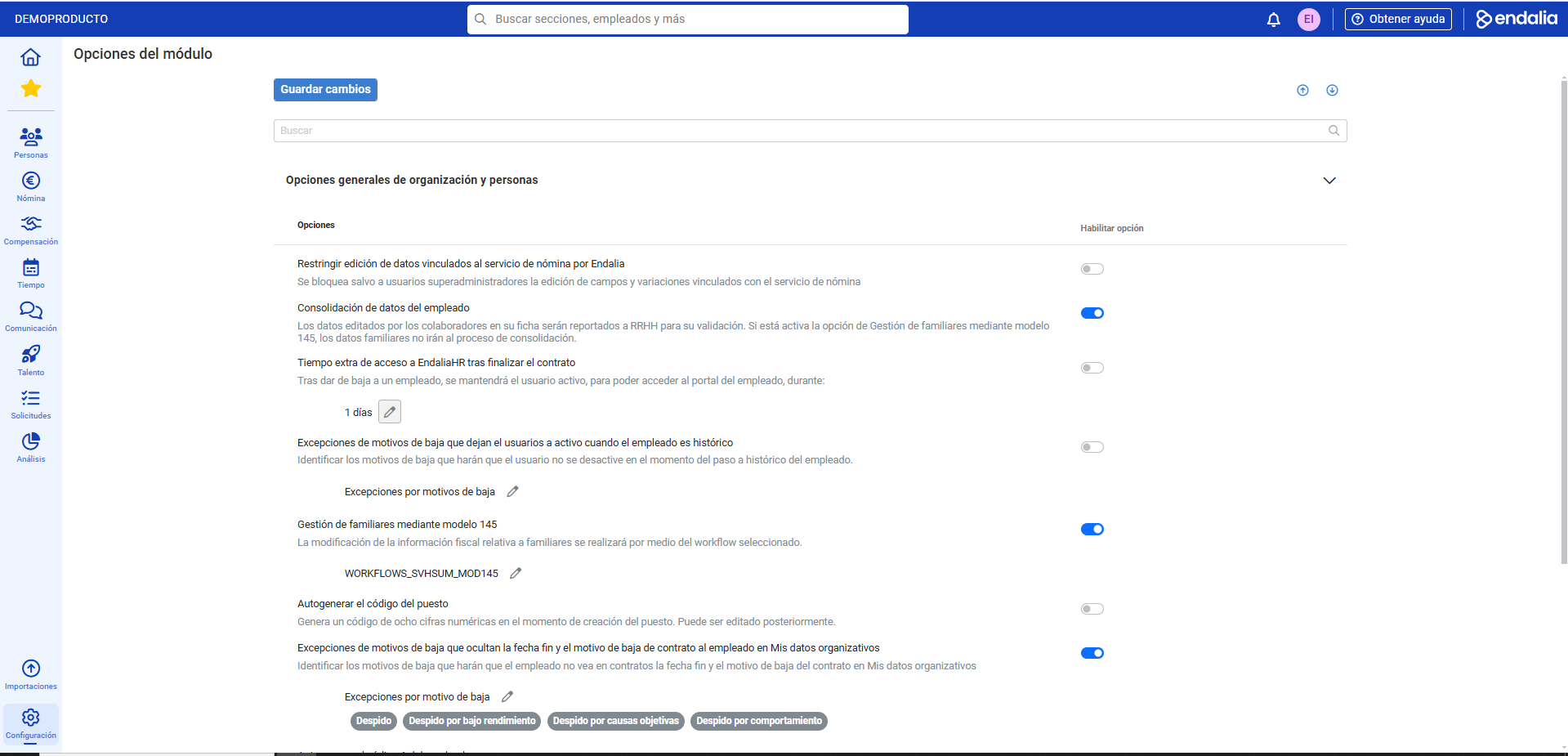
- Within the Configuration hub, go to Organization and People > Module Options
- In the next window, in the section General Options for Organization and People > Options, you will find the following preferences:
- Restrict editing of data linked to payroll service by Endalia: as its name suggests, this option locks, except for users super administrators (i.e., HR managers. HR.), the editing of fields and variations linked with the payroll service.
- Employee data consolidation: it serves to activate validation when an employee changes data in their profile. These changes will need to be approved if this option is enabled.
- Extra access time to Endalia HR after contract termination: it allows the employee to continue accessing Endalia HR for a predetermined time to carry out relevant tasks after leaving the company.
- Exceptions to deactivation reasons keeping the user active when the employee is historic: it serves to identify exit reasons for which the user won't be deactivated when the employee moves to the historical list.
- Family management through Model 145: the purpose of this option is to streamline the process of linking family members, by connecting to a chosen workflow, after previously entering the pertinent code.
- Auto-generate job code: it consists of eight digits and is created with the position. It can be edited later.
- Complete contract sheet: allows viewing a contract sheet with the section Additional information in the list of an employee's contracts.
- The other section available in the menu, Organizational chart and directory, refers to employee population restrictions that each user can see concerning their location in the organizational structure, the fields to be displayed in those (jobs, work centers, corporate email, etc.), as well as hiding employees that will not be visible to any user. This configuration will apply to all users accessing the company's organizational chart or directory, and the latter will only be available in the mobile version:
Process video
Want to know more? Check out the following related articles:
If you're unsure about the terms, take a look at our glossary at this link.
Was this article helpful?
That’s Great!
Thank you for your feedback
Sorry! We couldn't be helpful
Thank you for your feedback
Feedback sent
We appreciate your effort and will try to fix the article