Important: this article is intended for Endalia HR users with an Administrator profile.
Tracking and configuring positions in a company are important tasks directly linked to employee evolution and performance. Manage this functionality with this small guide we show you below.
Below:
Manage job profile data
- Within the hub Settings, navigate to Organization and People > Job Data
- On the screen presented next, you can see all the data that make up a job profile, with their corresponding menu items (General Information, Responsibilities, Requirements, and Differentiating Elements). The data types are divided into:
- Basic: essential for the functioning of Endalia HR, and their status is non-editable.
- Visible: appear on the employee's profile and are editable by them.
- Hidden: used when the client does not want to use that data and, therefore, does not appear on the employee's profile.
3. To edit a parameter, click on the data type, and in the side modal window that appears next, choose your preferences and click on Save to apply them. 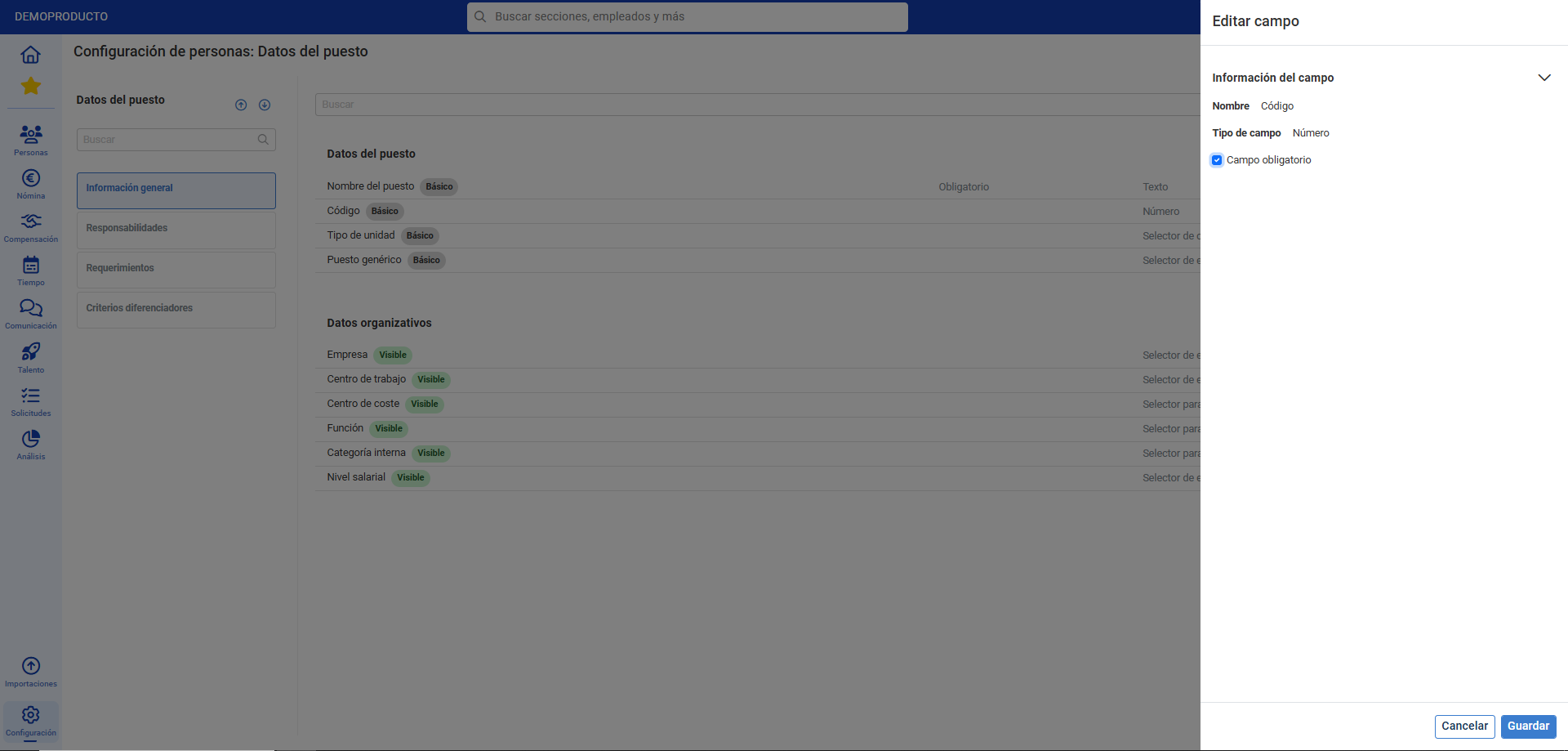
Important: It is possible to hide fields so they do not appear in the collaborator's profile (but do appear in the administrative profile).


Process video
Want to learn more? Consult the following related articles:
If you have doubts about the terms, check our glossary at this link.
Was this article helpful?
That’s Great!
Thank you for your feedback
Sorry! We couldn't be helpful
Thank you for your feedback
Feedback sent
We appreciate your effort and will try to fix the article