Important: this article is intended for Endalia HR users with an Administrator profile. This section compiles all the menu items of the module where employee records are displayed:
- My Data Record (Me)
- Employee Administrative Record (My Team > Employees and Company > Employees)
The most important asset of any company, human capital, also deserves proper data management that contributes to the overall good performance of the company. If you want to know more about the current functionality, continue reading.
In this article:
Manage employee record data
- Within the hubConfiguration, go to Organization and People > Employee Data
- On the screen presented to you next, you can see all the data that comprises an employee's record, with the corresponding fields (My Data, My Curriculum, and My Organizational Data > Additional Information). Firstly, if we consider the types of data, these are divided into:
- Basic: These are essential for the operation of Endalia HR, and their status is not editable.
- Visible: They appear in the employee's record and can be edited by the employee.
- Hidden: used when the client does not want to use this data and therefore, it does not appear in the employee's record.
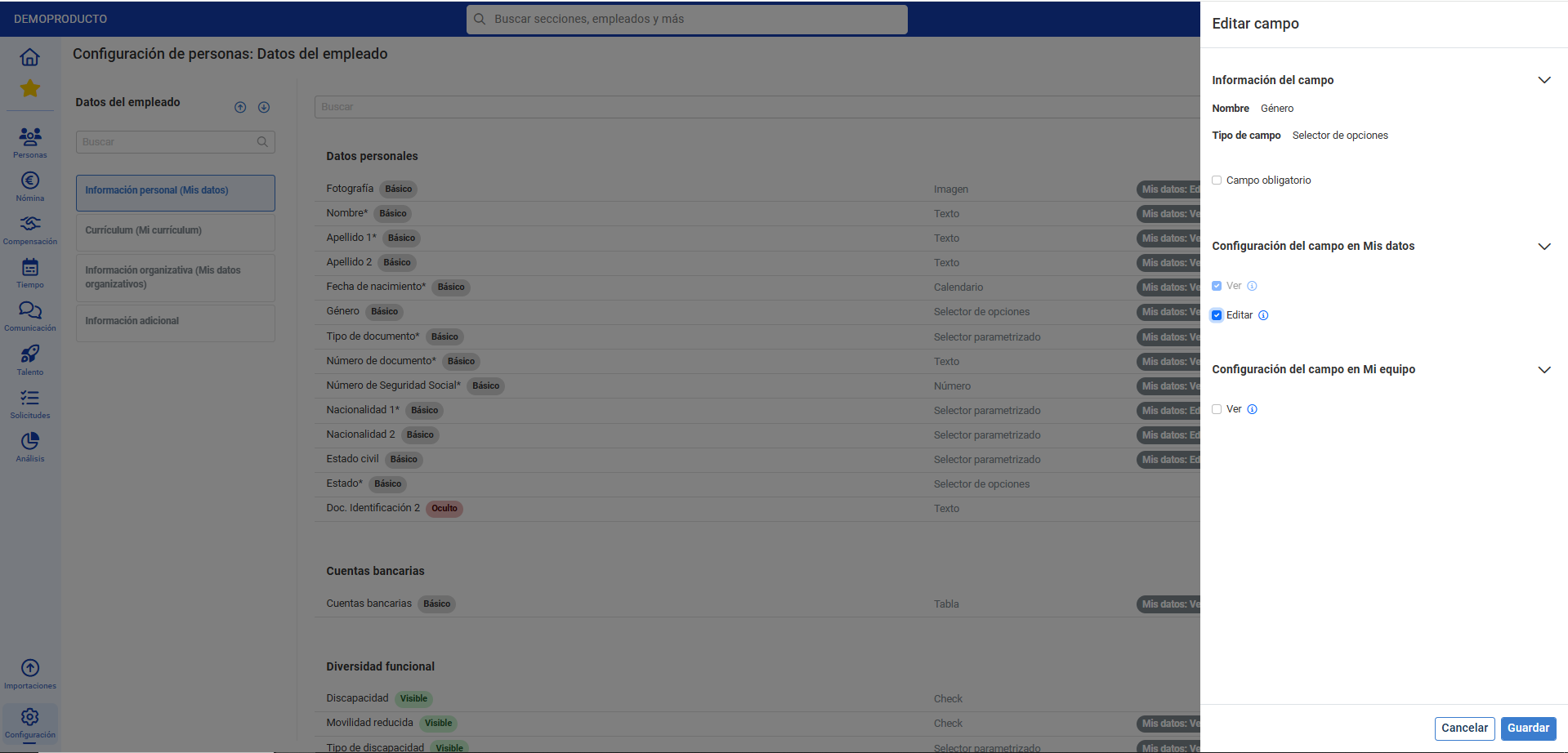
3. And, if we consider the configuration of the same, alternatively click on the columns of My Data and My Team, to manage the functionalities:
- In My Data:
- View (The collaborator can only see the data in their employee record).
- Edit (The collaborator can view and edit the data in their employee record).
- In My Team:
- View (The manager can only see the data in the administrative employee record by accessing through My Team > Employees).
- Edit (The manager can view and edit the data in the administrative employee record, accessing via the same mentioned route, if the option is available).
4. Finally, don't forget to click the Save button in the side modal window to finalize your preferences: 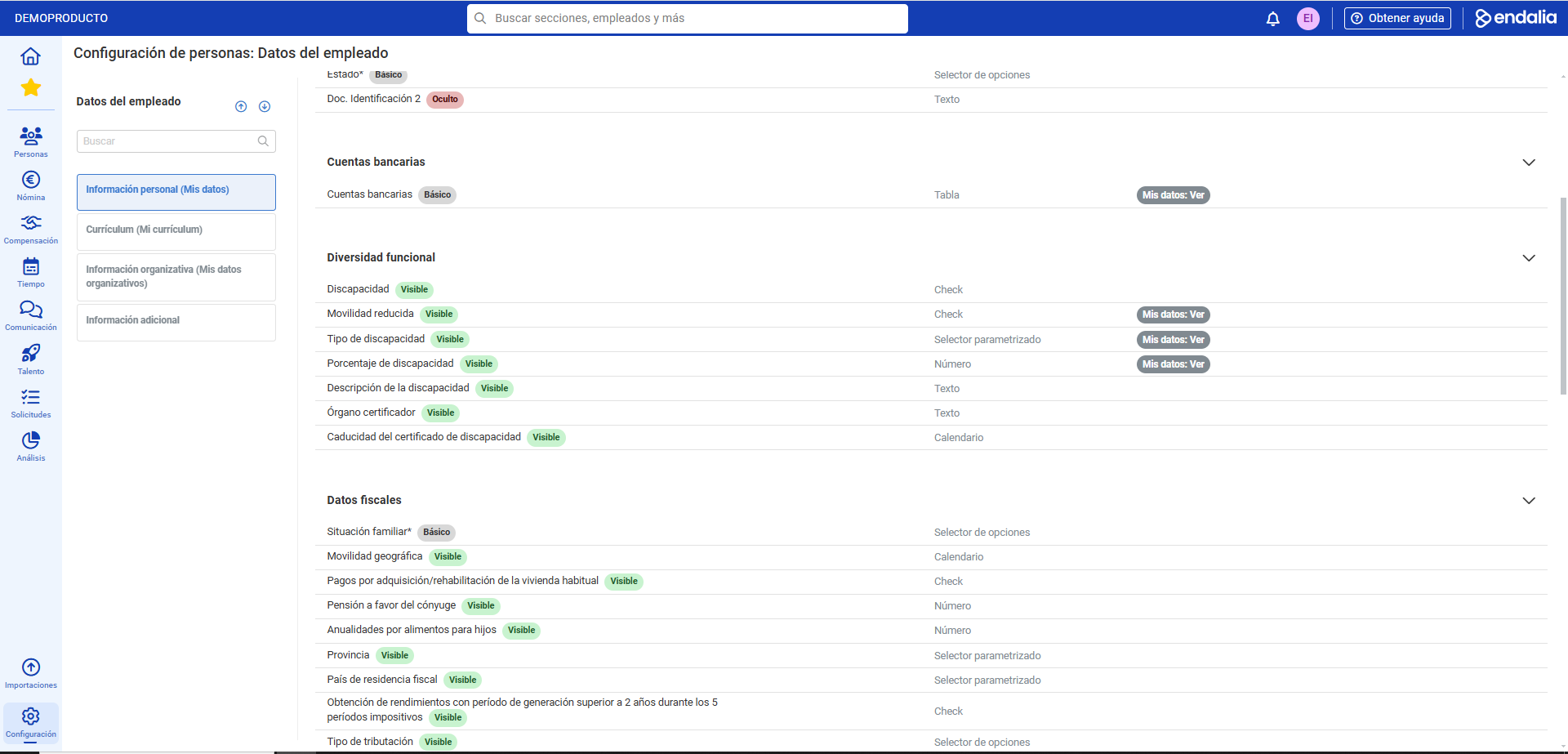
Video of the process
Want to know more? Check out the following related articles:
If you have doubts about the terms, check out our glossary on this link.
Was this article helpful?
That’s Great!
Thank you for your feedback
Sorry! We couldn't be helpful
Thank you for your feedback
Feedback sent
We appreciate your effort and will try to fix the article