Important: this article is intended for Endalia HR users with an Administrator profile.
Thanks to this software feature, importing payroll receipts and other documents is easier than ever. Pay attention to these tips to know everything about this interesting functionality.
In this article:
Import payroll receipts
- Within the hubImports, go to Import Center > Compensation > Payroll Receipts and Salary Documents
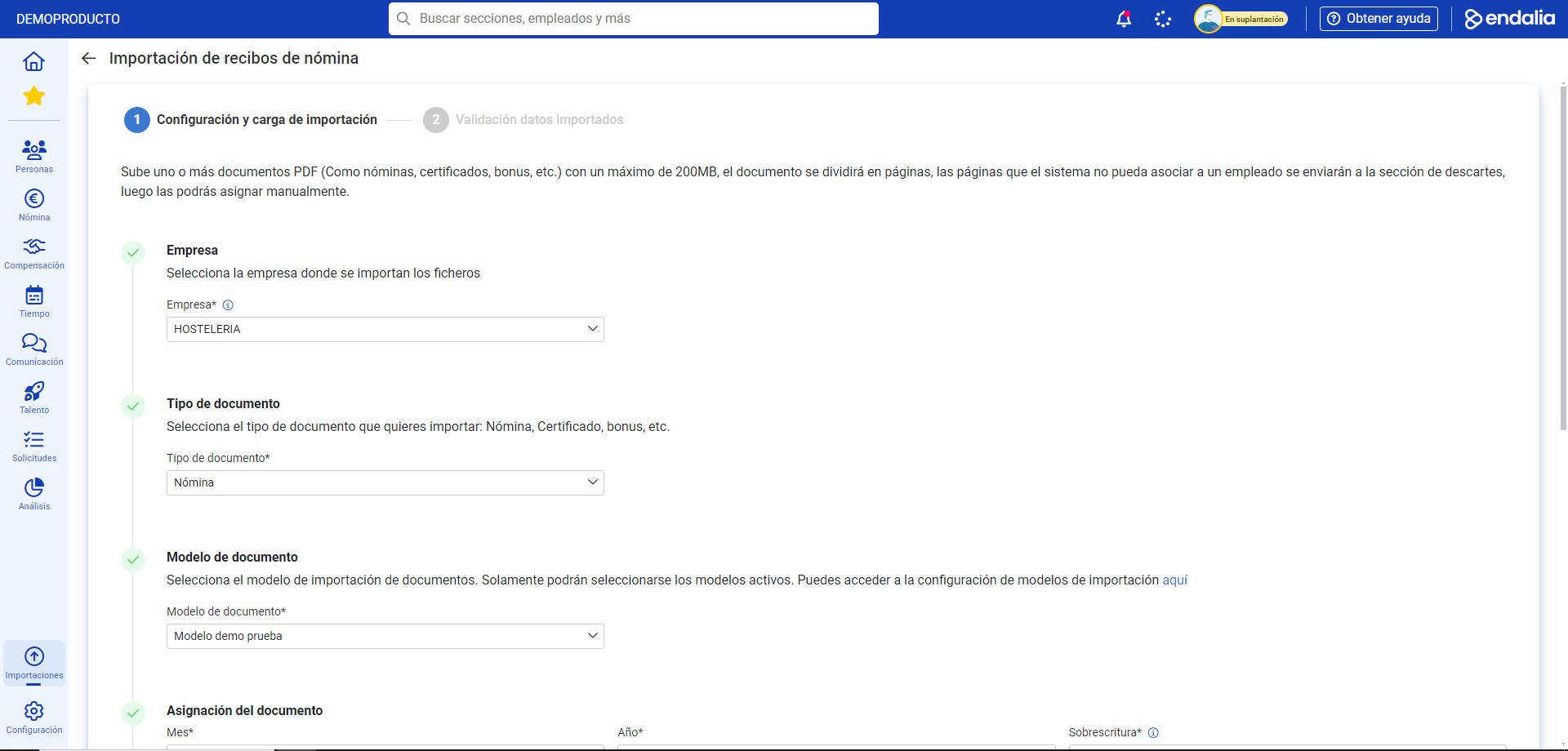
- In this first screen, you are presented with a two-step process; in the first one, Configuration and Import Loading, you must fill in the following fields:
- Company: this field only selects employees within the selected company (if not included, even if other data, such as DNI, match, the employee will not be recognized).
- Type: the type of document to import.
- Model: among the available and active ones. Check Configure import models to know more.
- Assignment: month, year, and overwrite.
- Publish: if you choose this option, the new payroll will be immediately available to the employee in My payroll receipts or in My salary documents. Otherwise, you will have to publish it manually later in Payroll Receipts or from Salary Documents.
- Document upload: a single document can be uploaded, in .pdf or .zip format. Finally, click the Preview button at the bottom right of the screen:
Next, and still on step number 1, you must assign the payroll to an employee. To do this, click the Assign to an employee button. Back on the main screen, two tabs are displayed:
- Incidents: occur when the document cannot be linked with the employee's DNI/NIF/NIE because it is not located in the coordinates defined in the model. In any case, it is possible to assign an employee with the corresponding button, and convert this incident into a match.
- Matches: the coordinating link is correct and, therefore, the document is linked to the corresponding employee. If the data is not correlative, you can Send to incidents:
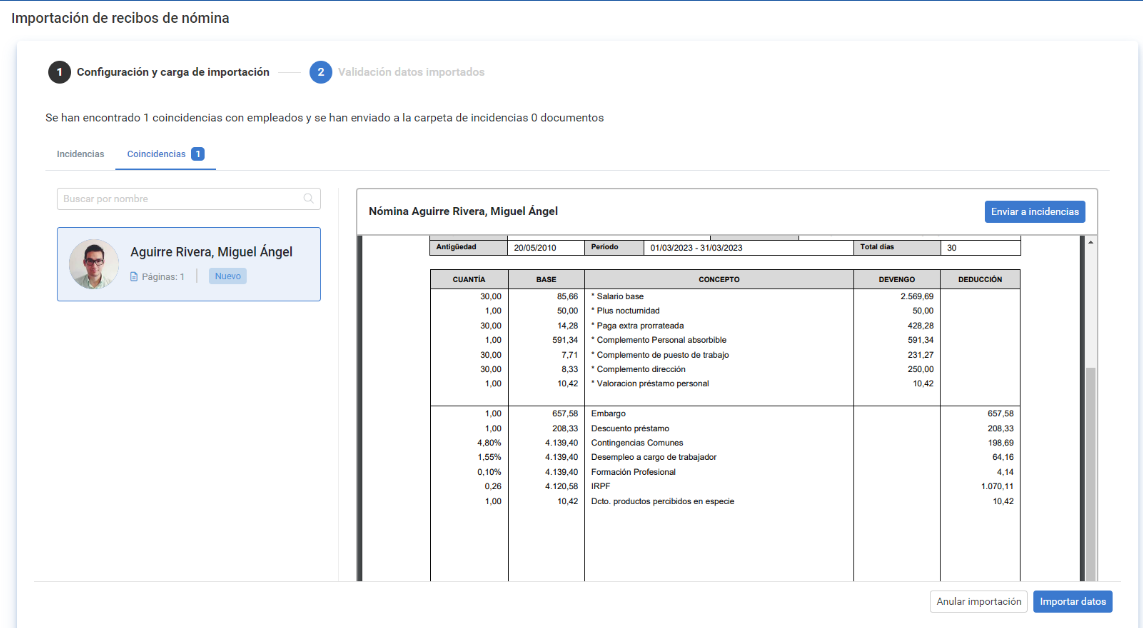
Finally, click on Import data and wait for the confirmation message. You can go to Payroll receipts to see the document in question: 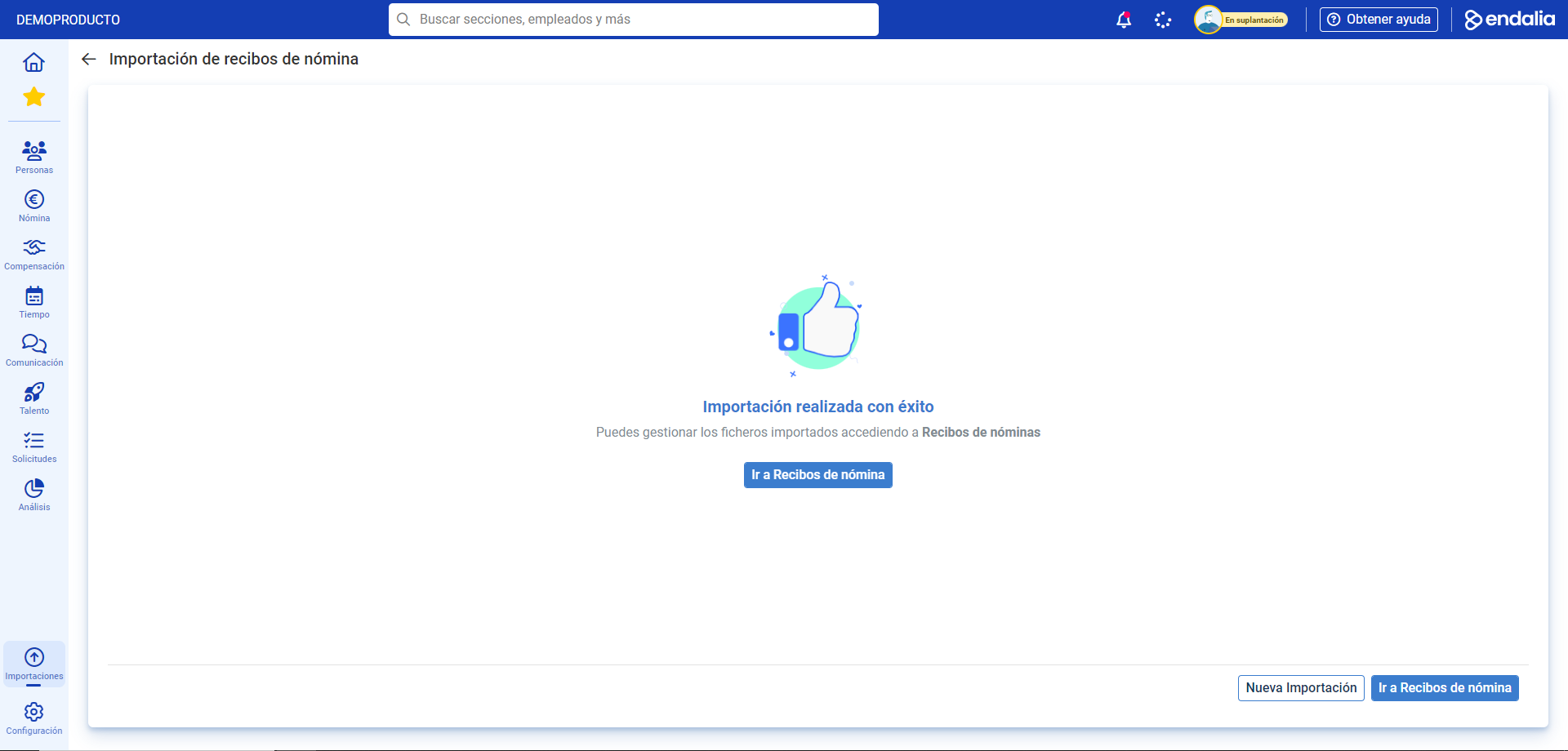
Additionally, you have the following related articles available:
Still have doubts? check out our glossary at this link.
Was this article helpful?
That’s Great!
Thank you for your feedback
Sorry! We couldn't be helpful
Thank you for your feedback
Feedback sent
We appreciate your effort and will try to fix the article