Important: this article is aimed at Endalia HR users with a Responsible profile.
Once the competency profile is consolidated, the next step is to implement the employee's development plan. Follow the following tips to manage it efficiently.
In this article you will find:
Development Plan (1st part)
Within the hub Performance and Talent, go to the module Development > Employee Development > Development Plans
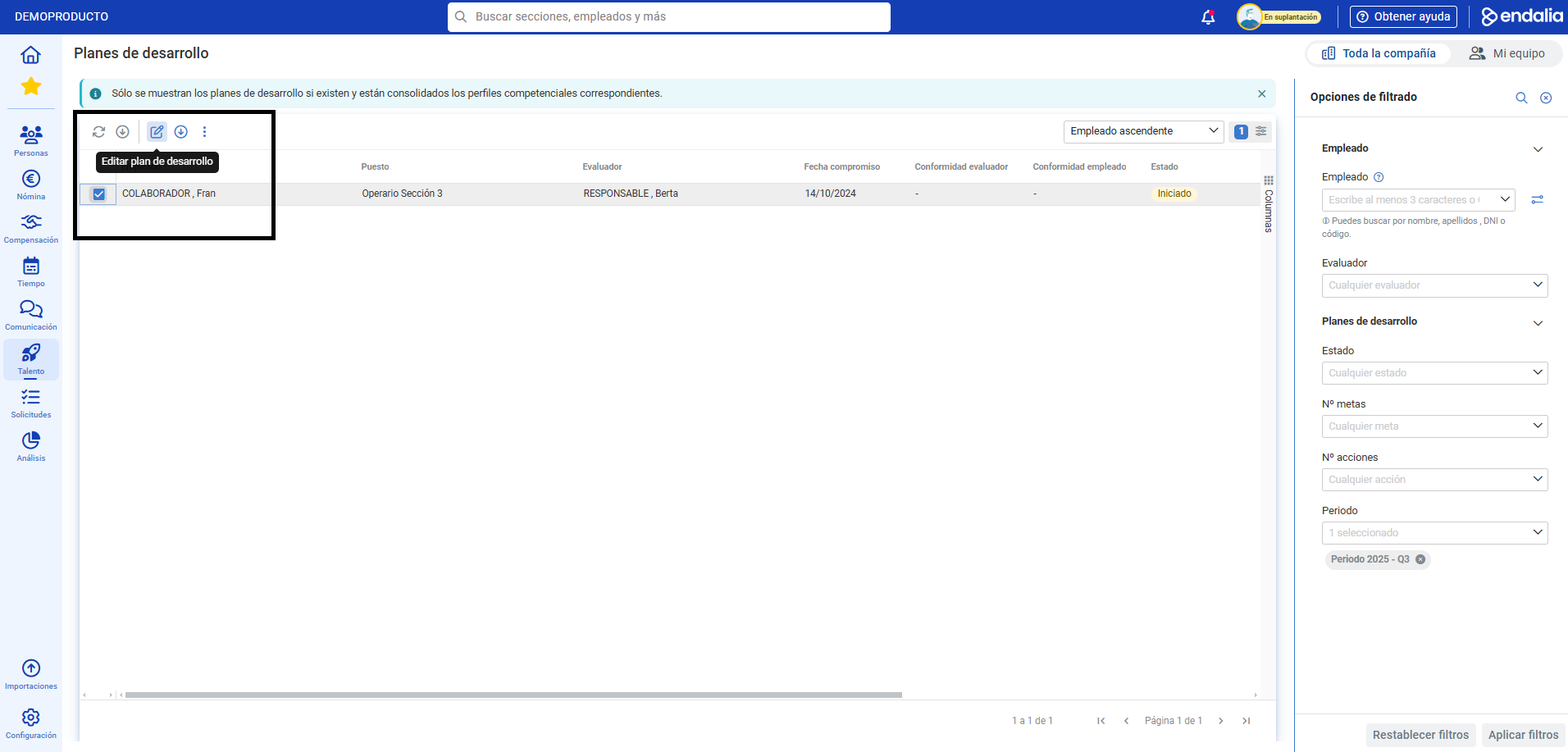
- On the screen presented below, you have the list of employees to manage a development plan; to do so, click on the corresponding row and press the Edit Development Plan button, located in the toolbar:
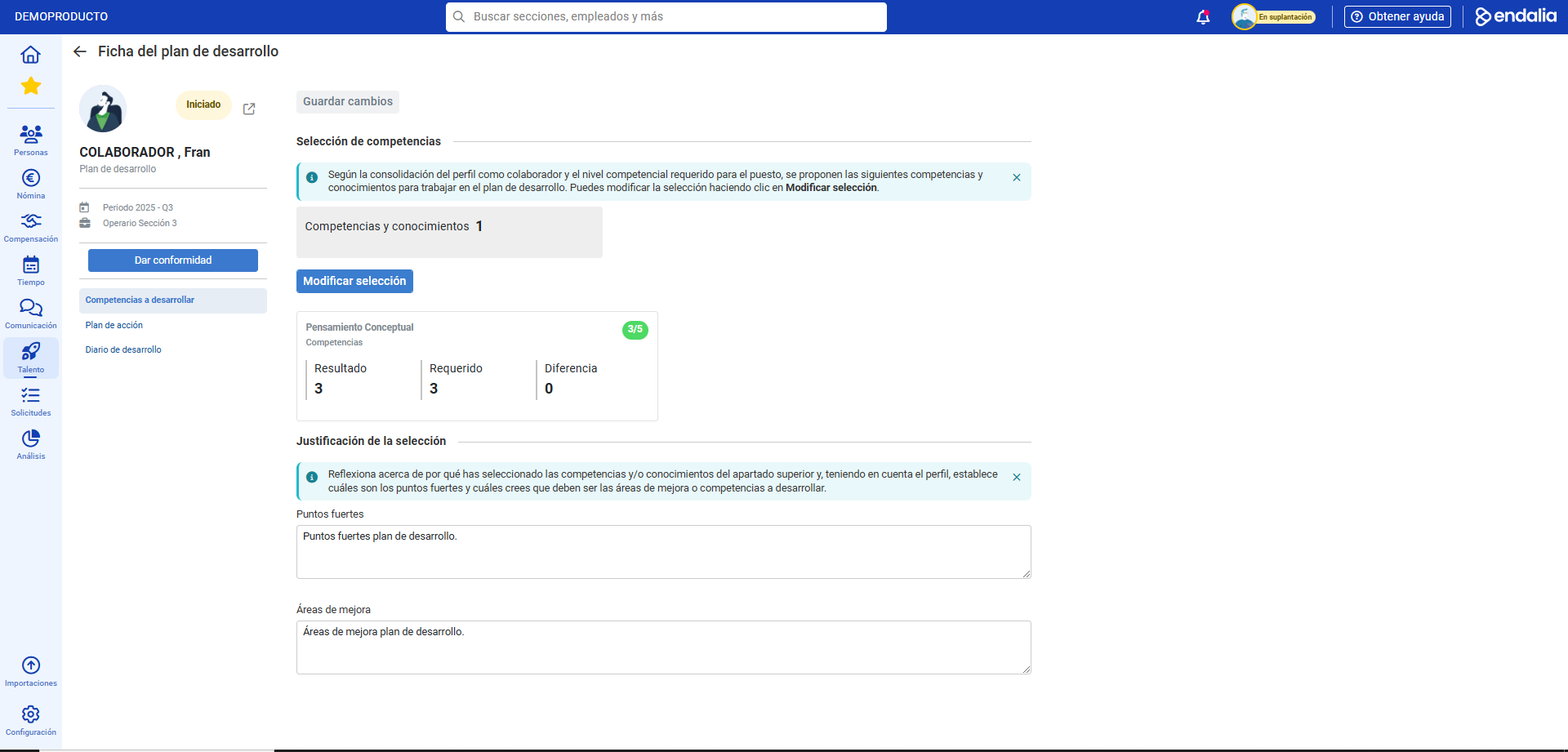
- In the development plan file, you have various sections; note that some may not be displayed, and this functionality will depend on prior configuration done by the administrator. They are as follows:
- Competencies to Develop: serves to link the competencies previously consolidated in the competency profile to the collaborator's development. You can modify the selection in the option enabled for this purpose and Save Changes once the actions are performed, which appear in the side modal window.
- Action Plan: in this section, add the goals to be developed by the collaborator (option Add new goal) and remove/edit those already present in the list using the corresponding buttons. Additionally, you can add actions (option Add new action) such as courses, trainings, and other specific measures designed to improve worker performance. Again, remember to Save Changes to make your preferences effective.
- Development Diary: it's a live record of the training actions carried out by the collaborators within the date range of the development period. You can add milestones to record activities carried out on the development plan, which the collaborator can view in read-only mode:
4. Once the development plan is configured, click the Confirm button, which you will find on the right side of the screen. Doing so will send a message to the collaborator to likewise show their agreement with the development plan and thus proceed to the monitoring phase, with the worker being able to modify the plan, which would return to its initial state. Finally, click Give Consent 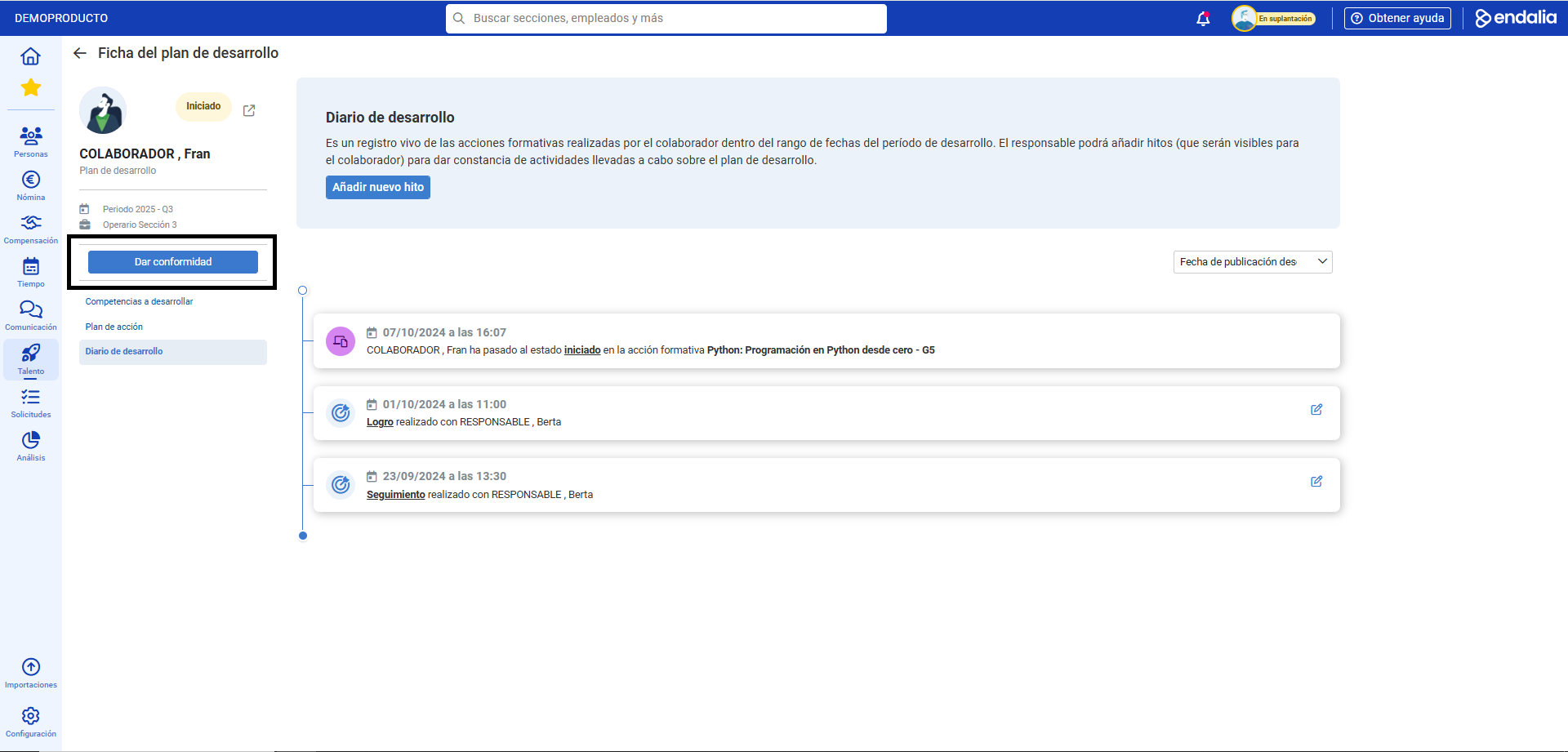
Development Plan (2nd part)
- Once the collaborator has given their consent to the development plan (see Development Plan - Collaborator), return to the hub Performance and Talent and go to the Development module > My Team > Employee Development > Development Plans
- On the next screen presented, complete the sections again, evaluating each of the options present in them. Finally, click on Complete Development Plan, include the assessment and click Finish. Note that this last assumption will occur if the period is pre configured to enable the final assessment of the plan. If not, the process will end directly without any kind of modal.
Process Videos
1st part:
2nd part:
Still have questions? Consult the following related articles:
Additionally, you can view our glossary, available at this link.
Was this article helpful?
That’s Great!
Thank you for your feedback
Sorry! We couldn't be helpful
Thank you for your feedback
Feedback sent
We appreciate your effort and will try to fix the article