Important: this article is intended for Endalia HR users with an Administrator profile.
This functionality will allow you to configure accounting accounts so that when performing payroll accounting, each amount paid in the different concepts is allocated to the assigned accounting accounts, thus being able to balance your company's accounts.
In this article:
Configure accounting
Within the hub Configuration, click on Payroll > Accounting
- On the next screen, called Module Configuration: Payroll, you have all the necessary information to adjust parameters. In the top left corner, the Add configuration button allows you to customize the different profiles, which you can see immediately below, organized in a single column. Within each one, different functionalities, such as Duplicate and Delete, are located. Please note that the default profile is the one the system will use for accounting configuration:
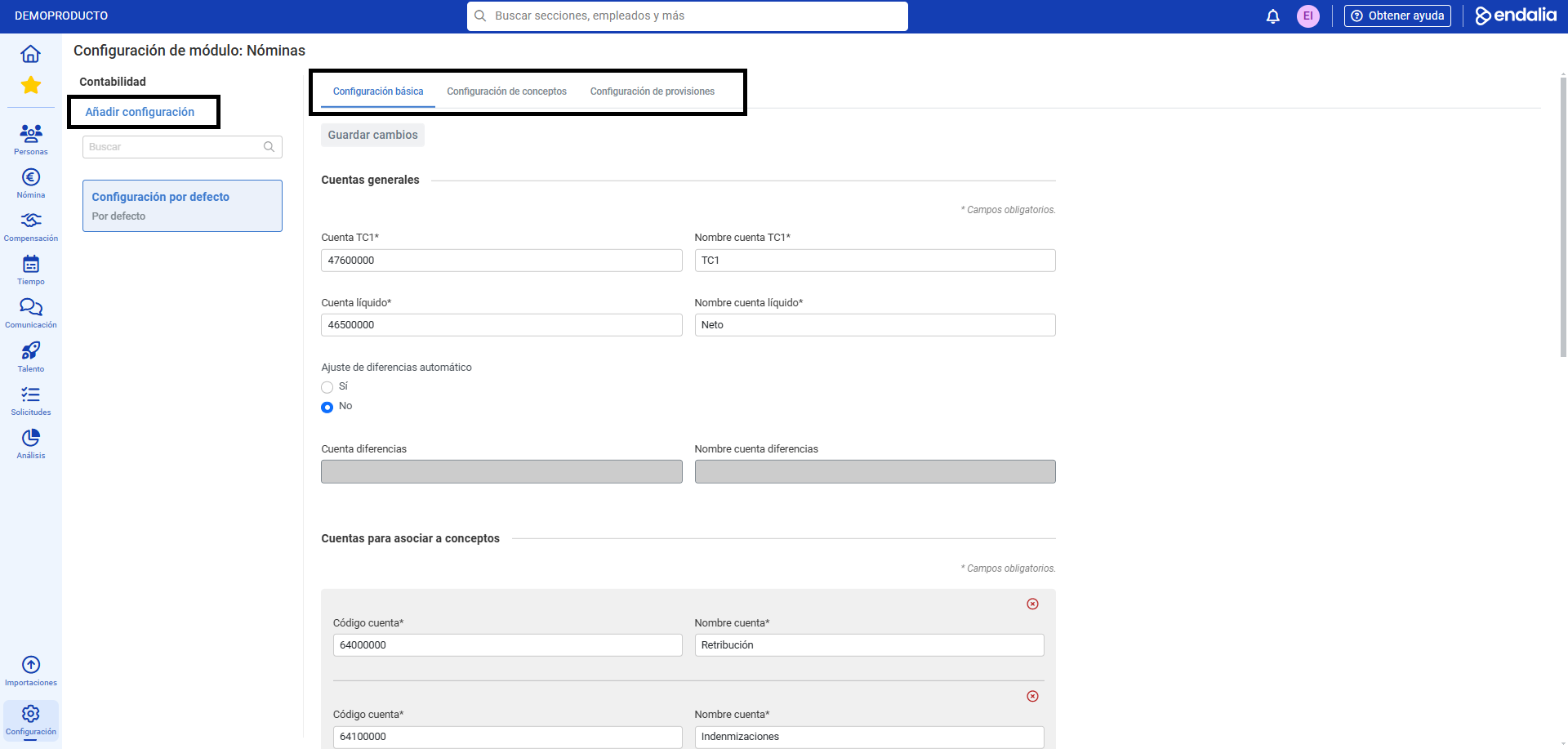
- To correctly configure this functionality, there are three tabs with their corresponding sections.
- The first tab, Basic Configuration, allows you to configure account types and their association with concepts, in addition to automatically adjusting differences in case of account discrepancies. The Add account button at the bottom of the screen lets you add all the accounts you need. Remember to click the Save changes button at this same level to set your preferences.
- The second, Concept Configuration, refers to those that appear on the payroll, as well as the accounts to which they are associated, all in a table. As in previous occasions, to view options or edit associated accounting accounts, select a concept and use the toolbar buttons for the various actions. Use the Save button in the side modal window to fix the changes.
- The last tab, Provision Configuration, consists of two sections; the first (Extra pay provision) allows you to have accounted, in non-prorated extra pays, the amount of the same at the time of disbursement; the second (Salary concept provision) refers to employee bonuses. In both cases, remember to fill in the "debit" and "credit" accounts, and Save changes, if necessary.
Note: When you have a profile different from the one preloaded by the system (called "default"), a third tab called Application will be displayed. The Add companies button allows you to select specific companies to which to apply the configuration. Again, always remember to click Save changes to consolidate your preferences.
Process video
We show you this functionality in just a few seconds:
Still in doubt? Take a look at the following related articles:
Was this article helpful?
That’s Great!
Thank you for your feedback
Sorry! We couldn't be helpful
Thank you for your feedback
Feedback sent
We appreciate your effort and will try to fix the article