Important: this article is intended for Endalia HR users with an Administrator profile. Salary categories will always be associated with an agreement.
With this functionality, you can define the corresponding salaries for each job position based on skills, experience, years in the company, etc. Follow these steps to manage them with the greatest comfort.
In this article:
Create salary categories
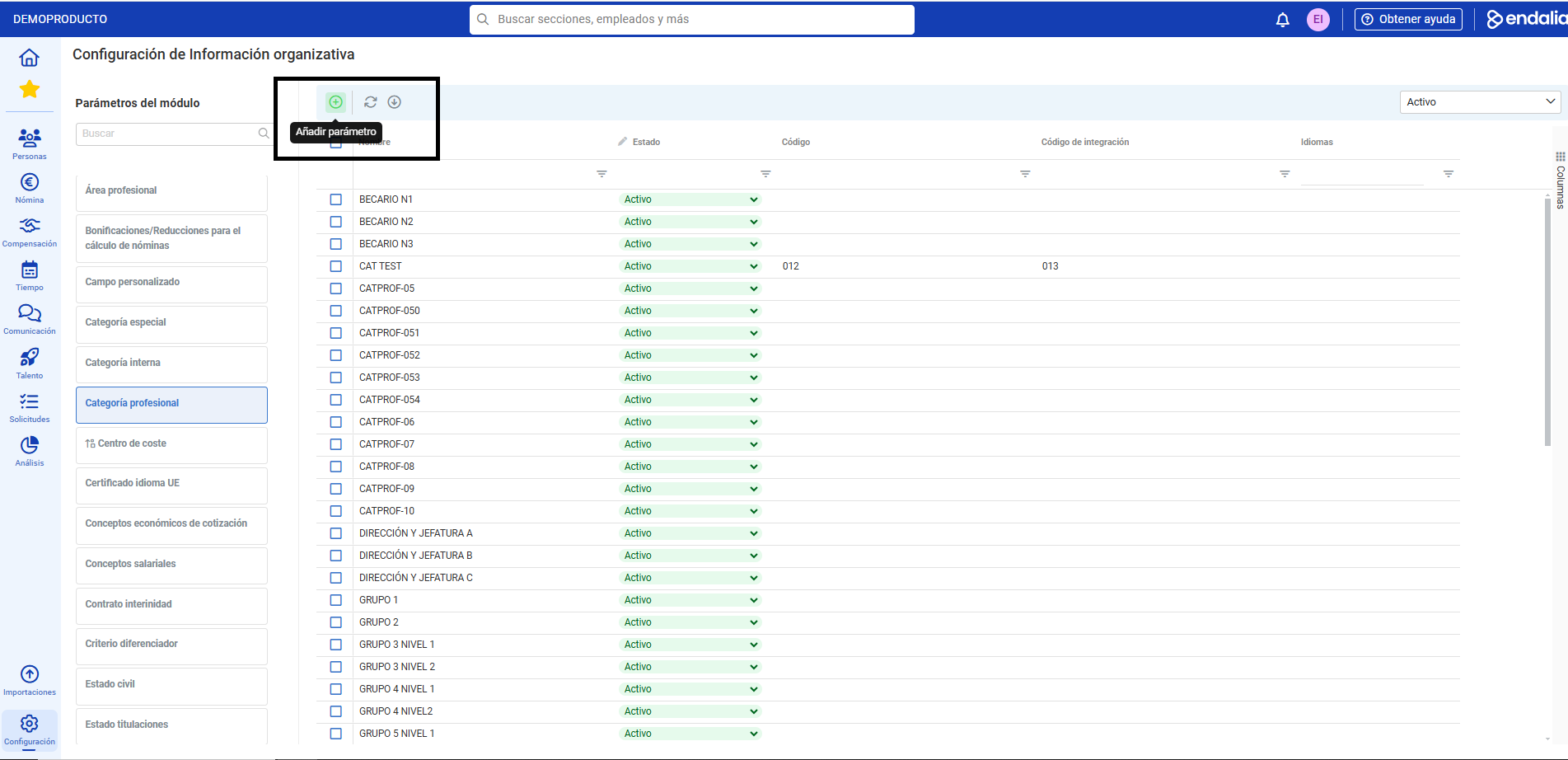
Within the hub Configuration, click on People > Module Parameters
- Now, in the Professional Categories section, you can see a list of them. To create a new one, click the Add parameter button located on the toolbar. In the lateral modal window, complete the required and optional information (if applicable) before clicking Add
- To manage the new category, go to Configuration > Payrolls > Agreements
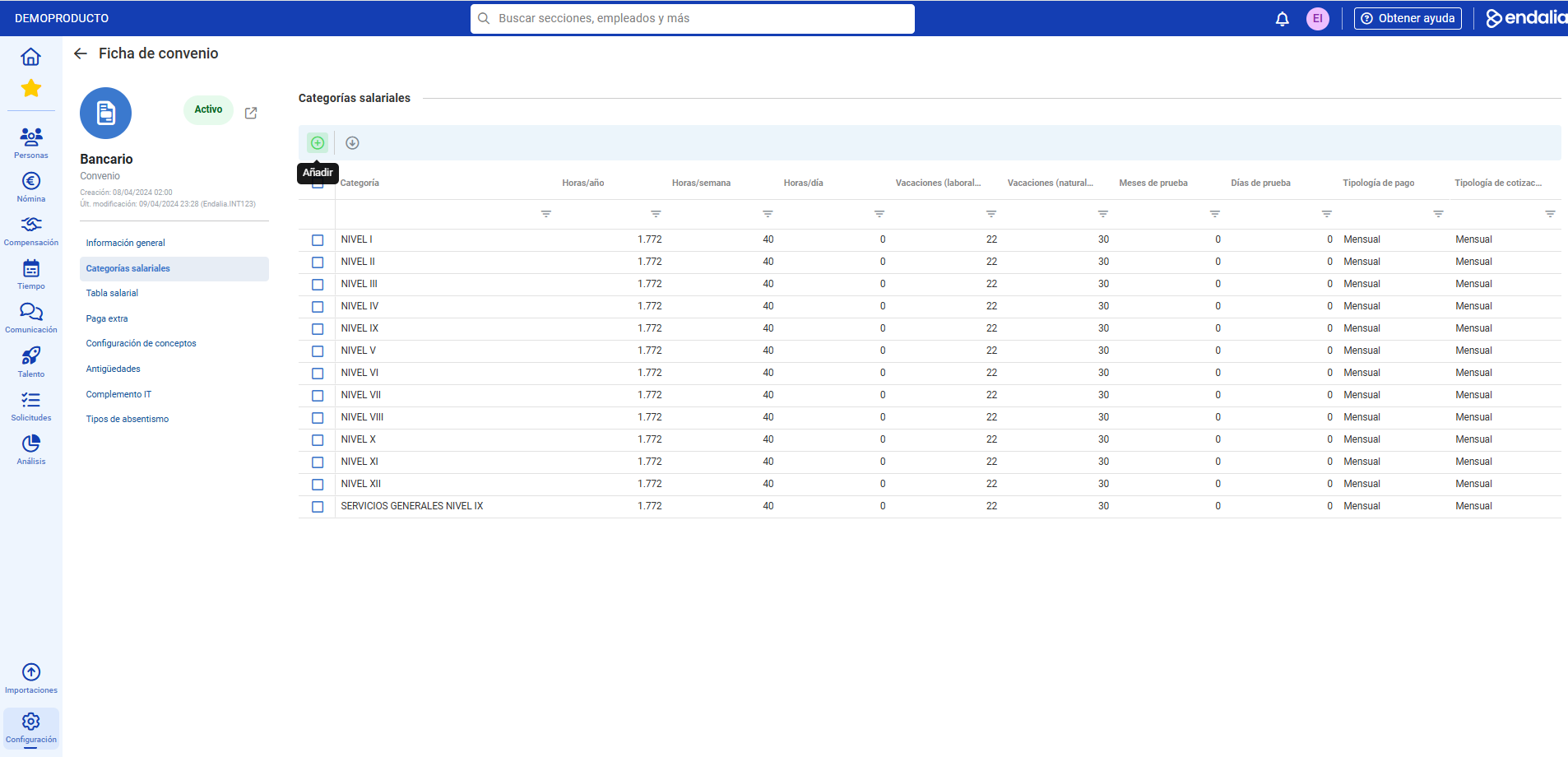
- In the list displayed on the screen, select one using the corresponding checkbox and click Edit, the button you will find on the toolbar.
- In the Salary categories section, click the Add button. Complete the fields in the modal window and, again, Add
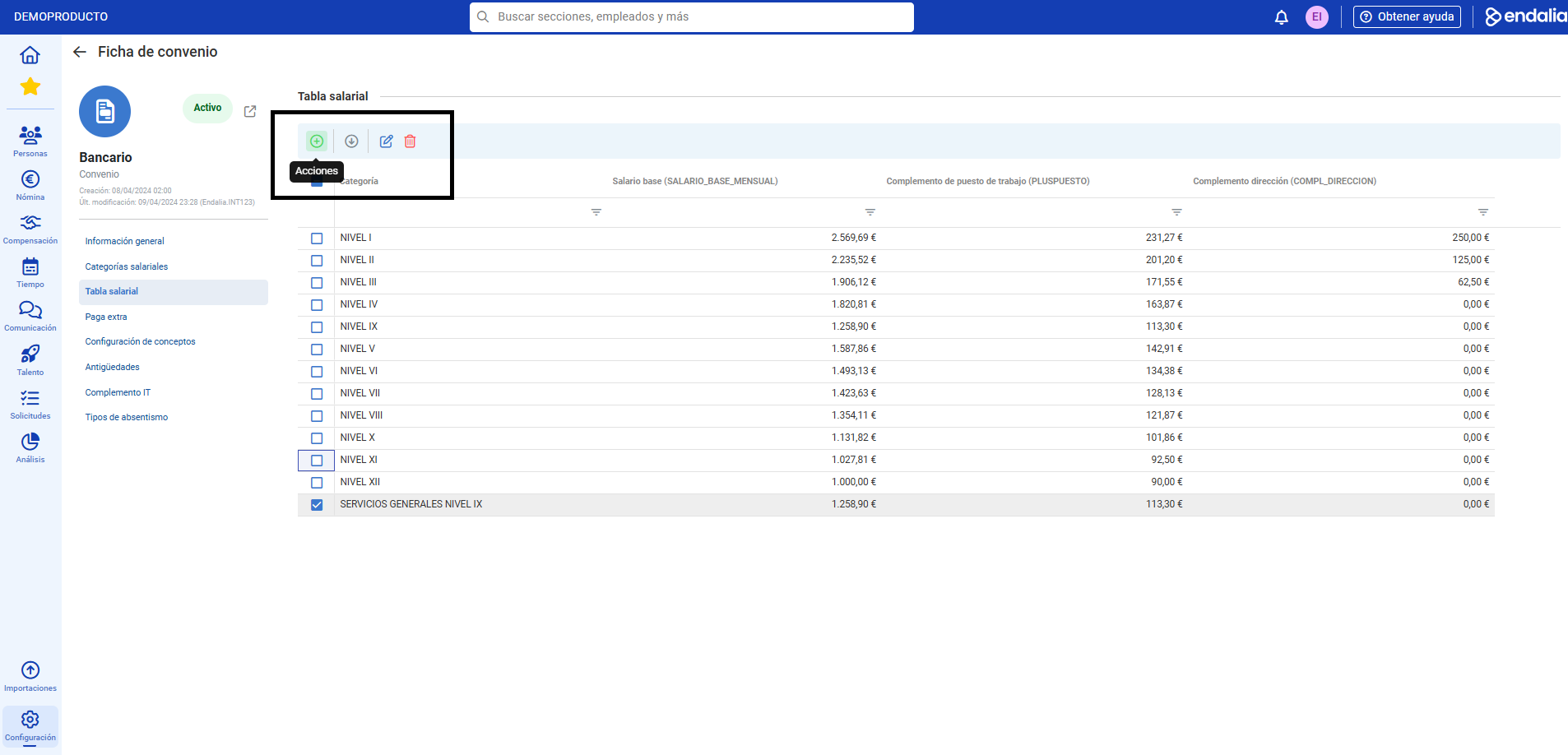
- Finally, enter the next menu item of the agreement, called Salary table and again, using the Add button, select Add category. In the modal window, select the new category you just created and, again, complete by clicking Add. Now, in the salary table section, your category appears in the list, which you can Edit with the corresponding button on the toolbar, allowing you to enter base salary, agreement bonuses, etc. Don't forget to click Save to make your preferences effective:
Process video
Still have questions? Take a look at the following related articles:
To complete the information, take a look at our glossary here.
Was this article helpful?
That’s Great!
Thank you for your feedback
Sorry! We couldn't be helpful
Thank you for your feedback
Feedback sent
We appreciate your effort and will try to fix the article