Important: this article is intended for Endalia HR users with a Collaborator profile.
You can access a centralized list of all your training evaluation questionnaires. From here you can respond to pending questionnaires and review those already completed.
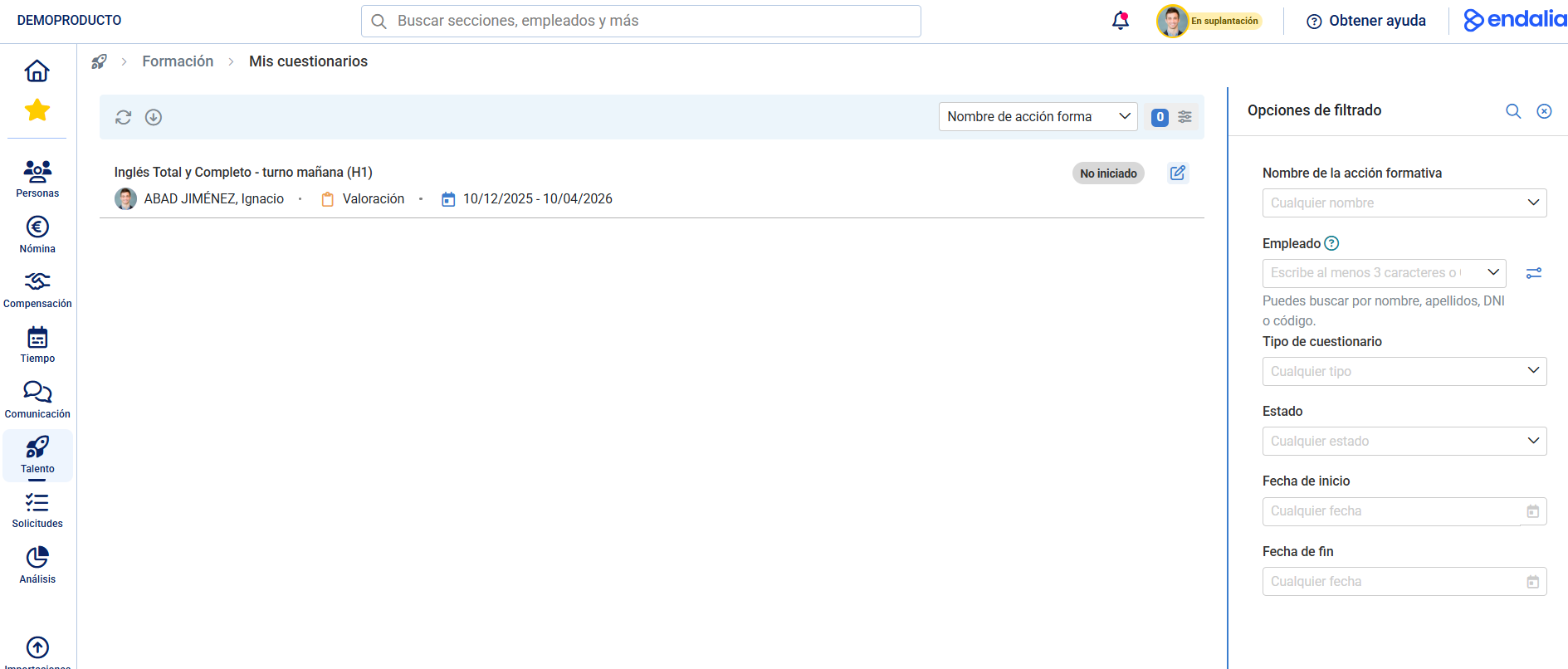
In the Talent hub, go to the Training > My Training > My Questionnaires module.
Here you have a list of them and, within each one, the following information: the name of the training action, the employee who will respond to the questionnaire (in this case, yourself), the type of questionnaire (specifically evaluation, being a collaborator), the start and end dates for responding, and its status. Finally, the Edit button within each questionnaire will take you to the next screen.
You can now complete the questionnaire within the stipulated dates. At the end of the questionnaire, you have two buttons: one called Save, which allows you to store your responses if you're not answering the entire questionnaire at once; the second, Finish, will only be active when you have answered all the questions and will change your questionnaire's status to completed or finished. 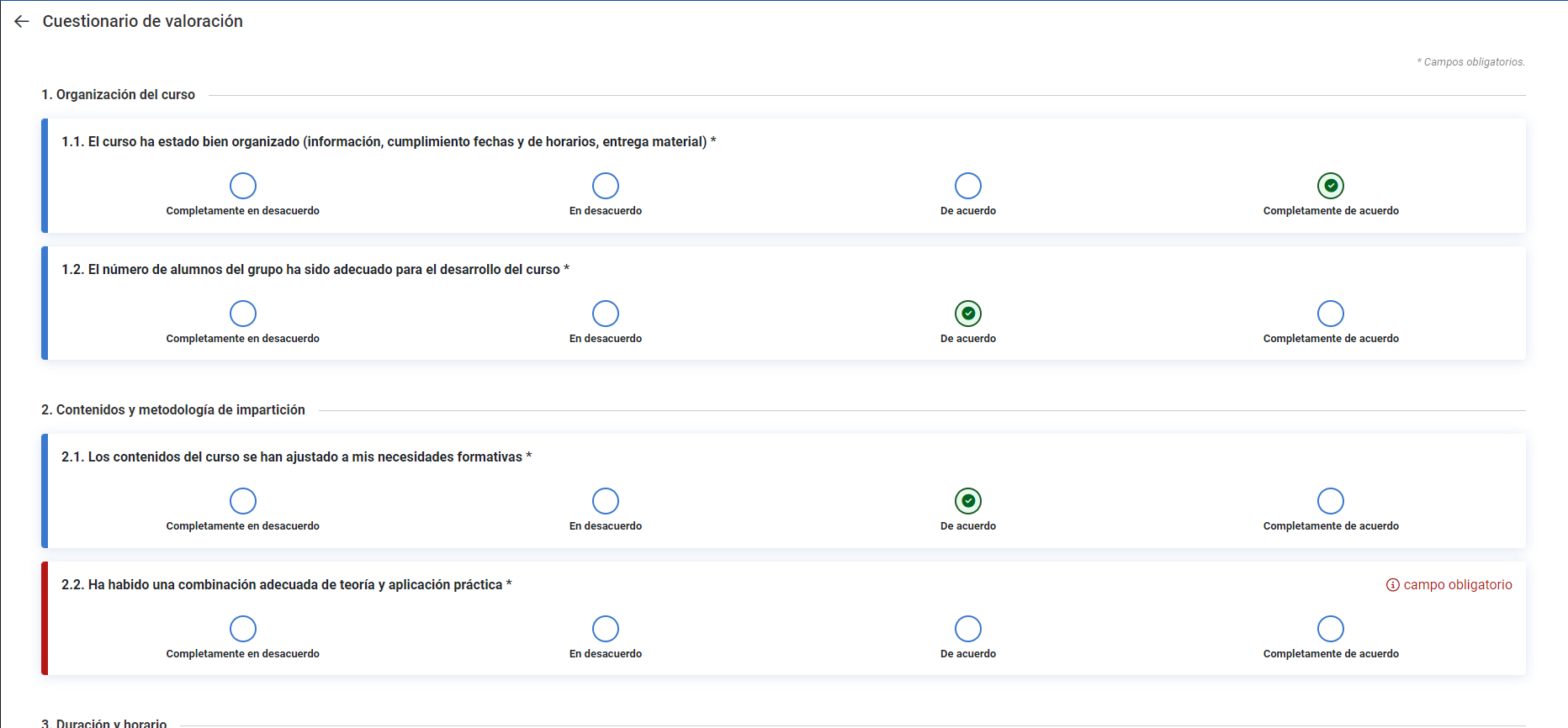
Note: If you do not complete the questionnaire within the start/end date range, it will automatically be marked as "Finished," and you will only be able to view it in read-only mode in My Questionnaires.
Other articles that may be useful:
Was this article helpful?
That’s Great!
Thank you for your feedback
Sorry! We couldn't be helpful
Thank you for your feedback
Feedback sent
We appreciate your effort and will try to fix the article