Evaluations are the phase where people fill out a questionnaire to rate each employee’s competencies. It is the most important phase of the whole process: if the questionnaire is not properly configured, everything that comes after (results, improvement plan, talent matrix) will be impacted by the problem.
- Who evaluates: the 4 possible sources {#sources}
- Evaluation design:
- AI assistant in evaluations
- Which scale to use for scoring
- What is NS/NC and why does it matter
- Web and mobile
- Timelines and automatic reminders
- Which notifications are sent
Who evaluates: the 4 possible sources
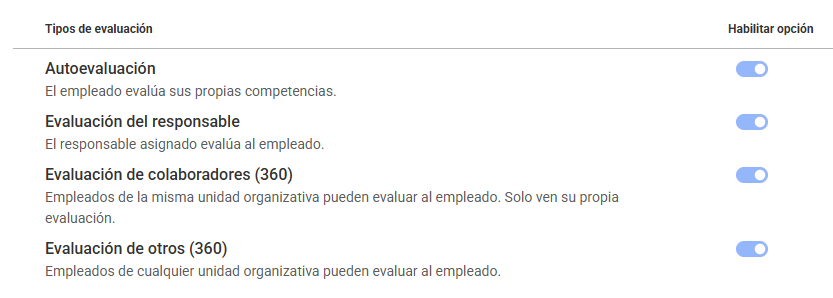
You can combine up to 4 ways to evaluate a single person:
- Self-evaluation: the employee assesses themselves.
- Manager evaluation: their manager evaluates them. This is the only mandatory type.
- Peer evaluation: coworkers from the same team evaluate them.
- Evaluation by others: any other person you want to participate (an internal client, another department, etc.).
Sources 3 and 4 make up what we call "360° evaluation" and are optional — you do not need to enable them every time. See Configure 360 evaluation to find out if it is a good time to enable them now or later.
Evaluation design:
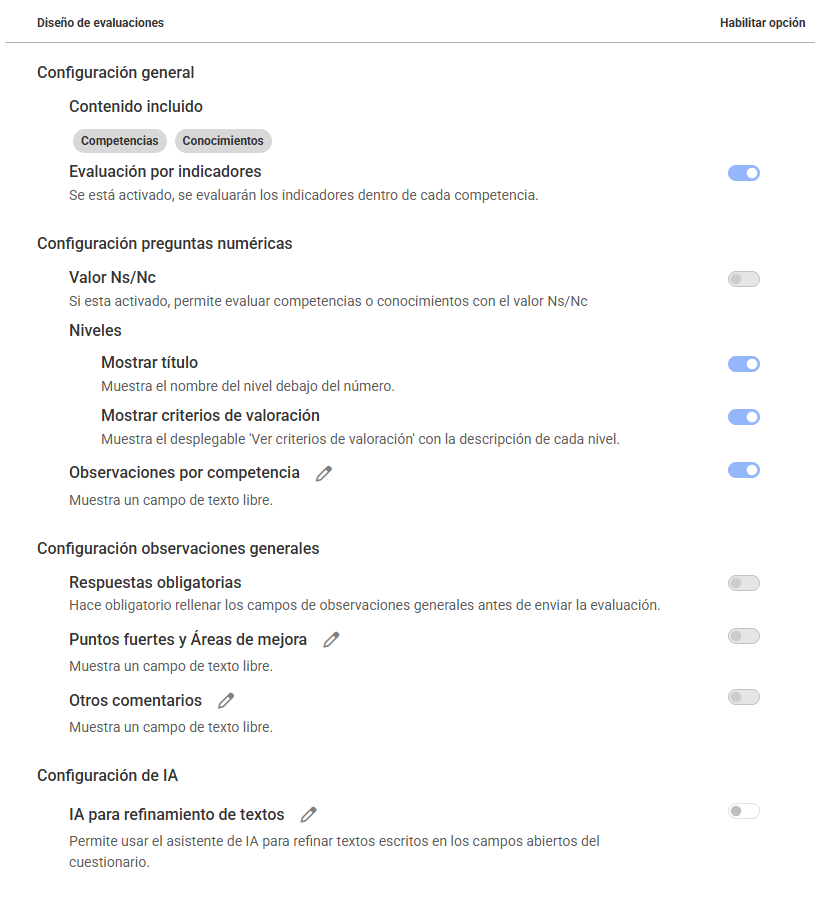
Within the period, on the Evaluation design screen, you can decide in detail what the questionnaire will be like. You do not need to adjust everything – most organizations leave most of these options at their default value:
- Included content: whether the questionnaire evaluates Competencies, Knowledge, or both.
- Evaluation by indicators: if you enable this, each competency will also be evaluated by its behavior indicators separately (more detail, more time required).
- NS/NC value: enable or disable the "Doesn’t know/Doesn’t answer" option for questions. By default, it is usually disabled — enable it if you want to provide that option to your evaluators (see below to understand why it may be useful).
- Levels - Show title and Show scoring criteria: controls whether the evaluator sees the name of each level and its description when scoring. We recommend keeping both enabled, especially if this is the first time competencies are being evaluated in your company.
- Comments by competency: enables a free text field in each competency for the evaluator to explain the reason behind their score.
- General comments (at the end of the questionnaire): you can enable "Strengths and areas for improvement" and "Other comments" separately and decide if answering them is mandatory. You can also edit the title of each of these fields.
- AI configuration AI for text refinement: enables the AI assistant (elaborate/summarize/refine) in all free text fields of the questionnaire. If your organization does not see it enabled, it is because this toggle is off.
AI assistant in evaluations
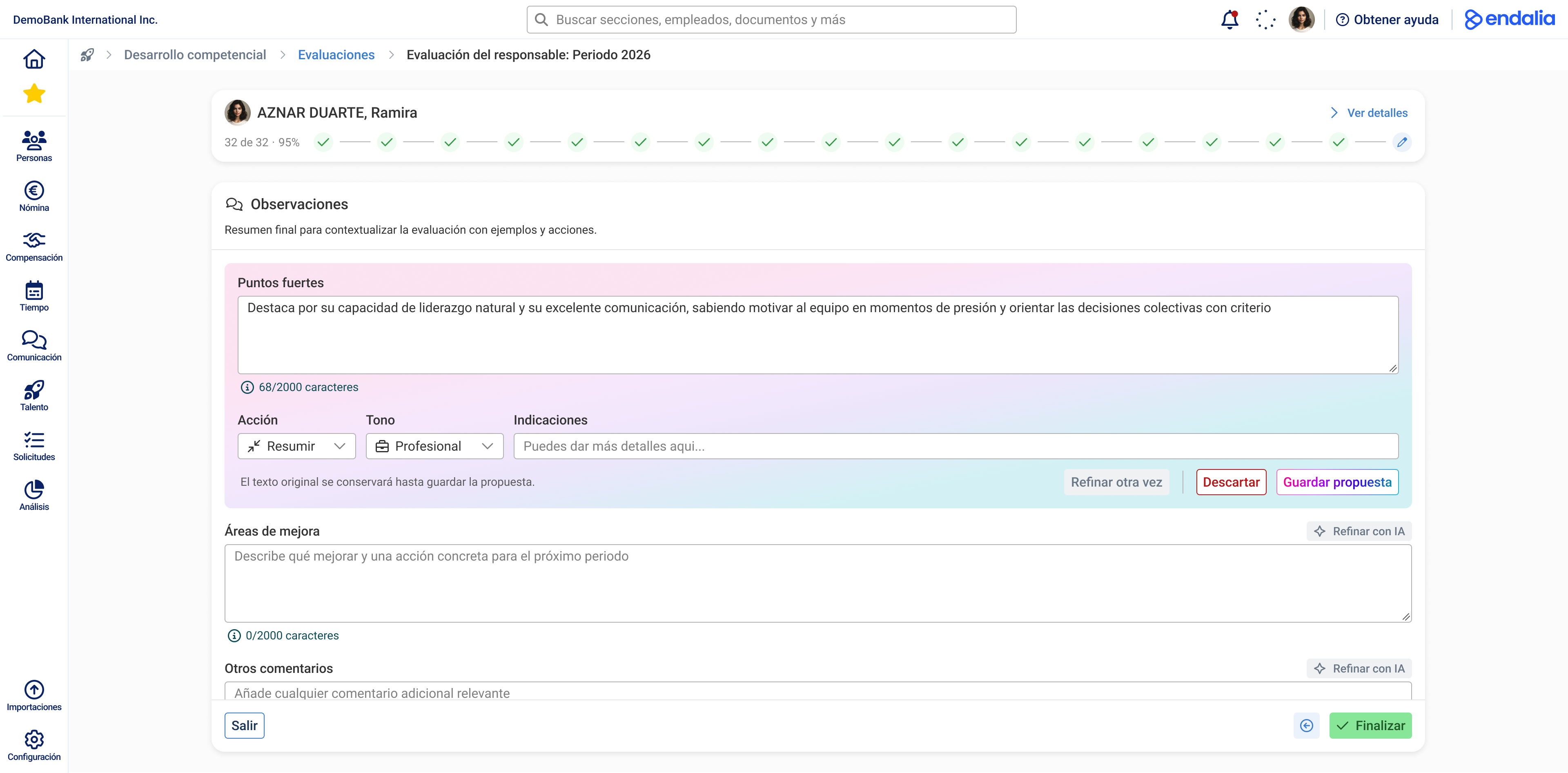
If you enable the "AI for text refinement" toggle, your evaluators will have an AI assistant available in all free text fields of the questionnaire (comments on a competency, strengths, areas for improvement, other comments).
What it does:
- Elaborate: takes what the evaluator has written and adds more detail to it.
- Summarize: takes a long text and makes it shorter, without losing the main idea.
- Refine: improves the writing (spelling, clarity, tone) without changing what is being said.
What it does NOT do:
- Does not write from scratch – it needs the evaluator to have written something first.
- It does not decide or change the competency score, it only works on the text.
- It does not send anything automatically – the evaluator always reviews the result before proceeding.
If your organization does not see these buttons, it is because the toggle is still off, or AI is not enabled in your account settings.
Which scale to use for scoring
Use the same scoring scale for all competencies and all positions (the usual is 4 or 5 levels). Each level must have a clear description of what behavior is expected—if level 3 is not well explained, everyone will interpret it their own way and the results will not be comparable.
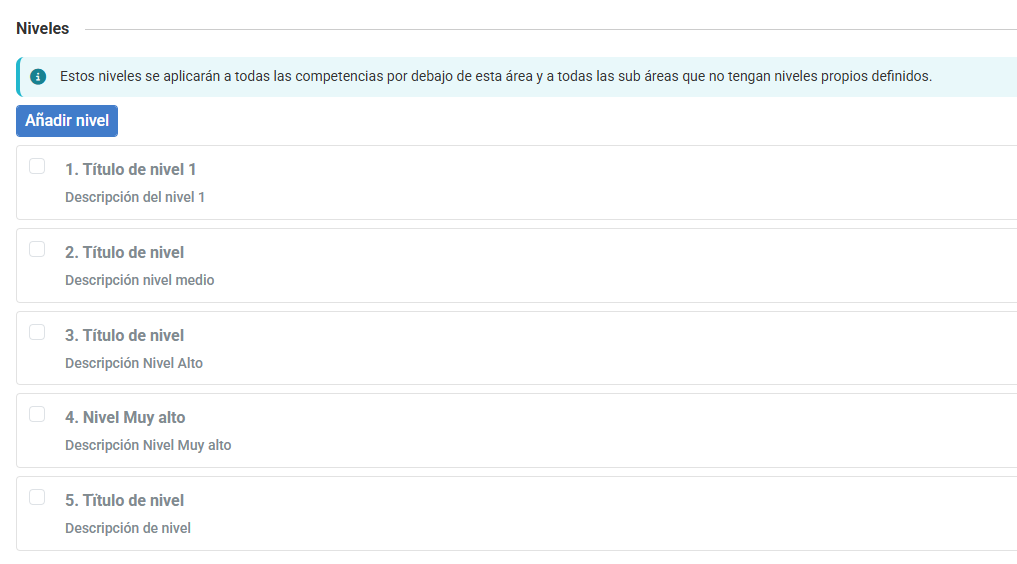
? This configuration is made in the competencies catalog, not in the period. See Competency catalog if you do not have it set up yet.
What is NS/NC and why does it matter
NS/NC means "Doesn’t know / Doesn’t answer". It is the option that an evaluator marks when they do not have enough information to score a competency. It is enabled or disabled with the "NS/NC value" toggle that we saw earlier—by default, it may be disabled, meaning that without this option the evaluator is forced to choose a level even if unsure.
? We recommend enabling it. NS/NC is not a neutral value nor an average score—it is not counted in any calculation. If you notice that many people are marking NS/NC on the same competency, it is a sign that something is wrong: it may be that the competency is not well explained, or that evaluators do not have enough contact with that person to assess them properly. Without this option, on the other hand, these cases are "hidden" with a forced score that does not reflect reality.
Web and mobile
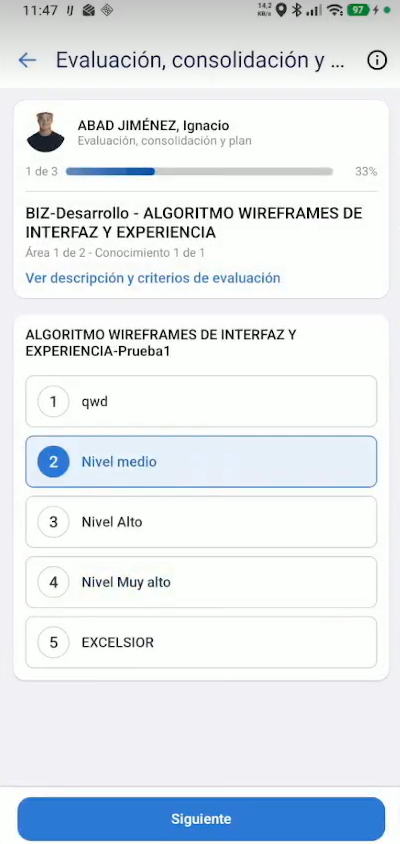
Evaluators can complete the questionnaire from both the computer (web) and the mobile, using the Endalia HR app (available for iOS and Android). The content and behavior are the same in both cases, with autosave—evaluators can start on mobile and finish on the computer and not lose anything.
Timelines and automatic reminders
- The recommended timeframe to complete the evaluation phase is 3 to 4 weeks.
- The system sends automatic reminders to those who have not finished, starting from halfway through the period.
- Evaluators can save their progress and continue later—they do not need to complete the questionnaire all at once.
- They can complete it from either a computer or mobile device (Endalia HR app).
Which notifications are sent
In addition to the pending tasks that appear on the Home (see Pending tasks on the home), the system sends the following evaluation-related notifications:
- Evaluation assigned → to the evaluator: notifies them that a new evaluation has been assigned.
- 360 evaluation assigned → to the employee: notifies them that they have been assigned as an evaluator in someone else’s 360 evaluation.
- Self-evaluation completed → to the manager: notifies them that their employee has completed their self-evaluation.
- Manager evaluation completed → to the employee: notifies them that their manager has finished evaluating them.
- Phase change notification → to the evaluated and the evaluator: notifies them when the development plan status changes.
- Error in the creation of evaluation processes → to whoever created the process: notifies them if something failed when creating the evaluations.
Still have questions? Also see:
- Complete competency evaluations — the step-by-step guide for employees
- Evaluate your team (Manager)
- Configure 360 evaluation
- Period configuration
Is your question more specific to your case? Contact your Account Manager.
Was this article helpful?
That’s Great!
Thank you for your feedback
Sorry! We couldn't be helpful
Thank you for your feedback
Feedback sent
We appreciate your effort and will try to fix the article