Important: this article is for users of Endalia HR with an Administrator profile.
A candidate is understood as an entity prior to employee, such that both processes are managed individually.
Recruitment of candidates in Endalia is done through integration with our partner, Teamtailor. To do this, you must first have this software integrated. Once the hiring is done through this means, the candidate will automatically appear in this path: Organization and people > People > Company > Candidates, from where you can continue managing this status. Optionally, you can add a candidate directly from this route and not from Teamtailor, using the toolbar button for this purpose.

Incorporating prospects into your organization is always a reason for satisfaction, but the corresponding steps must be managed appropriately. With these simple instructions, you can achieve it with little effort.
This article shows the following:
Candidates
- As outlined above, once the candidate is registered in Teamtailor, access the Endalia HR hub Organization and people > People > Personnel Monitoring > Candidates
- On this new screen you have below, you will see the list of candidates. The first tab, Pending, refers to candidates to be registered, as the name suggests; the second tab, Archived, contains candidates whose process has been interrupted. You cannot edit their profiles, but they can be manually unarchived, becoming part of the first tab again:
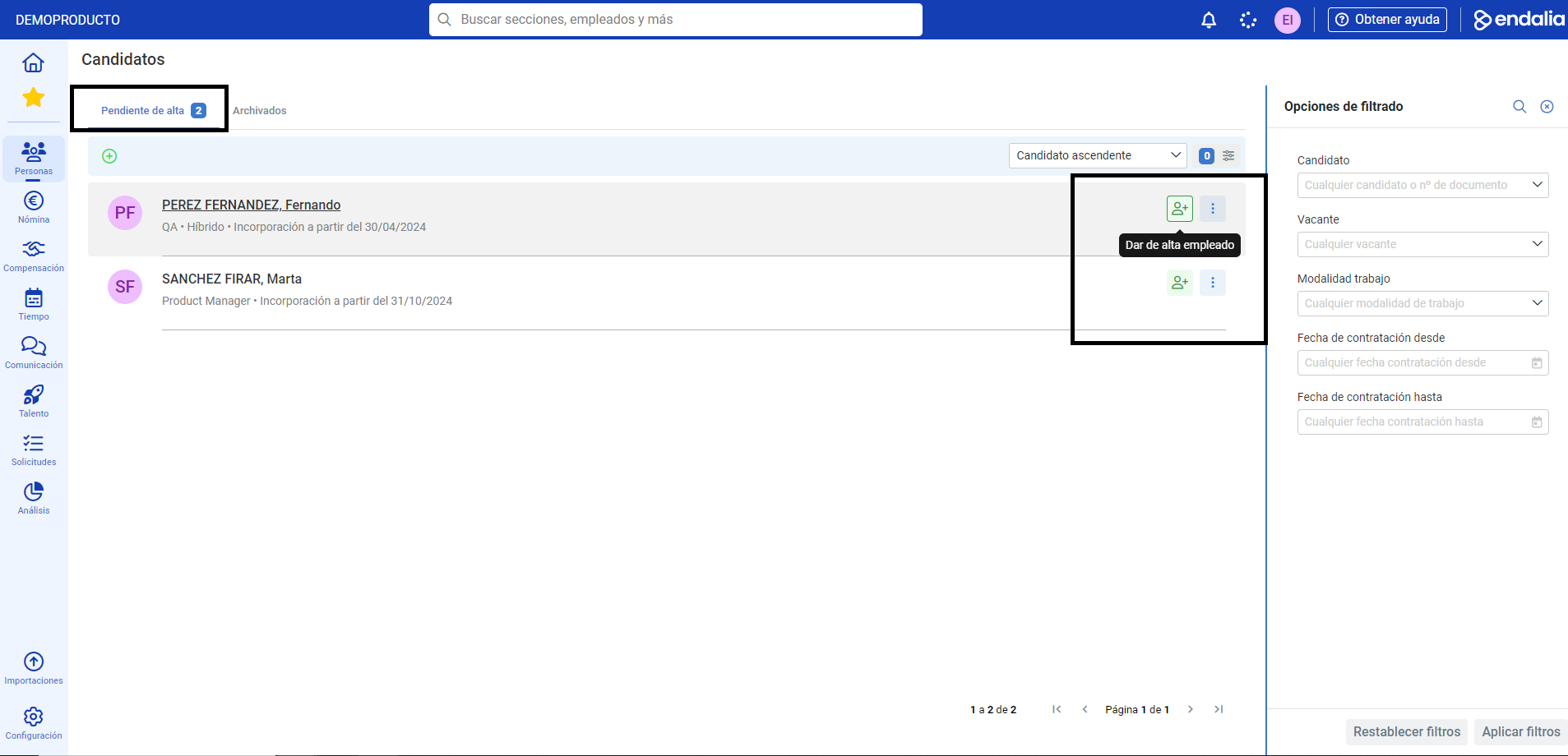
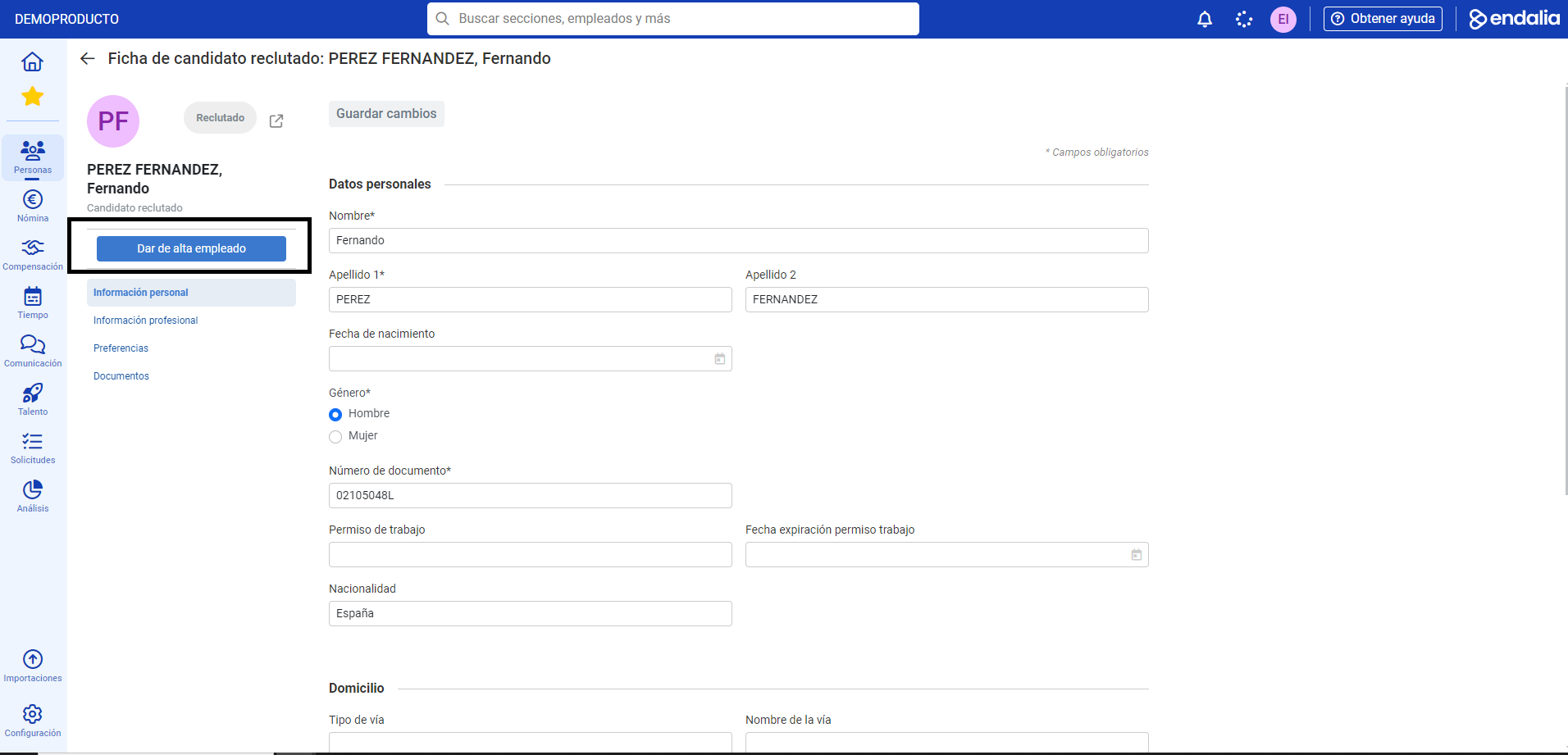
- By clicking on the employee's name in the first tab, you will access the candidate's profile. Here you have various information about them, already configured from Teamtailor. You can fill in various fields (and change required ones) and, from this same window, register the candidate through the Employee Registration button, located above the menu items of the profile. Through this step, which you can also access from the main screen shown above (Candidates), you will convert the candidate into an employee of your company effortlessly:
- For employee registration, refer to this specific article: Register an Employee, also found in this section of the Help Center.
Process Video
Want to know more? Check out the following related articles:
If you have questions about the terms, check out our glossary at this link.
Was this article helpful?
That’s Great!
Thank you for your feedback
Sorry! We couldn't be helpful
Thank you for your feedback
Feedback sent
We appreciate your effort and will try to fix the article