Remember: Before you start this process, you must have created the period with the date, as well as the address, with its associated employees, to complete the entire cycle. For more information, check the related articles at the end of the page.
Important: this article is aimed at Endalia HR users with an Administrator profile.
Part of the managers' responsibilities is to keep employee salaries up to date, along with their corresponding emoluments, if any. Now you can use this feature through this short guide we offer.
In this article:
Update salaries and concepts
- Within the hub Settings, go to Compensation and benefits > Salary review periods
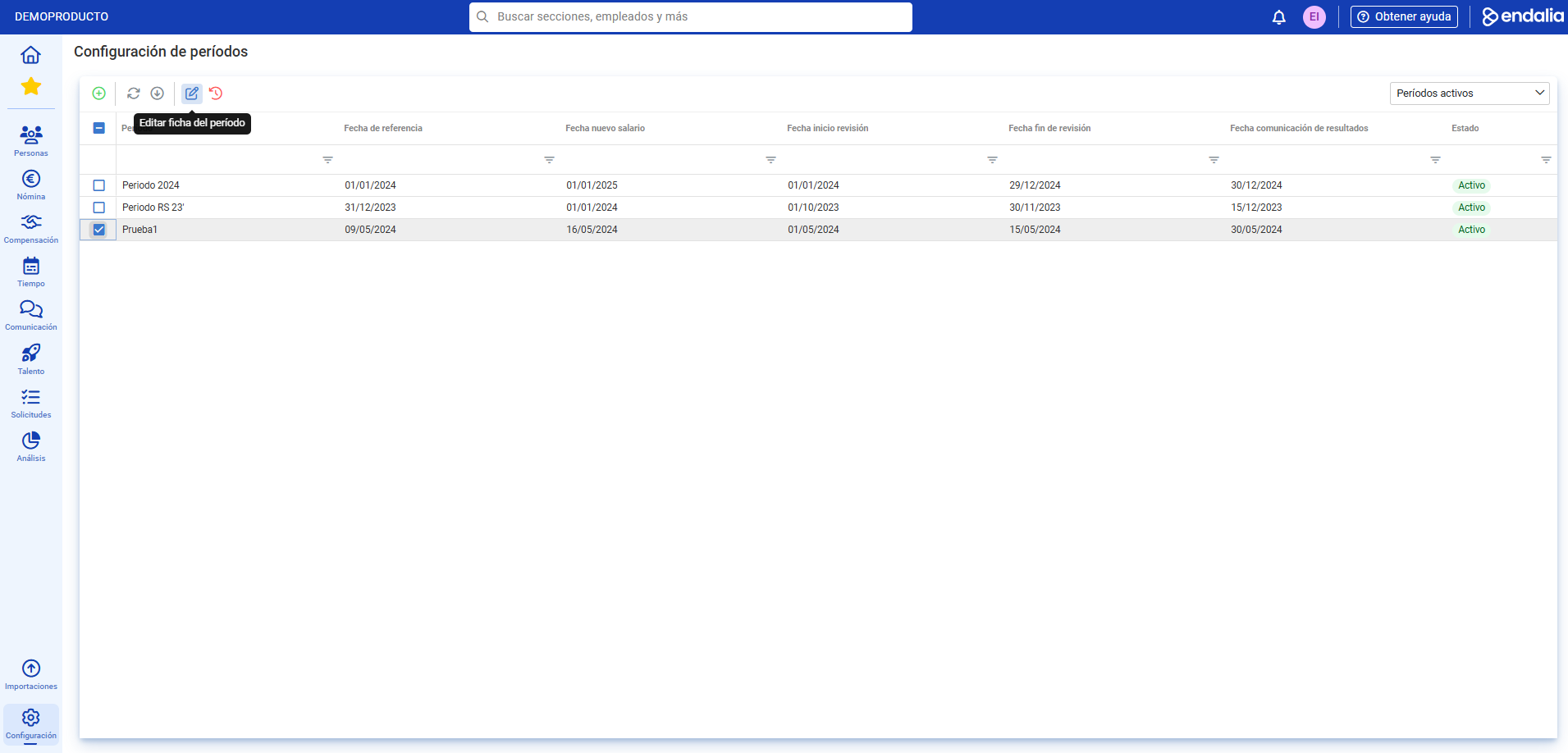
- On the screen presented next, you have the list of periods that you have previously created and configured. Select one from the list and click Edit period, a button you'll find in the toolbar:
- In the Addresses section, you must choose one of them, with Completed status. This means you have already assigned employees to it, as well as the budget. Once this step is done, click the Update salary and concepts button, which you'll find in the toolbar:
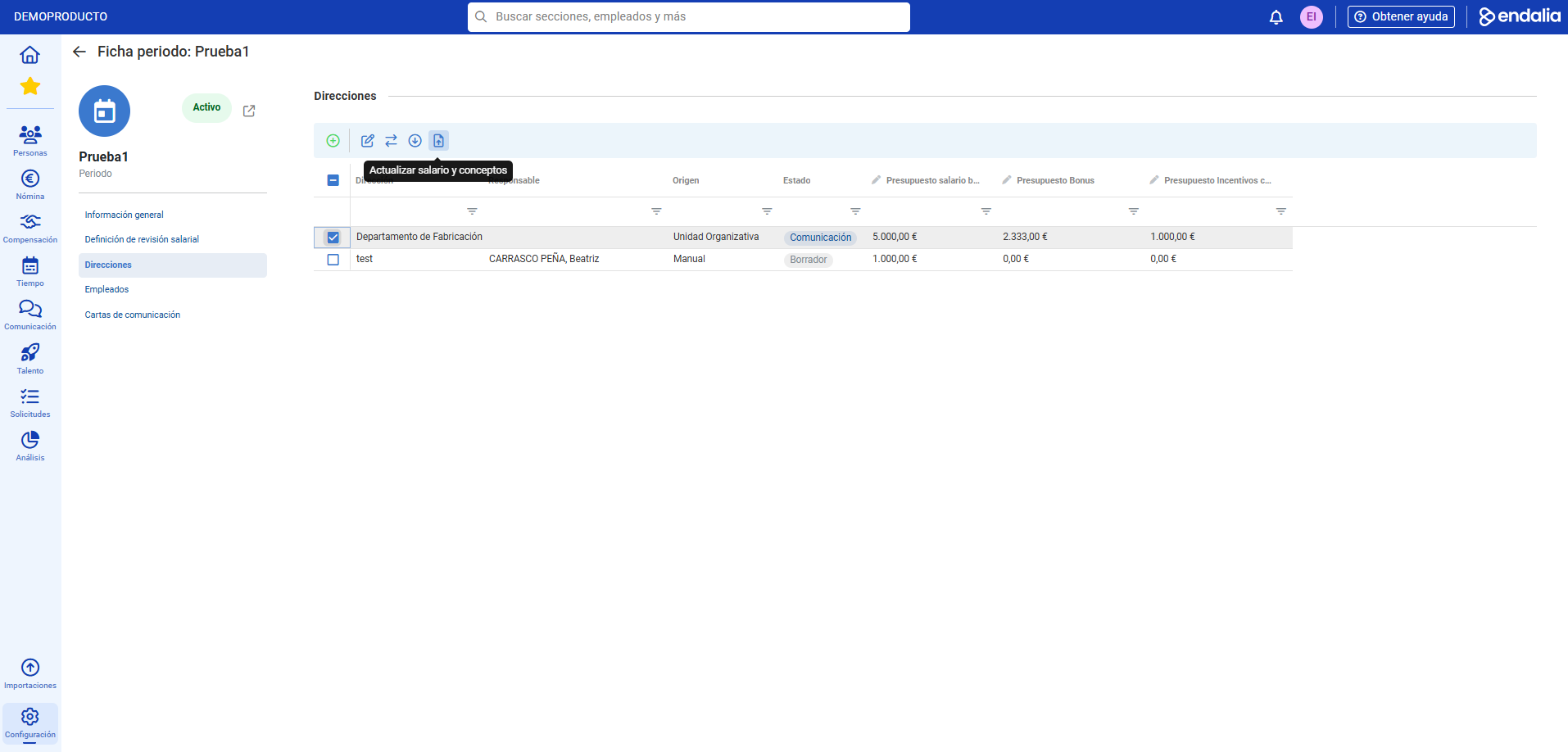
- Now, a small stepper is presented to you, consisting of two phases; in the first, select the employees assigned to the address; in the second, you can see the summary with the salary update date. To finish, click on Next
- Finally, go to Compensation and benefits > Compensation > Company> Salaries. In the list, select the previously selected employee(s) and click Edit in the toolbar to see everything related to their salary.
Process video
We remind you that the following related articles are at your disposal:
Still have questions? Check out our glossary at this link.
Was this article helpful?
That’s Great!
Thank you for your feedback
Sorry! We couldn't be helpful
Thank you for your feedback
Feedback sent
We appreciate your effort and will try to fix the article