This article is not available in Portuguese/Portugal, view it in Spanish
Important: this article is aimed at Endalia HR users with an Administrator profile.
Besides creating payrolls, they must include detailed receipts reflecting various concepts related to received emoluments. Follow the instructions here to make the most of this software option.
Here you will find:
Payroll Receipts
- Within the hub Configuration, click on Payroll > Payroll Receipts
- On the next screen titled, Templates, at the bottom, there are two tabs: the first refers to the default template, which the system offers for all payroll types. Click on the View icon next to it to access its file. In the Template Document section, there's an option to download it in .docx format. Additionally, the Simulate Template button at the top right allows you to generate a receipt for a specific employee; follow the instructions of the side modal window to download this model in .docx format.

- The second tab, called Created, shows all additional templates you have already generated. The buttons on each one allow various actions (edit, delete, and activate or deactivate template), along with a search feature designed for this purpose.

- To edit a template, click the icon next to the template's name. In the menu item Template Data, fill in the required fields and link it to different companies and receipt types (detailed in the next step). In the next section, Document, include any labels you want on the receipt; use the Copy option next to each to include them in the Word document provided by the page, which you must download first.
- To add a new template on the main screen, click the Añadir plantilla.The system will offer an assistant with four steps to complete, which are the following:
- General Data: Allows you to enter basic and, in some cases, required information (*) about your template, as well as associate it with a company (Link template) and its receipt kinds (bonuses, extra payments, delays, etc.). In both cases, you can make more than one selection. Click on Next
- Download and configure template: follow the steps provided by the wizard to include the labels in your template. Remember that on the right side of the screen, there is a preloaded template with labels. Click on Next

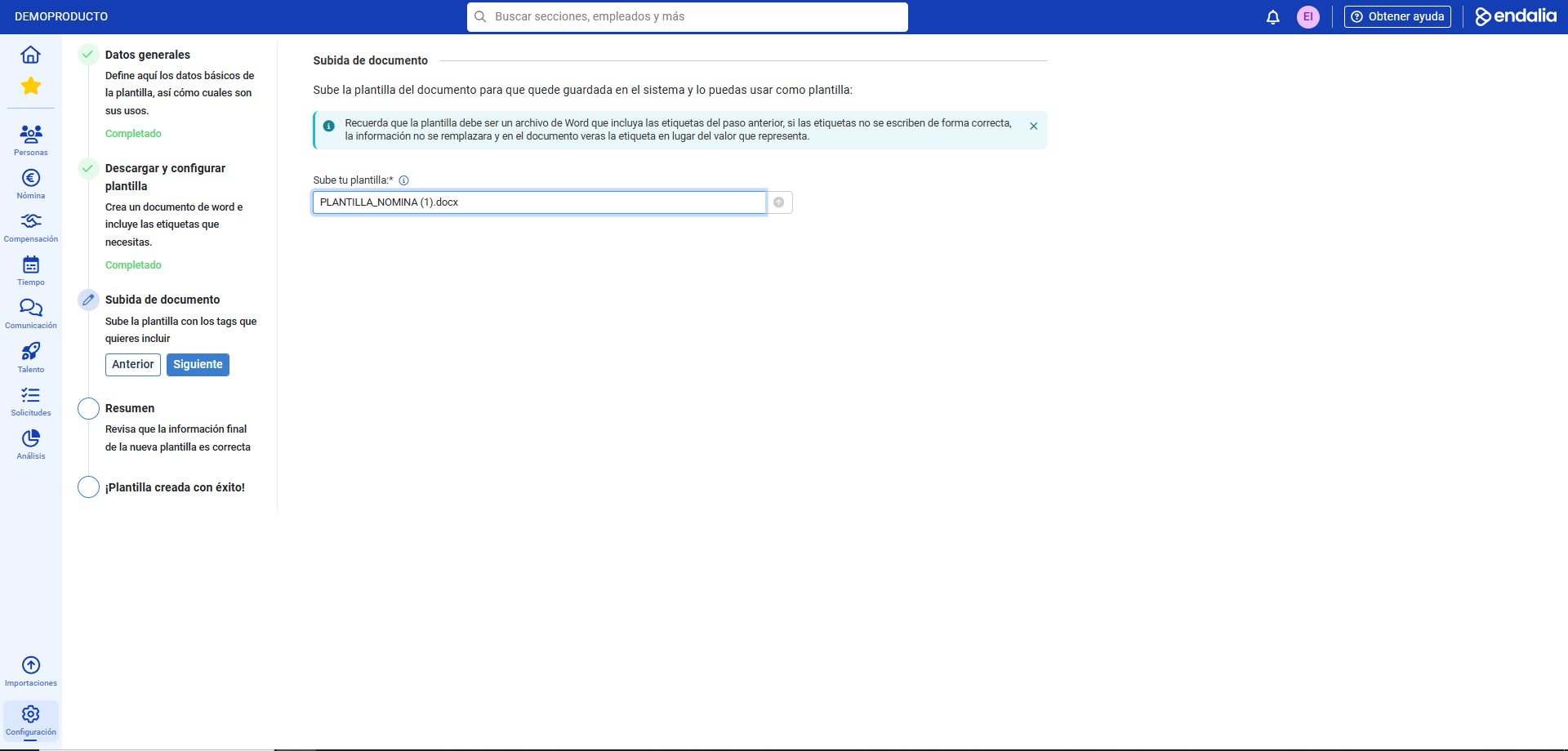
- Document Upload: upload your new document from its repository:
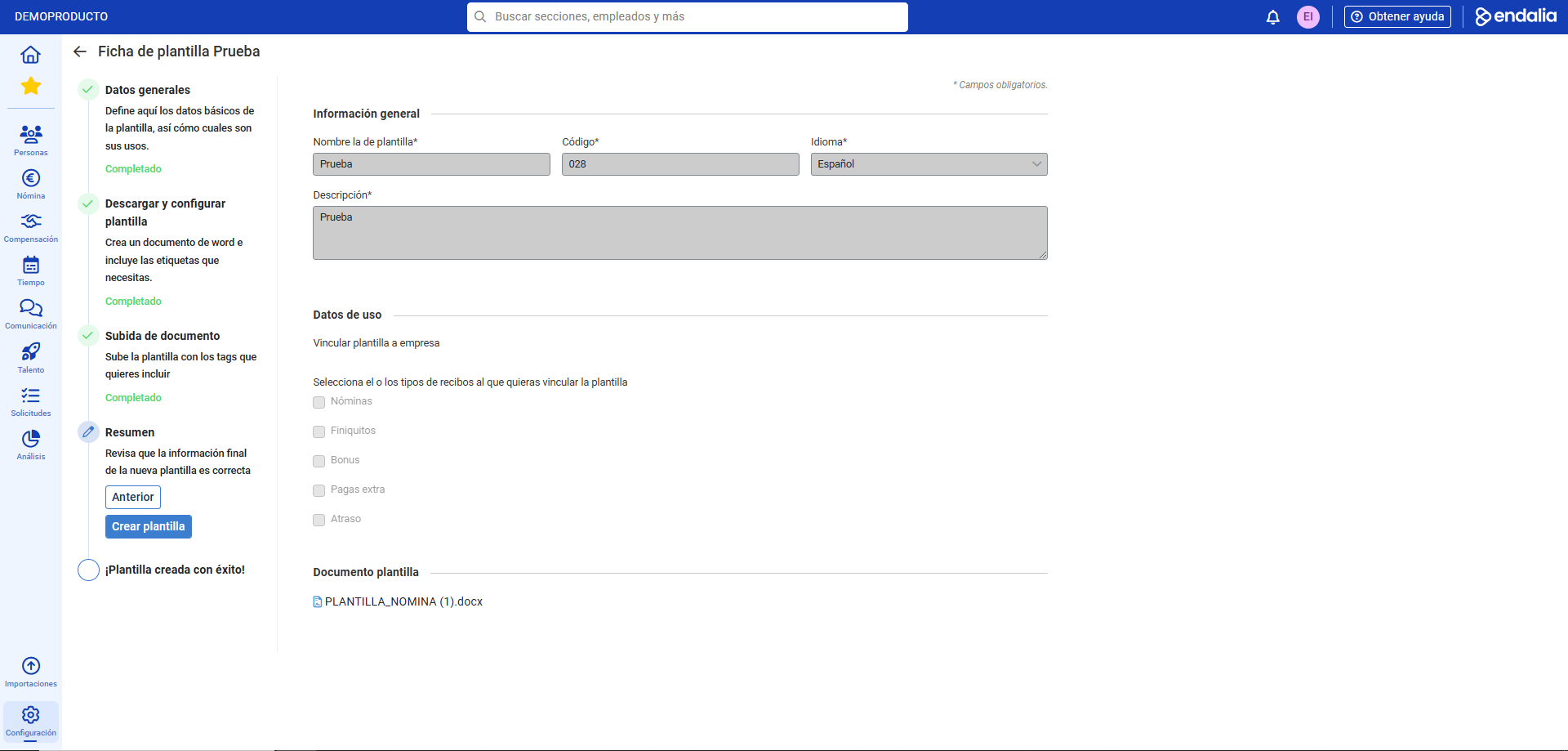
- Summary: ensure the data is correct and click Create template
 Template created successfully: you now have your model created. You can now go directly to its file to review it.
Note: on the template's file, remember to use the Save button located at the top of the screen to secure your changes whenever there are any.
In the step-by-step assistant, you have a button called Previous in each step, allowing you to go back without losing information.
Both in default and created templates, you always have the simulate template option to view your progress.
If you have doubts about the terms, take a look at our glossary on this link.
Was this article helpful?
That’s Great!
Thank you for your feedback
Sorry! We couldn't be helpful
Thank you for your feedback
Feedback sent
We appreciate your effort and will try to fix the article