Important: this article is intended for Endalia HR users with an Administrator profile.
Thanks to this functionality, you can shorten times and launch requests for the employee directly from their profile.
In this article, you will find:
Note: the visibility of this action for HR. HR, in the employee's profile, will be determined by Endalia. Remember that to advance to the next phase in processes, you must fill in at least the fields marked with an asterisk (*).
Actions on the employee - launch a request
- Within the hub Organization and People, go to People > Personnel Monitoring > Employees (or Outsiders, as it is the same functionality).
- On the screen presented to you next, select an employee from the list and click the Edit employee record button found in the toolbar.
- Once inside the worker's record, you have a dropdown with different employee actions to perform. Click the Organization and People Requests
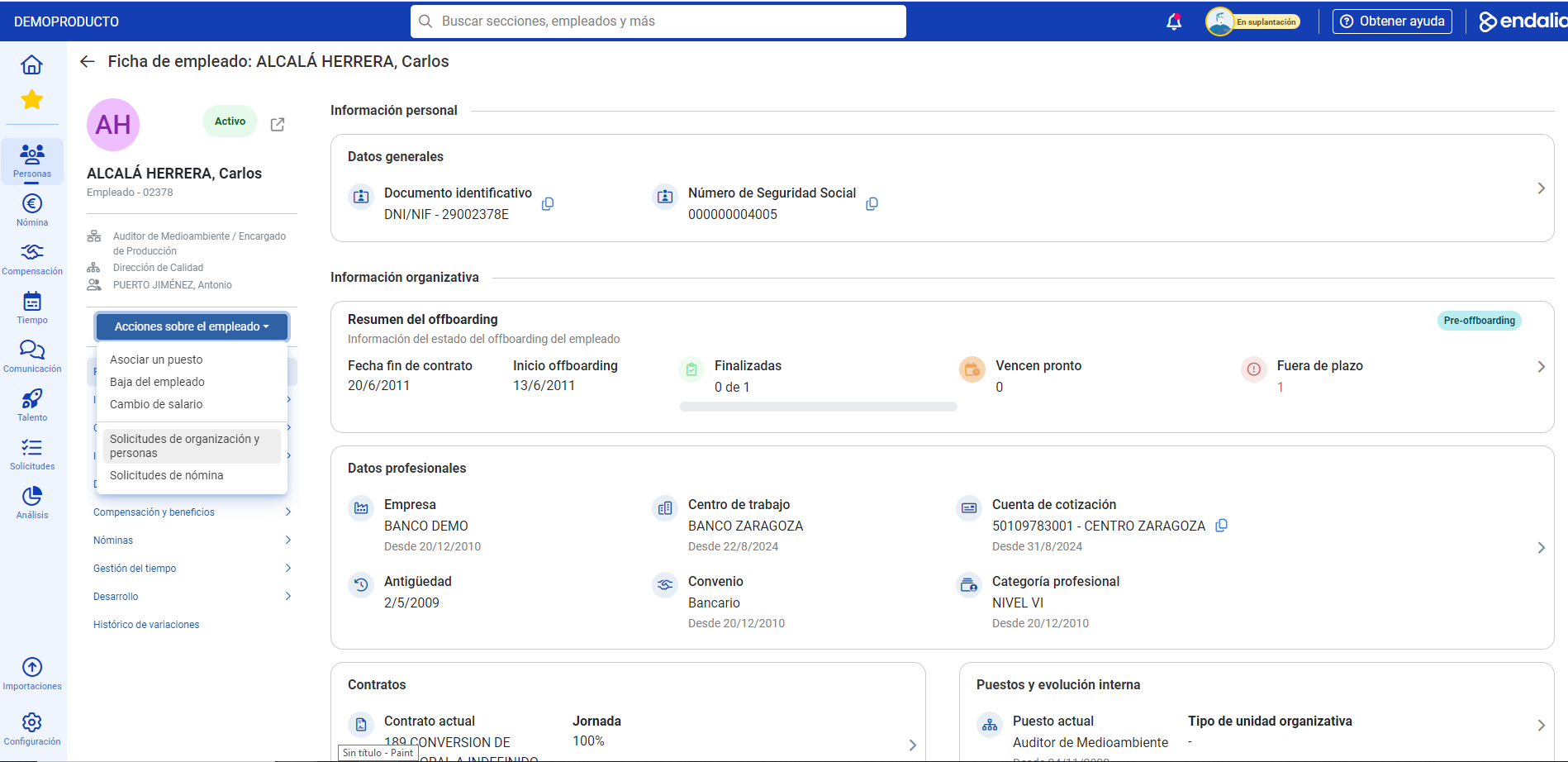 button
 - At this point, you must choose between the different actions to be performed on the employee. Read the description of each one before starting a request
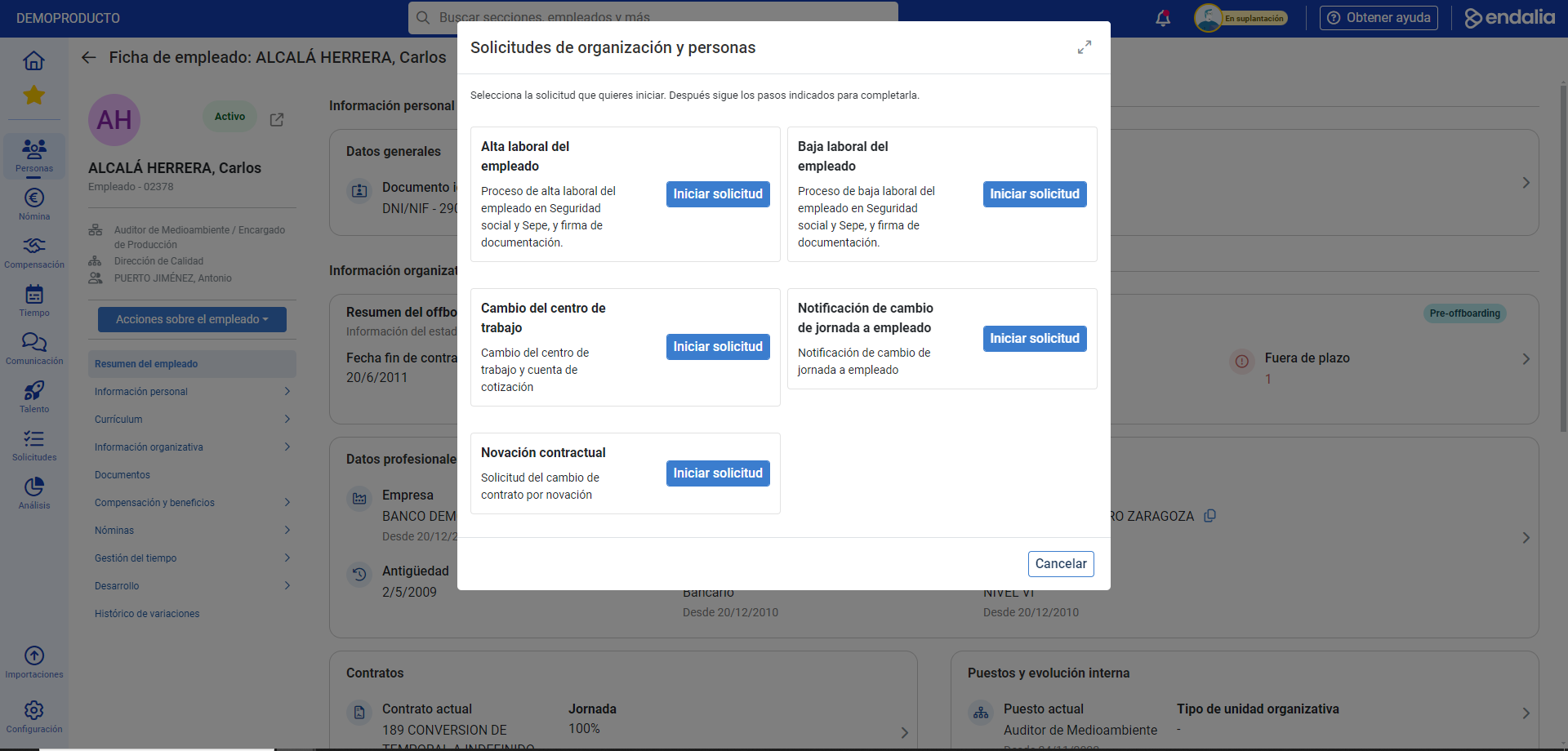
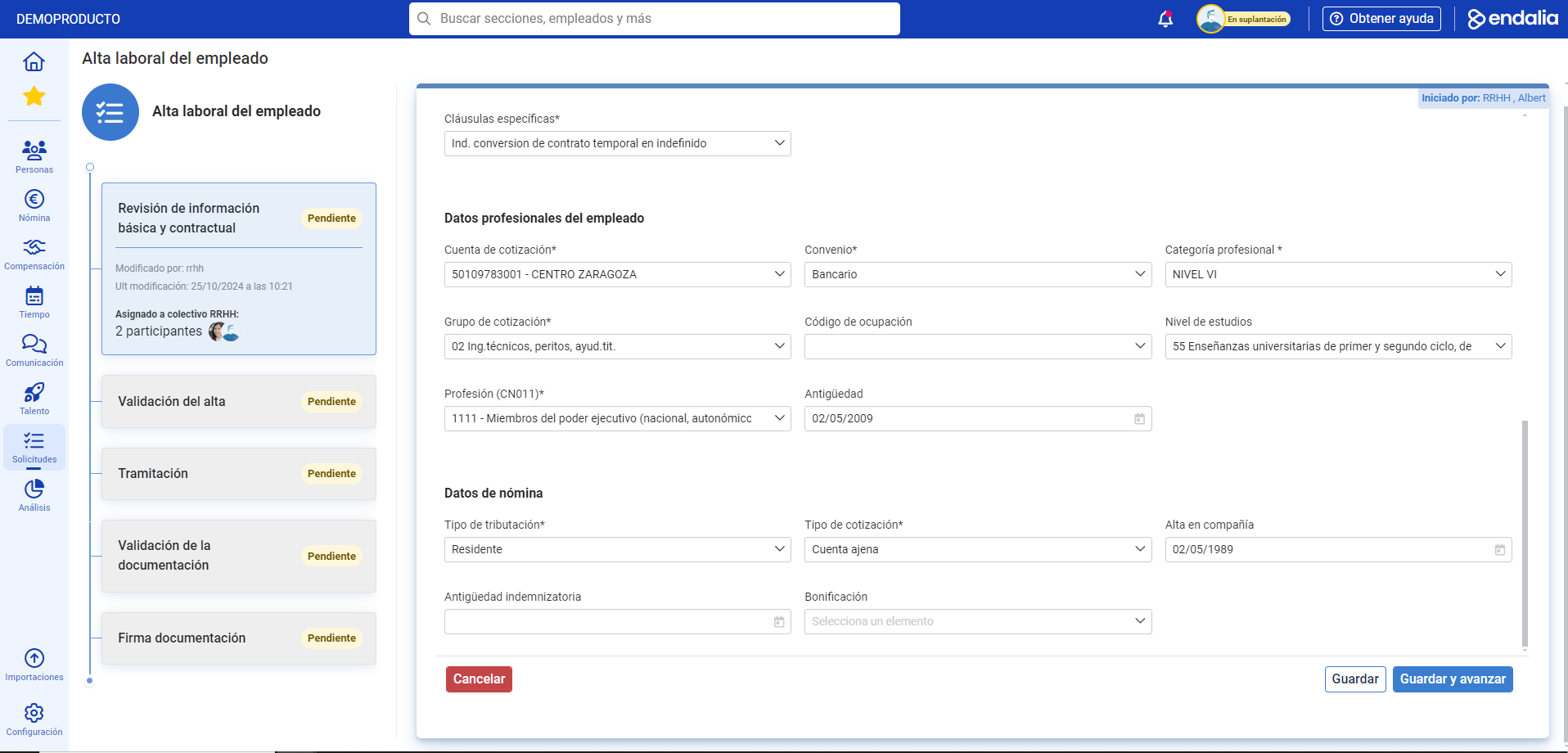
- Next, you must fill in the mandatory data and click Save to store the workflow data or Save and advance to proceed to the next phase:
- Take into account that if there are more people involved in this process, it will wait until those workers have performed the pertinent actions. Once completed, the system will notify you to continue completing the phases until reaching the last step in which you are involved:
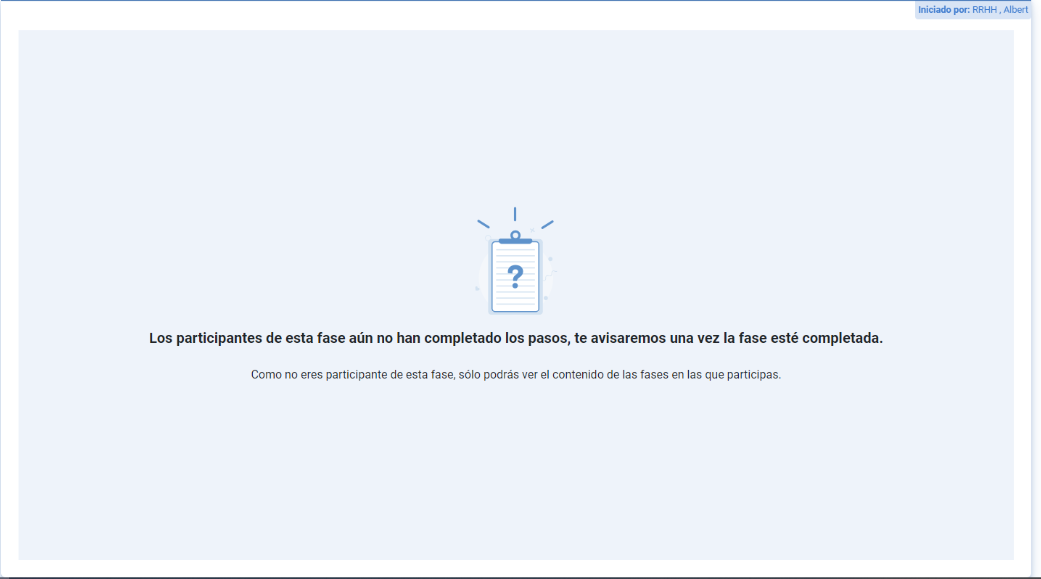
Note: To access these requests, the first phase of a request must be assigned to a group and, the user who accesses, must be part of that group. You might be interested in taking a look at these articles to learn more:
If you have questions about the terms, take a look at our glossary on this link.
Was this article helpful?
That’s Great!
Thank you for your feedback
Sorry! We couldn't be helpful
Thank you for your feedback
Feedback sent
We appreciate your effort and will try to fix the article