Important: this article is intended for Endalia HR users with Administrator profile.
Thanks to the virtual assistant, generating and editing a text is no longer just a matter of inspiration. This innovation works for you and allows you to add your personal touch.
Here you will find:
Draft news with AI
Within the hub Communication, click on the Internal Communication > Publication Management module.
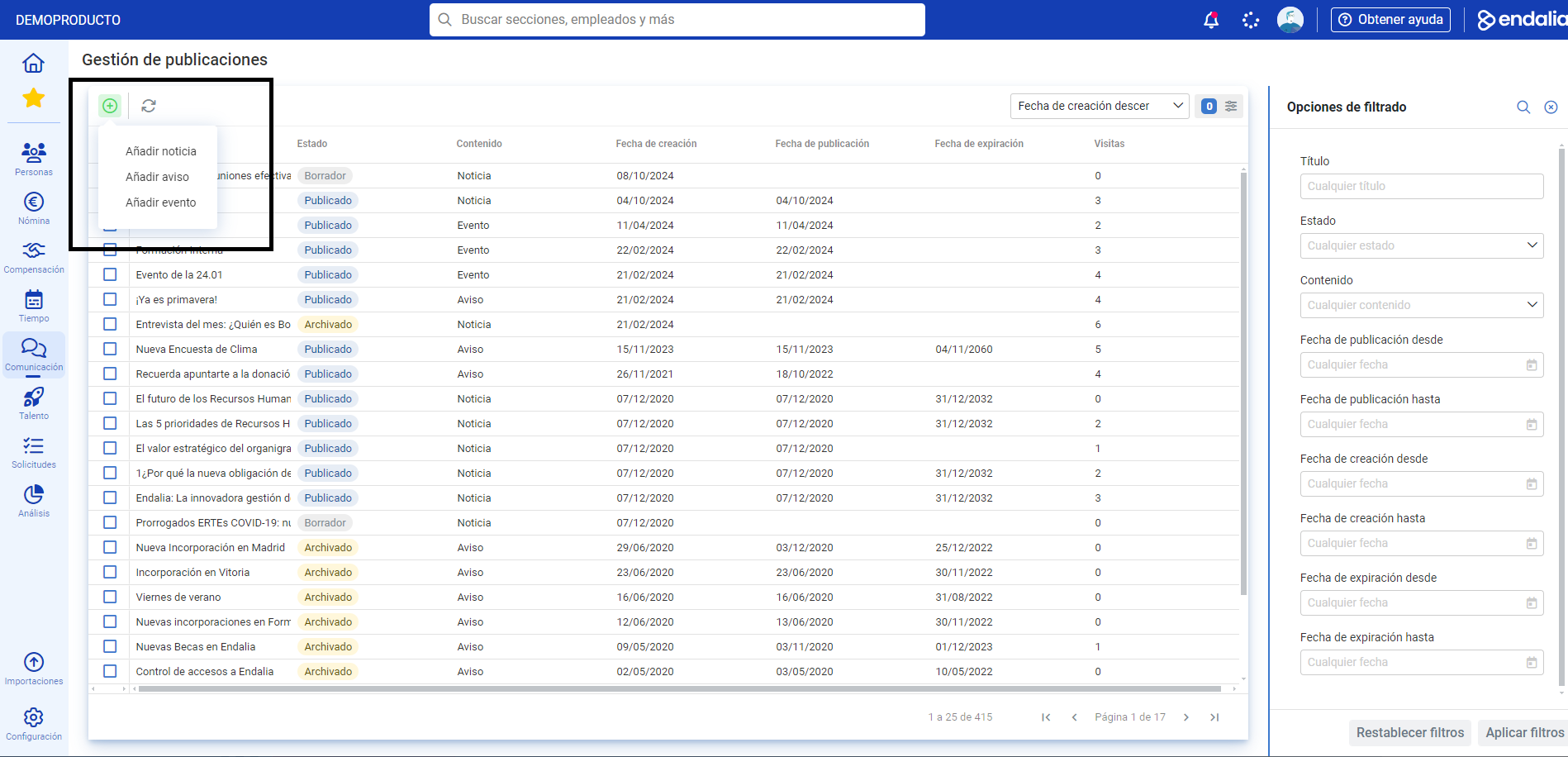
- On this first screen, you have a list of generated news, notices, and events, along with additional information about each (creation date, publication, number of visits, etc.). To add one of the aforementioned, click the Add button on the toolbar and select from the options:
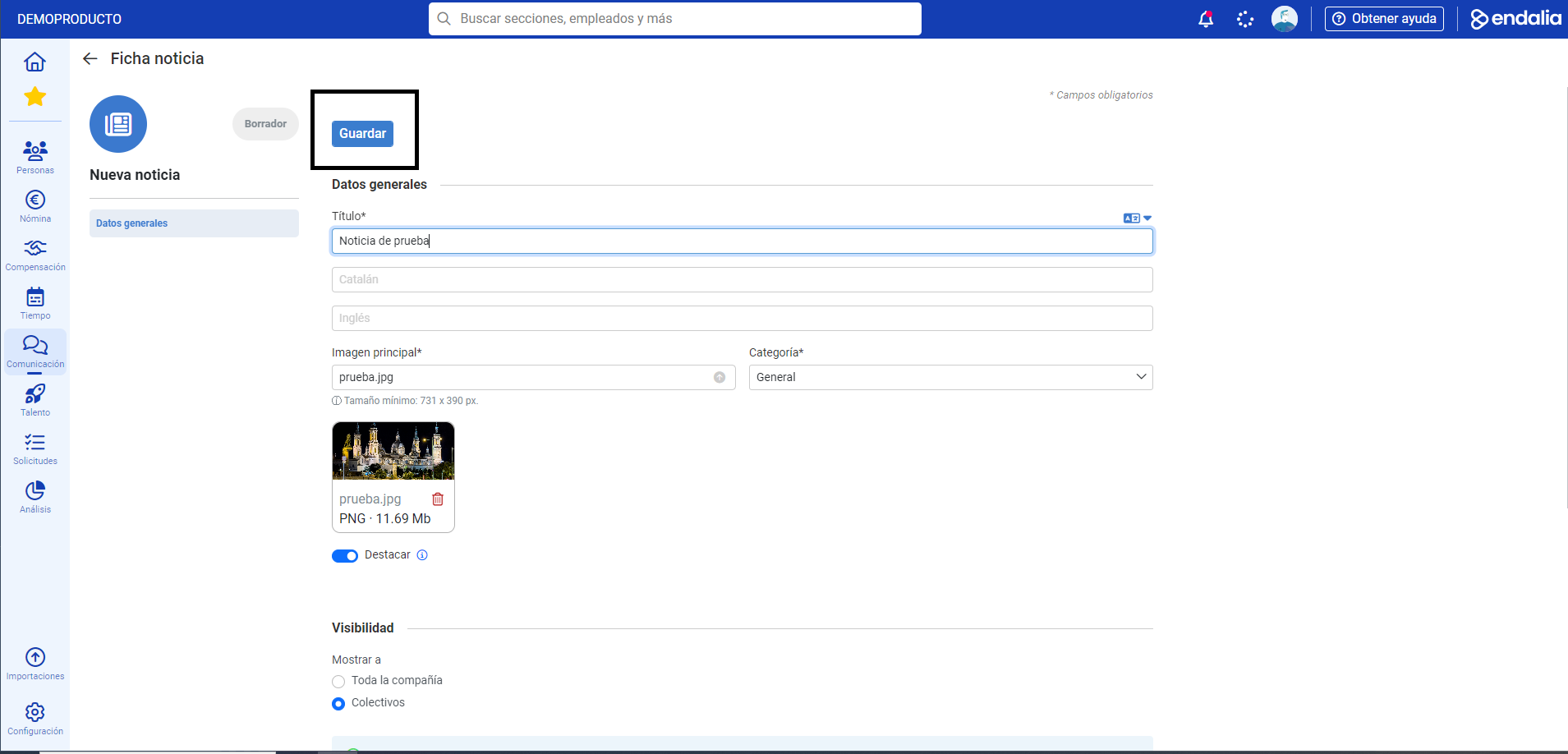
- In the news tab, fill in at least the mandatory fields (title, main image, and category) and remember to click Save before moving to the next step:
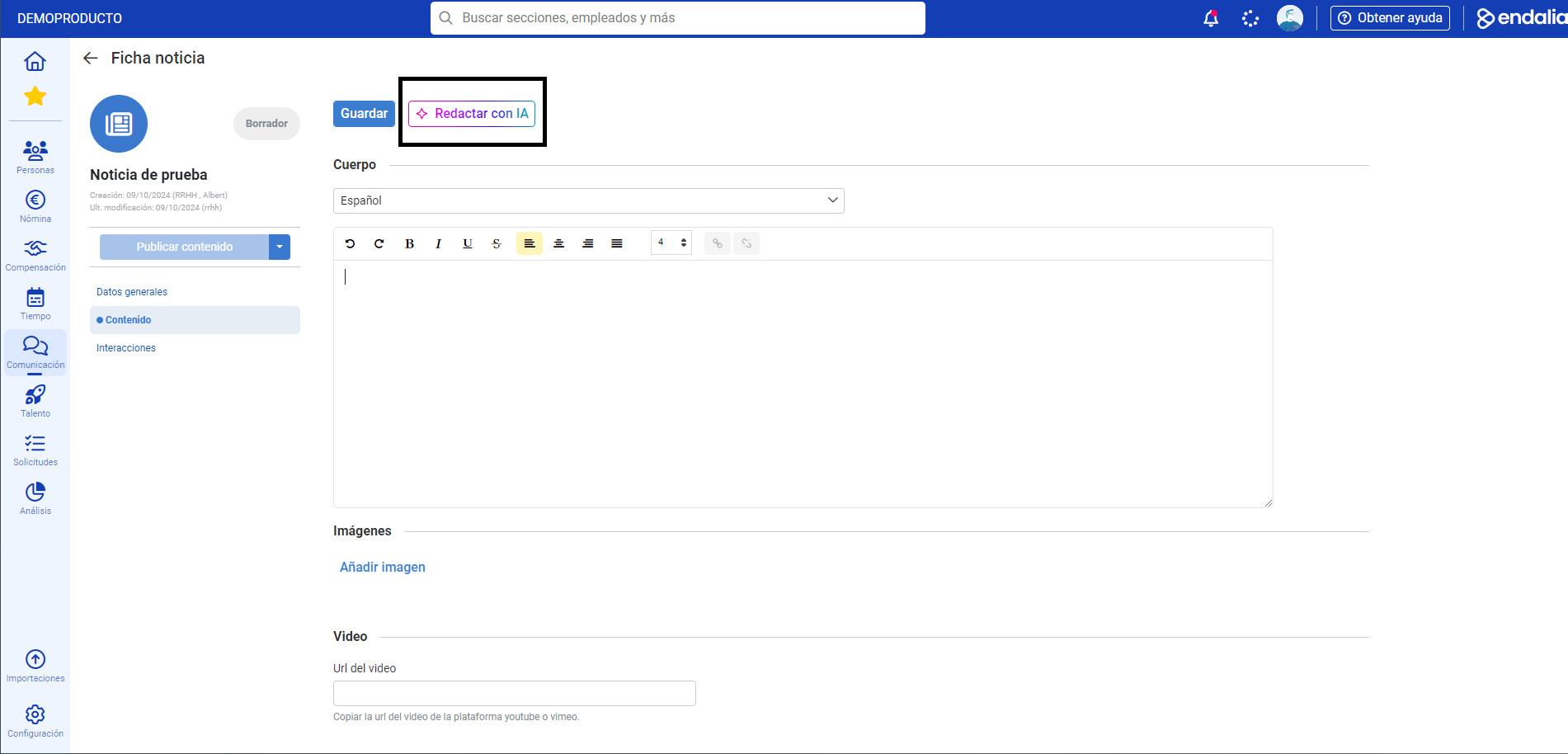
- You can now edit the content. In the same-name menu item, you have different sections (body, images, video, etc.). In the first case, you can generate it manually with a text editor or use the AI by clicking the corresponding button:
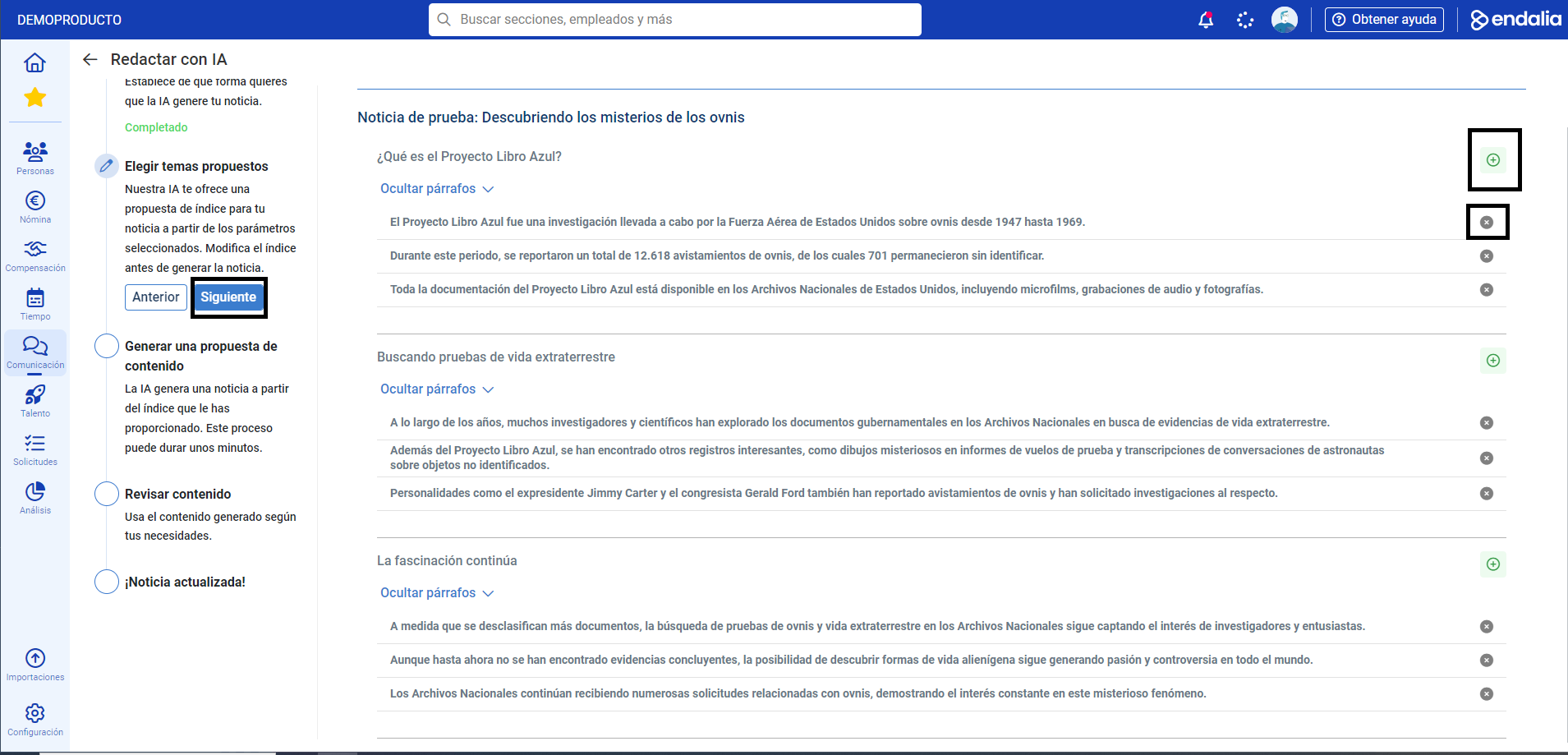
- Now, the system offers you an editor to draft with AI. In the first step, configure the news parameters before clicking Next.
- In the second step, you have index proposals to structure your news and how the paragraphs will be. You can discard or add others manually using the corresponding button. Again, Next
 . A message alerts you that a content proposal is being generated in the background.
 - Once the process is complete, click on Review content. On this screen, you can see how the news will finally look.
- With the copy button, you can transfer the news from the AI proposal to the final body of the news. To do this, click on it and then paste the text in the blank news editor (ctrl + v/right-click + paste). At this point, you can leave the news as offered by the AI or modify it to your liking. Click on Update news
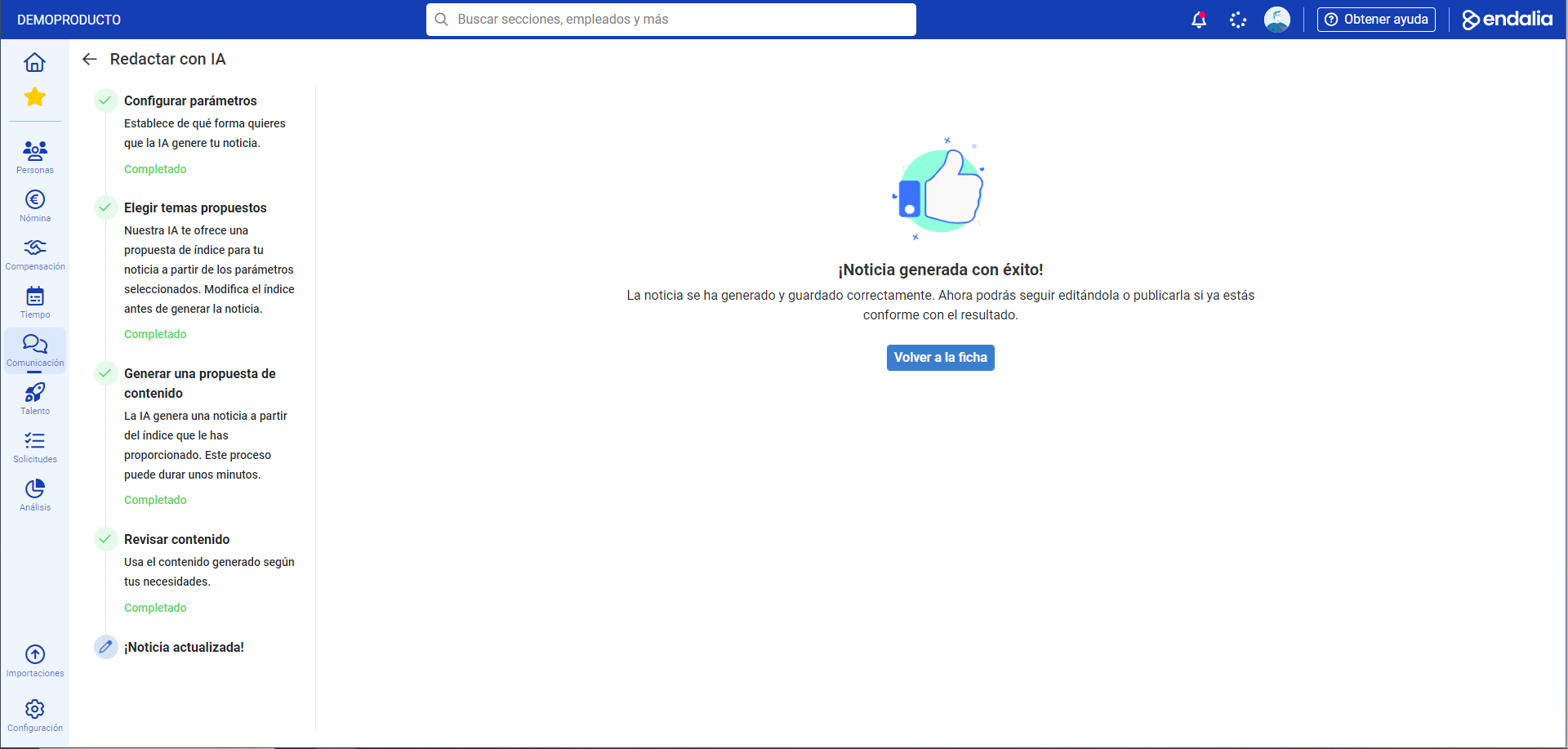
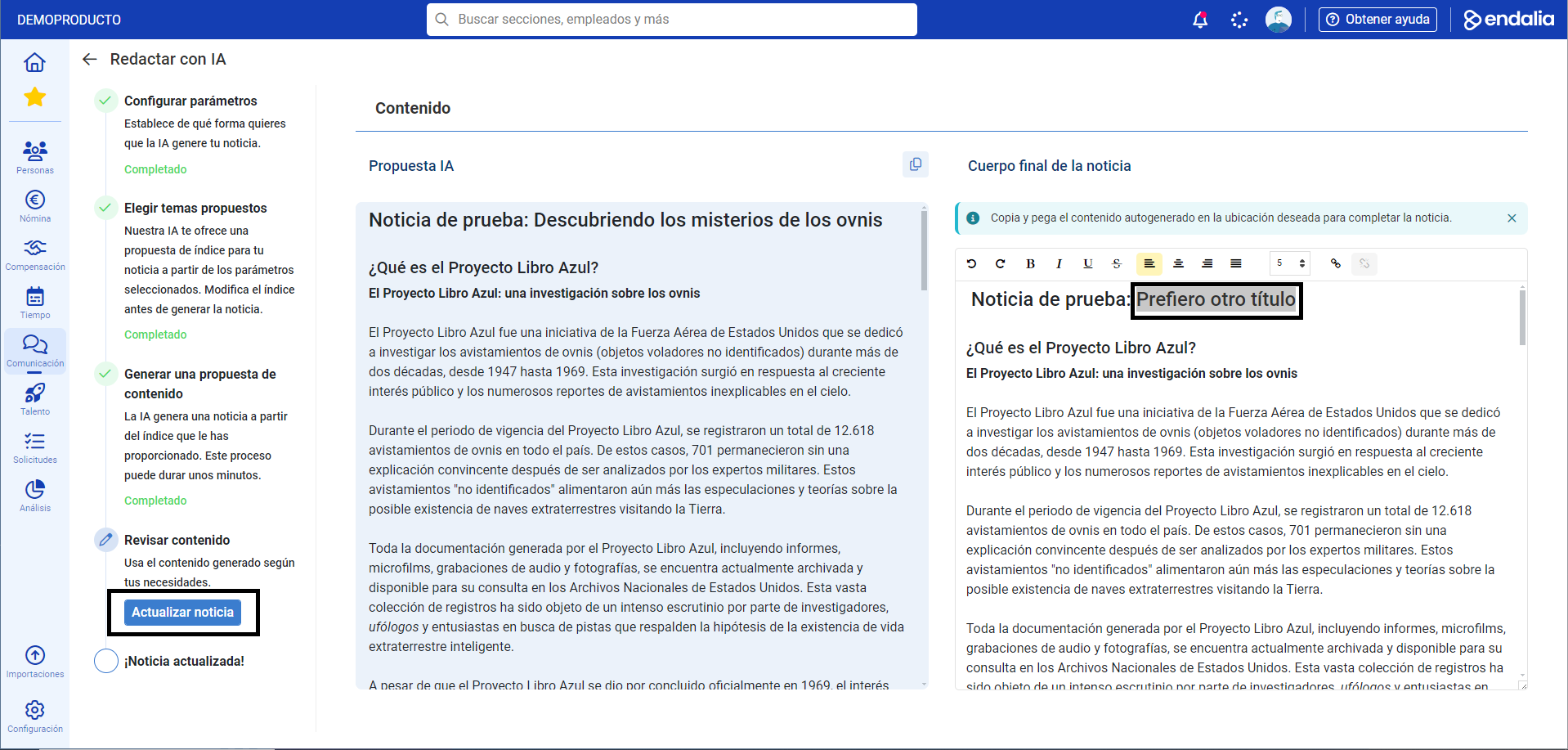 . News generated successfully!
 Once inside the tab, use the main blue action button to publish content or schedule it, and navigate through the different menu items to view interactions or edit your news at any time: Note: You can use the AI not only to create news from scratch but also to edit existing ones.
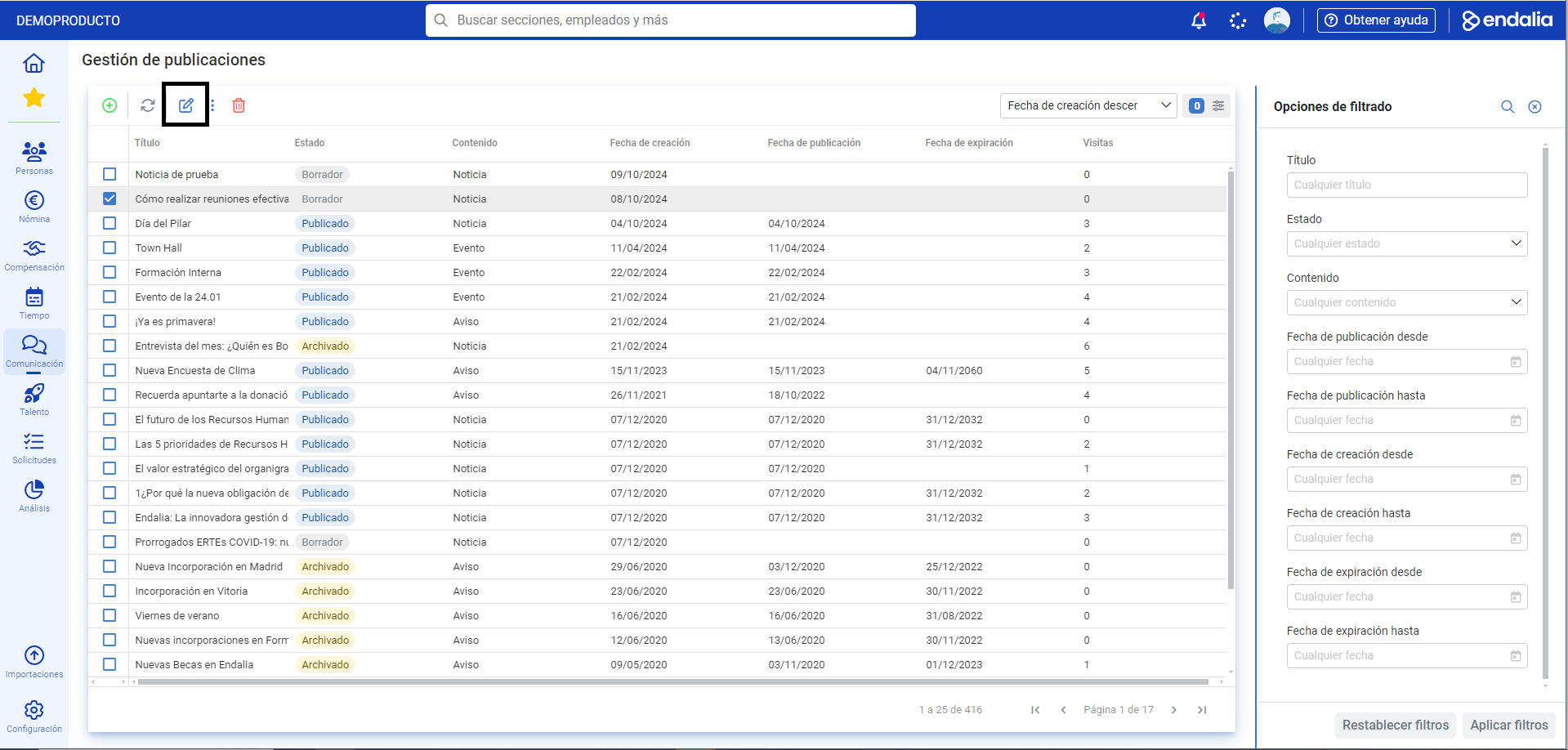
For this, in Publication Management, select a news item from the list and click Edit, a button you will find on the toolbar.

Remember to always click Save, wherever the screens offer this option, to set your preferences. Take a look at the following related articles: Documents and links Create and edit events
Also, you can view our glossary, available at this link.
Additionally, you can view our glossary available at this link.
Was this article helpful?
That’s Great!
Thank you for your feedback
Sorry! We couldn't be helpful
Thank you for your feedback
Feedback sent
We appreciate your effort and will try to fix the article