Important: this article is aimed at Endalia HR users with Administrator profiles.
Communicate your employees their respective additional remunerations.
Here you will find:
Communication of bonuses and incentives
- Within the hub Configuration, go to Compensation > Bonus and Incentive Periods
- In this initial phase, you must assign the communication letter. The letters are assigned by direction (that is, all employees under a specific direction will receive a letter, generated with the same template). To do this, select a period from the list and click Edit, the button located on the toolbar.
- Within the tab of the selected period, access the Addresses menu item. Select one or more addresses (they must be found in Phase"Completed" or "Communication") and click on the options menu on the toolbar. Next, click on Assign Letters(the first step of this communication process):
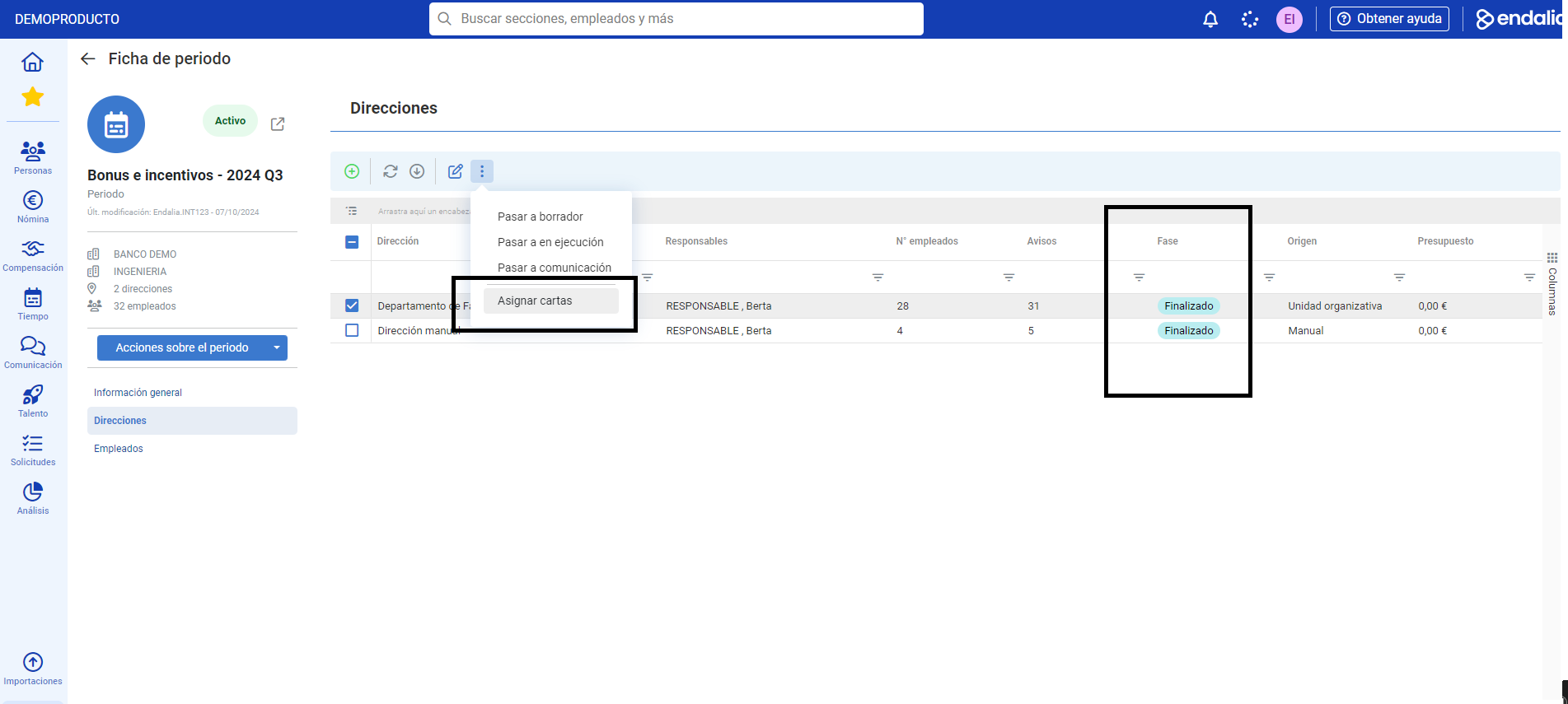
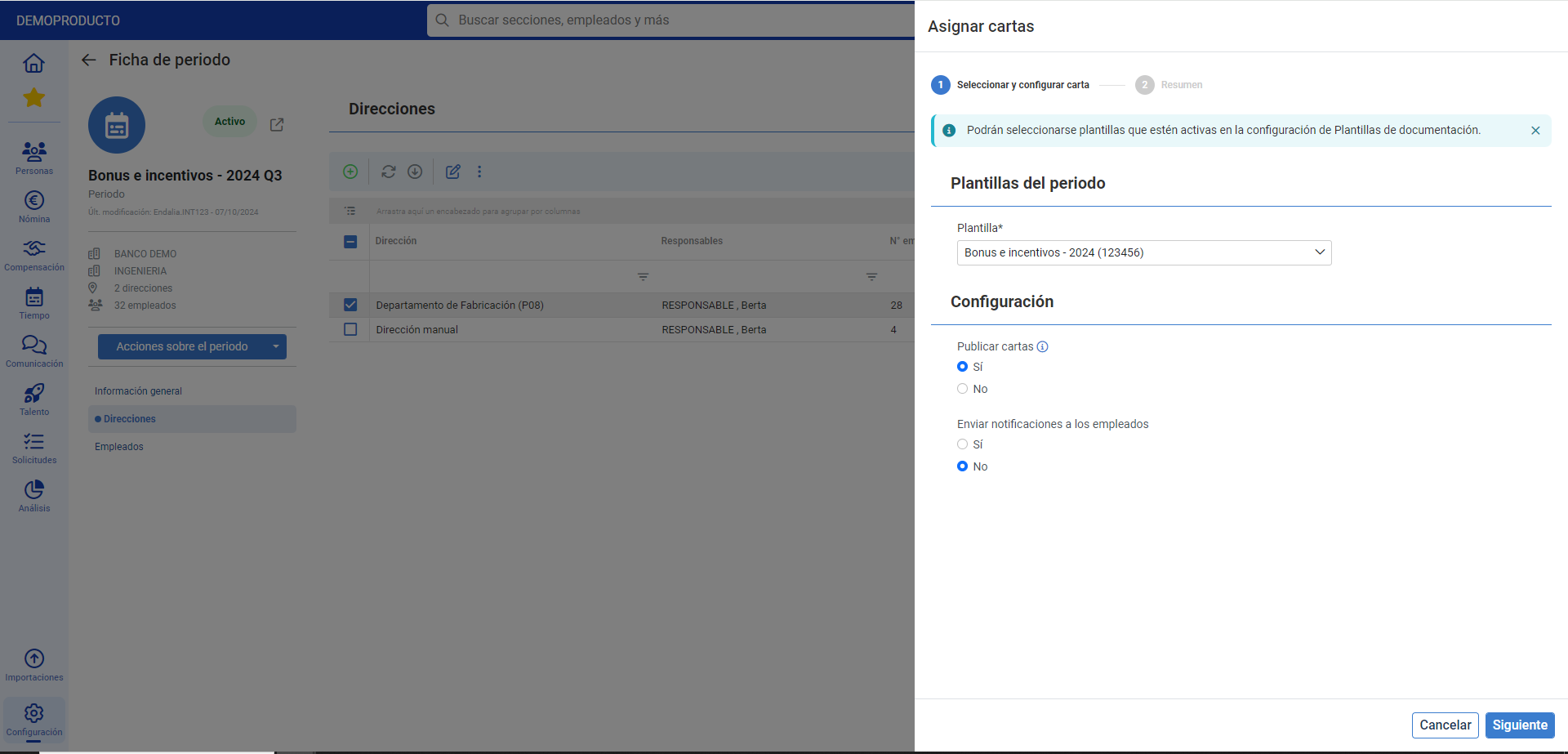
- In the modal window presented to you next, you must select first (step number 1 of the process) a template to carry out communication. (These templates are created and configured previously under the Documentation Templates, in Organization and People section). Click on Next
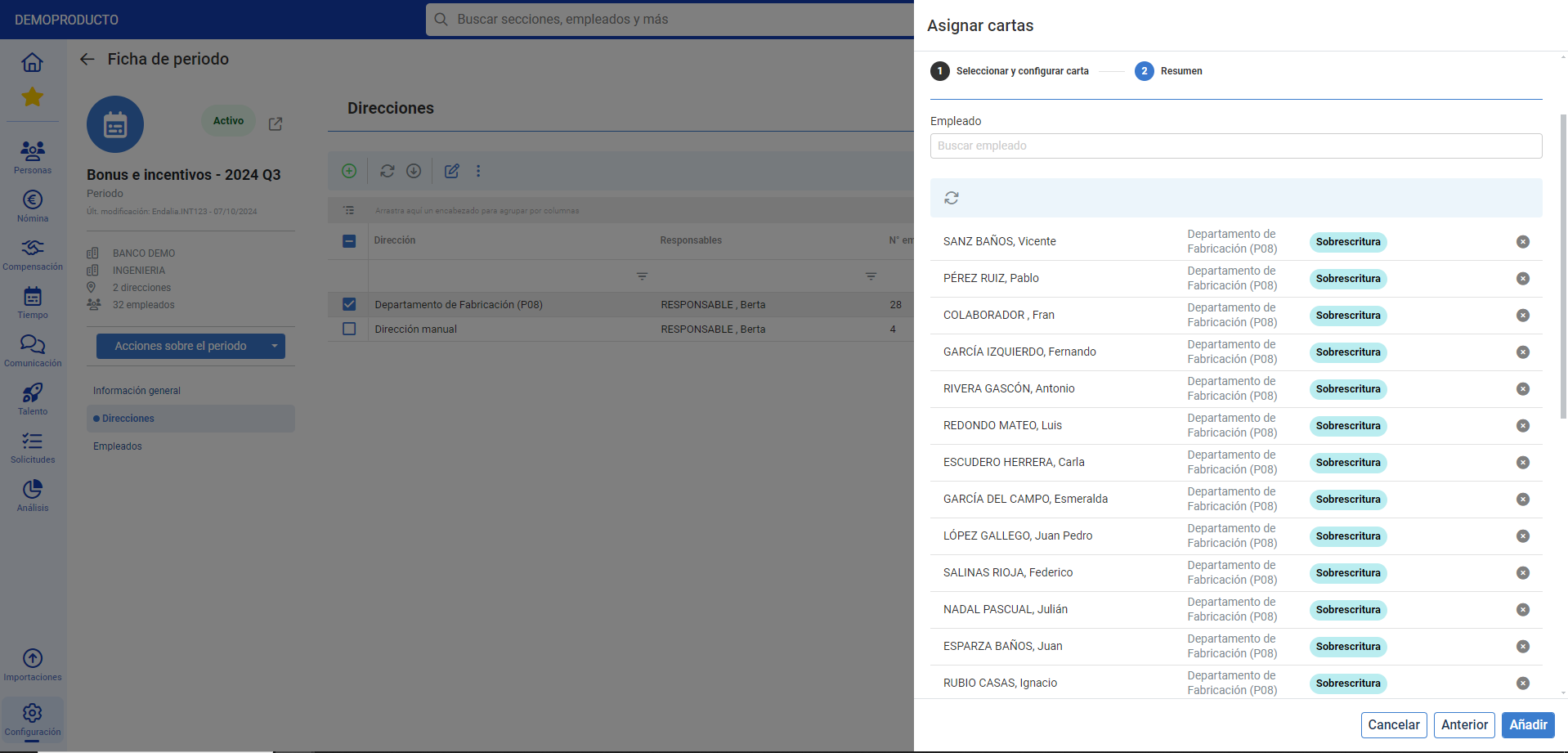
- In step 2, the system shows you a list of employees to whom the letter will be assigned. Employees who already have a letter assigned will be identified as having an overwrite. It is only possible to link one letter per employee in each Bonus and Incentive period. Therefore, if a new letter is linked to an employee who already had one previously assigned, the first will be replaced. Once you have the desired configuration, click on Add
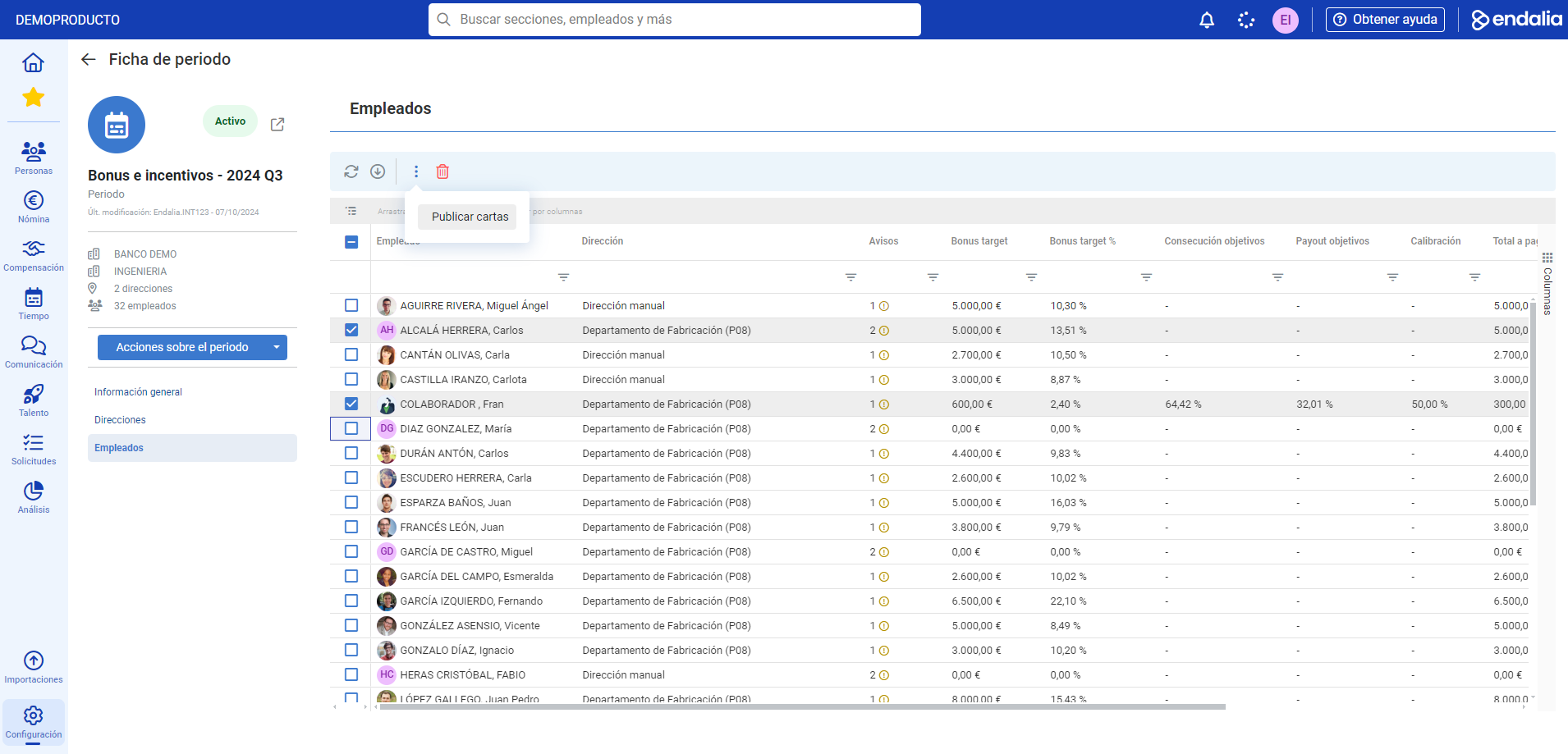
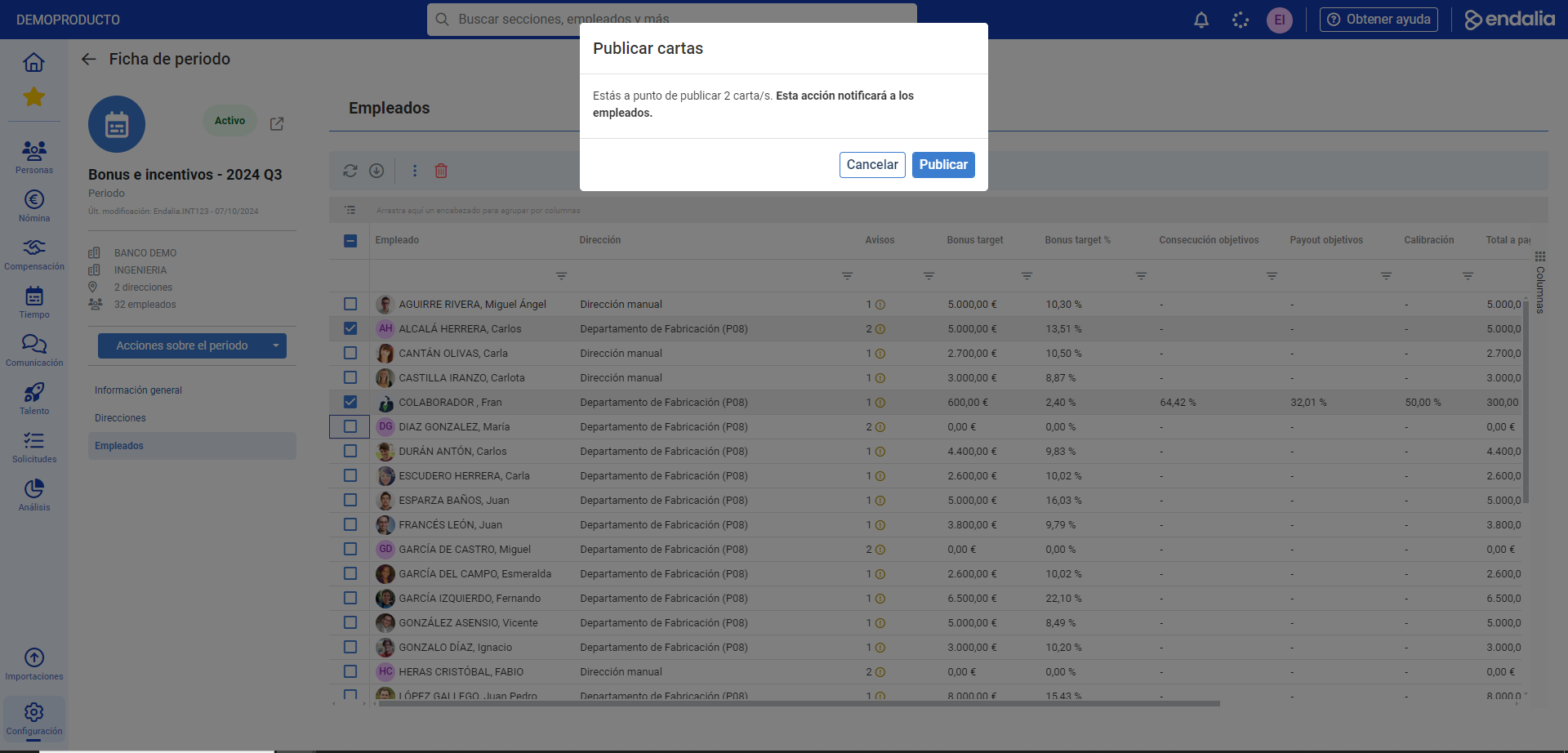
- Now, you must decide which letters to publish, per employee, individually. Once the letter is published, the employee will receive a notification indicating that the letter is now available for reading and downloading from Compensation and Benefits > My Salary Information > My Salary Documents. To perform that action (publish), you must access, in the period tab, the last available menu item (Employees), and select one or more employees who have assigned letters, as letters for employees without assigned letters cannot be published. In the toolbar, on the more actions icon, select the only option available, Publish Letters. And, in the confirmation modal window, again, Publish
Here you have this link, to access the glossary of terms.
Was this article helpful?
That’s Great!
Thank you for your feedback
Sorry! We couldn't be helpful
Thank you for your feedback
Feedback sent
We appreciate your effort and will try to fix the article