Important: this article is intended for Endalia HR users with the Administrator profile.
Once either of these two processes is launched, as an administrator, you can include tasks within them. Keep reading to learn more about this.
In this article, you will find:
Add, edit or delete tasks in onboarding/offboarding.
- Inside the Organization and People hub, go to People > People Monitoring > Employees
- On the screen presented to you next, select an employee from the list with active onboarding (to locate this feature, you can use the filtering options located on the right side of the screen) and click on the Edit employee record button, found in the toolbar
- Once inside the worker's record, go to the Organizational Information section, and then select Onboarding or Offboarding:
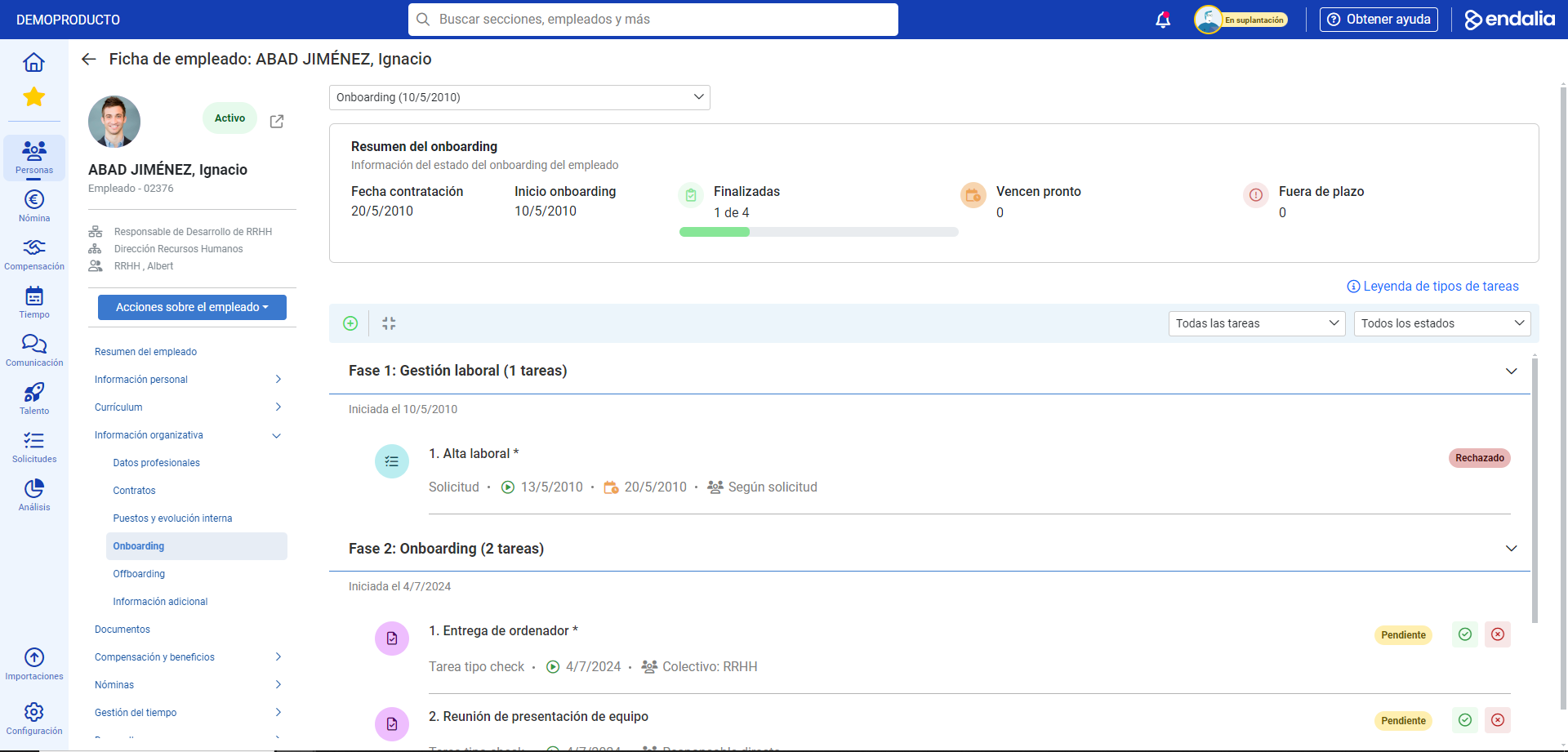
- Now you can perform the following actions within onboarding, but only in unfinished phases (i.e., whose tasks do not appear as Completed):
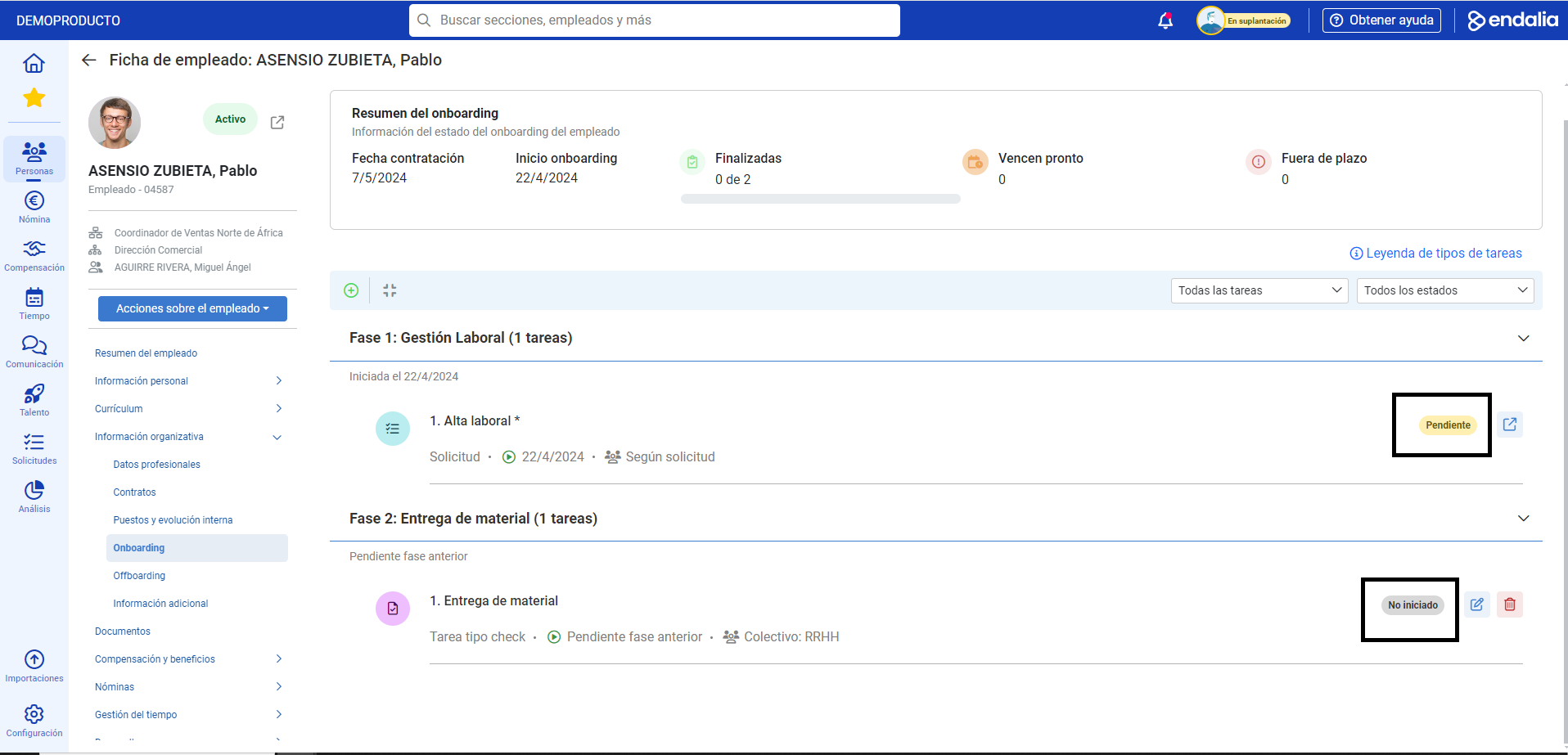
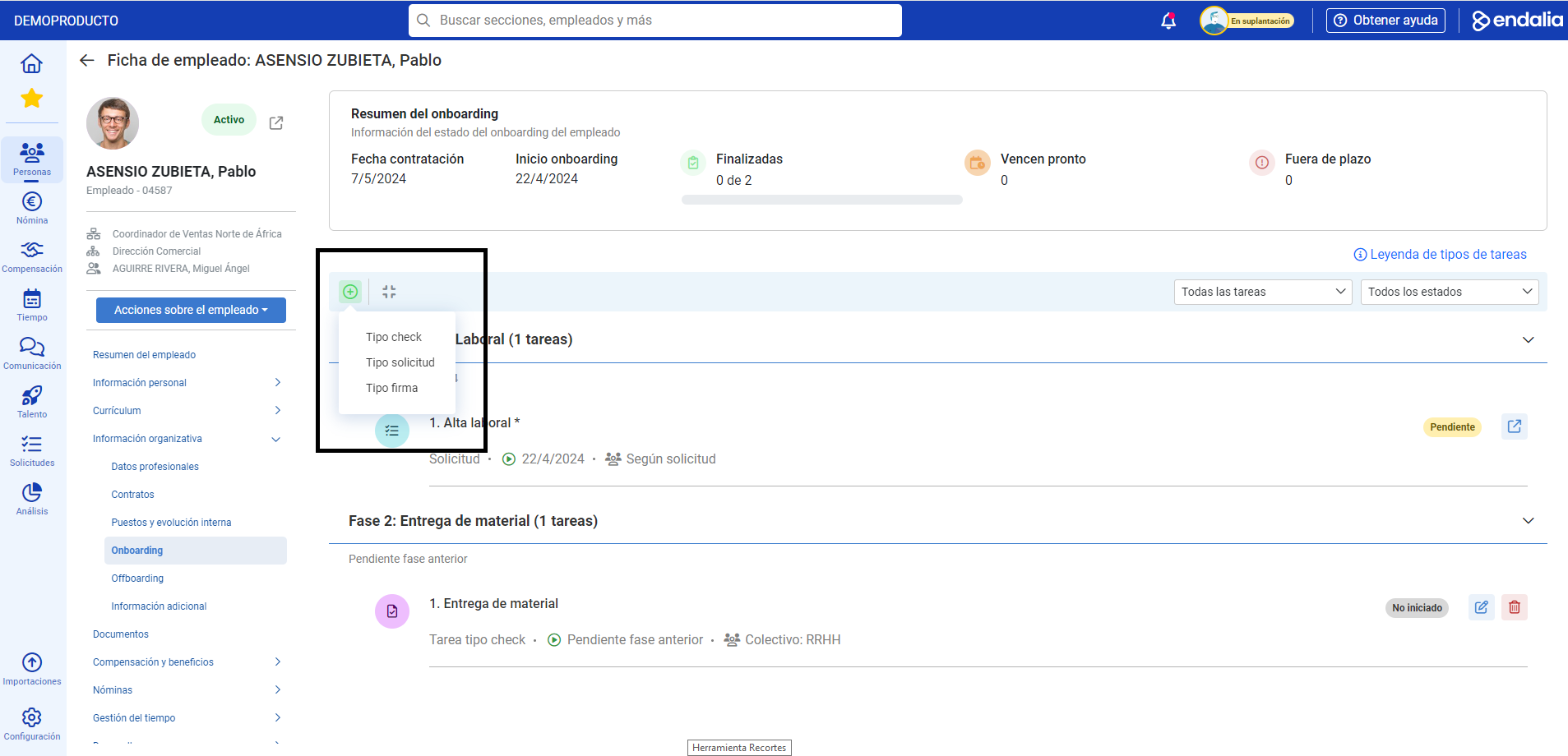
- Add task: the button in the toolbar allows you to carry out tasks like "check", "request" or "sign". Then, in the side modal window, fill in the mandatory (*) fields and any additional information you wish to include before clicking on Add, an action that will redirect you back to the employee's record with the new task already incorporated:
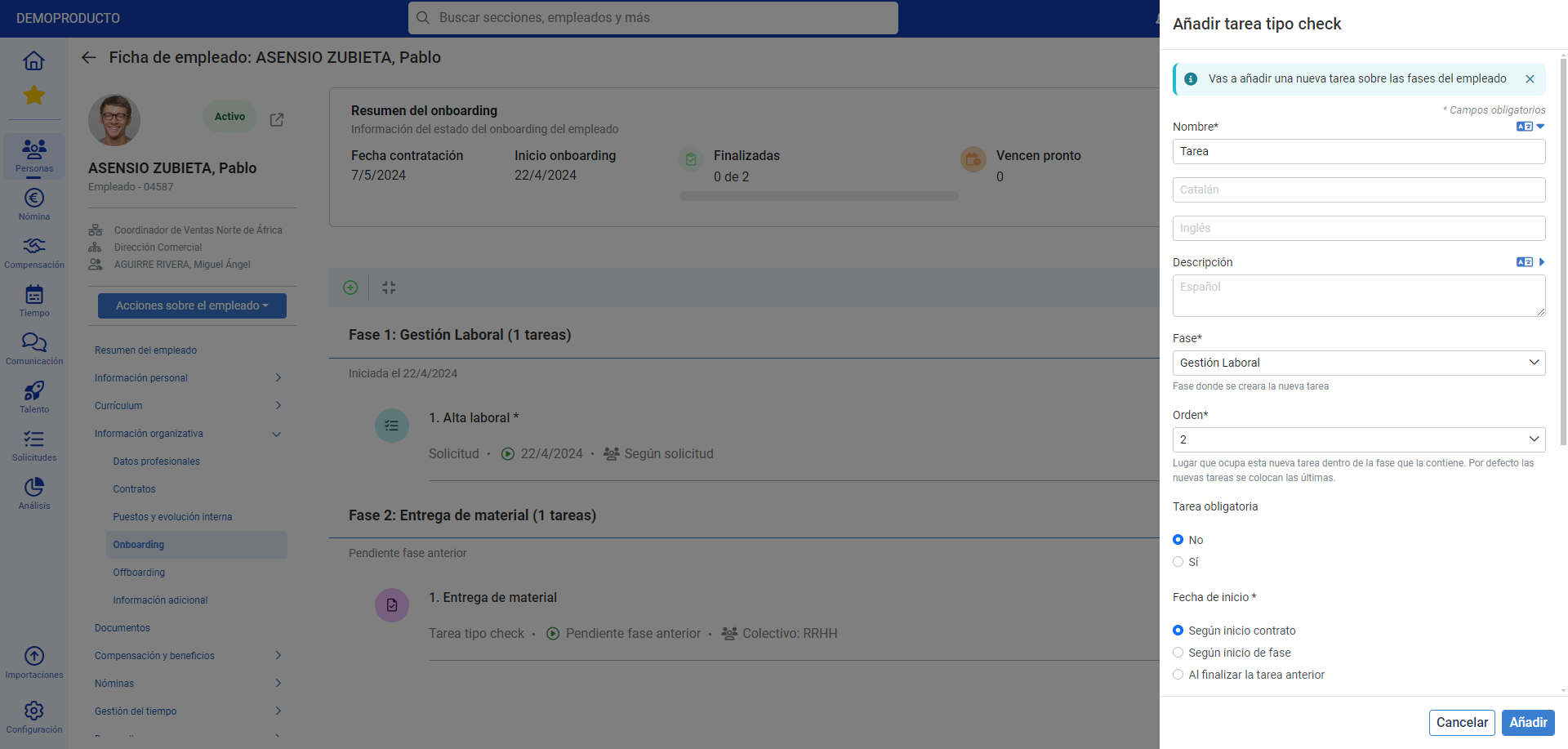
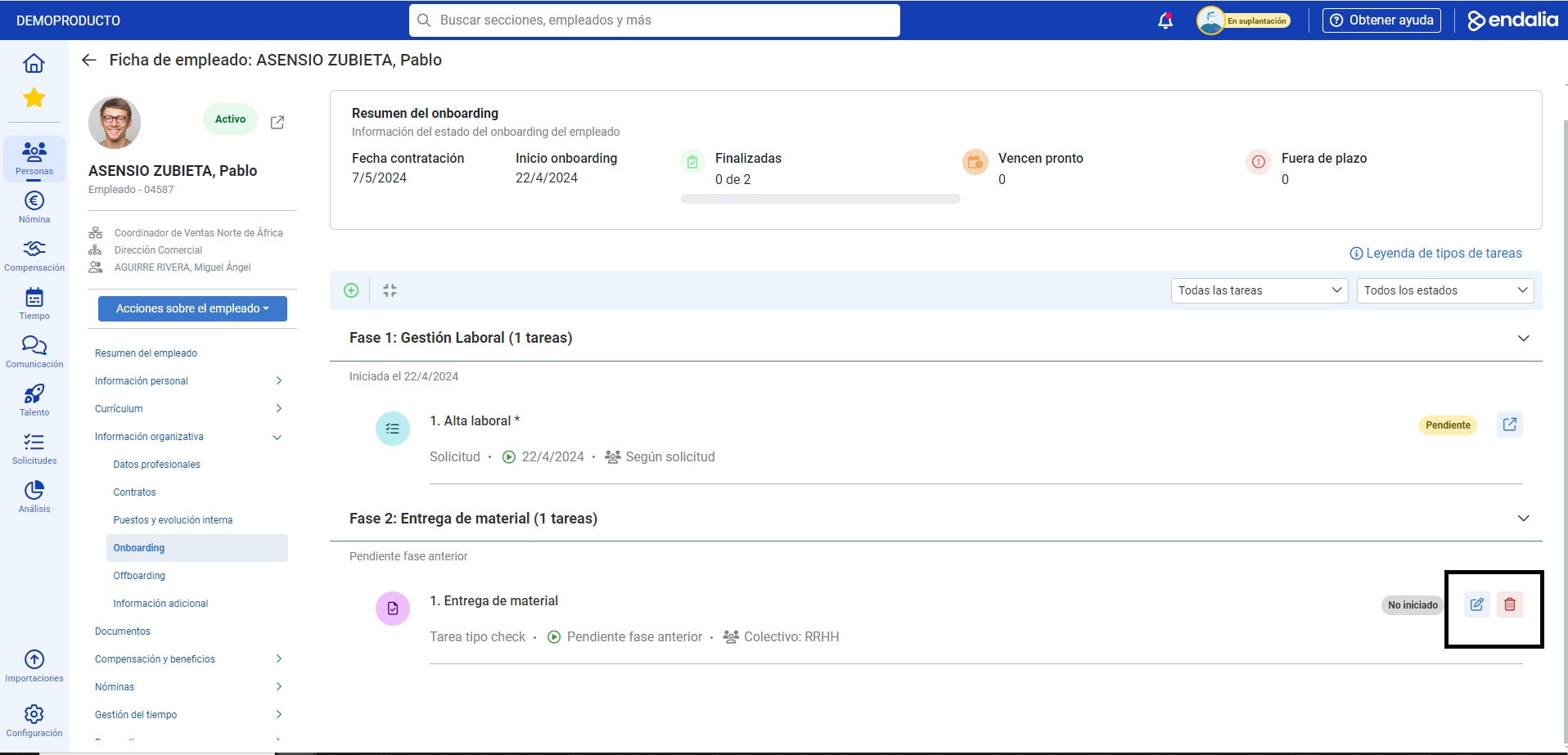
- Edit: task: tasks that are not yet started (i.e., that are in "Not Started" status) can be modified; to do this, click on the Edit button next to the task you wish to change; again, a side modal window will show you all the data related to the task; remember to click Save when you finish making changes to set your preferences:


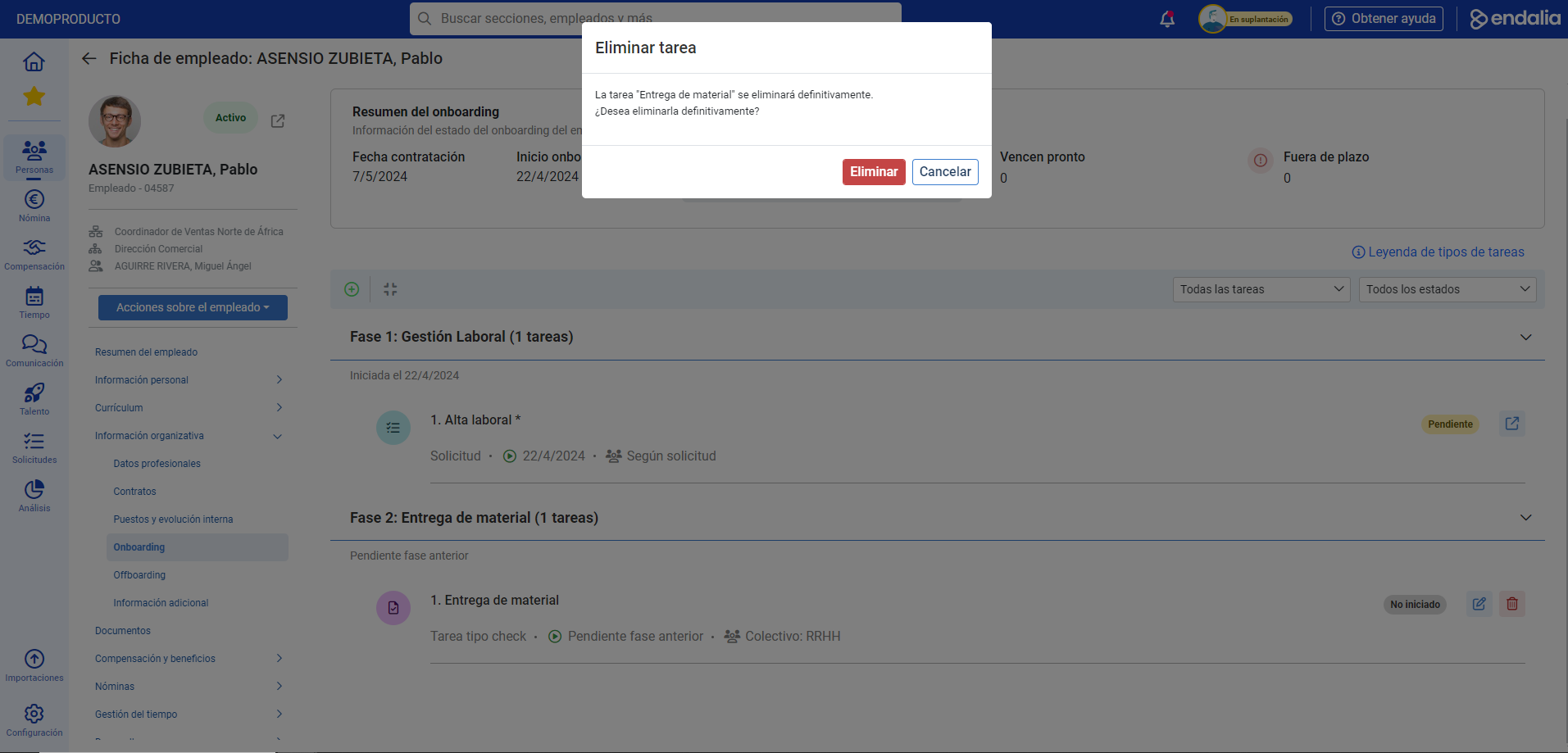
- Delete task: likewise, you can delete all tasks that are in "Not Started" status, using the same procedure. You will find the action button next to the Edit button. Click on it and, in the modal window, click on Delete, to consolidate this preference:
- Add task: the button in the toolbar allows you to carry out tasks like "check", "request" or "sign". Then, in the side modal window, fill in the mandatory (*) fields and any additional information you wish to include before clicking on Add, an action that will redirect you back to the employee's record with the new task already incorporated:
Want to know more? Check the following related articles:
- Actions on the employee - Associate a position
- Actions on the employee - Associate a company or a center
If you have questions about the terms, take a look at our glossary at this link.
Was this article helpful?
That’s Great!
Thank you for your feedback
Sorry! We couldn't be helpful
Thank you for your feedback
Feedback sent
We appreciate your effort and will try to fix the article