Important: this article is aimed at Endalia HR users with an Administrator profile.
In any company, expenses can have various origins. In this case, we address the three types offered by our software, which cover numerous options. Keep reading to learn more!
In this article:
- Add expense type - free, diet, and mileage
- And what if I want to delete an expense type?
- Process video
Add expense type - free, diet, and mileage
- Within the hubConfiguration, click on Expenses > Expense Types
- Click the Add button, found in the toolbar. The available options are: Add free expense type, Add diet type, and Add mileage type.
- In the modal window that appears next, fill in the pertinent fields (both with and without asterisk) and click on Add
Note: The common categories that appear in the different types of expenses are:

- Name
- Description
- Settlement form: It's the way an expense is paid. It can be through Payroll (expense payment is included in the employee's payroll, with its own concept), Remittance (directly to their bank account), Non-liquidatable (an expense is not paid by prior agreement), and Manual (the employee's disbursement is paid later in cash).

Other important concepts of this modal window are:

- Maximum limit: for free expenses, sets a specific expense limit to an amount or certain purchasing units.
- Taxable base: in free expenses, it's the amount on which taxes are calculated on an invoice. In Endalia, 4%, 10%, and 21% are offered by default.
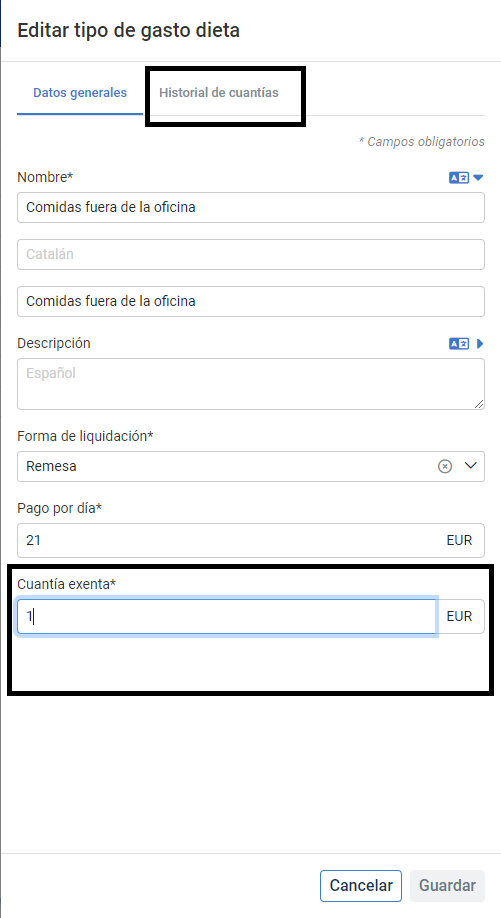
- Payment per day or per km: in diets and mileage, establishes the maximum amount to pay an employee for that timeframe/traveled distance.
- IRPF exempt amount: in diets and mileage. Also, you can see the history of added amounts:
And what if I want to delete an expense type?
By default, the software first offers the possibility to leave it in historical, instead of deleting it directly, for future references. This action also prevents selecting these types to add future expenses in new expense notes. To manage this action, click on the box corresponding to the selected expense, click on the Move to historical button, found in the toolbar, and then select Move to historical again.
To reverse the process, select Historical expense types in the toolbar filter, choose again the expense type from the list, and finally, click on the Move to active button. In this same location, you'll also find the Delete button to permanently remove the selected element. Always remember to confirm, within the emerging modal window and via the red-shaded button, to make your preferences effective.
Note: It's not possible to delete expense types associated with active expense notes.
Process video
Take a look at this short informative pill to see the various processes presented here:
Want to know more? Check out the following related articles:
If you're unsure about the terms, check out our glossary at this link.
Was this article helpful?
That’s Great!
Thank you for your feedback
Sorry! We couldn't be helpful
Thank you for your feedback
Feedback sent
We appreciate your effort and will try to fix the article