Important: To perform the actions described in this article, it is necessary to associate them with a flow and have previously created an expense typology.
This article is aimed at Endalia HR users with an Administrator profile.
To correctly manage an expense note, it is necessary to previously frame it in categories. If you want to know how, don't miss the tips we present to you below.
In this article:
Create an expense category
- Within the hub Configuration, go to Expenses > Categories
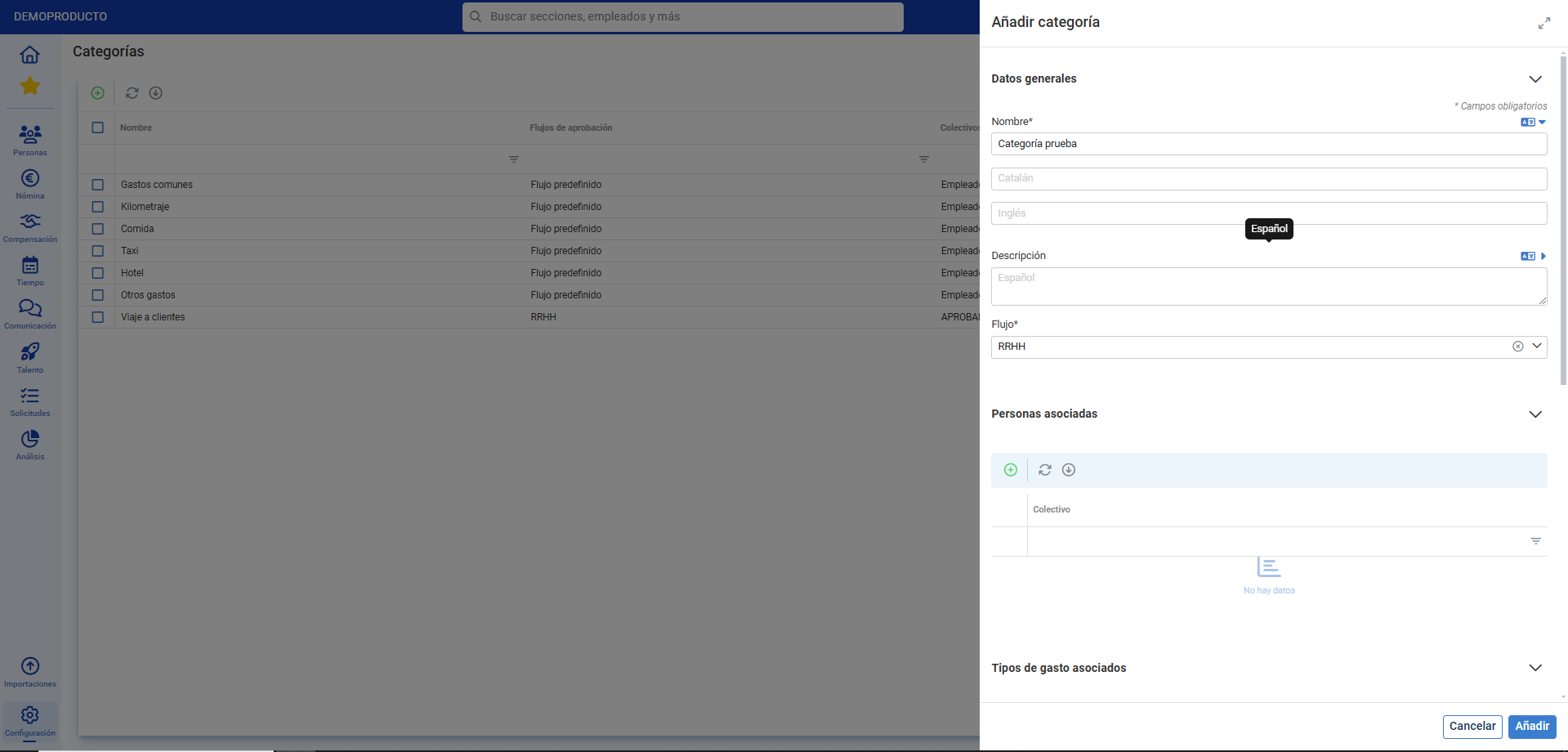
- On the next screen, click the Add button, which you will find on the toolbar.
- In the side modal window, you must complete at least the mandatory fields (*) to create a category. Among them, you will find: Name, Flow, Associated people (that is, the people who will be able to select the category when creating new expense notes, and who are associated with them through groups), and Associated expense types (free, diet, and mileage).
- Finally, click Add to save your changes:
Delete an expense category
By default, the software offers, firstly, the possibility to leave the category as historical, rather than directly deleting it, for future references. This action also prevents selecting these categories to add future expenses in new expense notes. To manage this action, click the box corresponding to the created category, press the Move to historical button, which you will find on the toolbar, and then select Move to historical again.
To reverse the process, select Historical Categories in the filter on the toolbar, choose the expense type from the list again, and finally, click the Move to active button. In this same location, you will also find the Delete button, to permanently remove the selected item. Always remember to confirm, within the pop-up modal window and with the button shaded in red, to make your preferences effective: 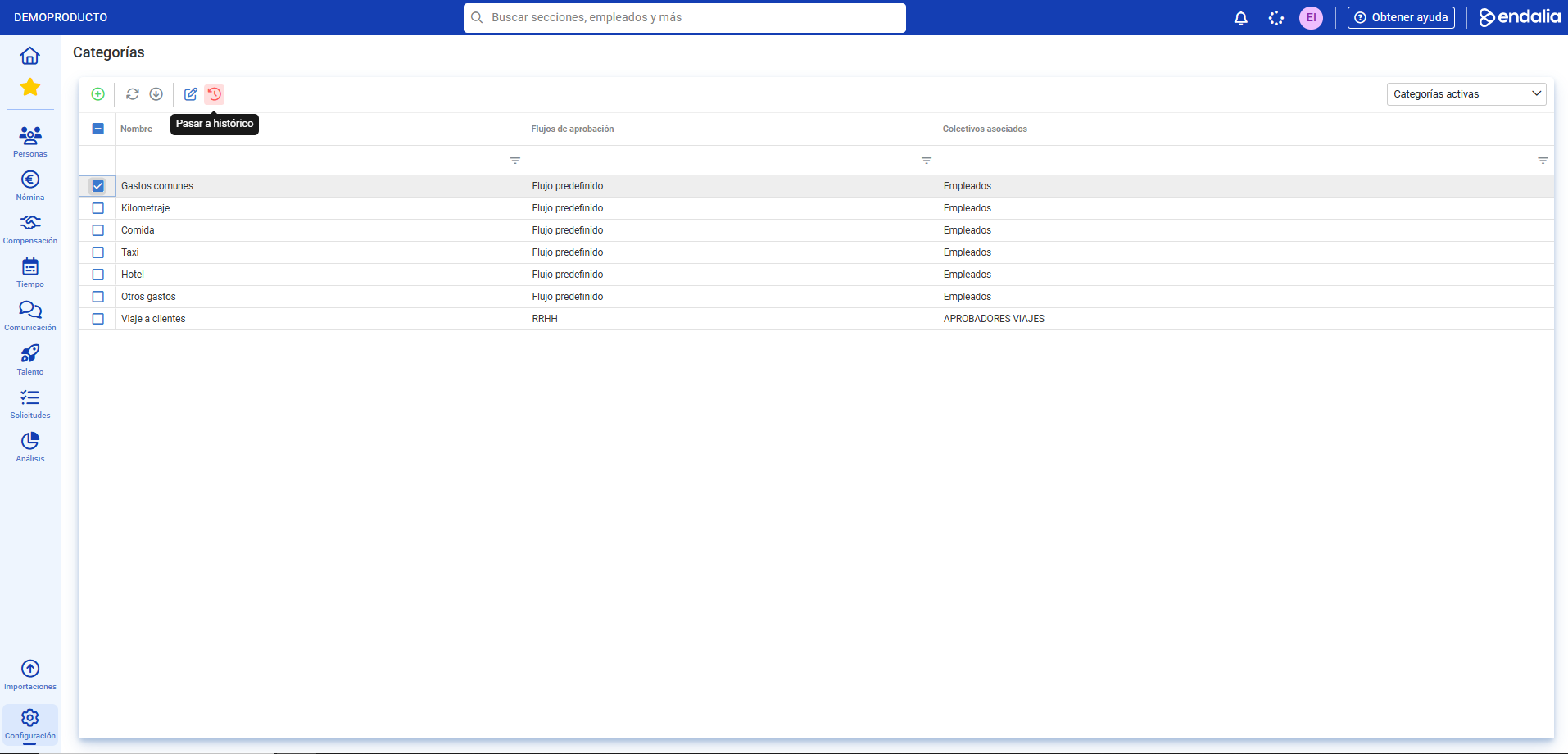
Note: It is not possible to delete categories that are associated with active expense notes.
Process video
We show it to you quickly:
We remind you that the following related articles are available to you:
If you have doubts with the terms, take a look at our glossary at this link
Was this article helpful?
That’s Great!
Thank you for your feedback
Sorry! We couldn't be helpful
Thank you for your feedback
Feedback sent
We appreciate your effort and will try to fix the article