Important: This article is intended for Endalia HR users with a "Responsable" profile.
In addition to the regular schedule, sometimes planning extra time is necessary, which must also be recorded. Take a look at this article to see all that this functionality offers.
Content of this article:
Requests for extending and compensating individual work hours
First, the employee must request authorization for the extension of work hours from Me > My records. Once registered through the established channels for this purpose, as an administrator, you can monitor the approval status and then proceed to compensation. In that case, the extension will be enjoyed through Vacations and Absences or will be included in payroll. The process of extensions is as follows:
Within the Time Management hub, click on Time Registration > My Team > Time Registration Monitoring > Extensions
- On the Extensions Requests screen, you have a wide variety of information available. The tabs, located at the top, show you the different statuses (Pending for me, from others, and all). . Each card or space intended for the employee has its own buttons, allowing you to Validate, Reject, Edit, or Delete a request for which you are responsible:

- Click each of the three buttons to perform the different actions; a message in the confirmation modal window will help you save your preferences, which will then be notified to the employee. Here you can see the example at hand, related to validating a work hour extension:

- Once validation is completed, you must proceed to compensation. Keep in mind that if there are multiple approvers, you must wait for all of them to validate in order to proceed to the next step, Compensate. The image above shows the example of first validation; that is, you can only validate because there are more people waiting to give their approval, and you must wait; but if the process advancement depends only on your validation, or you are the last approver of said process, the system will offer you the option of Validate and compensate:
 by default.
 - Now you can perform the second step, compensation. To do this, go to the next screen (redirected directly from Validate and Compensate, as you can see in this recent image, or by going, once validation is completed, to Time Management > Time Registration > My Team > Monitoring > Compensations). Once you are on the main screen (Compensation), you can see the list of pending and also validated compensations. Within the latter, select one or several at once and click the Validate button, which you will find on the toolbar. You can also choose a single compensation and edit it, using the button in the same mentioned location:
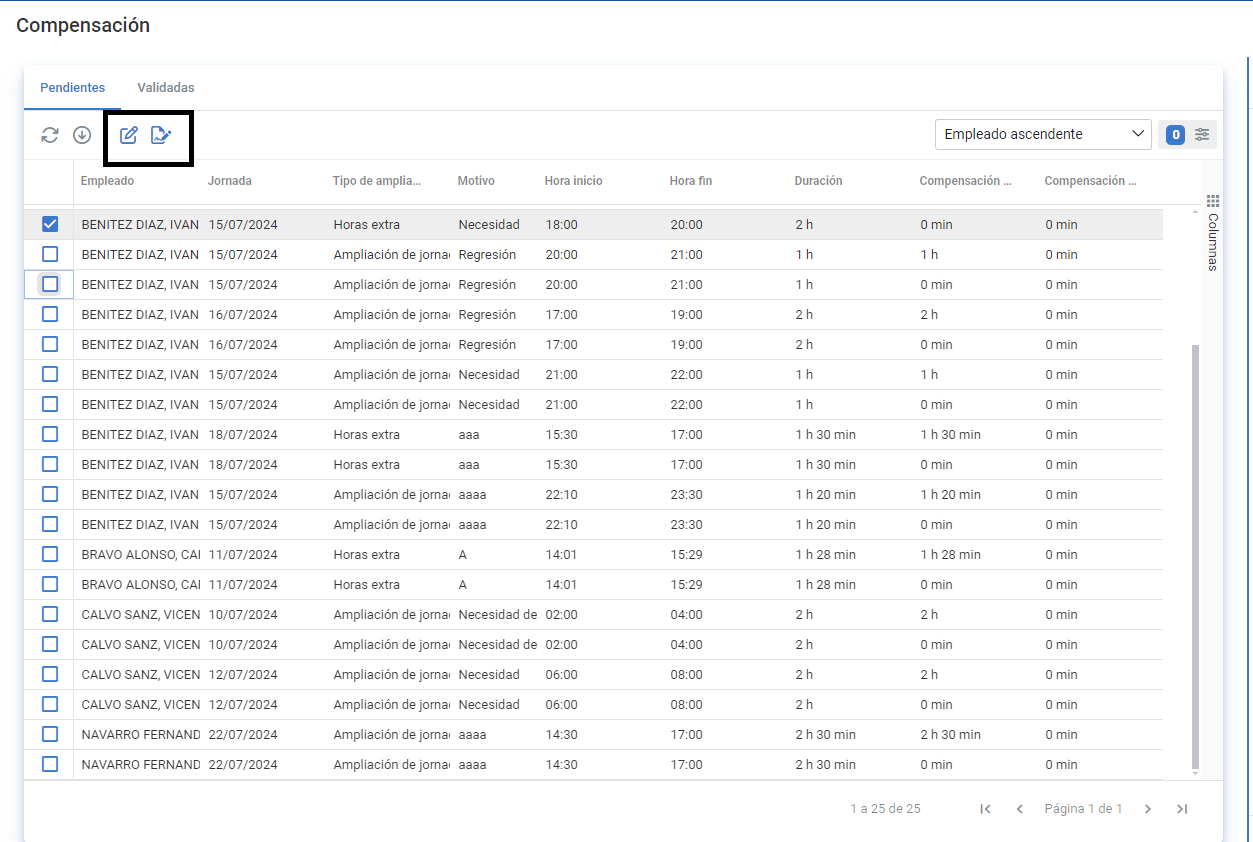
- If you choose the second option, Edit, individually, you will access the side modal window. Select the type of compensation and the hours (the time to be compensated does not have to be the same as the initial duration of the request). Finally, click Save, or Save and Validate, to finally consolidate your changes, which will be automatically transferred to the request holder:
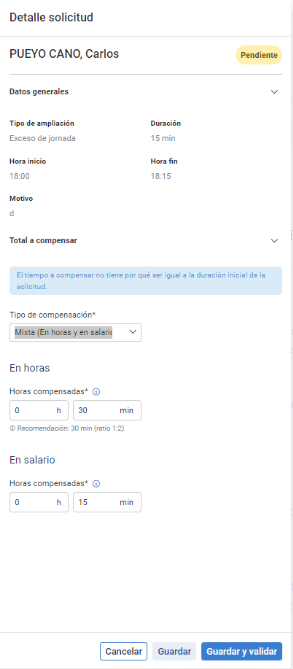
- Finally, click Save and Validate in the modal window to establish your preferences.
Note: In Settings > Time Registration > Extensions and Compensations, you can configure, if you have the necessary profiles, the different options for users, including the enabling of extensions and compensations, their approval flows, compensations, etc.
To know more, take a look at these related articles:
Additionally, you can consult our glossary, available in this link.
Was this article helpful?
That’s Great!
Thank you for your feedback
Sorry! We couldn't be helpful
Thank you for your feedback
Feedback sent
We appreciate your effort and will try to fix the article