Important: this article is aimed at Endalia HR users with an Administrator profile.
In every company, the salary review is an important factor when evaluating employee performance. Take a look at this short text, which will provide the help you need to develop this interesting functionality.
In this article:
Modify salaries/salary concepts for employees
Within the hub Compensation and benefits, go to Compensation > Salary Review
This new screen, Salary Review, shows you charts with different concepts, such as the spent and remaining budget, the percentage of employees with salary increases, etc.; this will allow you to have a clear view of all salary data related to different departments:
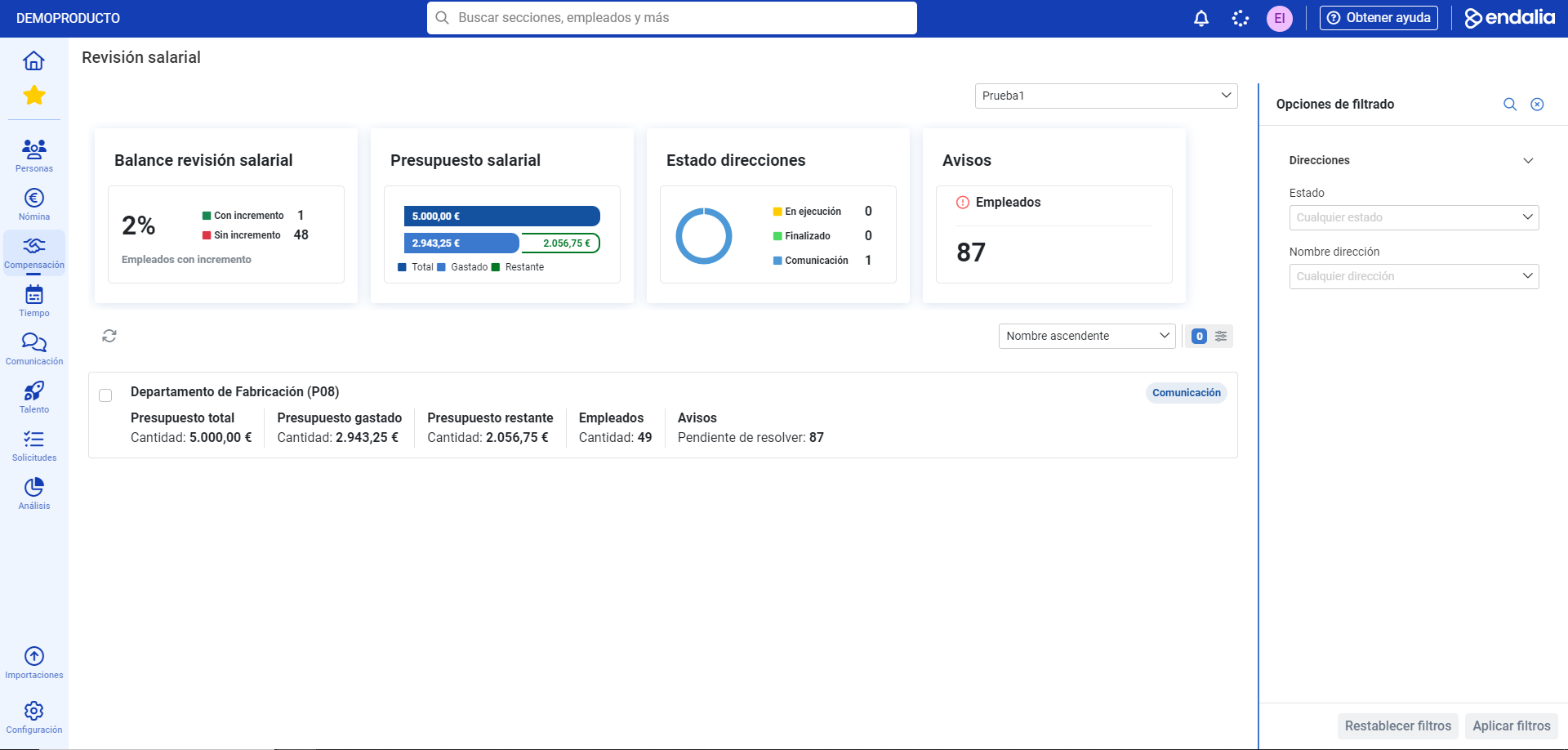
To modify salaries, click on the box corresponding to one of the departments and click the Edit button, which you will find on the toolbar:
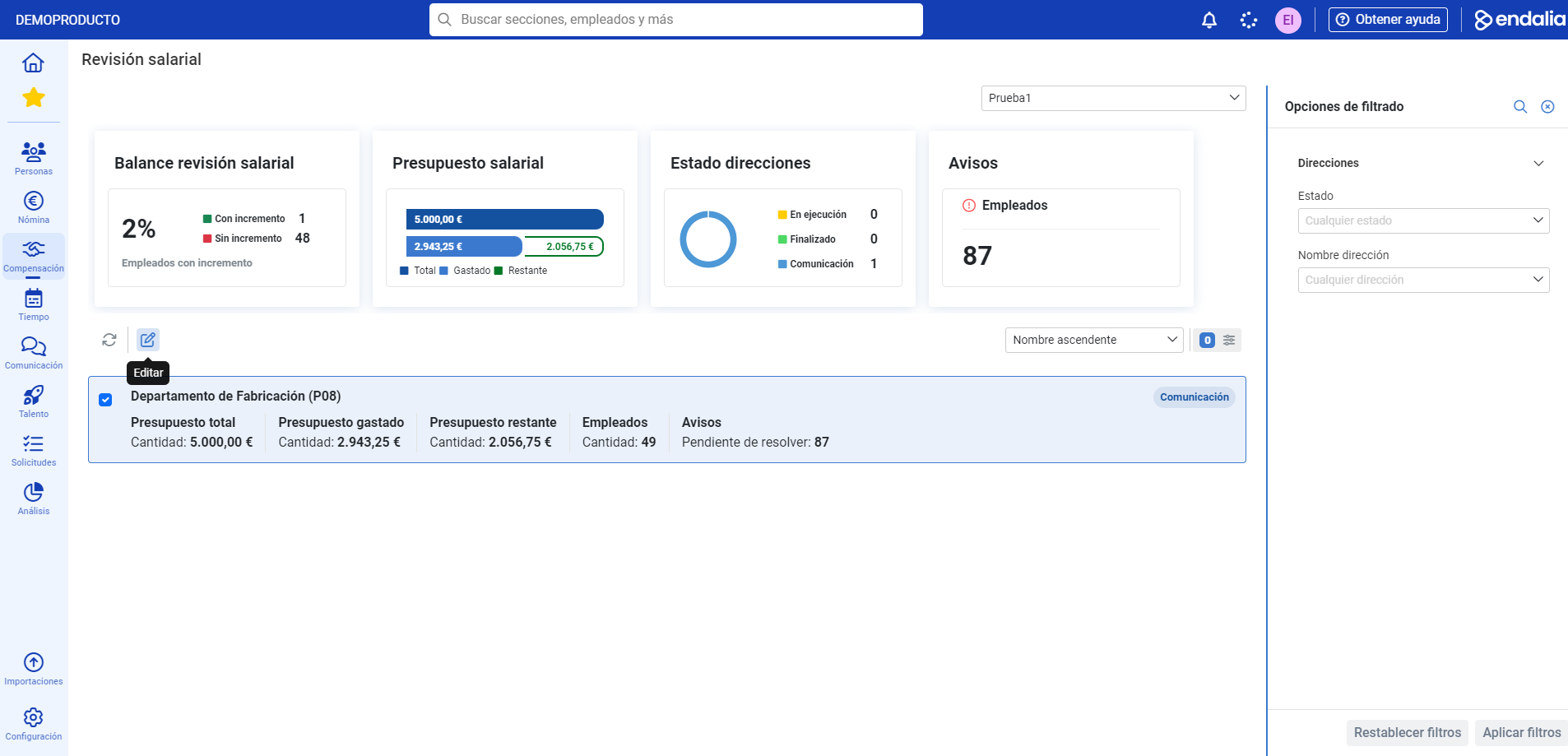
On the next screen, select an employee from the list corresponding to the department and again click on Edit
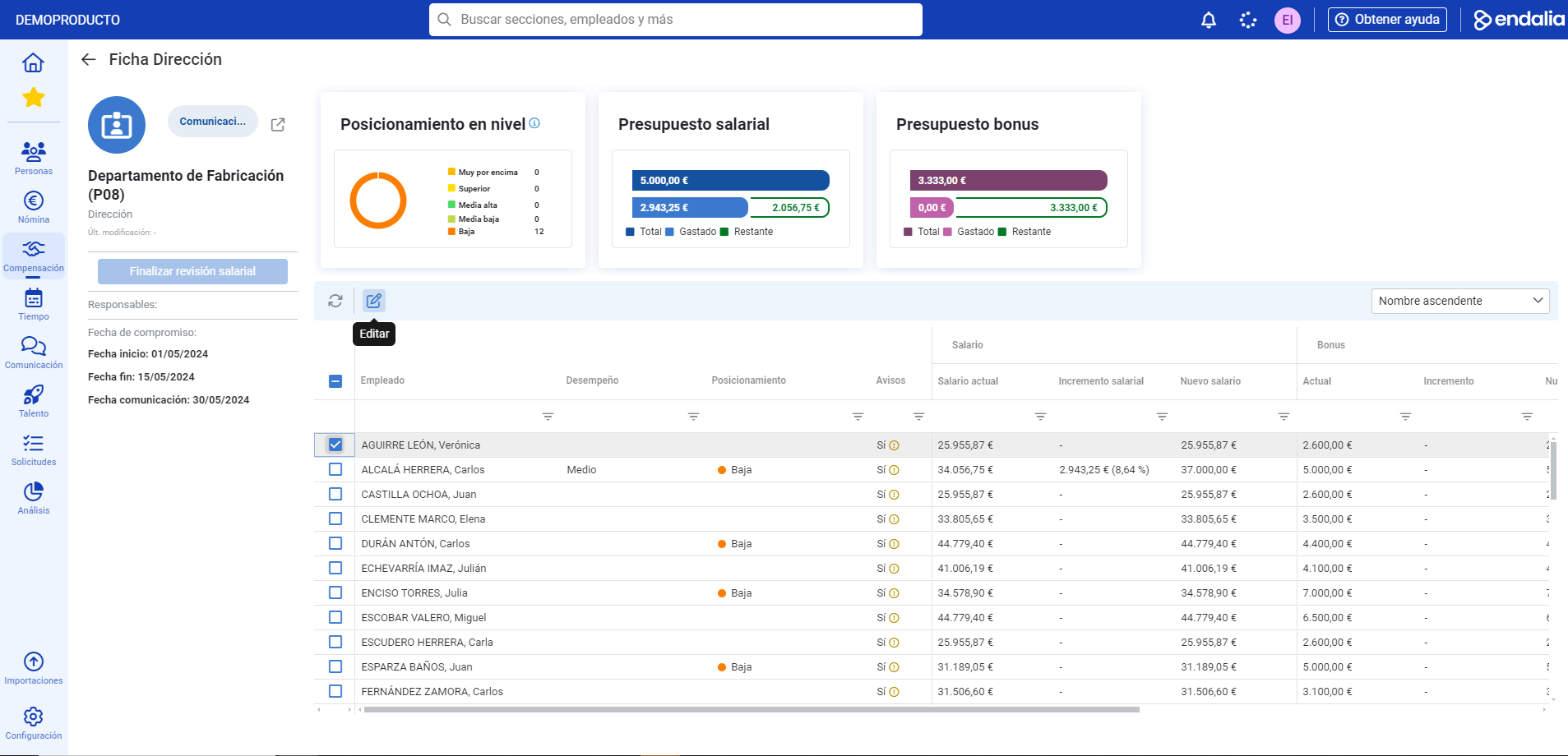
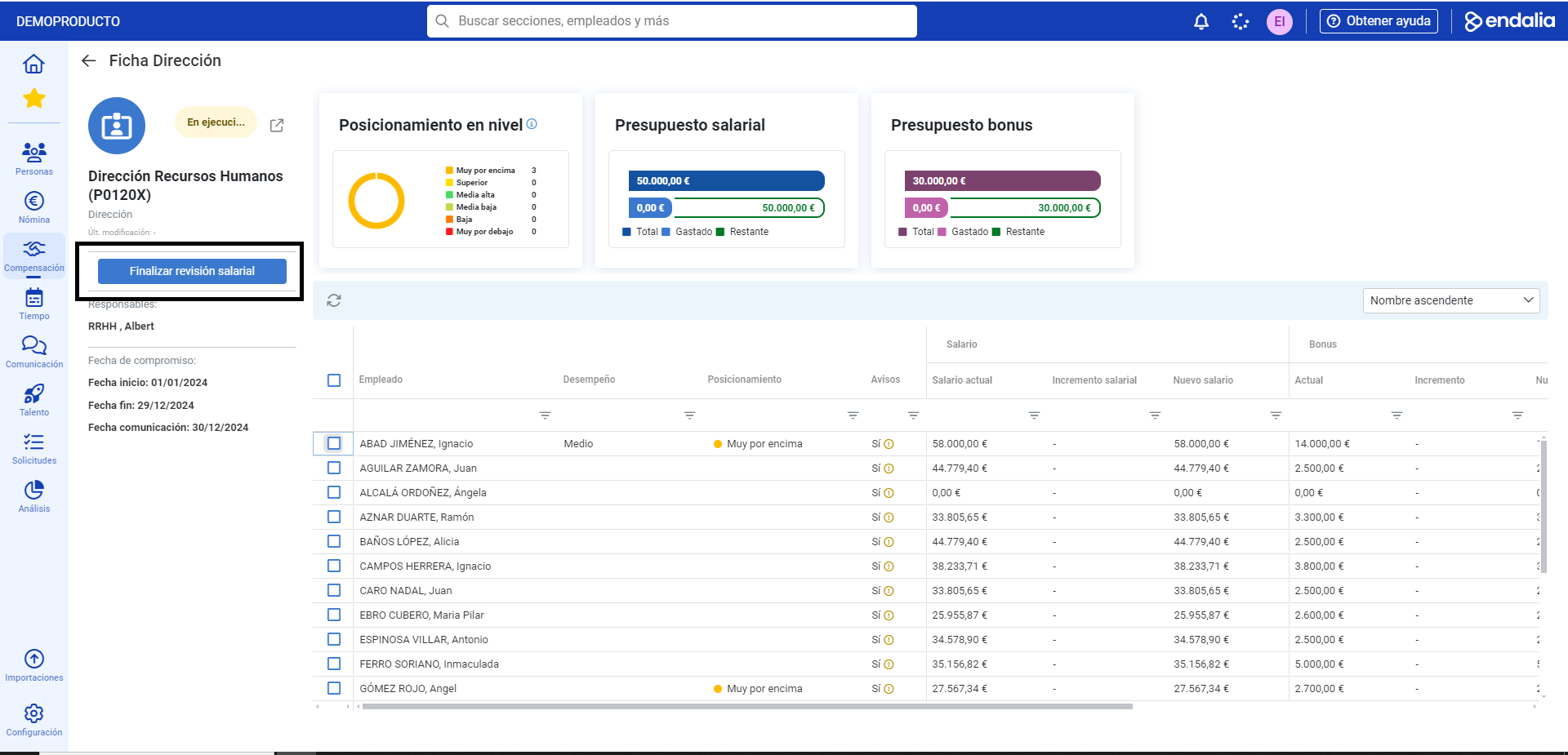
In the side modal window that appears next, modify the various fields related to the worker, such as Evaluation Result, Bonus, Objectives, etc. Finally, click on Save to make your preferences effective. Similarly, remember to click on the Finalize salary review button, on the Direction sheet screen, to update the entire process:
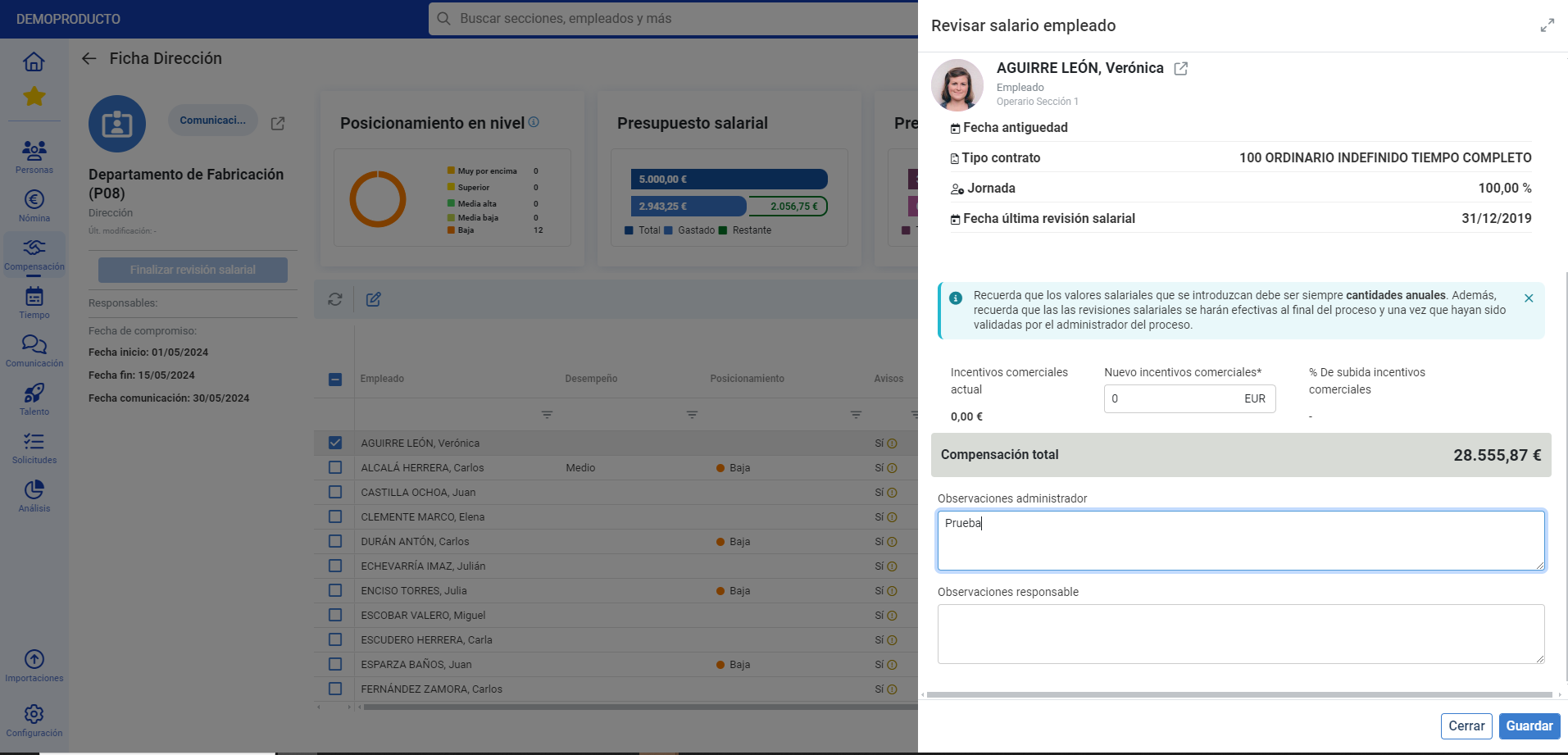
Note: remember that salary reviews will become effective at the end of the process, once validated by the administrator responsible for it.
Process video
Not sure? We explain it here, very briefly:
In addition, the following related articles are at your disposal:
Still have questions? Check out our glossary at this link.
Was this article helpful?
That’s Great!
Thank you for your feedback
Sorry! We couldn't be helpful
Thank you for your feedback
Feedback sent
We appreciate your effort and will try to fix the article